AEO for WordPress: A Step-by-Step Setup Guide
A practical, step-by-step guide to answer engine optimization on WordPress: AI crawler access, schema, speed, content structure, author pages, plugins and measurement, so ChatGPT, Gemini, Perplexity and Google AI can find and cite your site.
On this page
- Key takeaways
- Why WordPress is a good starting point for AEO
- Step 1: Check AI crawler access
- Step 2: Make pages fast and readable
- Step 3: Set up your SEO plugin properly
- Step 4: Add the right schema
- Step 5: Build author and about pages that prove expertise
- Step 6: Structure content with blocks for AI
- Step 7: Organise your site into topic clusters
- Step 8: Keep business facts consistent
- Step 9: Keep content fresh
- Step 10: Connect Search Console and Bing Webmaster Tools
- Step 11: Track AI referral traffic in GA4
- Step 12: Track AI visibility with prompts
- Should you add an llms.txt file?
- WordPress plugins that help with AEO
- WordPress AEO for WooCommerce stores
- Common WordPress AEO mistakes
- A WordPress AEO checklist
- How long does WordPress AEO setup take?
- WordPress AEO for local businesses
- WordPress AEO for multilingual sites
- Testing your WordPress AEO setup
- How Digital Tatva can help
- Frequently asked questions
Last updated: 13 November 2026
Quick answer: AEO for WordPress means configuring your WordPress site so AI assistants like ChatGPT, Gemini, Perplexity, Copilot, Claude and Google AI Overviews can access, understand and cite it. The core steps are: allow AI search crawlers in robots.txt and your security plugins, make pages fast and server-rendered, add accurate schema through your SEO plugin, create proper author and about pages, structure posts with answer-first sections, tables and FAQs, keep business facts consistent, and track AI visibility and AI referral traffic. WordPress handles most of this well out of the box; the work is mostly configuration and content discipline.
Key takeaways
- WordPress outputs server-rendered HTML by default, which is a real advantage for AI crawlers.
- Security and caching plugins can accidentally block AI bots. Check them first.
- Your SEO plugin can handle most schema, but Organization and author details need careful setup.
- Heavy page builders and sliders can hide content and slow pages; keep important text in plain HTML.
- Gutenberg blocks make answer-first structure easy: headings, lists, tables and details blocks.
- Measure with Search Console, Bing Webmaster Tools, GA4 and monthly prompt tracking.
Why WordPress is a good starting point for AEO
WordPress powers a large share of the web, from small business sites to major publishers. For AEO, it has several built-in strengths:
- Server-rendered HTML. Standard WordPress themes send complete HTML to the browser, so crawlers that do not run JavaScript can still read your content.
- Clean content structure. The block editor produces proper headings, lists and tables.
- Mature SEO plugins. Yoast SEO, Rank Math, All in One SEO and SEOPress handle sitemaps, meta tags and schema.
- Author and taxonomy support. Built-in author archives, categories and tags support clear site structure.
- Flexibility. You can control robots.txt, headers, caching and markup.
The risks come mostly from plugins and themes that add bloat, hide content behind scripts or block bots. This guide walks through the setup in the order that delivers the most value fastest. For the general principles behind it, see our technical AEO checklist.
Step 1: Check AI crawler access
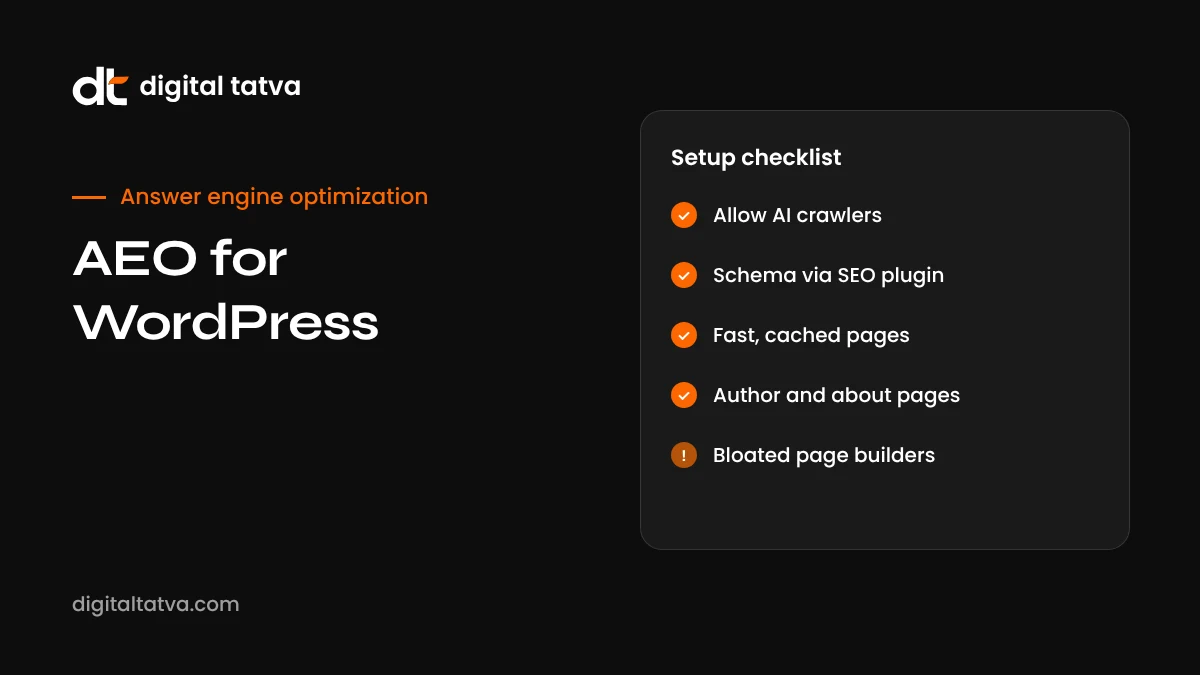
Nothing else matters if AI crawlers cannot reach your site. On WordPress, access can be blocked in four places.
| Where | What to check | How |
|---|---|---|
| robots.txt | Rules for GPTBot, OAI-SearchBot, ChatGPT-User, PerplexityBot, Claude bots, Google-Extended, Bingbot | Visit yoursite.com/robots.txt; edit via your SEO plugin’s file editor or a physical file |
| Security plugins | Bot blocking, rate limiting, country blocking | Review settings in Wordfence, Sucuri, iThemes Security or similar |
| CDN and firewall | Bot fight modes and challenge pages | Check Cloudflare or your host’s firewall rules and logs |
| Hosting | Server-level bot blocking or aggressive rate limits | Ask your host or check the control panel |
A common situation is a robots.txt rule written to block AI training that also blocks AI search. You can opt out of training while staying visible in search by allowing search and user-fetch bots and disallowing only training bots. Our guides to AI crawlers, robots.txt for AI crawlers and opting out of AI training have ready-made examples.
Our free AI visibility checker can test the main AI crawlers against your site in under a minute.
Step 2: Make pages fast and readable
AI systems often fetch pages under tight time limits, and several AI crawlers do not run JavaScript. On WordPress, speed and readability come down to a few choices.
Caching
Use a reliable caching plugin or host-level caching. Page caching dramatically reduces load times for crawlers and visitors. Make sure the cache does not serve different, broken versions to bots.
Theme and page builders
Lightweight themes and the native block editor produce lean HTML. Heavy page builders can add large amounts of code, and some place text inside elements that only render properly with JavaScript. Check what a crawler sees by viewing the page source: if your main text is visible in the source, you are fine.
Images
Compress images, use modern formats like WebP, and set width and height to avoid layout shifts. Never put important text only inside images.
Scripts
Review plugins that add front-end scripts. Remove ones you do not need, and defer or delay non-critical scripts.
Our guide to JavaScript rendering and AI crawlers explains how to test what bots see. For plugin recommendations, see the best AI WordPress plugins.
Step 3: Set up your SEO plugin properly
Your SEO plugin is the control centre for much of your AEO setup. Whichever plugin you use, check these settings:
| Setting | What to do | Why it matters for AEO |
|---|---|---|
| Organization or Person details | Enter exact business name, logo, and social profile URLs | Feeds Organization schema and sameAs links that define your entity |
| XML sitemaps | Enable, and submit to Google and Bing | Helps discovery; accurate last-modified dates help freshness |
| Indexing settings | Noindex thin archives, tag pages and attachment pages where appropriate | Keeps your index focused on useful pages |
| Breadcrumbs | Enable on posts | Clarifies site structure for people and machines |
| Article schema | Make sure posts output Article or BlogPosting schema with author and dates | Gives clear authorship and freshness signals |
| Titles and meta descriptions | Write clear, specific titles and descriptions | Helps rankings and click-through, which feed AI retrieval |
Step 4: Add the right schema
Schema markup tells machines what your content is. WordPress SEO plugins add a lot automatically, but you may need to add or refine some types.
| Schema type | Where to use it | How on WordPress |
|---|---|---|
| Organization or LocalBusiness | Site-wide | SEO plugin settings; LocalBusiness may need a local SEO add-on or custom JSON-LD |
| Person | Author pages | SEO plugin author settings; add sameAs links to LinkedIn and other profiles |
| Article or BlogPosting | Blog posts | Usually automatic |
| FAQPage | Pages with FAQ sections | FAQ blocks in some SEO plugins, or custom JSON-LD |
| Product and Offer | Product pages | WooCommerce plus your SEO plugin |
| Service | Service pages | Custom JSON-LD or schema plugins |
| BreadcrumbList | Posts and pages | Usually automatic with breadcrumbs enabled |
Google has limited where FAQ rich results appear in search, but FAQ schema can still help machines understand question-and-answer content. Validate everything with Google’s Rich Results Test and the Schema Markup Validator. For more detail, see schema markup for AEO and our list of the best schema markup tools.
Step 5: Build author and about pages that prove expertise
AI systems prefer sources they can trust. On WordPress, two pages carry much of that weight.
Author pages
- Use real user accounts for real authors, not a generic “admin”.
- Fill in each author’s biography with role, experience and areas of expertise.
- Add a profile photo and links to LinkedIn and other professional profiles.
- Customise the author archive template if needed so it shows a full bio, not just a list of posts.
- Make sure Person schema on author pages includes name, job title and sameAs links.
About page
- State clearly what the business does, who it serves, where it is based and when it started.
- Introduce the team with names, roles and photos.
- Include contact details and, where relevant, registration or licence information.
- Link to your main profiles and notable coverage.
See author pages for AEO and E-E-A-T for AI search.
Step 6: Structure content with blocks for AI
The WordPress block editor makes answer-first, chunked content easy. A reusable structure for posts and pages:
- Quick answer: a paragraph or group block near the top that answers the main question in two to four sentences.
- Key takeaways: a list block with five or six bullet points.
- Question-style H2 headings: each section answers one question, starting with a direct answer.
- Table blocks for comparisons, prices and specs.
- List blocks for steps and options.
- FAQ section at the end, using H3 questions with short answers, or an FAQ block.
Save this as a reusable pattern so every writer starts with the right structure. Avoid placing important answers inside accordions or tabs that only work with JavaScript; the core details block in WordPress outputs content in the HTML, which is generally safe, but some third-party accordion plugins are not.
Read answer-first content and content chunking for AI for writing guidance.
Step 7: Organise your site into topic clusters
WordPress categories, tags and internal links help you build topical authority.
- Categories: use a small number of clear categories that match your main topics.
- Pillar pages: create a comprehensive guide for each main topic, often as a page rather than a post.
- Internal links: link supporting posts to the pillar and to each other with descriptive anchors.
- Tags: use sparingly; thin tag archives can be noindexed.
- Related posts: a related posts block or plugin helps, but manual contextual links matter more.
See topical authority in AI search and internal linking for AEO.
Step 8: Keep business facts consistent
AI assistants get confused when your business details differ between your site and other profiles. On WordPress, these facts often live in several places: the footer, contact page, about page, schema settings and widgets. Check that they all match your Google Business Profile, LinkedIn and directory listings. A single source of truth, such as a “company facts” page or a reusable block for contact details, makes this easier to maintain. See entity SEO for AEO.
Step 9: Keep content fresh
Freshness matters for AI answers about anything that changes. On WordPress:
- Show a visible “last updated” date on posts, and update it only when you make real changes.
- Make sure your sitemap reflects genuine modification dates.
- Schedule regular reviews of your most important pages.
- Use revisions to track what changed and when.
Our content refresh guide for AEO gives a simple routine.
Step 10: Connect Search Console and Bing Webmaster Tools
Both tools give you data that matters for AEO.
- Google Search Console reports clicks and impressions, including searches where AI features appear, plus indexing and enhancement reports. See the Search Console AI performance report.
- Bing Webmaster Tools includes an AI Performance report showing citations of your pages in Copilot and Bing AI answers, along with grounding queries. It also supports IndexNow for faster indexing.
Most WordPress SEO plugins can add verification codes for both. Some also support IndexNow directly, which notifies Bing and other participating engines when content changes. See Bing AI Mode and Copilot SEO.
Step 11: Track AI referral traffic in GA4
Install GA4 using your SEO plugin, Site Kit by Google or a tag manager. Then create a custom channel group or segment for AI referrals from sources such as chatgpt.com, perplexity.ai, gemini.google.com, copilot.microsoft.com and claude.ai. This shows how many visitors AI assistants send and whether they convert. See tracking AI traffic in GA4.
Step 12: Track AI visibility with prompts
Analytics only shows visitors who click. To see whether AI assistants mention you at all, build a list of 20 to 50 buyer questions and test them monthly across ChatGPT, Gemini, Perplexity, Copilot, Claude and Google AI Mode. Record mentions, citations and how you are described. See tracking brand mentions in ChatGPT and AI share of voice.
Should you add an llms.txt file?
Some WordPress plugins now generate an llms.txt file, a proposed standard for giving AI systems a summary of your site. It is harmless to add, but there is no clear evidence that major AI search products rely on it today. Treat it as a nice-to-have after the fundamentals above, not as a strategy. See llms.txt for AEO.
WordPress plugins that help with AEO
| Need | Plugin type | Notes |
|---|---|---|
| Meta tags, sitemaps, schema | SEO plugin (Yoast SEO, Rank Math, AIOSEO, SEOPress) | Choose one; do not run two together |
| Speed | Caching and optimisation plugin, or host-level caching | Test that bots receive full HTML |
| Image optimisation | Compression and WebP conversion | Keep alt text descriptive |
| Analytics | Site Kit by Google or a tag manager plugin | Set up AI referral segments in GA4 |
| Security | Firewall plugin | Allowlist legitimate AI and search crawlers |
| Indexing | IndexNow support | Faster discovery in Bing and partners |
Keep your plugin list lean. Every extra plugin adds maintenance, potential conflicts and often extra code on the front end.
WordPress AEO for WooCommerce stores
If you run WooCommerce, product pages need extra attention:
- Write detailed product descriptions with specifications in text and tables.
- Make sure Product schema includes price, currency, availability, brand and reviews.
- Show shipping and return policies clearly, ideally in schema too.
- Keep category pages useful with short buying guides and comparison tables.
- Connect your product feed to Google Merchant Center and keep prices in sync.
See AEO for ecommerce and ChatGPT shopping optimization.
Common WordPress AEO mistakes
- Security plugins blocking AI bots without anyone noticing.
- Two SEO plugins running at once, producing duplicate or conflicting schema.
- “Admin” as the author on every post.
- Page builders hiding text in sliders, tabs or JavaScript widgets.
- Thin category and tag archives indexed without useful content.
- Outdated contact details in the footer or widgets.
- Never updating old posts while prices and products change.
A WordPress AEO checklist
- Test AI crawler access with robots.txt review and a crawler checker.
- Check security plugin, CDN and host settings for bot blocking.
- Confirm main content appears in the page source, not only after JavaScript.
- Configure Organization details and social profiles in your SEO plugin.
- Set up author profiles with bios, photos and sameAs links.
- Rewrite your about page with specific, consistent facts.
- Create a reusable block pattern for answer-first posts.
- Add FAQ sections to key pages and validate schema.
- Build pillar pages and link clusters together.
- Submit sitemaps to Google and Bing; enable IndexNow.
- Set up GA4 AI referral tracking.
- Run a monthly AI prompt check and refresh key pages quarterly.
How long does WordPress AEO setup take?
For a typical small business site, the technical setup in steps 1 to 4 can often be done in a day or two. Author pages, about page and content templates take a few more days. Restructuring your most important pages is usually a few weeks of steady work. Building authority through mentions and reviews takes months. Our guide on how long AEO takes sets realistic expectations.
WordPress AEO for local businesses
Many local businesses run on WordPress. If that is you, a few extra steps make a big difference in local AI answers:
- LocalBusiness schema: add your exact business type, address, geo-coordinates, opening hours, phone and price range.
- Location pages: one page per location or service area, with unique content about that area, directions, parking and local reviews.
- Embedded map: a Google Map on the contact or location page, alongside the address in text.
- Consistent NAP: name, address and phone identical to your Google Business Profile.
- Service pages: one page per main service, with prices or ranges and FAQs.
Local AI answers lean heavily on Google Business Profile and reviews, but your WordPress site confirms and expands those details. See AEO for local businesses.
WordPress AEO for multilingual sites
If you publish in more than one language using a plugin such as WPML, Polylang or TranslatePress, check that:
- Each language version has its own URL and is indexable.
- hreflang tags are output correctly.
- Schema is translated or language-appropriate.
- Machine translations are reviewed by a fluent speaker, especially headings and answer-first openings.
See multilingual AEO for a full guide.
Testing your WordPress AEO setup
After setup, run these quick tests to confirm everything works:
| Test | How | Pass looks like |
|---|---|---|
| Crawler access | AI visibility checker or server logs | AI search bots receive 200 responses |
| Rendering | View page source on key pages | Main text visible without JavaScript |
| Schema | Rich Results Test and Schema Markup Validator | No errors; correct types detected |
| Speed | PageSpeed Insights | Fast load on mobile, good Core Web Vitals |
| AI reading | Paste a URL into ChatGPT or Claude and ask what the page says | Accurate summary of your content |
| Indexing | Search Console and Bing Webmaster Tools | Key pages indexed |
How Digital Tatva can help
We work with WordPress sites every day, including this one. We audit AI crawler access, plugin settings, schema, speed and content structure, then fix the issues in priority order and set up measurement so you can see what changes. We also help restructure key pages for AI retrieval and build the authority that drives recommendations. We cannot guarantee placement in any AI answer, but we can make sure your WordPress site gives AI assistants every reason to use it.
Want a WordPress AEO review? Request an AEO audit for a full technical and content review, or test AI crawler access now with our free AI visibility checker.
Frequently asked questions
Is WordPress good for AEO?
Yes. WordPress outputs server-rendered HTML, has strong SEO plugins and supports clear content structure. Most AEO problems on WordPress come from plugin or theme settings, which can be fixed.
Which WordPress SEO plugin is best for AEO?
Yoast SEO, Rank Math, All in One SEO and SEOPress all handle the essentials. The best choice is the one you configure fully and consistently. Do not run two at once.
How do I allow AI crawlers on WordPress?
Edit robots.txt through your SEO plugin or a physical file to allow AI search crawlers, then check security plugins, your CDN and your host for bot blocking.
Do I need a special plugin for AEO?
No single plugin does AEO. The work is configuration, schema, content structure and authority building. A good SEO plugin plus careful setup covers most technical needs.
Does Gutenberg help with AEO?
Yes. The block editor produces clean headings, lists and tables, which make content easier for AI systems to read and quote.
Should I add llms.txt to my WordPress site?
It is optional and low risk, but there is no clear evidence that major AI search products rely on it. Focus on crawler access, content and authority first.
Can page builders hurt AI visibility?
They can, if they add heavy code or hide content behind JavaScript. Check that your main text appears in the page source.
Can Digital Tatva set up AEO on our WordPress site?
Yes. We audit and configure WordPress sites for AEO, from crawler access and schema to content structure and tracking.
Does WordPress block AI crawlers by default?
No, but some security plugins and hosting firewalls do. Check your robots.txt and security settings.
Product details, prices and features are checked at the time of writing and can change. Sources are linked in the text so you can check them yourself.
How does your brand appear in AI answers?
We test the questions your buyers ask across the major AI assistants and search engines, then show you what to fix first.
Get an AI Visibility Audit