Search Console’s Generative AI Performance Report: What It Shows, What It Hides and How to Use It
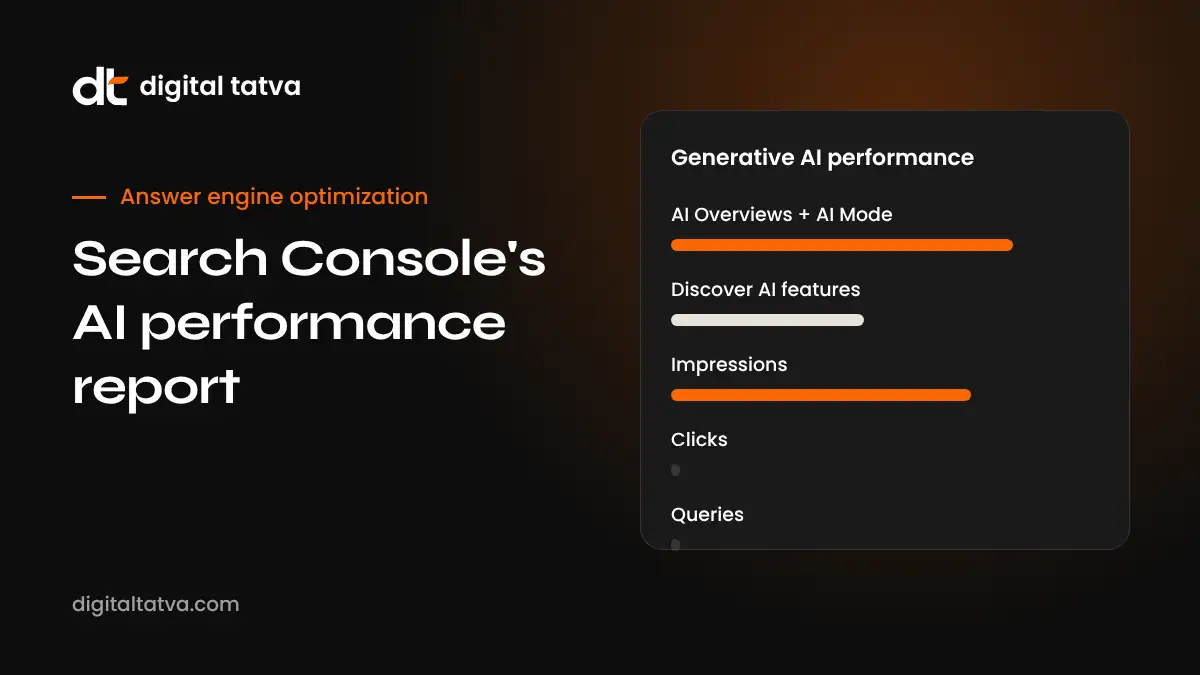
Google Search Console now has a Generative AI features performance report. It shows impressions from AI Overviews, AI Mode and Discover AI features, but no clicks, positions or queries. Here is how to read it, what to compare it with and how to report it honestly.
On this page
- Key takeaways
- Why this report matters
- What the report includes
- What an “impression” means here
- How to find and filter the report
- Five practical ways to use it
- What the report cannot tell you
- The UK context and the opt-out toggle
- Building an AI visibility dashboard with this data
- A monthly routine for the report
- How to improve AI feature impressions
- Example: reading the report for a service business
- How it compares with other data sources
- Common misreadings
- What to ask your SEO or AEO provider
- Where this is heading
- Setting up a page group view for AEO
- Reading trends after Google updates
- Explaining the report to non-specialists
- Checklist before you rely on the numbers
- Frequently asked questions
- Sources
Last updated: 4 November 2026
Quick answer: Google Search Console’s Generative AI features performance report, launched in beta on 3 June 2026, shows how often your pages appeared in Google’s AI features. It counts impressions for AI Overviews and AI Mode together (they cannot be separated) and for AI features in Discover. You can filter by page, country, device and date. It does not show clicks, click-through rate, position or the queries that triggered the impression, and Google has suggested clicks and queries are unlikely to be added. Use it as a visibility signal for which pages Google’s AI is using, then pair it with GA4 and your own prompt tracking for the full picture.
Key takeaways
- The report is the first first-party data Google gives site owners about AI feature visibility.
- It shows impressions only. There are no clicks, positions, CTR or query data.
- AI Overviews and AI Mode are combined into one number. Discover AI features are reported separately.
- Rollout began with a subset of UK site owners, linked to requirements from the UK Competition and Markets Authority.
- The most useful views are by page and by date: which pages Google’s AI uses, and how that changes after updates.
Why this report matters
Since AI Overviews launched, site owners have had a frustrating gap. Clicks from AI features were mixed into normal web search data in the Performance report. You could see that impressions were rising and clicks falling, a pattern often discussed under zero-click search, but you could not see which part came from AI features. Third-party tools filled the gap with estimates and tracked prompts, but none of them had Google’s own numbers.
The Generative AI features performance report is the first time Google shows site owners, in its own data, how often their pages appear in its AI features. It is limited, and those limits matter, but it changes how you can talk about AI visibility. Instead of “we think Google’s AI is using our pages”, you can say “Search Console shows our pricing page appeared in AI features this many times last month”.
What the report includes
| Element | Included? | Notes |
|---|---|---|
| AI Overviews impressions | Yes | Combined with AI Mode in a single figure |
| AI Mode impressions | Yes | Cannot be separated from AI Overviews |
| Discover AI features impressions | Yes | Reported separately from Search |
| Filter by page | Yes | The most useful filter for AEO work |
| Filter by country | Yes | Useful for international sites |
| Filter by device | Yes | Mobile, desktop, tablet |
| Date range | Yes | Compare periods before and after changes |
| Clicks | No | Google has implied this is unlikely to change |
| Click-through rate | No | Not available without clicks |
| Average position | No | Position inside an AI answer is not reported |
| Queries | No | You cannot see which searches triggered the impression |
Google’s Gary Illyes has suggested that clicks and queries are unlikely to appear in this report. It is safer to plan your reporting around impressions-only data than to wait for more.
What an “impression” means here
In the normal Performance report, an impression usually means your link appeared in search results the user could see. In the AI features report, an impression means your page was shown as part of an AI feature: typically as a cited source or link within an AI Overview, an AI Mode answer or a Discover AI feature. The exact counting rules follow Google’s documentation for AI features, which can be updated, so check the help page when you start using the report.
What matters for interpretation is this: an impression tells you Google’s AI used and displayed your page. It does not tell you how prominent the link was, whether the user saw it or whether your brand was described positively. Treat it as evidence of selection, not of performance.
How to find and filter the report
- Open Google Search Console and choose the property you want. A domain property gives the most complete view.
- Look in the Performance section for the Generative AI features report. As a beta, it may not be visible for every property yet.
- Set the date range. Start with the last three months to see a trend, then narrow it.
- Switch between Search and Discover to see AI Overviews and AI Mode impressions separately from Discover AI features.
- Add a page filter to see which URLs Google’s AI shows most often.
- Add country and device filters if your audience is spread across markets.
- Export the data regularly. Search Console keeps a limited history, so save monthly snapshots for your reports.
Tip: If you do not see the report, it may not have reached your property yet. Rollout began with a subset of UK site owners. Check again over the coming weeks and watch the Search Central blog for wider rollout news.
Five practical ways to use it
1. Find the pages Google’s AI already trusts
Sort pages by AI feature impressions. The pages at the top are the ones Google’s AI selects most. Look at what they have in common: clear answers near the top, specific numbers, tables, FAQ sections or fresh dates. These patterns show you what works for your site, not in theory. Our guide to refreshing content for AEO explains how to apply them to weaker pages.
2. Spot important pages that are missing
Make a list of the pages that matter most to revenue: service pages, pricing, product categories, comparison pages. Check whether they have any AI feature impressions. A key page with search impressions but no AI feature impressions is a clear content opportunity.
3. Measure the effect of changes
When you rewrite a page, add schema or update facts, note the date. Compare AI feature impressions for that page in the four weeks before and after. Because there are no clicks or queries, this before-and-after view by page is one of the most reliable ways to use the report.
4. Compare AI visibility with normal search visibility
Export normal web search impressions for the same pages and period. Pages with high search impressions but low AI feature impressions may rank well but lack the structure AI features prefer. Pages with relatively high AI feature impressions may be good citation sources even if they rank lower in classic results.
5. Report AI visibility honestly to stakeholders
Leaders often ask “are we showing up in Google’s AI?” This report lets you answer with Google’s own numbers. Pair it with the limits explained below so nobody reads impressions as traffic.
What the report cannot tell you
- Which queries triggered AI features. You will need to infer topics from the pages that appear and from your own prompt tests.
- Whether people clicked. Use GA4 referral data and landing page trends instead. See how to track AI traffic in GA4.
- AI Overviews versus AI Mode. They are one combined number. If the difference matters, use third-party tracking.
- Competitors. Search Console only shows your own property.
- Other engines. ChatGPT, Perplexity, Copilot and Claude are not included. Bing Webmaster Tools and your own tracking are needed for those.
- Brand descriptions. Impressions do not show what the AI said about you. Check that manually, as in fixing wrong AI answers about your brand.
Do not: divide your normal clicks by AI feature impressions to calculate an “AI CTR”. The numbers measure different things, and the result will mislead anyone who reads it.
The UK context and the opt-out toggle
The first rollout went to a subset of UK site owners. This is connected to requirements from the UK Competition and Markets Authority, which has been examining how Google’s search services treat publishers. Google is also testing a toggle that lets site owners opt out of AI features. That is a separate control from training preferences, which we cover in our guide to the new AI training opt-out in robots.txt.
Opting out of AI features is a serious decision. It would remove your pages from a growing part of Google’s results. For most businesses that want to be found, the better path is to improve how pages appear in AI features rather than leave them. Publishers whose business model depends on clicks may see it differently, and the new report gives them evidence to make that decision.
Building an AI visibility dashboard with this data
The report becomes much more useful when combined with other sources. Here is the structure we use in client reporting.
| Metric | Source | What it tells you |
|---|---|---|
| AI feature impressions by page | Search Console, Generative AI features report | Which pages Google’s AI selects |
| Web search impressions and clicks by page | Search Console, Performance report | Classic search visibility and traffic |
| Sessions from AI referrers | GA4, custom channel group | Visits from ChatGPT, Perplexity, Copilot, Gemini |
| Conversions from AI referrers | GA4 | Business value of AI traffic |
| Brand mention rate in tracked prompts | Prompt tracking tool or manual tests | Whether AI names you across engines |
| Citation share by domain | Prompt tracking tool | Which sites AI cites for your category |
Our AEO reporting template shows how to lay this out month by month, and our list of AEO KPIs explains which metrics matter at each stage.
A monthly routine for the report
- Export last month’s data for Search and Discover, by page, and save it.
- List the top 20 pages by AI feature impressions and note any new entries or drops.
- Check your priority pages. Mark which ones have AI feature impressions and which do not.
- Match changes to dates. Compare with your content change log and any Google updates.
- Check a sample of answers manually. Search a few topics in AI Mode to see how your pages are used.
- Add GA4 numbers for AI referral sessions and conversions.
- Write three lines of insight: what went up, what went down and what you will change next month.
How to improve AI feature impressions
The report shows outcomes. These are the inputs that usually move them, based on Google’s guidance for AI features and on what we see working.
- Be eligible first. Google says there are no special requirements for AI features beyond being indexed and eligible to show a snippet. Check that key pages are indexed, not blocked by nosnippet or noindex, and readable without JavaScript.
- Answer the question early. A clear one or two sentence answer near the top makes a page easy to use as a source.
- Use structure. Headings that match questions, short paragraphs, tables and lists help engines pull the right part.
- Show specifics. Prices, ranges, dates, steps and named examples are more useful to an AI answer than general claims.
- Keep facts fresh. Update pages when prices, features or rules change, and show a visible updated date.
- Strengthen the entity. Organization schema, consistent business details and mentions on trusted sites help Google understand who you are.
For a full checklist, see AI Overviews optimisation and the technical AEO checklist.
Example: reading the report for a service business
This is an illustration, not a client result. Imagine an accounting firm in Ahmedabad looks at three months of data.
- The “GST registration process” guide has the most AI feature impressions, rising each month.
- The “GST registration fees” page has strong normal search impressions but almost no AI feature impressions.
- The homepage and “About” page have none, which is normal for most businesses.
- Discover AI feature impressions are close to zero, which is expected for a service firm.
What should the firm do? The process guide is working: it answers a clear question with steps. The fees page ranks but is not used by AI, so the firm checks it and finds the fees are in an image, with no text answer or table. It adds a short answer at the top (“Government fees for GST registration are…”), a table of costs by business type, an FAQ and an updated date. Four weeks later, it compares AI feature impressions for the page. Whatever the result, the firm now has evidence instead of guesses.
How it compares with other data sources
| Source | Strength | Weakness |
|---|---|---|
| Search Console AI features report | Google’s own data, by page | Impressions only, Google only |
| Bing Webmaster Tools | Microsoft’s view of Bing and Copilot | Different metrics and coverage |
| GA4 AI referrals | Real visits and conversions | Misses clicks that lose referrer data |
| Prompt tracking tools | Cross-engine, competitor view | Sampled prompts, not real user volume |
| Manual testing | Shows exact answer text | Small sample, varies by session |
No single source is enough. The Search Console report is the most trustworthy for Google’s AI features, and the weakest for everything else.
Common misreadings
- “Impressions fell, so AI traffic fell.” Not necessarily. Impressions and clicks can move differently. Check GA4.
- “We have no AI impressions, so Google’s AI ignores us.” Check whether the report has rolled out to your property, and check the right property type and date range.
- “Our competitor must have more.” You cannot see competitor data here. Use prompt tracking for comparisons.
- “AI Mode is doing better than AI Overviews.” The report cannot tell you that, because they are combined.
What to ask your SEO or AEO provider
- Have you checked whether the Generative AI features report is available for our property?
- Which of our priority pages appear in AI features, and which do not?
- How are you separating AI feature impressions from clicks in your reports?
- Which changes did you make last month, and what happened to AI feature impressions for those pages?
- How are you measuring visibility in ChatGPT, Perplexity and Copilot, which this report does not cover?
Where this is heading
Search Console reports usually start limited and gain features. This one may gain more filters or clearer definitions as it leaves beta. But the absence of clicks and queries looks deliberate, so plan for an impressions-only world. Combine Google’s data with GA4, Bing Webmaster Tools and cross-engine prompt tracking, and you will have a far better view of AI visibility than most businesses have today. If you want a quick starting point, run our free AI visibility checker to make sure nothing technical is stopping Google’s AI from using your pages.
Setting up a page group view for AEO
Looking at pages one by one gets slow on larger sites. A better approach is to group pages by purpose and look at AI feature impressions for each group. Search Console filters by URL, so a clear URL structure makes this much easier.
| Page group | Example URL pattern | What a healthy pattern looks like |
|---|---|---|
| Guides and how-to content | /blog/ or /guides/ | Steady AI feature impressions on question-led articles |
| Service or product pages | /services/ or /products/ | Some impressions for comparison and pricing questions |
| Pricing pages | /pricing/ | Impressions for cost questions in your category |
| Location pages | /locations/ or city names | Impressions for local “best” and “near” questions |
| Help and support | /help/ or /support/ | Impressions for brand-specific how-to questions |
Use the “URL contains” filter for each pattern, export the totals each month and track the share of AI feature impressions each group receives. If guides take almost all impressions while service pages get none, your commercial pages probably need clearer answers, prices and comparisons.
Reading trends after Google updates
Google changes its AI features often: new layouts, more or fewer links, expansions to new countries and model updates. These changes can move impressions for every site at once. Before you credit or blame your own work for a change, check three things.
- Is the change site-wide or limited to a few pages? A site-wide shift on one date usually points to a Google change.
- Did Google announce anything? Check the Search Central blog and reliable industry news for the same week.
- Did your content or technical setup change? Compare with your change log, deployments and robots.txt history.
Keep a simple timeline in your report with Google announcements and your own changes side by side. Over a few months it becomes much easier to separate what you control from what you do not.
Explaining the report to non-specialists
Business owners and leadership teams do not need every detail. They need a clear, honest summary they can act on. A short explanation like this works well in a monthly report:
“Google’s AI features showed our pages about X times this month, up or down Y% from last month. The pages Google’s AI used most were A, B and C. Google does not tell us how many people clicked from these AI answers or what they searched, so we combine this with website analytics and our own AI answer tests. Next month we will improve pages D and E, which matter for sales but do not yet appear in AI features.”
Avoid turning impressions into revenue estimates. Show impressions as a visibility measure, show GA4 conversions as the business result and explain the gap between them. Leaders tend to trust reports more when the limits are stated up front.
Checklist before you rely on the numbers
- Confirm you are looking at the right property, ideally a domain property covering all subdomains and protocols.
- Check the date range and whether partial days are included.
- Separate Search and Discover views before drawing conclusions.
- Note when the report first became available for your property, so early weeks are not mistaken for a sudden rise.
- Record any Google announcements that could explain site-wide changes.
- Keep exports, because history in Search Console is limited.
Frequently asked questions
What is the Generative AI features performance report?
It is a Google Search Console report, launched in beta on 3 June 2026, that shows how often your pages appeared in AI Overviews, AI Mode and AI features in Discover, measured as impressions.
Can I see clicks from AI Overviews in the report?
No. The report shows impressions only. There are no clicks, CTR, position or query data, and Google has suggested clicks and queries are unlikely to be added.
Can I separate AI Overviews from AI Mode?
No. They are combined into one figure. Discover AI features are shown separately.
Why can’t I see the report in my Search Console?
It is in beta and rolled out first to a subset of UK site owners. It may not be available for every property yet.
Does the report include ChatGPT or Perplexity?
No. It covers Google’s AI features only. Use GA4, Bing Webmaster Tools and prompt tracking for other engines.
How do I get more AI feature impressions?
Make sure pages are indexed and eligible for snippets, answer questions clearly near the top, use structured headings and tables, keep facts current and strengthen your brand’s entity signals. Results are not guaranteed.
Sources
- Generative AI performance reports in Search Console, Google Search Central Blog
- GSC AI performance reports explained, CrawlRaven
- AI features and your website, Google Search Central
- Search news recap, 2 November 2026, Search Engine Roundtable
Product details, prices and features are checked at the time of writing and can change. Sources are linked in the text so you can check them yourself.
How does your brand appear in AI answers?
We test the questions your buyers ask across the major AI assistants and search engines, then show you what to fix first.
Get an AI Visibility Audit