How to Use Claude Code: A Beginner Guide for Non Developers
A plain English guide to using Claude Code without coding skills: setup in the desktop app, your first session, permission modes, key commands and mistakes to avoid.


On this page
- Key takeaways
- What Claude Code is, in plain English
- What you need before you start
- Desktop app, terminal or web: which should you use?
- How to set up Claude Code in the desktop app
- How to install Claude Code in the terminal (optional)
- Your first Claude Code session, step by step
- Permission modes explained
- Useful commands cheat sheet
- How usage limits work for Claude Code
- Common mistakes beginners make
- Advanced tips once you are comfortable
- Frequently asked questions
- Next steps
To use Claude Code without being a developer, subscribe to Claude Pro ($20 a month), install the Claude desktop app, open the Code tab, pick a folder on your computer and describe what you want in plain English. Claude Code reads the files in that folder, proposes changes, shows you exactly what it will edit, and waits for your approval. You never have to open a terminal unless you want to.
This guide is written for marketers, founders, freelancers and students who want to build small tools, clean up files or automate repetitive work. It covers what you need, two ways to set up (desktop app or terminal), your first session step by step, the permission modes that keep you safe, and the mistakes beginners make.
Key takeaways
- Claude Code needs a paid Claude plan (Pro, Max, Team or Enterprise) or a Claude Console account. The free Claude plan does not include it.
- Non-developers should start in the desktop app’s Code tab, which includes Claude Code with no extra installs.
- Always start in a copy of your files or a test folder, and use Manual or Plan permission mode until you trust the results.
- Run
/initor ask Claude to “create a CLAUDE.md” so it remembers your project rules every session. - Claude Code and Claude chat share one usage allowance, so long sessions on Opus can use up your five-hour window quickly.
What Claude Code is, in plain English
Claude Code is an AI agent from Anthropic that works directly on files on your computer. Regular Claude chat can only see what you paste or upload. Claude Code can open a whole folder, read any file in it, create new files, edit existing ones and run commands such as “install this package” or “start this website so I can preview it”.
Think of it as a capable assistant sitting at your keyboard. You say “turn these 40 product CSVs into one clean spreadsheet” or “build me a one-page site for my bakery with a contact form”, and it plans the work, does it, and shows you the result. It was built for programmers, but the desktop app makes it approachable for anyone who can describe a task clearly.
It is different from no-code app builders such as Lovable or Bolt, which host your app in the browser. Claude Code works on your own files, so you own everything it creates. If you want hosted apps with no local files, compare our best AI app builders list.
What you need before you start
- A paid Claude plan. Pro costs $20 a month or $17 a month billed annually. Max costs $100 or $200 a month for heavier use. See our full Claude pricing guide for every plan, including reported rupee prices.
- A supported computer. macOS 13 or later, Windows 10 (version 1809) or later, or a recent Ubuntu or Debian Linux, with at least 4 GB of RAM and an internet connection.
- A project folder. Start with a small, unimportant folder, or a copy of real files. Claude Code only touches the folder you choose.
- A clear first task. Something you could explain to a new intern in two or three sentences.
Watch out: Claude Code can change and delete files. Work on copies until you are comfortable, and keep regular backups of anything that matters.
Desktop app, terminal or web: which should you use?
Claude Code runs in several places. They share the same agent, so pick the one that matches your comfort level.
| Option | Best for | Needs a terminal? | Notes |
|---|---|---|---|
| Desktop app, Code tab | Non-developers and beginners | No | Visual diffs, Accept and Reject buttons, preview pane |
| Terminal (CLI) | Developers and power users | Yes | Fastest, most configurable, works over SSH |
| Web (claude.ai/code) | Working on GitHub projects from any browser | No | Runs in the cloud rather than on your files |
| VS Code or JetBrains extension | People who already use those editors | No | Claude Code inside your editor’s side panel |
We recommend the desktop app for everyone reading this guide. You can always install the terminal version later.
How to set up Claude Code in the desktop app
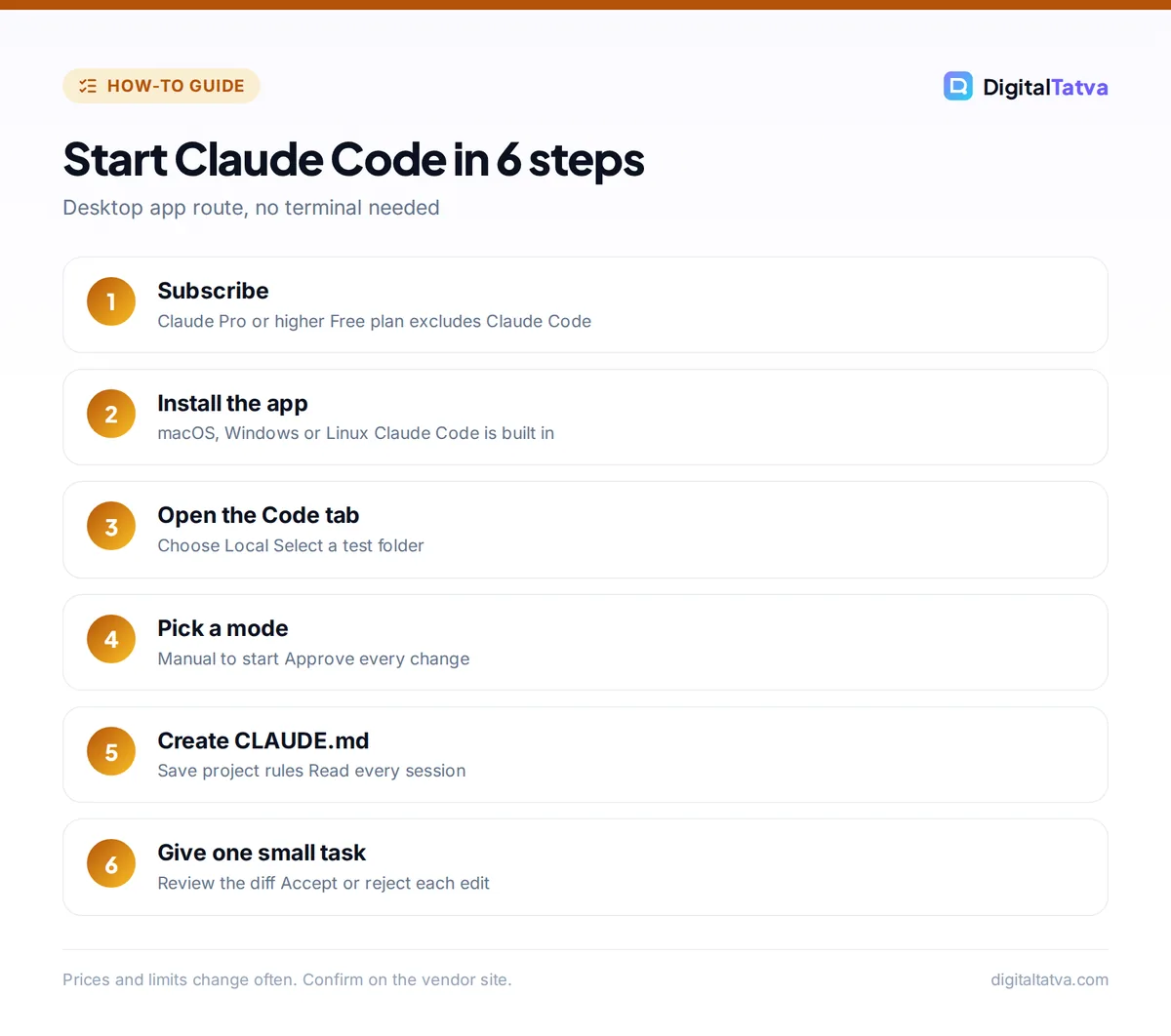
- Subscribe to Claude Pro or higher. Go to claude.com, sign in or create an account, and upgrade to Pro. The Code tab asks you to upgrade if you are on the free plan.
- Download the Claude desktop app. Get the installer for macOS (universal for Intel and Apple Silicon), Windows (x64 or ARM64) or Linux (beta) from Anthropic’s site, run it and sign in with the same account.
- Open the Code tab. The app has three tabs at the top: Chat (normal conversation), Cowork (a background agent for general tasks) and Code. Click Code. Claude Code is built in, so you do not need Node.js or any other installs.
- Choose Local and select a folder. Pick Local to work on files on your computer, then click Select folder and choose your test folder. Other options are Cloud (sessions keep running after you close the app), SSH for remote servers and WSL on Windows.
- Pick a model. Use the dropdown next to the send button. Opus 5.5 is the default on paid plans and the most capable; Sonnet 5.5 is faster and uses less of your allowance, which makes it a good choice for simple tasks.
- Set the permission mode to Manual. The selector next to the send button controls how much Claude does without asking. Manual means it asks before every file edit or command. We explain each mode below.
How to install Claude Code in the terminal (optional)
If you are comfortable copying a command into Terminal (Mac) or PowerShell (Windows), the command-line version gives you the most control. Open a terminal and run the line for your system:
- macOS, Linux or WSL:
curl -fsSL https://claude.ai/install.sh | bash - Windows PowerShell:
irm https://claude.ai/install.ps1 | iex - Homebrew on Mac:
brew install --cask claude-code - WinGet on Windows:
winget install Anthropic.ClaudeCode
Open a new terminal window and type claude --version. If you see a version number, it worked. Then move into your project folder with cd followed by the folder path, type claude, and follow the browser prompt to log in. The native installer updates itself in the background. If anything fails, claude doctor prints a diagnosis. Anthropic’s official setup guide lists every option, including a terminal primer for first-timers.
Your first Claude Code session, step by step
- Ask it to explain the folder. Type “What is in this folder and what does it do?” Claude reads the files and summarizes them. This costs little and shows you how it thinks.
- Create a CLAUDE.md file. Type “Create a CLAUDE.md with instructions for this project” (or
/initin the terminal). This file stores your rules, such as “use British spelling in copy” or “never delete files in the originals folder”. Claude reads it at the start of every session, and Anthropic calls it the single highest-value setup step. - Give a small, specific task. For example: “Combine every CSV in the sales folder into one file called all-sales.csv, keep one header row, and add a column with the source file name.”
- Review the plan and the diff. In Manual mode, Claude shows a diff view: green lines are added, red lines removed. Click Accept or Reject for each change. If you reject, it asks what you would prefer.
- Check the result yourself. Open the new file and spot-check it. Ask follow-ups such as “Some dates are in two formats, standardize them to YYYY-MM-DD.”
- Interrupt if it goes off track. Click stop, or type a correction and press Enter. You do not have to wait for it to finish.
Good first projects for non-developers
- Build a simple landing page or link-in-bio page and preview it in the app’s browser pane.
- Rename, sort and deduplicate hundreds of photos or invoices.
- Turn messy spreadsheets into a clean report, with charts saved as images.
- Write a small script that pulls data from a CSV and drafts personalized emails for you to review.
- Convert a folder of Word or Markdown notes into a tidy, searchable knowledge base.
Tip: Type @ followed by a file name to point Claude at a specific file, or drag images and PDFs into the prompt box. Screenshots of what you want are often clearer than a long description.
Permission modes explained
Permission modes decide how much Claude Code can do without asking you. In the desktop app, choose them from the selector by the send button; in the terminal, press Shift+Tab to cycle through them.
| Mode | What happens | When to use it |
|---|---|---|
| Manual | Asks before every file edit and command | Your first weeks, and any important files |
| Plan | Proposes an approach without editing anything | Big or unclear tasks, before you commit |
| Accept edits | Auto-accepts file edits so you review them afterward | Routine edits in a test folder |
| Auto | A safety classifier reviews actions and blocks risky ones instead of asking you | Once you trust it on low-risk projects |
In recent versions of the terminal app, Auto is the starting mode for interactive sessions, so switch to Manual deliberately if you want to approve each step. Plan mode is underused by beginners: asking “plan how you would do this, do not change anything yet” catches misunderstandings before they cost you time or usage.
Useful commands cheat sheet
Type / in the prompt box to see every command and skill. These are the ones beginners use most.
| Command | What it does |
|---|---|
/init |
Creates a CLAUDE.md file describing your project |
/clear |
Starts a fresh conversation (saves usage when you switch tasks) |
/model |
Switches between Opus, Sonnet and Haiku |
/usage |
Shows how much of your plan’s allowance you have used |
/rewind |
Restores the conversation and files to an earlier checkpoint |
/help |
Lists available commands |
claude -c |
(Terminal) continues your most recent conversation in this folder |
How usage limits work for Claude Code
On Pro and Max, Claude Code draws from the same allowance as Claude chat. The allowance resets every five hours, and weekly limits apply on top. Coding sessions are heavy because Claude re-reads your files and the whole conversation with each step, so a long session can use far more than a day of chatting.
Three habits keep you inside Pro for longer: use /clear when you switch tasks, use Sonnet 5.5 for simple jobs, and keep CLAUDE.md short (Anthropic suggests under 200 lines). Our guides to Claude usage limits and cutting Claude Code costs go deeper. If you hit limits daily, Claude Pro vs Max shows when the upgrade pays off.
Save money: If you pay for Claude Pro already, you have Claude Code at no extra cost. Try it for a month before paying for a separate AI app builder or coding tool.
Common mistakes beginners make
- Vague requests. “Improve my website” makes Claude scan everything. “Make the contact form on index.html check that the email field is filled in” is faster and cheaper.
- Working on originals. Use a copy or a test folder until you trust the workflow.
- Never clearing. One endless session for unrelated tasks wastes usage, because old context is re-sent every turn.
- Accepting without reading. Skim each diff. If you do not understand a change, ask “explain this change in simple terms” before accepting.
- Sharing secrets. Do not put passwords or API keys in prompts or CLAUDE.md. Keep client data out unless your plan and policies allow it; our AI usage policy template helps teams set rules.
Advanced tips once you are comfortable
- Skills and plugins. Click + next to the prompt box to browse plugins that add skills, agents and connectors. Skills are reusable instructions for jobs you repeat, such as a weekly report.
- Scheduled tasks. The desktop app can run Claude on a schedule, for example a Monday morning summary of new files in a folder.
- Cloud sessions. Send long tasks to the cloud so they continue after you close your laptop.
- Better prompts. The techniques in our prompt engineering guide, such as giving examples and success criteria, work just as well in Claude Code.
- Learn the basics properly. Anthropic offers a free self-paced course, Claude Code 101, on Claude Academy.
If you later want an editor with autocomplete for hands-on coding, read our Claude Code vs Cursor comparison.
Frequently asked questions
Can I use Claude Code if I cannot code?
Yes. The desktop app’s Code tab lets you describe tasks in plain English and approve changes with buttons, without a terminal. You will get the best results on small, well-defined jobs such as file clean-up, simple websites and data reports. For anything going live to customers, ask a developer to review the result before you publish it.
Is Claude Code free?
No. Claude Code is included in Claude Pro ($20 a month, or $17 billed annually), Max, Team and Enterprise plans, but not in the free Claude plan. You can also pay per token through a Claude Console account. If you already subscribe to Pro, there is nothing extra to buy.
Is Claude Code safe to use on my computer?
It only works in the folder you choose, and in Manual mode it asks before every edit or command. Risks come from accepting changes you have not read or running it on important files without backups. Start in a test folder, use Manual or Plan mode, and keep backups, and it is a low-risk tool.
What is the difference between Claude Code and Claude Projects?
Claude Projects organize chats, files and instructions inside the Claude app, but Claude cannot edit files on your computer there. Claude Code works directly in a folder on your machine, creating and changing real files and running commands. Use Projects for writing and research, and Claude Code for building things. Our Claude Projects guide explains the chat side.
Which model should I use in Claude Code?
Opus 5.5 is the default on paid plans and best for complex, multi-step work. Sonnet 5.5 handles most everyday tasks well and uses less of your allowance, so many users switch to it with the model dropdown or /model sonnet. Use Haiku for very simple, repetitive jobs.
Next steps
Set up the desktop app, create a test folder, and give Claude Code one small task today, such as merging a few spreadsheets or building a simple page. Create a CLAUDE.md, stay in Manual mode for your first week, and use /clear between tasks. Once that feels natural, try Plan mode for bigger jobs and explore skills and scheduled tasks. Anthropic updates Claude Code and its plans often, so check current pricing and limits on the official Claude site before you subscribe.
Related reading: our full Claude review and Lovable vs Bolt.new if you would rather build in the browser.
Pricing and features are checked at the time of writing and can change. Some links may be affiliate links, which never affect our verdicts.