Google Meet Take Notes for Me: How to Use Gemini Meeting Notes (2026 Guide)
How to turn on Gemini's Take notes for me in Google Meet, which plans include it, supported languages, where notes are saved, admin settings and troubleshooting.
On this page
- Key takeaways
- What “Take notes for me” does
- Who can use it
- How to turn on “Take notes for me”
- Where to find your notes
- Languages and limits
- Admin settings for Google Workspace
- Tips for better Gemini notes
- Privacy and etiquette
- Troubleshooting
- Take notes for me vs other AI note takers
- Illustrative example: a sales team on Google Workspace
- Checklist
- How Digital Tatva can help
- Frequently asked questions
Last updated: 20 November 2026
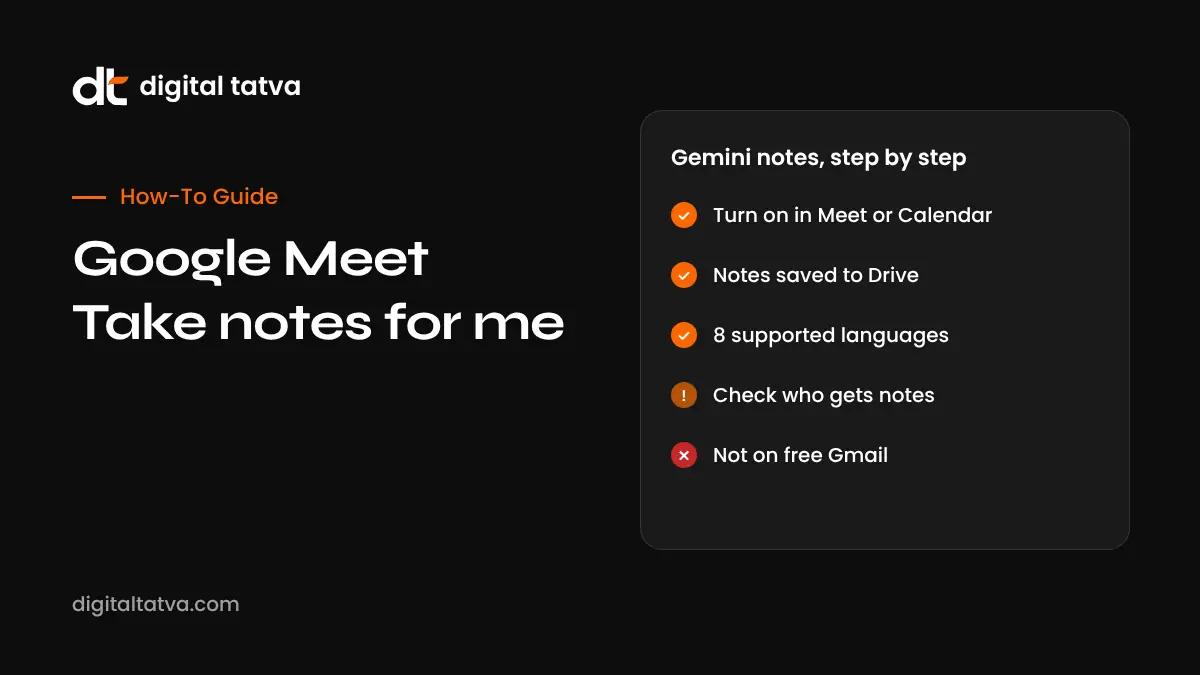
Quick answer: “Take notes for me” is Gemini’s AI note taker in Google Meet. It writes a summary, key details and suggested action items into a Google Doc, saves it in Drive, emails it to the organiser and attaches it to the Calendar event. To use it, click the pencil icon (Take notes with Gemini) at the top right of a Meet call on a computer, or use the call menu on Android or iPhone, then confirm. You can also turn it on in advance from the Calendar event. It is available on Google Workspace Business Standard, Business Plus, Enterprise Standard, Enterprise Plus and Frontline Plus, and on Google AI Pro and Ultra plans for meetings you host, but not on free personal Gmail or Business Starter. It supports eight languages (English, French, German, Italian, Japanese, Korean, Portuguese and Spanish), one language per meeting. It does not record video; turn on Meet’s separate Transcribe feature if you also want a transcript.
Key takeaways
- The organiser’s plan must include the feature, and Workspace admins must enable it.
- Notes are a Google Doc, shared by default with invited guests in the organiser’s organisation.
- Notes start when you turn them on; they are not retroactive.
- Tell participants before you start notes, and review notes for errors before sharing.
- Use Transcribe alongside notes if you need a word-for-word record.
What “Take notes for me” does
- Captures what is said in the meeting and writes a structured summary.
- Lists key details, decisions and suggested next steps.
- Saves notes as a Google Doc in the organiser’s Drive.
- Emails the notes after the meeting and attaches them to the Calendar event.
- Offers a “summary so far” catch-up on computers if you join late.
- Can link to the transcript if Transcribe is also on.
Google notes that AI notes can be incomplete or inaccurate, so always check them.
Who can use it
| Plan | Take notes for me |
|---|---|
| Google Workspace Business Standard and Business Plus | Included |
| Google Workspace Enterprise Standard and Enterprise Plus | Included |
| Frontline Plus | Included |
| Google Workspace Business Starter | Not included |
| Google AI Pro and Ultra (personal) | Included for meetings you host |
| Free personal Gmail | Not included |
Plan details as reported in late 2026 by Scribbl, which sells a competing tool, based on Google’s help pages. Google changes plans often, so check Google’s Workspace and Meet help pages for the latest. In Workspace organisations, an admin must enable Gemini note-taking.
How to turn on “Take notes for me”
During a meeting on a computer
- Join the meeting in Google Meet.
- Click the pencil icon, labelled Take notes with Gemini, at the top right of the window.
- Click Start taking notes and confirm.
- Participants see an indicator that notes are being taken.
- To stop, click the pencil icon again and choose Stop taking notes.
On Android or iPhone
- Open the meeting in the Google Meet app.
- Tap the menu during the call.
- Choose the option to take notes with Gemini and confirm.
Before the meeting from Google Calendar
- Create or edit a Calendar event with Google Meet video conferencing.
- Open the video call settings for the event.
- Tick Take notes with Gemini (wording may vary slightly).
- Save the event. Notes start automatically when the meeting begins.
You can also set defaults in Meet settings under meeting records.
Who can start and stop notes
By default, the organiser and people in the host’s organisation can start or stop notes. If host management is on, only hosts and co-hosts can. External guests cannot usually control notes.
Where to find your notes
- Email: sent to the organiser and the person who started notes after the meeting.
- Google Calendar: attached to the event if it was scheduled in Calendar.
- Google Drive: saved as a Google Doc, usually in a Meet recordings or notes folder in the organiser’s Drive.
Who gets the notes
By default, invited guests in the organiser’s organisation receive access. Hosts or co-hosts can change the “Send notes to” setting to all invited guests, including external ones, or only hosts and co-hosts. Choose carefully for client meetings.
Languages and limits
| Item | Detail |
|---|---|
| Languages | English, French, German, Italian, Japanese, Korean, Portuguese and Spanish |
| Mixed languages | One meeting language at a time; mixed-language meetings are not supported |
| Meeting length | Google recommends meetings between about 15 minutes and 8 hours |
| Very short meetings | Meetings with fewer than about 50 spoken words do not get notes |
| Timing | Notes cover only the part of the meeting after notes were turned on |
| Recording | Does not record video; use Meet’s Record and Transcribe features separately |
If your meetings use languages not on the list, consider transcribing in a supported language, using a third-party tool or translating notes afterwards; see best AI translation tools.
Admin settings for Google Workspace
- Sign in to the Google Admin console.
- Go to Apps, then Google Workspace, then Google Meet, then Gemini settings.
- Turn Gemini note-taking on or off for organisational units.
- Set the default for who receives notes.
- Decide whether screenshots can be included and whether automatic notes are on.
Automatic notes became on by default for meetings hosted by users on Business Standard and Business Plus with three or more guests from 21 September 2026, and off by default for Enterprise editions, according to Google’s rollout as reported in 2026. Review this setting if you want people to opt in instead.
Tips for better Gemini notes
- Start with an agenda in the Calendar invite.
- Turn notes on at the start so nothing is missed.
- State decisions and owners clearly: “Decision: we will launch on 3 March. Owner: Rahul.”
- Reduce crosstalk and use good microphones.
- Turn on Transcribe for important meetings so notes can reference the transcript.
- Edit the Doc before sharing externally; it is a normal Google Doc.
- Ask Gemini in Docs or Gmail to turn notes into a follow-up email; see Gemini in Gmail and Sheets.
For an end-to-end workflow with prompts, see how to use AI in meetings.
Privacy and etiquette
- Tell attendees in the invite and at the start that Gemini will take notes.
- Turn notes off for sensitive conversations such as HR, legal or medical discussions.
- Check the “Send notes to” setting before client meetings.
- Follow your organisation’s retention and sharing policies.
Read AI note taker privacy, consent and etiquette for legal considerations, including GDPR and India’s DPDP Act.
Troubleshooting
| Problem | Likely cause and fix |
|---|---|
| No pencil icon | Your plan does not include the feature, your admin has not enabled it, or the organiser’s account is not eligible |
| Cannot start notes as a guest | Only the organiser or people in the host organisation can start notes, or host management is on |
| No notes after the meeting | Meeting too short, too few words spoken or notes not turned on |
| Notes in the wrong language | Set the meeting language correctly; mixed languages are not supported |
| Missing details | Notes started late; turn on earlier or use Transcribe |
| External guests got notes | “Send notes to” was set to all invited guests; change the default |
Take notes for me vs other AI note takers
| Feature | Gemini in Meet | Third-party tools (Otter, Fireflies, Fathom, tl;dv) |
|---|---|---|
| Setup | Built in, no bot | Usually a bot or extension |
| Platforms | Google Meet only | Meet, Zoom and Teams |
| Cost | Included in eligible paid plans | Free tiers and paid plans |
| Output | Google Doc in Drive | Vendor app, often with search and integrations |
| Data | Stays within your Google Workspace | Stored with the vendor |
Compare options in best AI meeting assistants and free AI note takers. Using Teams or Zoom? See the Teams Copilot meeting guide and Zoom AI Companion.
Illustrative example: a sales team on Google Workspace
This is an illustrative scenario, not a client story.
A sales team on Business Standard schedules client calls in Google Calendar with “Take notes with Gemini” ticked. Their invite template says Gemini will take notes, and the host confirms at the start. The admin sets notes to go only to internal attendees. After each call, the rep edits the Doc, then asks Gemini in Gmail to draft a follow-up email from it. Action items are copied into the CRM. For calls in languages Gemini does not support, the team uses a different approach agreed with the client.
Checklist
- Plan includes Take notes for me.
- Admin has enabled Gemini note-taking.
- Sharing default reviewed for external meetings.
- Invite mentions AI notes.
- Notes turned on at the start.
- Transcribe on for important meetings.
- Notes reviewed before sharing.
How Digital Tatva can help
Digital Tatva helps businesses use AI tools effectively and stay visible in AI search. See our AEO services.
Want to know how Gemini and ChatGPT describe your business? Request an AEO audit or try the free AI visibility checker.
Frequently asked questions
What is “Take notes for me” in Google Meet?
It is Gemini’s AI note taker that summarises Google Meet calls into a Google Doc with key points and action items.
Is Take notes for me free?
No. It requires an eligible Google Workspace plan or a Google AI Pro or Ultra plan. Free personal Gmail accounts do not include it.
How do I turn on Take notes for me?
Click the pencil icon at the top right of a Meet call on a computer, or use the call menu on mobile, then start taking notes. You can also enable it in the Calendar event.
Where are Google Meet AI notes saved?
In a Google Doc in the organiser’s Google Drive, attached to the Calendar event and emailed after the meeting.
Does Take notes for me record the meeting?
No. It creates notes, not a video recording. Use Meet’s Record and Transcribe features separately if needed.
Which languages does it support?
English, French, German, Italian, Japanese, Korean, Portuguese and Spanish, one language per meeting, as of late 2026.
Can external guests see the notes?
By default, notes go to invited guests in the organiser’s organisation. Hosts can change this to include all invited guests.
Why don’t I see the pencil icon?
Your plan may not include the feature, your admin may not have enabled it, or you may not be in the host’s organisation.
Can I use it on my phone?
Yes, from the call menu in the Google Meet app on Android and iPhone, if your account is eligible.
Are Gemini meeting notes accurate?
They are usually helpful but can miss details or contain errors. Review and edit before sharing.
Product details, prices and features are checked at the time of writing and can change. Sources are linked in the text so you can check them yourself.
How does your brand appear in AI answers?
We test the questions your buyers ask across the major AI assistants and search engines, then show you what to fix first.
Get an AI Visibility Audit