Microsoft Teams Copilot Meeting Guide: Recap, Facilitator and Intelligent Recap (2026)
How to use Copilot in Microsoft Teams meetings: licences, transcription, Intelligent Recap, Facilitator live notes, prompts, admin settings and troubleshooting.
On this page
- Key takeaways
- Teams AI meeting features compared
- Requirements checklist
- How to use Copilot in a Teams meeting
- Useful Copilot prompts for Teams meetings
- How to use Intelligent Recap
- How to use Facilitator
- “Only during the meeting” vs saved transcripts
- Admin settings to check
- Privacy and etiquette
- Troubleshooting
- No Copilot licence? Other options
- Illustrative example: a project team on Microsoft 365
- Checklist
- How Digital Tatva can help
- Frequently asked questions
Last updated: 20 November 2026
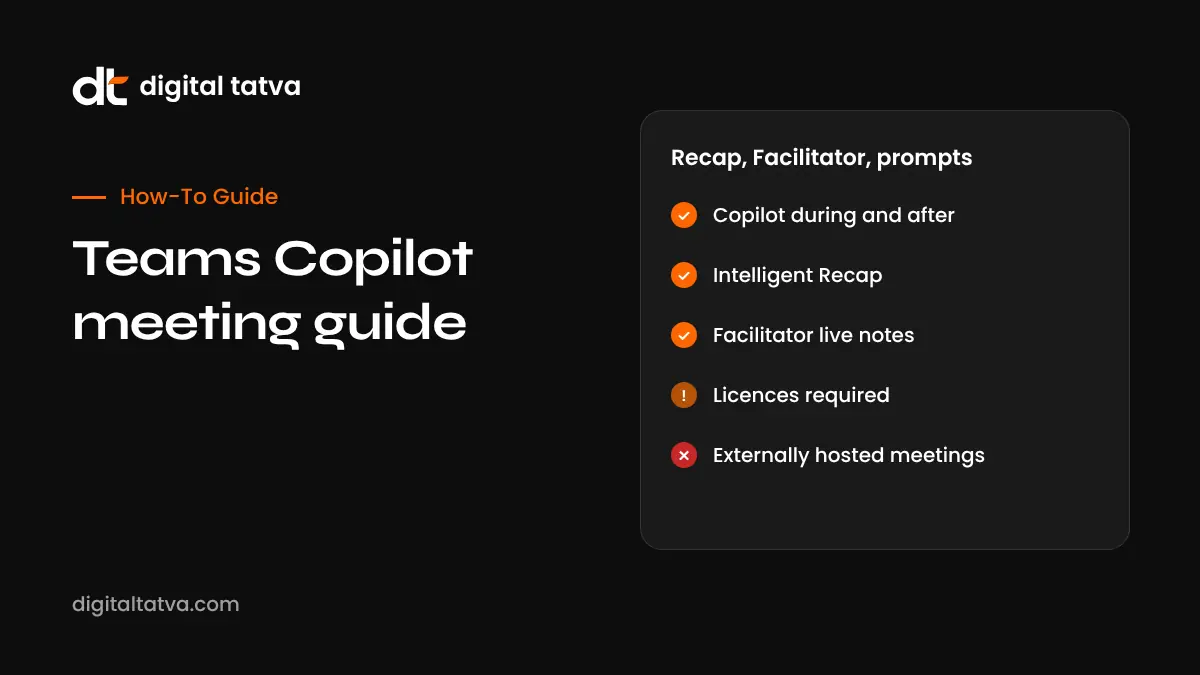
Quick answer: Microsoft Teams has three main AI meeting features. Copilot in Teams meetings answers questions during and after a meeting (“recap so far”, “what are the action items?”) and needs a Microsoft 365 Copilot licence (reported at $21 per user per month for Copilot Business and $30 for Enterprise, billed yearly). Intelligent Recap creates AI notes, chapters and suggested tasks in the meeting’s Recap tab after a transcribed meeting, and needs Teams Premium (about $10 per user per month) or a Copilot licence. Facilitator writes live, editable AI notes that colleagues in your organisation can see during scheduled meetings, and needs a Copilot licence. To use them, the organiser allows Copilot in meeting options, someone starts transcription (or chooses “Only during the meeting”), and you open Copilot from the meeting controls. Copilot is not available in meetings organised by external participants or in end-to-end encrypted meetings.
Key takeaways
- Copilot needs a Microsoft 365 Copilot licence; Intelligent Recap needs Teams Premium or Copilot.
- Transcription unlocks the most useful features, including answers after the meeting.
- “Only during the meeting” lets Copilot help live without saving a transcript.
- Organisers control whether Copilot and Facilitator are allowed.
- Tell attendees before transcribing, and review AI notes before sharing.
Teams AI meeting features compared
| Feature | What it does | When | Licence needed |
|---|---|---|---|
| Copilot in meetings | Answers questions about the discussion and chat, summarises, lists action items, catches up late joiners | During and after | Microsoft 365 Copilot |
| Intelligent Recap | AI notes, suggested tasks, chapters and highlights in the Recap tab | After a transcribed meeting longer than about five minutes | Teams Premium or Microsoft 365 Copilot |
| Facilitator | Live AI notes that people in your organisation can view and edit | During scheduled meetings | Microsoft 365 Copilot |
| Transcription and recording | Word-for-word transcript and video recording | During | Available on many Teams business plans |
Licence and pricing details as summarised from Microsoft documentation by Scribbl in October 2026; Scribbl sells a competing tool. Microsoft changes names, features and prices often, so confirm with Microsoft or your admin.
Requirements checklist
- A Microsoft 365 Copilot licence for Copilot and Facilitator, or Teams Premium for Intelligent Recap.
- The meeting is organised by someone in your organisation.
- Your admin’s policies allow Copilot, transcription and recording.
- The organiser has allowed Copilot (and Facilitator) in meeting options.
- The meeting is not end-to-end encrypted.
How to use Copilot in a Teams meeting
Step 1: allow Copilot when scheduling
- Open the meeting in Teams or Outlook and go to Meeting options.
- Find Allow Copilot and Facilitator (wording may vary).
- Choose During and after the meeting (requires transcription) or Only during the meeting (no saved transcript).
- Save.
Step 2: start transcription
- In the meeting, select More (the three dots).
- Choose Record and transcribe, then Start transcription.
- Everyone sees a notification that transcription has started.
Step 3: open Copilot
- Select Copilot in the meeting controls.
- Type a question or choose from View prompts.
- Responses are visible only to you unless you share them.
Step 4: use Copilot after the meeting
Open the meeting chat or Recap tab and select Copilot to ask more questions. You can copy or export longer answers to Word or Excel.
Useful Copilot prompts for Teams meetings
| Goal | Prompt |
|---|---|
| Catch up | “Recap the meeting so far.” |
| Decisions | “What decisions have been made, and who made them?” |
| Action items | “List action items with owners and due dates. Mark any without an owner.” |
| Open questions | “What questions are still unresolved?” |
| Disagreements | “Where do people disagree, and what are the main arguments?” |
| Follow-up | “Draft a follow-up email summarising decisions and next steps.” |
| Table | “Create a table of topics discussed, key points and next steps.” |
| Missed part | “What did we discuss about the budget while I was away?” |
For more prompts and a complete workflow, see how to use AI in meetings.
How to use Intelligent Recap
- Make sure you have Teams Premium or a Copilot licence.
- Record or transcribe the meeting (it needs to be longer than about five minutes).
- After the meeting, open the meeting in your Teams calendar or chat.
- Go to the Recap tab.
- Review AI notes, suggested tasks, chapters and personalised highlights such as when your name was mentioned.
- Copy tasks into Planner, To Do or your project tool, and share a cleaned summary.
How to use Facilitator
- Schedule a meeting (Facilitator works in scheduled meetings).
- Make sure Copilot and Facilitator are allowed in meeting options.
- Turn on Facilitator from the meeting controls if it does not start automatically.
- Watch AI notes build live; colleagues in your organisation can view and edit them.
- Use the notes to keep the meeting on track and confirm decisions before ending.
External participants cannot see Facilitator notes. Microsoft continues to add Facilitator capabilities, so check the latest documentation; see Microsoft Ignite 2026 announcements.
“Only during the meeting” vs saved transcripts
| Option | Pros | Cons |
|---|---|---|
| Only during the meeting | No transcript saved; more privacy for sensitive discussions | No Copilot answers or recap after the meeting |
| During and after (with transcription) | Full recap, questions after the meeting, searchable record | Transcript is stored and subject to retention and access rules |
Admin settings to check
- Copilot licence assignment for users.
- Teams meeting policies for transcription, recording and Copilot.
- Default for “Allow Copilot” in meeting options.
- Recording and transcript retention policies.
- Guest and external access rules.
- Sensitivity labels and end-to-end encryption settings for confidential meetings.
Privacy and etiquette
- Announce transcription and Copilot use in the invite and at the start of the meeting.
- Use “Only during the meeting” or turn Copilot off for sensitive conversations.
- Remember that transcripts are personal data under laws such as the GDPR and India’s DPDP Act.
- Review AI notes before sharing outside your organisation.
Read AI note taker privacy, consent and etiquette for details.
Troubleshooting
| Problem | Likely cause and fix |
|---|---|
| No Copilot button | No Copilot licence, admin policy blocks it, or the meeting is organised externally |
| Copilot cannot answer after the meeting | Transcription was not on, or “Only during the meeting” was selected |
| No AI notes in Recap | No Teams Premium or Copilot licence, meeting too short, or no transcript |
| Facilitator not available | Meeting not scheduled, no Copilot licence or not allowed in options |
| Copilot disabled in a meeting | End-to-end encryption is on, or organiser turned off Copilot |
No Copilot licence? Other options
- Transcription only: use Teams transcription, then summarise with an approved chatbot.
- Third-party note takers: Otter, Fireflies, Fathom and tl;dv support Teams; see best AI meeting assistants and free AI note takers.
- Other platforms: Google Meet and Zoom have their own AI; see Google Meet Take notes for me and Zoom AI Companion.
For a broader look at Copilot plans and features, see Microsoft Copilot review.
Illustrative example: a project team on Microsoft 365
This is an illustrative scenario, not a client story.
A project manager runs weekly status meetings in Teams. Meeting options allow Copilot during and after the meeting, and transcription starts at the beginning after a quick announcement. During the call, a late joiner asks Copilot to recap the discussion so far. After the meeting, the manager opens the Recap tab, checks the suggested tasks, fixes one wrongly assigned owner and copies tasks into Planner. For a sensitive budget discussion later that week, the manager chooses “Only during the meeting” so no transcript is saved.
Checklist
- Correct licences assigned (Copilot or Teams Premium).
- Admin policies allow Copilot and transcription.
- Meeting options set before the meeting.
- Attendees informed about transcription and Copilot.
- Transcription started at the beginning when needed.
- Recap and tasks reviewed after the meeting.
- Sensitive meetings use “Only during the meeting” or no AI.
How Digital Tatva can help
Digital Tatva helps businesses adopt AI tools practically and get recommended in AI search, including Microsoft Copilot. See our AEO services.
Does Copilot recommend your business? Request an AEO audit or try the free AI visibility checker.
Frequently asked questions
Can Copilot take notes in Teams meetings?
Yes. Copilot can summarise and list action items, Facilitator writes live notes and Intelligent Recap creates notes after the meeting, with the right licences.
Do I need a licence for Copilot in Teams meetings?
Yes. Copilot and Facilitator need a Microsoft 365 Copilot licence. Intelligent Recap needs Teams Premium or Copilot.
How much does Microsoft 365 Copilot cost?
As reported in late 2026, Copilot Business is about $21 and Enterprise about $30 per user per month billed yearly. Check Microsoft for current pricing.
Does Copilot need transcription?
You can use Copilot live without saving a transcript using “Only during the meeting”, but answers after the meeting require transcription.
What is Intelligent Recap in Teams?
An AI summary in the Recap tab with notes, suggested tasks, chapters and highlights from transcribed meetings.
What is Facilitator in Teams?
A Copilot feature that writes live, shared AI notes during scheduled meetings for people in your organisation.
Can external guests use Copilot in my meeting?
Copilot is tied to licences and organisation policies. External participants cannot see Facilitator notes, and Copilot is not available in meetings organised by external participants.
Why is Copilot missing in my Teams meeting?
Common reasons are no licence, admin restrictions, an externally organised meeting, end-to-end encryption or the organiser turning it off.
Can I use Copilot after the meeting?
Yes, if the meeting was transcribed. Open the meeting chat or Recap tab and select Copilot.
Is there a free alternative to Copilot in Teams?
Third-party note takers with free plans support Teams, or you can summarise Teams transcripts with an approved chatbot.
Product details, prices and features are checked at the time of writing and can change. Sources are linked in the text so you can check them yourself.
How does your brand appear in AI answers?
We test the questions your buyers ask across the major AI assistants and search engines, then show you what to fix first.
Get an AI Visibility Audit