How to Use Claude Projects to Organize Your Work
Set up Claude Projects the right way: add focused knowledge files, write instructions that stick, save usage, and share workspaces with your team.


On this page
- Key takeaways
- What are Claude Projects and why use them?
- What you need before you start
- How to create a Claude Project step by step
- How to write project instructions that work
- What to put in project knowledge (and what to leave out)
- How Claude Projects affect context windows and usage limits
- Practical Claude Project setups by use case
- Common mistakes with Claude Projects
- Frequently asked questions
- Next steps: build your first project today
Claude Projects are dedicated workspaces inside Claude where you store reference files, set custom instructions once, and keep every related chat together. To use one, open the Claude sidebar, choose Projects, create a new project, add your documents to its knowledge area, write instructions, and start chatting inside it. Projects are included on Pro ($20/month), Max, Team and Enterprise plans, but not on the Free plan.
This guide shows you how to set up a project properly, what to put in project knowledge and instructions, how projects affect usage limits, and practical setups for freelancers, marketers, students and small teams.
Key takeaways
- A Claude Project bundles files, custom instructions and chats for one client, product or goal, so you stop re-explaining context.
- Projects need a paid plan: Pro at $20/month ($17/month billed annually), Max from $100/month, or Team from $25 per seat per month.
- Paid plans have a 200K token base context window for chat, and 1M tokens on Opus 5.5 and Sonnet 5.5, so projects can hold a lot of material.
- Large project files are re-read on every message, which eats into your five-hour usage allowance. Keep knowledge lean and relevant.
- On Team plans, projects can be shared with colleagues, which turns them into a lightweight shared knowledge base.
What are Claude Projects and why use them?
Without projects, every new Claude chat starts blank. You paste the same brand guide, the same product details and the same “write in British English, no jargon” instruction again and again. Projects fix that. Each project has three parts:
- Project knowledge: files and text you upload once, such as PDFs, documents, spreadsheets exported as text, code files or pasted notes. Claude can read them in every chat inside the project.
- Project instructions: a standing brief that shapes every reply, like a system prompt you control. Tone, audience, format rules and things to avoid go here.
- Project chats: the conversations you start inside the project. They stay grouped, so a client’s work lives in one place.
The result is faster, more consistent output. A marketer can upload a brand voice document and three sample posts, and every caption Claude writes in that project will already sound on-brand. If you are new to Claude in general, our Claude review explains where it shines, especially with long documents and careful writing.
What you need before you start
- A paid Claude plan. The official pricing page lists Projects as a Pro feature and above. Free users get chat, web search, file creation, memory and Artifacts, but not Projects.
- Your reference material. Gather the documents Claude should know: brand guidelines, product sheets, style guides, past work you like, meeting notes or a syllabus.
- A clear goal for the project. “Everything for Client X’s social media” works better than “Marketing stuff.”
| Plan | Price (USD) | Projects | Usage vs Pro |
|---|---|---|---|
| Free | $0 | No | Lower, Sonnet and Haiku only |
| Pro | $20/month or $17/month annual | Yes | Baseline, resets every 5 hours |
| Max 5x | $100/month | Yes | 5x Pro per session, plus weekly limit |
| Max 20x | $200/month | Yes | 20x Pro per session, plus weekly limit |
| Team Standard | $25/seat/month ($20 annual), 2 seat minimum | Yes, shareable | 1.25x Pro per session |
| Team Premium | $125/seat/month ($100 annual) | Yes, shareable | 6.25x Pro per session |
In India, press reports from July 2026 put Claude Pro at around Rs 2,000 per month including GST, with Max from about Rs 11,999. Confirm the rupee price at checkout. Our guide to Claude pricing in 2026 covers every plan, and our breakdown of Claude Pro vs Max helps if you are unsure how much usage you need.
How to create a Claude Project step by step
Claude’s interface changes from time to time, so these steps describe where things generally live rather than exact button labels.
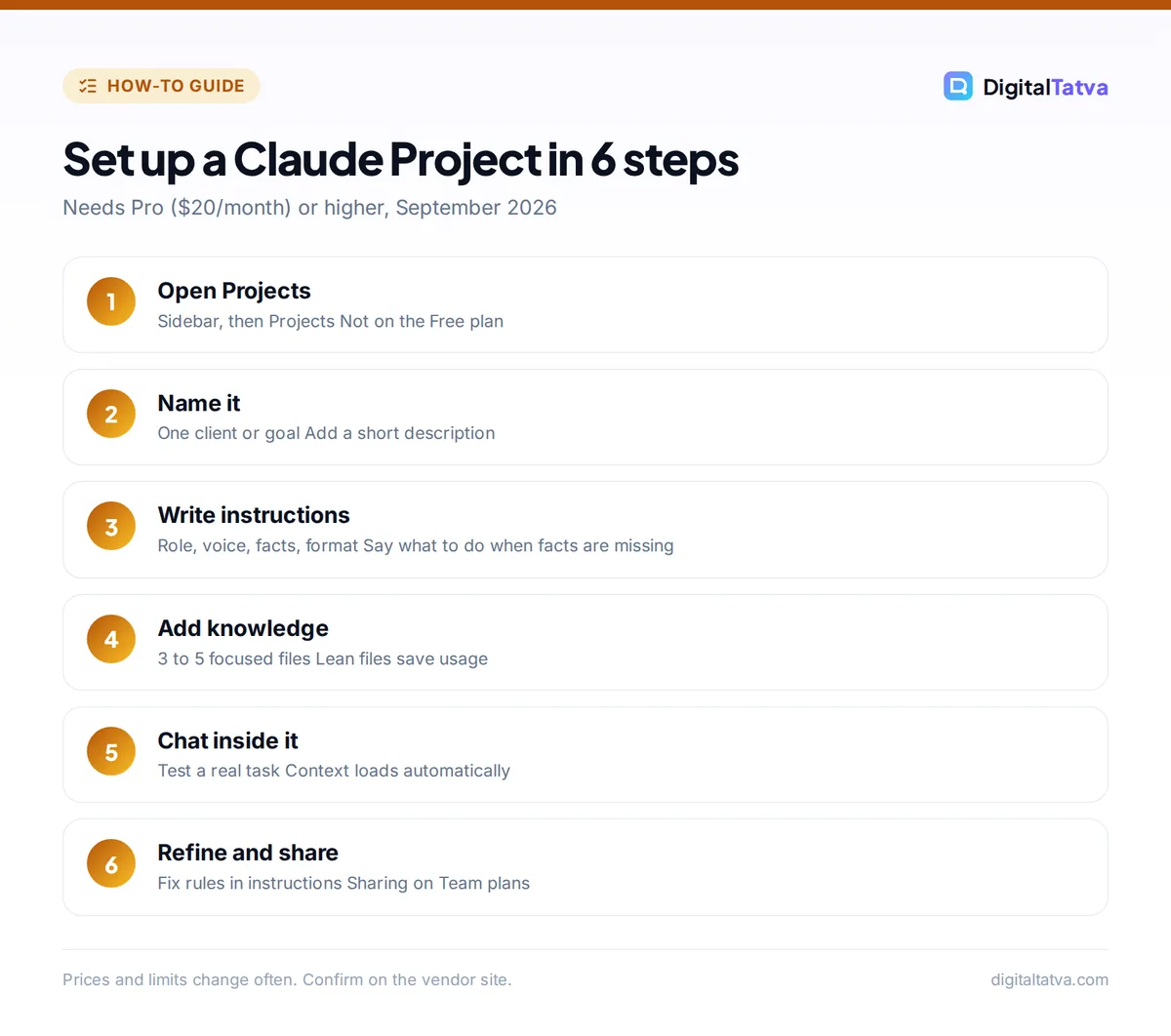
- Open Projects. Sign in at claude.ai or in the desktop app, open the left sidebar, and choose Projects. You will see any existing projects and an option to create a new one.
- Name and describe the project. Give it a specific name, such as “Sharma Dental: Social Media 2026”, and a short description of its purpose. The description helps you (and teammates on Team plans) find the right project later.
- Write project instructions. Open the project’s instructions area and write a standing brief. Include who the audience is, the tone, formatting rules, words to avoid, and how Claude should behave when information is missing. A template is below.
- Add project knowledge. Use the option to add content to the project’s knowledge area. Upload files from your computer or paste text directly. Start with the three to five documents that matter most, not your entire drive.
- Start a chat inside the project. From the project page, start a new conversation. Chats you create here automatically use the project’s instructions and knowledge.
- Test with a real task. Ask for something you actually need, like “Draft five Instagram captions for our teeth whitening offer using the brand voice file.” Check whether Claude follows the rules and uses the right facts.
- Refine the instructions. If Claude keeps getting something wrong, fix it in the instructions rather than correcting it in every chat. Small edits compound across every future conversation.
- Share it (Team plans). On Team and Enterprise, use the project’s sharing options to give colleagues access so everyone works from the same source material.
Tip: Chats you started outside a project stay outside it. If you want an existing conversation’s key points in the project, ask Claude to summarize the chat, then paste that summary into project knowledge as a short note.
How to write project instructions that work
Instructions are the most underused part of projects. Think of them as a brief you would give a new freelancer on day one. Keep them short, specific and testable. Here is a template you can adapt:
Role: You are a senior content writer for [brand], a [what they do] serving [audience].
Goal: Help me create [type of content] that [outcome].
Voice: [3 adjectives]. Write like [example]. Avoid [words, clichés].
Facts: Use only product details and prices in the project files. If something is not in the files, say so instead of guessing.
Format: [length, headings, bullet style, spelling].
Before long tasks: Ask up to three clarifying questions.
The “use only the files, and say when something is missing” line is important. It cuts down on invented details, which is the biggest risk when using any AI for client work. For more ready-made wording, browse our collection of Claude prompts for writing and editing, and our prompt engineering guide explains why clear roles and constraints improve results.
What to put in project knowledge (and what to leave out)
Good things to upload
- Brand voice and style guides
- Product or service sheets with current prices
- Two or three examples of work you consider excellent
- Audience personas or customer research summaries
- For students: the syllabus, lecture notes and assignment rubric
- For developers: key source files, API docs and coding conventions
Things to leave out
- Outdated drafts and duplicates. Conflicting versions confuse Claude. Keep one current source of truth.
- Huge files you rarely need. A 300-page annual report used once a month is better uploaded to a single chat.
- Sensitive personal data. Avoid ID numbers, bank details and private customer records. If your team handles client data, set rules first with our AI usage policy template.
Watch out: Everything in project knowledge counts as context that Claude processes when it answers. The bigger the knowledge base, the faster you use up your five-hour allowance. Anthropic’s rough estimate for Pro is around 45 messages every five hours for short conversations, and the real number drops with long files and long chats.
How Claude Projects affect context windows and usage limits
A context window is the amount of text an AI can consider at once, measured in tokens (roughly three quarters of a word each in English). On paid Claude plans, the base chat context is 200K tokens, and Opus 5.5 and Sonnet 5.5 support up to 1M tokens. That is enough for several long reports in a single project.
Usage is a separate question. Claude’s paid plans use session limits that reset every five hours, and Max and Team plans also have weekly limits. Claude and Claude Code share the same allowance on a plan. Because project files and long chat histories are processed with each message, a bloated project can burn through a session quickly. Our explainer on how context windows work covers the basics, and our guide to Claude usage limits shows how to make them last.
Practical ways to keep projects efficient:
- Keep knowledge under a handful of focused documents per project.
- Replace long documents with a one to two page summary where possible.
- Start new chats inside the project often instead of running one endless thread.
- Use Sonnet 5.5 for everyday drafting and save Opus 5.5 for hard reasoning.
- Create separate projects for separate clients rather than one giant project.
For more techniques, see how to reduce token usage in ChatGPT and Claude.
Practical Claude Project setups by use case
| Who | Project | Knowledge to add | Instruction focus |
|---|---|---|---|
| Freelance writer | One per client | Brand guide, 3 sample articles, SEO brief | Voice, spelling, banned phrases |
| Marketing agency | Client campaigns | Personas, offer sheet, past ad copy | Platform formats, compliance rules |
| Student | One per course | Syllabus, notes, rubric | Explain, quiz me, do not write my assignment |
| Founder | Investor updates | Metrics summary, previous updates | Concise, honest, consistent structure |
| Developer | Codebase helper | Key files, conventions, API docs | Language version, testing style |
Agencies running many clients will find more ideas in our guide to AI for marketing agencies. If you are comparing Claude’s workspaces with ChatGPT’s projects and custom GPTs, our head to head on ChatGPT vs Claude covers the differences, and Google users can compare with our tutorial on NotebookLM for study and research, which takes a similar source-grounded approach.
Common mistakes with Claude Projects
Do
- Keep one project per client or goal
- Write instructions that say what to do when facts are missing
- Update knowledge files when prices or offers change
- Start fresh chats inside the project regularly
Avoid
- Dumping every file you own into one project
- Keeping old and new versions of the same document
- Correcting the same error in chat instead of in instructions
- Uploading sensitive customer data on a personal plan
Frequently asked questions
Are Claude Projects free?
No. Claude’s pricing page lists Projects as a feature of Pro and higher plans. The Free plan includes chat, web search, file creation, memory, connectors and Artifacts, but not Projects. Pro costs $20 per month, or $17 per month billed annually at $200 up front, which is the cheapest way to get Projects. Max and Team plans also include them.
How many files can I add to a Claude Project?
Anthropic’s help article on upload limits could not be confirmed at the time of writing, so check the current limits in Claude’s help center. In practice, the useful limit is context and usage: paid chats have a 200K token base context, or 1M on Opus 5.5 and Sonnet 5.5, and larger knowledge bases consume your five-hour allowance faster. Fewer, focused files work best.
Can I share a Claude Project with my team?
Yes, on Team and Enterprise plans. Team starts at $25 per seat per month billed monthly, or $20 billed annually, with a minimum of two seats. Shared projects let colleagues use the same instructions and knowledge files, which keeps brand voice and facts consistent across people. Pro and Max projects are designed for individual use.
What is the difference between Claude Projects and ChatGPT custom GPTs?
Both store instructions and files for reuse. A Claude Project is a workspace that groups your own chats around shared knowledge. A custom GPT is a packaged assistant you can share with others via a link or OpenAI’s store. Projects suit ongoing client or study work, while custom GPTs suit repeatable tools that other people will use.
Is Claude Pro worth it just for Projects?
For anyone who reuses the same context weekly, usually yes. Projects save time on every chat and improve consistency, and Pro also adds Opus models, Claude Code and higher usage than Free. If you only chat occasionally about unrelated topics, the Free plan may be enough, since Projects mainly pay off for repeat work.
Next steps: build your first project today
Pick the one client, course or product you work on most, gather three to five key documents, and spend ten minutes writing instructions with the template above. Run a real task, fix anything Claude gets wrong in the instructions, and within a week you will have a workspace that produces on-brand drafts in one message. When your team grows, a Team plan turns those projects into shared knowledge bases.
For official details, see Anthropic’s Claude pricing page and the help article on context windows on paid plans. Plans and limits change often, so confirm current pricing on Anthropic’s site before you subscribe.
Pricing and features are checked at the time of writing and can change. Some links may be affiliate links, which never affect our verdicts.