How to Use Google NotebookLM for Study and Research
A step-by-step guide to Google NotebookLM (now Gemini Notebook): add sources, ask cited questions, make Audio Overviews and flashcards, and know the limits on each plan.

On this page
- Key takeaways
- What NotebookLM is and why it is different from a chatbot
- What you need before you start
- How to use NotebookLM step by step
- A study workflow that actually helps you learn
- A research workflow for marketers, founders and analysts
- NotebookLM limits on Free, Plus, Pro and Ultra
- Privacy: is NotebookLM safe for your documents?
- Common mistakes to avoid
- Advanced tips for power users
- Frequently asked questions
- Next steps: get the most out of NotebookLM
To use Google NotebookLM, open notebooklm.google, create a notebook, add your sources (PDFs, Google Docs, slides, websites, YouTube videos or audio), then ask questions and get answers that cite your own material. From there you can generate Audio Overviews, mind maps, flashcards, quizzes and reports with one click. The free tier allows 50 sources per notebook and 50 chats a day, which is enough for most students and researchers.
One thing to know before you start: in July 2026 Google renamed NotebookLM to Gemini Notebook. The tool works the same way, your old notebooks and shared links still open, and most people still search for it as NotebookLM. This guide uses both names and walks you through setup, a study workflow, a research workflow, the limits on each plan and the mistakes that waste your daily quota.
Key takeaways
- NotebookLM (now Gemini Notebook) answers only from the sources you upload, with inline citations you can click to check.
- Each source can hold up to 500,000 words or 200MB, and the free tier allows 100 notebooks with 50 sources each.
- Free users get 50 chats, 3 Audio Overviews and 10 flashcard or quiz sets per day, plus 10 Deep Research runs a month.
- Google AI Plus, Pro and Ultra raise every limit. Pro allows 300 sources per notebook and 500 chats a day.
- Personal account data is not used to train the model unless you send feedback. Workspace data is never human reviewed or used for training.
What NotebookLM is and why it is different from a chatbot
NotebookLM is a research and study assistant built on Google’s Gemini models. The key difference from ChatGPT or the regular Gemini app is grounding: it answers from the documents you add to a notebook, not from the open web. Every answer carries small numbered citations, and clicking one jumps to the exact passage in your source.
That design makes it far less likely to invent facts about your material, which is why students, lawyers, analysts and content teams like it. If you want answers from the web with sources, a tool like Perplexity is the better fit (see our guide on how to use Perplexity for research). If you want answers from your own pile of PDFs, lecture notes and transcripts, NotebookLM is the specialist.
Google announced the rename to Gemini Notebook on July 16, 2026. According to the official Google announcement, it remains a standalone product at notebooklm.google, it now also syncs with the Gemini app, and it is coming to AI Mode in Google Search. Google says more than 30 million people use it.
| Task | Best tool | Why |
|---|---|---|
| Studying your lecture notes and readings | NotebookLM | Answers only from your files, with citations |
| Turning a reading list into a podcast | NotebookLM Audio Overview | Two-host audio summary of your sources |
| Finding new sources on the web | Perplexity or NotebookLM Deep Research | Searches the web and cites pages |
| Writing a long essay draft | Claude or ChatGPT | Stronger long-form writing tools |
| Ongoing project with instructions | Claude Projects | Custom instructions plus a knowledge base |
What you need before you start
- A Google account. A personal Gmail account works. School and work accounts on Google Workspace also work if your admin has the service turned on.
- Your sources. Gather the PDFs, Google Docs, slide decks, web links, YouTube videos or audio recordings you want to study. Clean, text-based PDFs work best.
- A clear goal. “Prepare for my marketing exam on chapters 4 to 7” gets better results than “help me study”.
- Optional: a Google AI plan. Google AI Plus, Pro and Ultra raise the daily limits. Our Gemini pricing guide explains what each plan costs, including rupee prices.
Supported sources, according to Google’s help page on adding sources, include PDFs and text files, copied text, Google Docs, Google Slides (up to 100 slides), Google Sheets (currently capped at 100k tokens), images, Microsoft Office files, MP3 and WAV audio, ePub and Play Books ebooks, web URLs, YouTube URLs and even your Gemini chats.
Note: Each source can contain up to 500,000 words or up to 200MB for uploaded files. A typical textbook chapter is far below that, so you can usually upload a whole book as one PDF.
How to use NotebookLM step by step
Google changes button labels often, especially after the rebrand, so these steps describe the layout in general terms. The screen has three areas: sources on the left, chat in the middle, and the Studio panel (audio, video, mind maps, flashcards and reports) on the right.
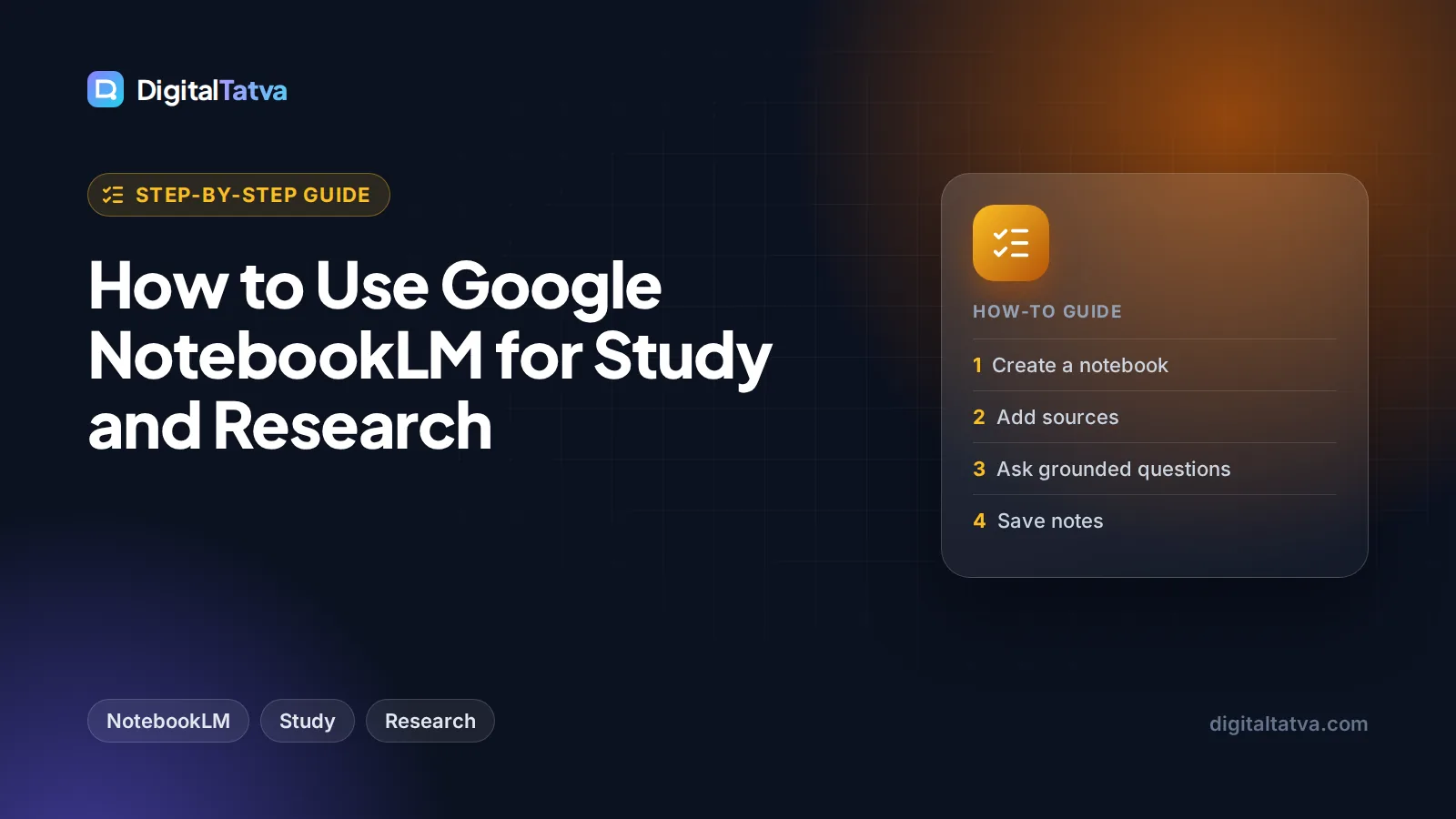
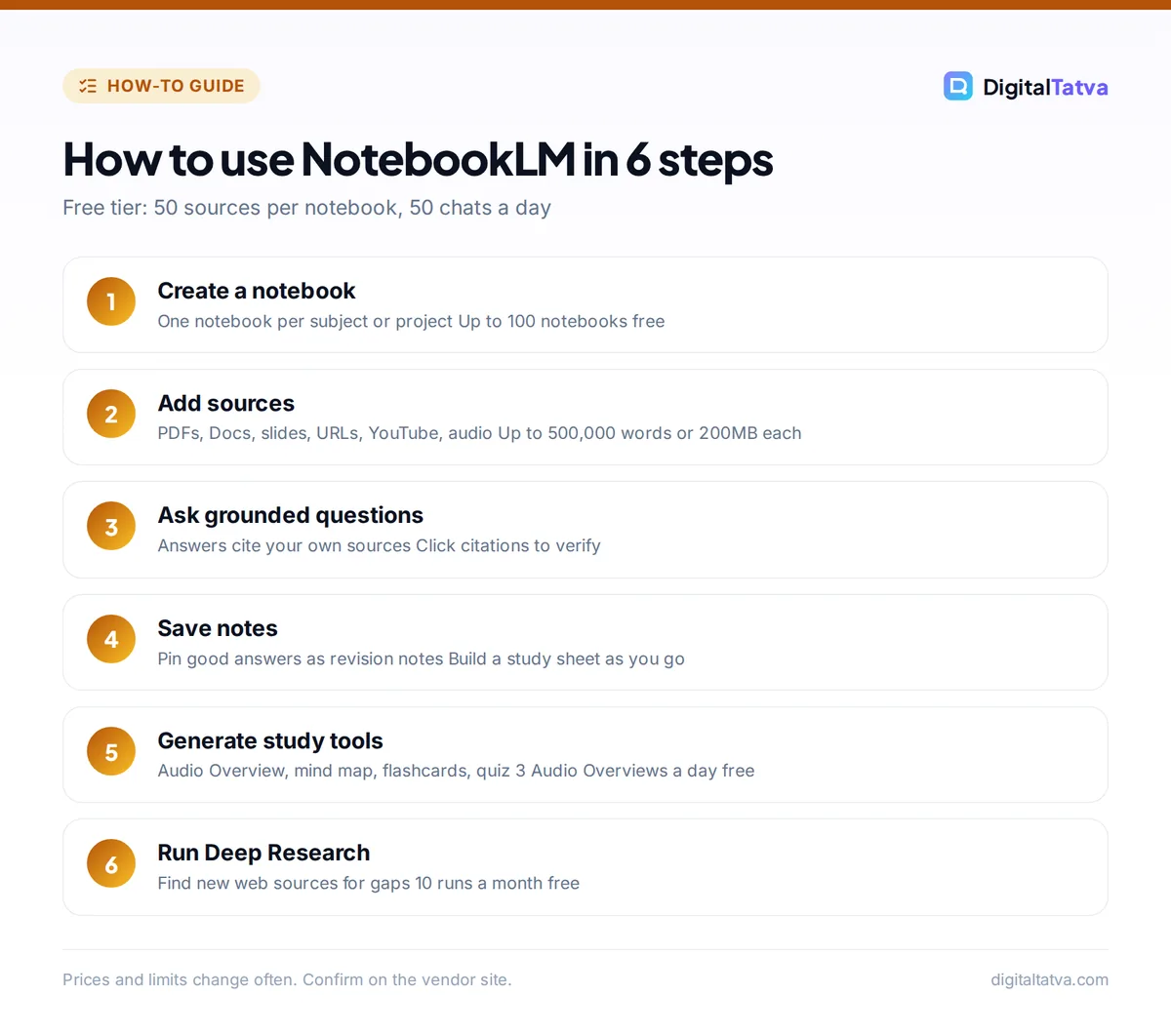
- Open the app and create a notebook. Go to notebooklm.google, sign in, and choose the option to create a new notebook. Give it a specific name such as “Economics Sem 3: Macro” so you can find it later among your notebooks.
- Add your sources. Upload files, paste links, or pick files from Google Drive. Start with the core material: the syllabus, the main readings and your own notes. You can add more sources to the same notebook later.
- Read the auto summary. After upload, NotebookLM writes a short overview of your sources and suggests questions. Skim it to confirm the files were read correctly, especially scanned PDFs.
- Ask grounded questions. Type questions in the chat, such as “Explain the difference between fiscal and monetary policy using only chapter 5.” Click the numbered citations to see the exact lines it used.
- Select or deselect sources. Use the checkboxes in the sources panel to limit an answer to certain files. This is useful when one reading disagrees with another and you want each view separately.
- Save good answers as notes. Pin useful replies to your notes so you build a revision sheet as you go. Notes stay inside the notebook.
- Generate study tools in Studio. Create an Audio Overview, a Video Overview, a mind map, flashcards, a quiz or a report. Each one draws only from the selected sources.
- Share or keep it private. Notebooks are private by default. You can share a notebook with classmates or colleagues, and links keep working after the rename.
Tip: Most Studio outputs let you add instructions before you generate. For an Audio Overview, try “Focus on the three topics most likely to appear in an exam, and explain each with an Indian example.” Tailored outputs are far more useful than the default.
A study workflow that actually helps you learn
The fastest way to waste NotebookLM is to let it summarize everything and never test yourself. Use it as a tutor instead. Here is a five-part workflow that fits inside the free limits.
1. Build one notebook per subject or exam
Keep each notebook focused. A notebook mixing three subjects gives muddier answers and burns through the 50-source cap. One notebook per course, with the syllabus as the first source, works well.
2. Start with an outline and a mind map
Ask for “a structured outline of every topic in the syllabus, with the source each topic comes from.” Then generate a mind map to see how the ideas connect. This shows you gaps before you start memorizing.
3. Listen to an Audio Overview on the move
Audio Overviews turn your sources into a conversation between two AI hosts. They are great for revision while commuting. On the free tier you get 3 per day, so save them for dense chapters rather than easy ones.
4. Quiz yourself with flashcards and quizzes
Generate flashcards and a multiple-choice quiz, then answer without looking. Ask the chat to explain any question you got wrong, with citations. Active recall like this beats rereading summaries.
5. Ask it to play examiner
Prompts such as “Ask me five short-answer questions on chapter 6, one at a time, and grade my answers against the sources” turn the chat into a tutor. For more prompt patterns, see our prompt engineering guide.
If you are a student comparing tools, our list of the best AI tools for students shows where NotebookLM fits next to Perplexity, Grammarly and ChatGPT.
A research workflow for marketers, founders and analysts
NotebookLM is just as useful for work research. A content marketer can load competitor pages, customer interview transcripts and a brand guide, then ask “What objections come up most often, with quotes?” A founder can load investor memos and market reports and ask for a one-page brief.
- Collect primary sources first. Add reports, interview transcripts, survey exports and official documents. YouTube links work for webinars and talks.
- Use Deep Research to fill gaps. Deep Research searches the web for new sources on your topic and can add them to the notebook. Free users get 10 runs per month, so use them for big questions only.
- Ask comparison questions. “Compare how sources 2, 4 and 7 describe pricing in the Indian market” gives you a grounded side-by-side view.
- Generate a report. Use the report option in Studio for a briefing document, study guide or FAQ. Edit it before sharing, since it is a first draft.
- Move the output to your writing tool. Copy the brief into Docs or Claude for the final write-up. Our guide on writing a blog post with AI that ranks covers that next step.
Teams already on Google Workspace can also use Gemini inside Gmail, Docs and Sheets alongside notebooks. Our walkthrough on using Gemini in Gmail, Docs and Sheets shows how the two fit together.
NotebookLM limits on Free, Plus, Pro and Ultra
Limits come from Google’s official usage limits page. The Standard tier is free. Plus, Pro and Ultra come with Google AI subscriptions or eligible Workspace plans. Daily quotas reset after 24 hours and monthly quotas after 30 days.
| Limit | Standard (free) | Plus | Pro | Ultra |
|---|---|---|---|---|
| Notebooks | 100 | 200 | 500 | 500 |
| Sources per notebook | 50 | 100 | 300 | 500 to 600 |
| Chats per day | 50 | 200 | 500 | 2,500 to 5,000 |
| Audio Overviews per day | 3 | 6 | 20 | 100 to 200 |
| Video Overviews per day | 3 | 6 | 20 | 100 to 200 |
| Reports, flashcards, quizzes, mind maps per day (each) | 10 | 20 | 100 | 500 to 1,000 |
| Deep Research | 10 per month | 3 per day | 20 per day | 75 to 200 per day |
Ultra figures depend on which Ultra tier you have. For most students the free tier is plenty. Heavy users who hit the 50-source cap or need more than 3 Audio Overviews a day should look at Google AI Plus or Pro.
Save money: Google is giving eligible university students in India a free year of Google AI Plus, and eligible US college students a free year of Google AI Pro, if redeemed by December 31, 2026. Both renew at the normal price unless cancelled. See our roundup of AI student discounts for the details.
Privacy: is NotebookLM safe for your documents?
Google’s privacy page for Gemini Notebook says that for personal accounts, “Your data is protected, and is not used to train Gemini Notebook unless you provide feedback.” If you do send feedback, Google may review the full interaction, including your uploads. So avoid the feedback buttons on sensitive notebooks.
For Workspace and Education accounts the promise is stronger: uploads, queries and responses are not reviewed by humans and are not used to train AI models. If you handle client contracts, medical notes or unpublished research, use a work or school account where possible, and follow your organization’s rules. Our AI usage policy template helps teams set those rules.
Common mistakes to avoid
- Uploading scanned images of text. Low-quality scans can be misread. Run OCR first or use the original digital file.
- Mixing unrelated subjects in one notebook. Answers get vaguer and you hit the source cap faster.
- Trusting summaries without clicking citations. Grounding reduces errors but does not remove them. Check key facts against the cited passage.
- Burning Audio Overviews on easy topics. With 3 a day on the free tier, save them for hard chapters.
- Expecting web knowledge. The chat answers from your sources. If something is missing, add a source or run Deep Research.
Advanced tips for power users
- Create a “source of truth” note. Write your own summary of key definitions as a note, then ask the chat to check your understanding against the sources.
- Use source selection for debates. Select only the sources for one side of an argument, generate a summary, then repeat for the other side.
- Turn meetings into notebooks. Upload meeting transcripts from your notetaker and ask for decisions and action items. Our list of the best AI meeting assistants covers tools that export clean transcripts.
- Watch the new data analysis tools. Google’s July 2026 update added a secure cloud computer that can write and run code for data analysis on your sources, starting with Ultra and Workspace users and then Pro.
- Know when to switch tools. For long-term projects with custom instructions, Claude Projects is a strong alternative. For writing-heavy tasks, see how Claude and Gemini compare for writing and research.
Frequently asked questions
Is NotebookLM free to use?
Yes. The free Standard tier gives you 100 notebooks, 50 sources per notebook, 50 chats a day, 3 Audio Overviews and 3 Video Overviews a day, and 10 Deep Research runs a month. That covers most students. Google AI Plus, Pro and Ultra subscriptions raise those limits if you need more sources or more daily outputs.
Is NotebookLM the same as Gemini Notebook?
Yes. Google renamed NotebookLM to Gemini Notebook on July 16, 2026. It is still a standalone app at notebooklm.google, and it now also connects with the Gemini app. Existing notebooks and shared links continue to work through automatic redirects, so you do not need to move anything or create a new account.
How many sources can I add to NotebookLM?
Free users can add up to 50 sources per notebook. Plus raises that to 100, Pro to 300 and Ultra to 500 or 600 depending on the tier. Each individual source can contain up to 500,000 words or 200MB for uploaded files, so one source can be a full book or a long transcript.
Does NotebookLM use my documents to train AI?
For personal accounts, Google says your data is not used to train Gemini Notebook unless you provide feedback, in which case the interaction may be reviewed. For Workspace and Education accounts, uploads, queries and responses are not reviewed by humans and are not used to train AI models. Avoid sending feedback on sensitive notebooks.
Can NotebookLM search the internet?
The chat answers from the sources in your notebook. To bring in outside information, use the Deep Research feature, which searches the web and can add new sources to your notebook. Free users get 10 Deep Research runs per month, while paid tiers get several per day.
Next steps: get the most out of NotebookLM
Start small: create one notebook for your next exam or project, add five to ten core sources, and spend a week using chat, flashcards and one Audio Overview a day. If you regularly hit the 50-source cap or the 3 Audio Overviews limit, then consider Google AI Plus or Pro. For a wider view of free tools that pair well with it, browse our list of the best free AI tools. Limits and plan details change often, so confirm current numbers on Google’s official help pages before you rely on them.
Pricing and features are checked at the time of writing and can change. Some links may be affiliate links, which never affect our verdicts.