How to Use Gemini in Gmail, Docs and Sheets
Use Gemini in Google Workspace step by step: which plans include it, how to draft and summarize in Gmail and Docs, and how to use the AI function in Sheets.

On this page
- Key takeaways
- Which plans include Gemini in Gmail, Docs and Sheets
- What you need before you start
- How to use Gemini in Gmail
- How to use Gemini in Google Docs
- How to use Gemini in Google Sheets
- Gemini in Slides, Meet and Drive (quick tour)
- Common mistakes to avoid
- Advanced tips for teams
- Frequently asked questions
- Next steps
To use Gemini in Google Workspace, you need either a Workspace Business or Enterprise plan or a personal Google AI plan, then you open Gmail, Docs or Sheets and use the Gemini side panel or the “Help me write” prompts built into each app. In Gmail it drafts and summarizes emails, in Docs it writes and rewrites, and in Sheets you can use the =AI() function and Enhanced Smart Fill to clean and categorize data. Business Standard and above get the full set; Business Starter and Google AI Plus get a lighter version.
This guide explains which plan unlocks which Gemini features, then walks you step by step through the most useful workflows in Gmail, Docs and Sheets, with prompts you can copy, common mistakes and tips for teams.
Key takeaways
- Gemini is bundled into Google Workspace Business plans. No separate Gemini add-on is needed.
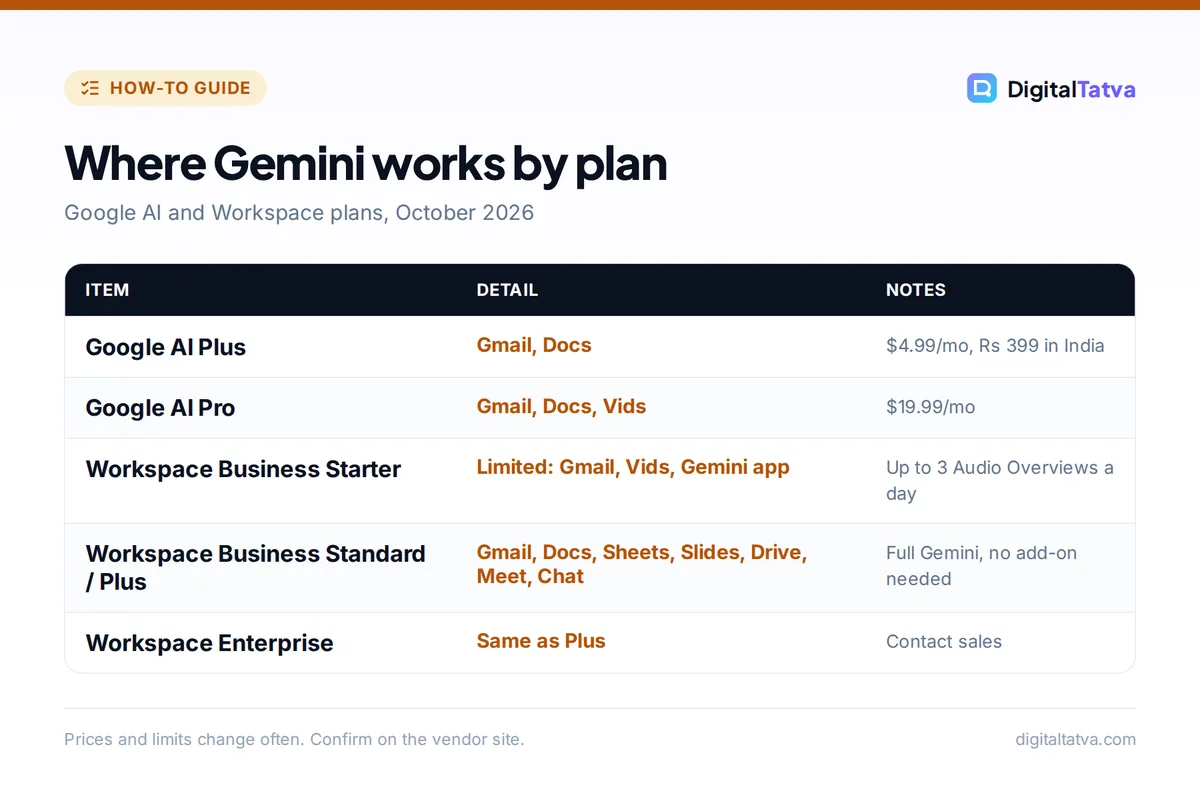
- Business Starter gets limited Gemini (Gmail, Vids and the Gemini app). Business Standard and Plus add Gemini in Docs, Sheets, Slides, Drive, Meet and Chat.
- Personal users get Gemini in Gmail and Docs with Google AI Plus ($4.99/month, Rs 399 in India), and Gmail, Docs and Vids with Google AI Pro ($19.99/month).
- In Sheets, the =AI(“prompt”, range) function generates, summarizes and categorizes text, but only the first 350 selected cells generate at once.
- Always review Gemini drafts before sending. It writes fast, but it can miss context or tone.
Which plans include Gemini in Gmail, Docs and Sheets
Google now includes Gemini in its Workspace Business plans rather than selling it as a separate add-on. According to Google’s getting started help article, people on Business, Enterprise and Frontline editions get AI features at work, while people with personal Google accounts get them through Google AI Plus, Pro or Ultra.
| Plan | Gmail | Docs | Sheets | Slides, Meet, Drive |
|---|---|---|---|---|
| Free personal Gmail | No Gemini in the app | No | No | No |
| Google AI Plus | Yes | Yes | Check your account | Not listed |
| Google AI Pro / Ultra | Yes | Yes | Check your account | Vids listed on Pro |
| Workspace Business Starter | Yes (limited Gemini) | Not listed | Not listed | Vids only |
| Workspace Business Standard / Plus | Yes | Yes | Yes | Yes, plus Chat |
| Workspace Enterprise | Yes | Yes | Yes | Yes |
Google’s consumer subscriptions page lists “Gemini in Gmail and Docs” for AI Plus and “Gemini in Gmail, Docs and Vids” for AI Pro. Sheets is not named on either, although Google’s help page says the AI function in Sheets needs “an eligible Google Workspace or Google AI plan”. If Sheets features matter to you, check inside your own account before paying. Our full Gemini pricing guide covers every consumer plan, including India prices.
For businesses, the official Workspace pricing page did not show per-user prices when we checked, because they load dynamically. Third-party price trackers list Business Starter at about $7, Standard at about $14 and Plus at about $22 per user per month on annual billing. Confirm the price for your country on Google’s site before you buy.
Save money: If your company already pays for Workspace Business Standard, you already have Gemini in Docs, Sheets and Meet. Do not buy individual Google AI Pro plans for staff unless they need extras like more video generation. Our guide to AI team plans explains when business seats save money.
What you need before you start
- An eligible plan. A Workspace Business or Enterprise account, or a personal account on Google AI Plus, Pro or Ultra.
- Admin approval (work accounts). Workspace admins can turn Gemini features on or off. If you cannot see Gemini, ask your admin to check that the service is enabled for your group.
- A browser on desktop. The side panel experience is easiest on desktop Chrome. Gmail mobile has some features too.
- Your real work. Gemini helps most with actual inboxes, documents and spreadsheets, not test files.
Note: Google renames and moves Gemini buttons often. The steps below describe what to look for (a Gemini or spark icon, “Help me write”, a side panel) rather than exact labels, which may differ in your account.
How to use Gemini in Gmail
Gmail is where most people save the most time. Gemini can draft new emails, refine your own text, summarize long threads and suggest replies. Work accounts also get scheduling help.
- Draft a new email with Help me write. Click Compose, then look for the Help me write option (a pencil and spark icon). Type a short brief such as “Polite follow-up to a client who has not paid invoice 214, due 10 days ago, firm but friendly.” Review, edit and send.
- Refine your own draft. Write a rough version yourself, then use the refine options to formalize, shorten or elaborate it. This keeps your voice while fixing tone.
- Summarize a long thread. Open a thread with many replies and use the summary option or the Gemini side panel. Ask “What did the client finally agree to, and what is still open?”
- Ask the side panel about your inbox. Open the Gemini panel and ask questions like “Find emails from the printing vendor this month and list the quotes they sent.” Gemini searches your mail and replies with links.
- Use suggested replies for quick answers. For simple messages, pick a suggested reply and personalize it before sending.
Tip: Give Gemini the facts it cannot know: names, amounts, dates, and the outcome you want. “Reply to Priya, confirm the Thursday 4pm call, ask her to share the deck by Wednesday” beats “reply to this”.
How to use Gemini in Google Docs
In Docs, Gemini drafts, rewrites and summarizes. On Workspace it is available on Business Standard and above, and on personal accounts it comes with Google AI plans.
- Start a draft from a prompt. In a blank document, use Help me write and describe what you need: “A one-page project plan for launching a Diwali email campaign, with goals, timeline and owners.” Gemini inserts a draft you can edit.
- Rewrite selected text. Highlight a paragraph and ask Gemini to shorten it, make it more formal, or turn it into bullet points.
- Summarize a long document. Open the Gemini side panel and ask for a summary, key decisions or action items. This is useful for policy documents and meeting notes.
- Pull in other files. In the side panel you can ask Gemini to use content from files in your Drive, for example “Draft a proposal using the pricing in the Q3 rate card doc.”
- Edit before sharing. Read every draft for accuracy, brand voice and numbers. AI drafts are a starting point.
For long-form content like blog posts, Gemini in Docs gives you a fast first draft, but you still need structure and editing. Our guide on writing a blog post with AI that ranks covers that full process, and our list of the best AI writing tools compares Gemini with dedicated writers.
How to use Gemini in Google Sheets
Sheets has two main Gemini features: the AI function for working on text inside cells, and Enhanced Smart Fill, which “automatically predicts and fills in data by detecting patterns in incomplete column pairs”. The side panel can also help build formulas and explain data.
Using the =AI() function
According to Google’s AI function help page, the syntax is =AI(“prompt”, [optional range]). It can generate text, summarize information, categorize information, analyze sentiment and pull in real-time information from Google Search.
- Prepare a clean column. Put your data in one column with a clear header, for example customer reviews in column B.
- Write the formula. In C2, type =AI(“Classify this review as Positive, Neutral or Negative. Reply with one word.”, B2).
- Fill down. Drag the formula down the column. Only the first 350 selected cells generate at once, so work in batches on big sheets.
- Check and convert. Spot check results, then copy and paste as values if you want to lock them, since you cannot undo or redo the function.
| Goal | Example AI formula |
|---|---|
| Categorize leads | =AI(“Which industry is this company in? One or two words.”, A2) |
| Summarize feedback | =AI(“Summarize this feedback in under 15 words.”, B2) |
| Write product blurbs | =AI(“Write a 20-word product description for an Indian ecommerce listing.”, C2) |
| Sentiment | =AI(“Classify the sentiment as Positive, Neutral or Negative.”, D2) |
| Translate | =AI(“Translate this into Hindi.”, E2) |
Watch out: The AI function returns text only and cannot see your whole spreadsheet or other Drive files. It also has short-term and long-term usage limits. If you hit the long-term limit you may need to wait 24 hours. For heavy number crunching, use regular formulas or a pivot table.
Using the Gemini side panel in Sheets
Open the side panel and ask for help in plain English: “Write a formula that totals sales in column D where the region in column B is West,” or “Create a summary table of revenue by month.” Paste the suggested formula, then test it on a few rows. If you work in Excel too, our guide to using ChatGPT for Excel and data analysis shows a similar workflow with OpenAI’s add-in.
Gemini in Slides, Meet and Drive (quick tour)
- Slides: generate new slides, rewrite content and create custom visuals (Business Standard and above).
- Meet: automatically capture meeting notes and highlights into a document. For alternatives, see our list of the best AI meeting assistants.
- Drive: AI overviews of files and help organizing folders, plus the side panel for questions across documents.
- Gemini Notebook: Workspace Starter allows up to 3 Audio Overviews a day and Standard and Plus up to 20. Our guide on how to use NotebookLM covers it in depth.
Common mistakes to avoid
- Vague prompts. “Write an email” gives generic text. Add who, what, tone and length.
- Sending without reading. Gemini can get names, numbers or commitments wrong. Read every draft.
- Using =AI() for calculations. Use normal formulas for math. The AI function is for text tasks.
- Paying twice. Many teams buy personal AI plans while Workspace already includes Gemini.
- Ignoring company rules. Set clear guidance on what data staff can use with AI. Our AI usage policy template is a good start.
Advanced tips for teams
- Save prompt templates. Keep a shared Doc of proven prompts for common emails, proposals and reports so everyone gets consistent output. Our AI prompts for small business owners are a good starting set.
- Combine apps. Summarize a Gmail thread, ask Gemini to draft a Doc from it, then build a tracker in Sheets.
- Compare with alternatives. If your team lives in Microsoft 365 instead, Copilot is the equivalent. See our Microsoft Copilot pricing guide. For a model-level view, read our ChatGPT vs Gemini comparison.
- Measure the time saved. Track hours saved on email and reporting for a month to judge value. Our guide to measuring AI ROI shows how.
Frequently asked questions
Is Gemini in Gmail free?
Not on a regular free Gmail account. You need either a Google AI plan for personal accounts (Google AI Plus is $4.99 a month in the US and Rs 399 a month in India) or a Google Workspace Business or Enterprise plan for work accounts. Business Starter includes a limited version of Gemini in Gmail.
Which Workspace plan includes Gemini in Docs and Sheets?
Business Standard and Business Plus include Gemini in Docs, Sheets, Slides, Drive, Meet and Chat, and Enterprise plans include the same. Business Starter has only limited Gemini, centered on Gmail, Vids and the Gemini app. Check with your admin, since features can be turned off for some users.
How do I use the AI function in Google Sheets?
Type =AI(“your instruction”, cell) in a cell, for example =AI(“Summarize this in 10 words”, B2), then fill the formula down. It can generate, summarize, categorize and analyze sentiment. Only the first 350 selected cells generate at once, results are text only, and you cannot undo the function, so test on a few rows first.
Why can’t I see Gemini in my Gmail or Docs?
The most common reasons are that your plan does not include it, your Workspace admin has not enabled it for your group, or the feature is still rolling out to your account. Personal free accounts do not get Gemini inside Gmail or Docs. Check your plan first, then ask your admin.
Is Gemini in Google Workspace worth it for small businesses?
For teams that already use Gmail and Docs all day, yes, because Gemini is bundled into Business Standard and above at no extra add-on cost. The biggest wins are email drafting, thread summaries and meeting notes. If you only need occasional help, Business Starter or a single Google AI Plus plan may be enough.
Next steps
Pick one workflow this week, such as summarizing long Gmail threads or categorizing feedback with =AI() in Sheets, and use it daily until it becomes habit. Then add a second. If you are still deciding on a plan, compare Workspace Business Standard with individual Google AI plans, and read our Google Gemini review for an honest look at quality. Plans, prices and feature availability change often, so confirm details on Google’s official pricing and help pages before you buy.
Pricing and features are checked at the time of writing and can change. Some links may be affiliate links, which never affect our verdicts.