Gemini CLI Is Gone: How to Use Google Antigravity and the Antigravity CLI
Google replaced Gemini CLI with Antigravity 2.0 in 2026, an agent-first platform with a desktop app, a new Antigravity CLI, an SDK and managed agents. Here is what changed, how to get started, migrate from Gemini CLI, run parallel agents safely and choose a plan.
On this page
- Key takeaways
- What happened to Gemini CLI?
- What is Google Antigravity 2.0?
- Plans and access
- Getting started with the Antigravity desktop app
- Understanding Agent Manager
- Using the Antigravity CLI
- Migrating from Gemini CLI
- Writing tasks agents can complete well
- Browser use and scheduled tasks
- Safety and privacy checklist
- Antigravity vs other coding agents
- Practical workflows
- Tips for getting better results
- Common mistakes
- Our take
- Why Google made the switch
- Working modes explained
- Antigravity for Android, Firebase and Google Cloud developers
- Using the SDK and managed agents
- A first-day checklist
- Is Antigravity right for you?
- Frequently asked questions
Last updated: 13 November 2026
Quick answer: At Google I/O on 19 May 2026, Google launched Antigravity 2.0 as its main coding agent platform and replaced Gemini CLI with a new, faster Antigravity CLI. Gemini CLI access for consumer accounts (free, Google AI Pro and Ultra) ended on 18 June 2026. Antigravity now spans a standalone desktop app with an Agent Manager for running several agents in parallel, the Antigravity CLI for the terminal, an SDK, and managed agents through the Gemini API. To get started, download the desktop app from Google’s Antigravity site, sign in with your Google account, open a project, choose Plan, Fast or Review-Driven mode, and give your first task. If you used Gemini CLI, migrate scripts and extensions (now called Antigravity plugins) to the new CLI and test them carefully.
Key takeaways
- Gemini CLI has been replaced; consumer access ended on 18 June 2026.
- Antigravity 2.0 is agent-first: you direct and review agents rather than typing every line.
- The desktop app’s Agent Manager coordinates parallel agents, plans, diffs and scheduled tasks.
- The Antigravity CLI is a rebuilt, faster terminal tool that keeps skills, hooks, subagents and extensions.
- Plans range from free with limits to Google AI Pro and Ultra tiers with higher usage.
- Cloud agents send code to Google’s servers, so check privacy rules before using them on sensitive projects.
What happened to Gemini CLI?
Gemini CLI launched in 2025 as an open-source terminal agent that let developers use Gemini models to read code, run commands and make changes from the command line. It was popular, partly thanks to a generous free tier. In May 2026, Google announced that Antigravity 2.0 would become its official agent platform and that the new Antigravity CLI, rebuilt in Go for speed and multi-agent workflows, would replace Gemini CLI. Free individual access to Gemini CLI, along with consumer Google AI Pro and Ultra access, ended on 18 June 2026, with no gradual phase-out.
If you have scripts, CI pipelines or extensions built around Gemini CLI, they need to move to the Antigravity CLI or to API-based alternatives. Enterprise customers using Google Cloud have separate paths through Google’s enterprise agent platform.
What is Google Antigravity 2.0?
Antigravity started in late 2025 as an agent-first development environment. Version 2.0 is a rebuilt platform with several surfaces:
| Surface | What it does |
|---|---|
| Desktop app | A standalone app with Agent Manager for directing several agents, reviewing plans and diffs, and scheduling background tasks |
| Antigravity CLI | A fast terminal agent replacing Gemini CLI, supporting asynchronous and multi-agent workflows |
| SDK | Programmatic access to the same agent harness for your own tools and infrastructure |
| Managed agents in the Gemini API | Start an agent with one API call that reasons, uses tools and runs code in an isolated environment |
| Enterprise agent platform | Connects agents to Google Cloud projects with access controls and audit trails |
The core idea is that developers increasingly act as managers of AI agents: describing goals, reviewing plans, approving changes and steering work, while agents handle much of the implementation.
Plans and access
You sign in with a Google account. A free tier offers limited daily usage of selected models, while Google AI Pro, Ultra and higher tiers provide more capacity and access to more capable models. Developers using the Gemini API pay per token. Quotas and model availability change regularly, so check Google’s current Antigravity and Google AI plan pages before relying on a tier for daily work.
Getting started with the Antigravity desktop app
- Download the app for your operating system from Google’s official Antigravity site. Avoid third-party download mirrors.
- Sign in with your Google account and confirm your plan.
- Open or create a project. Point the app at a local folder or clone a repository.
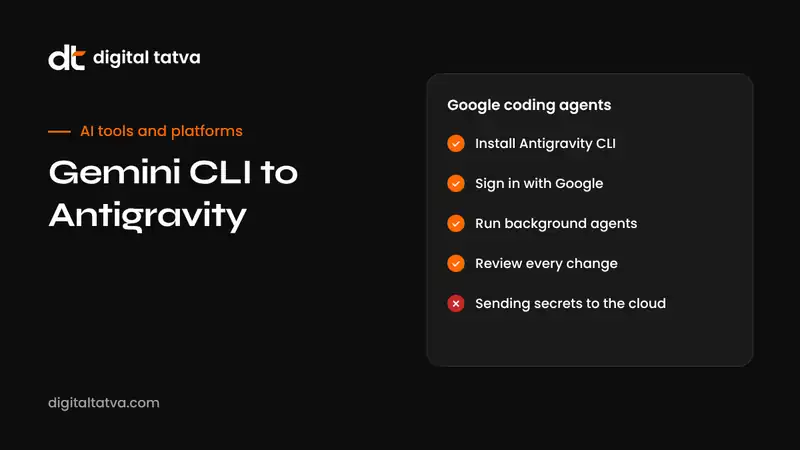
- Choose a working mode. Review-Driven Development is the recommended starting point: the agent proposes plans and changes, and you review before they apply. Plan mode suits complex multi-file work, and Fast mode suits quick edits.
- Describe your first task with clear goals and constraints.
- Review the artifacts. Agents produce task lists, implementation plans and code diffs. Comment on them, request changes or approve.
- Run and test the result locally before committing.
Understanding Agent Manager
Agent Manager is the control centre of Antigravity 2.0. It shows every running agent, what it is working on, and the artifacts waiting for your review. You can:
- Run several agents in parallel, for example one fixing a bug while another writes tests and a third updates documentation.
- Define sub-agent workflows where specialised agents handle parts of a larger task.
- Schedule background tasks that run automatically, such as a nightly dependency check.
- Review plans before code so mistakes are caught early.
- Use voice commands to direct agents hands-free.
Parallel agents are powerful but can produce conflicting changes. Keep each agent’s scope separate, ideally on its own branch, and review merges carefully.
Using the Antigravity CLI
The Antigravity CLI replaces Gemini CLI for terminal users. It is faster, supports asynchronous and multi-agent workflows, and connects to the same agent harness as the desktop app. Install it following Google’s official instructions for your platform, sign in, and run it from your project folder.
Typical CLI workflows include:
- Asking the agent to explain a codebase or a specific module.
- Fixing failing tests and lint errors.
- Generating boilerplate, scripts and configuration files.
- Running agent tasks inside CI pipelines with appropriate permissions.
- Combining the agent with shell scripts for repeatable automation.
Migrating from Gemini CLI
- Inventory your usage. List every script, alias, CI job and extension that calls Gemini CLI.
- Install the Antigravity CLI alongside your existing setup in a test environment.
- Port configuration. Move project context files, custom commands, skills and hooks. Extensions become Antigravity plugins.
- Update commands in scripts and CI where syntax or flags differ.
- Test thoroughly on a branch, comparing outputs with your previous workflow.
- Review authentication and quotas, since free-tier limits and paid plans differ from the old Gemini CLI tier.
- Remove Gemini CLI from machines and pipelines once everything works, to avoid confusion.
Writing tasks agents can complete well
Like all coding agents, Antigravity performs best with clear, scoped tasks. Include the goal, constraints, files to focus on, what not to change and how success will be checked.
| Weak task | Strong task |
|---|---|
| Make the app faster | The product list page takes 4 seconds to load with 500 items. Add pagination of 50 items per page and lazy-load images. Do not change the API. Measure load time before and after. |
| Add login | Add Google sign-in using our existing auth library. Protect the /dashboard routes. Add tests for logged-in and logged-out access. |
| Clean up code | Remove unused imports and dead functions in the utils folder. Do not change behaviour. All tests must pass. |
| Fix tests | Three tests in checkout.spec fail after the currency update. Find the cause, fix the code or the test as appropriate, and explain which and why. |
Adding a project context file that explains how to build, test and style your project, similar to AGENTS.md used by other agents, saves time on every task.
Browser use and scheduled tasks
When a task includes a web page, for example testing a signup flow or checking documentation, Antigravity agents can use a browser through a Chrome extension. This is useful for end-to-end testing and research. Be careful with logged-in accounts and sensitive sites, and watch for prompt injection: web pages can contain hidden text designed to manipulate agents.
Scheduled tasks let you set up recurring work, such as a weekly dependency audit, a daily test of critical user journeys, or a regular report on open issues. Start with read-only or low-risk tasks, and review results before letting scheduled agents make changes automatically.
Safety and privacy checklist
- Review before applying. Keep Review-Driven Development on until you trust the agent in your project.
- Isolate agents. Use separate branches for parallel agents.
- Protect secrets. Do not expose production keys, customer data or credentials to agents.
- Limit permissions for scheduled and CI agents.
- Check data terms. Cloud agents send code and prompts to Google; confirm this fits your company’s policies and contracts.
- Consider local models for highly sensitive code where cloud processing is not allowed.
- Document AI use in your team’s policies; see our AI usage policy template.
Antigravity vs other coding agents
| Tool | Strengths | Consider when |
|---|---|---|
| Google Antigravity | Agent Manager, parallel agents, Gemini models, Google Cloud integration | You use Gemini, Firebase, Android or Google Cloud |
| OpenAI Codex | Desktop app, CLI, IDE and cloud tasks with ChatGPT integration | You use ChatGPT plans and GitHub workflows; see how to use OpenAI Codex |
| Claude Code | Strong reasoning on complex codebases, terminal and IDE agent | You prefer Claude models |
| Cursor and Devin Desktop | AI-native editors with built-in agents | You want everything inside one editor; see Windsurf vs Cursor |
| GitHub Copilot | Deep GitHub integration | Your workflow centres on GitHub |
See our wider comparison of the best AI coding assistants.
Practical workflows
Solo developer shipping a side project
Use one agent in Plan mode to design a feature, review the plan, then let it implement while a second agent writes tests. Review both diffs, run the app and merge. Schedule a weekly agent to check dependencies and open a summary of updates.
Small agency maintaining client sites
Create a project per client with a context file listing the stack, deployment process and client-specific rules. Use agents for routine maintenance: plugin or dependency updates on a branch, accessibility fixes, broken link checks and performance improvements. Keep humans responsible for deployment.
Startup team
Assign agents to well-defined backlog tickets in parallel, each on its own branch, with pull requests reviewed by engineers. Use the SDK or managed agents to automate repetitive jobs such as generating release notes or triaging issues.
Marketing and SEO tasks with developer support
Agents can help implement technical SEO and AI visibility improvements, such as adding structured data to templates, generating sitemaps, improving server rendering or fixing crawl issues. Our technical AEO checklist is a good source of well-defined tasks.
Tips for getting better results
- Give examples. Point the agent at an existing file that shows the pattern you want it to follow.
- Ask for a plan first on anything touching more than two or three files.
- Keep tasks independent when running agents in parallel.
- Comment on artifacts rather than restarting; agents learn from your feedback within a task.
- Keep tests fast and reliable, because agents depend on them to check their own work.
- Review quotas weekly so you are not surprised mid-project.
Common mistakes
- Treating parallel agents as free speed. More agents mean more review work and more merge conflicts.
- Skipping plan review on complex tasks, so mistakes reach the code.
- Leaving old Gemini CLI scripts in CI, which fail silently after the cutoff.
- Unclear tasks that make agents guess at scope.
- Giving scheduled agents write access before testing them in read-only mode.
- Ignoring quotas, then hitting limits in the middle of important work.
Our take
The end of Gemini CLI frustrated many developers who relied on its generous free tier, but Antigravity 2.0 is a more ambitious platform. The desktop app’s Agent Manager, parallel agents and scheduled tasks reflect where software development is heading: humans setting direction and reviewing, agents doing more of the implementation. If you are in Google’s ecosystem or prefer Gemini models, it is well worth adopting, starting with review-driven mode and small tasks. If you mainly need a fast terminal assistant, compare the Antigravity CLI with Codex and Claude Code before committing.
Why Google made the switch
Google has not framed the change as a simple rename. Gemini CLI was a single-agent tool designed around a chat in the terminal. Antigravity 2.0 is built for a different pattern of work: many agents running at once, longer tasks that continue in the background, plans and diffs reviewed in a central place, and the same agent harness available in a desktop app, a terminal, an SDK and an API. Rebuilding the CLI in Go also made it faster to start and better at handling asynchronous work. Consolidating on one platform lets Google ship features once across every surface instead of maintaining parallel tools.
For developers, the practical effect is more capability and more structure, but also new quotas and a learning curve. The generous free usage that made Gemini CLI popular has been replaced by reduced daily quotas on the free tier and paid plans for heavier use.
Working modes explained
| Mode | How it behaves | Use it for |
|---|---|---|
| Review-Driven Development | Agent proposes plans and changes for your approval before applying them | Getting started, sensitive projects, unfamiliar codebases |
| Plan mode | Agent writes a detailed implementation plan first, then executes after review | Complex, multi-file features and refactors |
| Fast mode | Agent acts quickly with less planning | Small, low-risk edits and quick questions |
A sensible habit is to start every new project in Review-Driven mode for the first week, then use Fast mode only for clearly low-risk work.
Antigravity for Android, Firebase and Google Cloud developers
Developers building on Google’s platforms get extra value from Antigravity’s integrations. Agents can work with Google Cloud projects through the enterprise agent platform, with access controls and audit trails for teams. For Android and Firebase projects, Gemini models are trained with strong knowledge of Google’s own tools and documentation, which helps with platform-specific tasks. As always, confirm that suggestions match the current versions of the libraries and services you use.
Using the SDK and managed agents
Beyond the desktop app and CLI, Antigravity exposes its agent harness for developers building their own tools. The SDK lets you run Gemini-based agents on your own infrastructure, with the same planning, tool use and review patterns. Managed agents in the Gemini API go further: one API call starts an agent that can reason, use tools and execute code in an isolated Linux environment, without you managing servers. Typical uses include internal developer tools, automated code maintenance, data processing pipelines and customer-facing features that need an agent to complete multi-step tasks. Budget carefully, as long-running agents can consume many tokens, and add human review for any action with real-world consequences.
A first-day checklist
- Install the desktop app and, if you work in the terminal, the Antigravity CLI.
- Sign in and confirm your plan and quotas.
- Add a project context file describing setup, tests and conventions.
- Run one small task in Review-Driven mode and inspect every artifact.
- Try two agents in parallel on separate branches with unrelated tasks.
- Set up one read-only scheduled task, such as a weekly summary of outdated dependencies.
- Migrate any remaining Gemini CLI scripts and remove the old tool.
Is Antigravity right for you?
Antigravity is a strong choice if you build on Google Cloud, Firebase or Android, prefer Gemini models, or want a desktop control centre for several agents working in parallel. It is also a natural next step for anyone who relied on Gemini CLI, since the Antigravity CLI keeps skills, hooks, subagents and plugins.
It may be less suitable if your team has standardised on another agent platform with deep GitHub or editor integration, if your security policies prohibit sending code to cloud models, or if you need the generous free usage that Gemini CLI once offered. In those cases, compare it carefully with OpenAI Codex, Claude Code and AI editors such as Cursor before switching.
Whatever you decide, the skills you build directing agents transfer across tools: writing clear tasks, reviewing plans and diffs, keeping tests strong and protecting secrets. Those habits matter more than any single platform, and they will stay valuable as Google and its competitors continue to release new agent features every few months.
Frequently asked questions
Is Gemini CLI still available?
No, not for consumer accounts. Free, Google AI Pro and Ultra access to Gemini CLI ended on 18 June 2026, and Google replaced it with the Antigravity CLI.
What is Google Antigravity?
Antigravity is Google’s agent-first development platform, with a desktop app, CLI, SDK and managed agents for building software with AI agents.
Is Antigravity free?
There is a free tier with reduced daily quotas. Heavier use requires Google AI Pro or Ultra plans or paid API usage.
Can I migrate my Gemini CLI extensions?
Yes. The Antigravity CLI keeps agent skills, hooks, subagents and extensions, which are now called Antigravity plugins. Test them after migrating.
What happens to my Gemini CLI scripts?
They stop working for consumer accounts after the June 2026 cutoff. Update them to use the Antigravity CLI or the Gemini API, and test them on a branch first.
Can Antigravity agents run while I am offline?
Antigravity relies on cloud models, so agents need an internet connection to work. Where scheduled tasks run depends on how you set them up, so check Google’s documentation for your surface and plan.
Which models does Antigravity use?
Primarily Google’s Gemini models, with some other models available depending on your plan. Model options change frequently.
Is my code sent to Google?
Cloud agents process code and prompts on Google’s servers. Check your plan’s data terms and your company’s policy before using it on sensitive code.
Antigravity vs Claude Code vs Codex: which should I use?
All are capable coding agents. Choose based on the models you prefer, your ecosystem and your team’s tools. Many developers test two before deciding.
Does Antigravity work on Windows, macOS and Linux?
The desktop app and CLI support major desktop operating systems. Check Google’s download page for current platform support.
Is the Antigravity CLI open source?
Check Google’s current documentation for licensing details. Gemini CLI was open source, and the Antigravity CLI is a rebuilt tool with its own terms.
Can I use Antigravity with GitHub?
Yes. Agents work on local repositories, so you can commit, push and open pull requests through your normal Git workflow.
What is the best first task for Antigravity?
Ask an agent to explain your codebase, then write tests for one small module. Both are low risk and show how the agent works in your project.
Can I run Antigravity agents in CI?
Yes, with care. Use limited permissions, test credentials and review outputs before merging changes.
Product details, prices and features are checked at the time of writing and can change. Sources are linked in the text so you can check them yourself.
How does your brand appear in AI answers?
We test the questions your buyers ask across the major AI assistants and search engines, then show you what to fix first.
Get an AI Visibility Audit