How to Use ChatGPT Work (Formerly Agent Mode) for Real Tasks
ChatGPT agent mode has been replaced by ChatGPT Work. Learn how to run real multi-step tasks in Work, with prompts, plan access, usage credits and safety rules.

On this page
- Key takeaways
- What happened to ChatGPT agent mode?
- What ChatGPT Work can do for you
- What you need before you start
- How to use ChatGPT Work step by step
- Real tasks that work well (with prompts)
- Usage limits and costs: how Work is metered
- Safety and privacy: rules to follow
- Common mistakes with ChatGPT Work
- Frequently asked questions
- Next steps: start with one real task
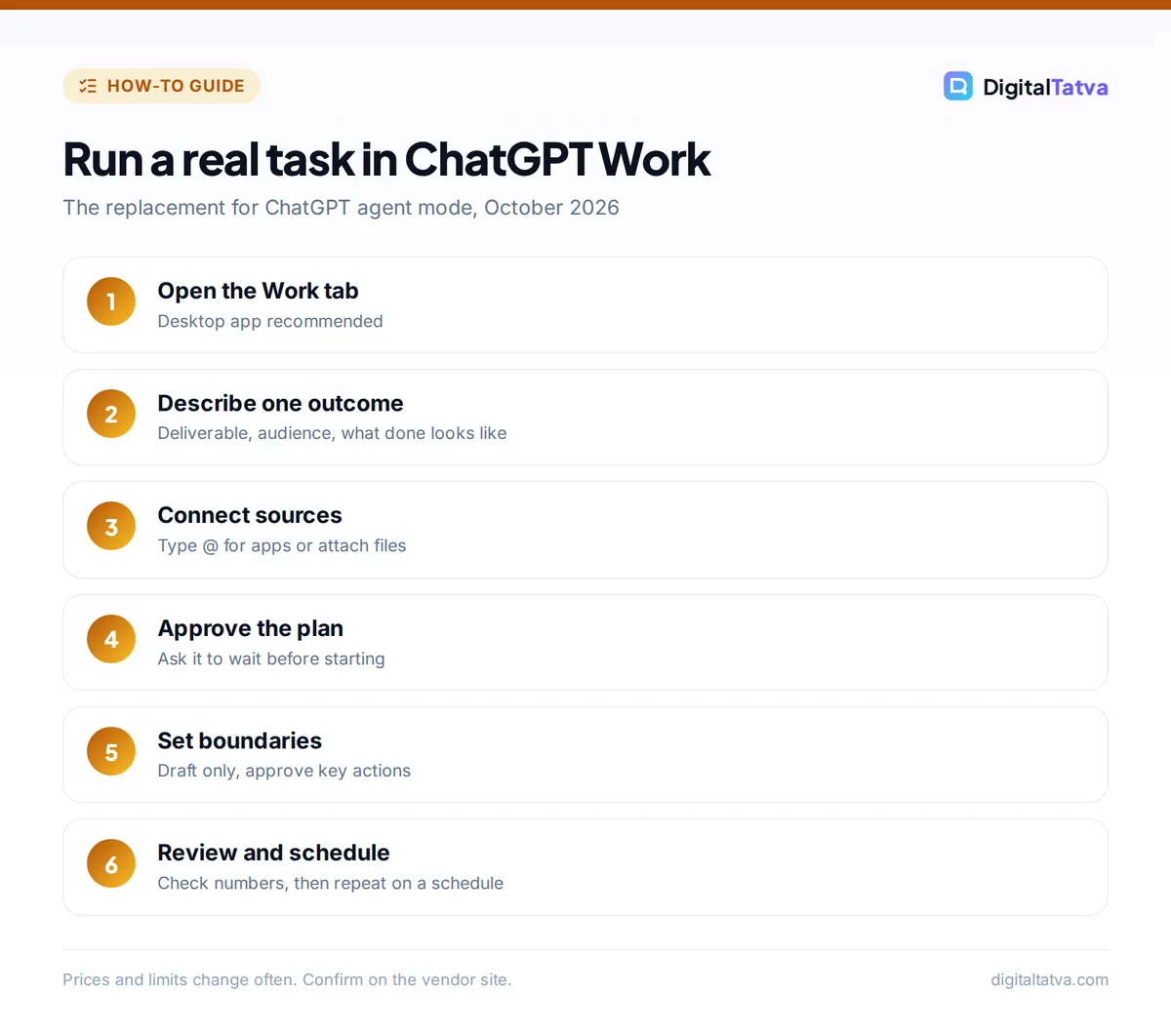
ChatGPT agent mode no longer exists. OpenAI’s help center now states “ChatGPT agent is no longer available” and points users to ChatGPT Work for “longer, multi-step tasks and finished deliverables,” with a separate cloud browser for supported browser workflows. So if you searched for how to use ChatGPT agent mode, the practical answer is: open the Work tab next to Chat, describe the outcome you want, connect the apps it needs, approve its plan and important actions, and review the finished file.
This guide shows how to do that step by step, with real tasks that work well, prompts you can copy, what each plan includes, and the mistakes that waste your usage.
Key takeaways
- The old ChatGPT agent mode was discontinued in August 2026. ChatGPT Work, launched in July 2026, is its replacement for multi-step tasks.
- Work can research, use connected apps and files, run scheduled tasks and deliver documents, spreadsheets, slides, reports and Sites.
- Work runs on the web, mobile and the new ChatGPT desktop app, which adds local files, a built-in browser and Computer Use.
- Usage is metered in credits shared with Codex; long or complex tasks use more.
- Always ask for a plan first and approve consequential actions such as sending email or changing records.
What happened to ChatGPT agent mode?
Agent mode launched in July 2025. It combined the earlier Operator browser agent with deep research, so ChatGPT could browse a virtual computer, fill forms and pause for your confirmation. In July 2026 OpenAI introduced ChatGPT Work, described in its release notes as “an agent for longer, more involved tasks.” A few weeks later, the ChatGPT agent help article gained a notice that agent mode is no longer available.
OpenAI also deprecated its Atlas browser, which stopped working on 9 August 2026, as it moved “browser-based agentic capabilities into ChatGPT and Codex.” The result is a simpler lineup:
| You want to… | Use this now | Notes |
|---|---|---|
| Finish a multi-step task or deliverable | ChatGPT Work | The direct replacement for agent mode |
| Complete a supported website workflow | Cloud browser in ChatGPT | OpenAI’s suggestion for browser tasks |
| Get a quick answer, chart or calculator | Chat with GPT-6 | See our guide to Intelligent UI |
| Write or change code, scripted automation | Codex | Shares usage with Work |
| Run something on a schedule | Scheduled tasks in Work | Old agent schedules must be rebuilt |
Watch out: If you set up recurring agent tasks in 2025 or early 2026, they did not move automatically. Third-party reports advise checking chatgpt.com/schedules, pausing anything that fails silently, and recreating it as a scheduled task in Work.
What ChatGPT Work can do for you
Work is built for jobs that take many steps and end in something you can use. Instead of answering one question, it takes a goal, plans the steps, works through them and hands back a finished result. Based on OpenAI’s launch materials and press coverage, it can:
- Research a topic across the web and your connected sources, then write it up.
- Work across apps you connect through plugins, such as Slack, Google Drive, email or a CRM, by typing “@” and the app name.
- Create documents, spreadsheets, presentations and reports, and turn work into a shareable web page or app with ChatGPT Sites (in beta).
- Run tasks once, on a schedule, when an event happens, or to monitor for changes.
- On desktop, use local files and apps, a built-in browser, and Computer Use to click, type and move files on your behalf, with your permission.
- Ask you questions, show progress and request approval before important actions.
Think of it as a capable junior colleague rather than a magic button. The more clearly you define the outcome, the better the result. That is the same skill our prompt engineering guide teaches for normal chats.
What you need before you start
A plan that includes Work
Work rolled out first to Pro, Enterprise and Edu on web and mobile in July 2026, then to Plus and Business. Free users can use Work in the macOS and Windows desktop apps with limited usage. Plus and higher get GPT-6 Astra inside Work, according to OpenAI’s GPT-6 help article.
| Plan | Price (USD) | Work access | Who it suits |
|---|---|---|---|
| Free | $0 | Desktop app only, limited usage | Trying one or two small tasks |
| Go | $8/month | Limited (Luna in the desktop app) | Light experiments |
| Plus | $20/month | Yes, with GPT-6 Astra in Work | Freelancers and small business owners |
| Pro | $100, $200 or $500/month | Yes, highest usage; Pro 500 adds Astra Ultrafast | People running Work for hours daily |
| Business | $25/user/month ($20 annual) | Yes, with admin controls | Teams sharing connected tools |
Full plan details are in our ChatGPT pricing guide, and our Plus vs Pro comparison helps if you are unsure whether to upgrade.
The desktop app (recommended)
OpenAI’s Academy quickstart for Work says to “download the desktop app and begin working on your first task.” The new desktop app for Mac and Windows combines Chat, Work and Codex. The previous app may still show up as “ChatGPT Classic,” so make sure you install the new one. Desktop is also where local files, the built-in browser and Computer Use are available.
Your apps and files ready
Decide which tools the task needs, such as Google Drive for source documents or your calendar for meeting prep, and connect only those. Plugins bundle skills and connected apps, and they keep each app’s own permission and “action approval” rules.
How to use ChatGPT Work step by step
- Open the Work tab. In the desktop app or on chatgpt.com, select Work next to Chat. You will see a task box similar to the chat box, plus access to plugins and settings.
- Describe one clear outcome. Say what the finished deliverable is, who it is for and what “done” looks like. For example: “Create a 10-slide competitor review of three Pune bakeries for my cafe launch, with prices, best sellers and a one-slide recommendation.”
- Point it at the right sources. Type “@” to pull in a connected app such as Google Drive, or attach files. Tell it which sources to trust and which to ignore, for example “use only the attached sales sheet for numbers.”
- Ask for a plan before it starts. Add “Show me your plan first and wait for my approval.” Work supports check-ins and approvals, and some guides describe a setting to always plan before executing. Edit the plan if a step is wrong or missing.
- Set boundaries and approvals. State what it must not do: “Do not send any email or post anything. Draft only.” For browser tasks on sign-in sites, Work asks for confirmation before consequential actions, but say it explicitly anyway.
- Let it work, and answer its questions. You can follow progress on desktop or mobile, change direction mid-task and answer clarifying questions. Long tasks can run for a long time, so you do not need to watch every step.
- Review the deliverable carefully. Open the file, check every number against its source, and ask for fixes in plain language: “Slide 4 uses last year’s price list. Update it from the attached PDF.”
- Schedule it if it repeats. Once a task works, turn it into a scheduled task, such as “every Monday at 9 am, summarize last week’s support tickets from the shared folder.” Run it once manually first.
Tip: Start with a task you already know how to do well, such as a weekly report or a campaign brief. You will spot mistakes quickly, and you will learn how much detail Work needs before trusting it with something new.
Real tasks that work well (with prompts)
These are practical jobs for marketers, founders and freelancers. Copy the prompt, then adjust the details.
1. Competitor research brief
“Research the top five competitors for [product] in India. For each, list pricing, main features, target customer and one weakness. Put it in a spreadsheet and write a one-page summary with three opportunities for us. Cite sources.”
2. Weekly marketing report
“Using the attached export from our ad account and the analytics CSV, build a weekly report: spend, leads, cost per lead and top three campaigns, compared with last week. Output a 5-slide deck and a short email draft for my manager. Do not send anything.”
3. Meeting prep pack
“For my 3 pm call with [client], pull our last email thread from @Gmail and the proposal from @Google Drive. Give me a one-page brief: what they asked for, open issues and three questions to ask.”
4. Content calendar
“Plan a 4-week blog and Instagram calendar for a home bakery in Ahmedabad around Diwali. Include post ideas, captions and suggested posting days in a spreadsheet.” Our ChatGPT prompts for marketing collection has more ideas to feed into tasks like this.
5. Lead list clean-up
“Clean the attached lead sheet: remove duplicates, standardize phone numbers to +91 format, flag missing emails and add a column for city. Return the cleaned file and a summary of changes.”
If your workflow is a simple trigger and action, such as “when a form is filled, add a row and send a WhatsApp,” a dedicated automation tool is usually cheaper and more reliable. Compare options in our guides to automating tasks with Zapier and AI and the best AI automation tools.
Usage limits and costs: how Work is metered
Work does not use simple message counts. OpenAI measures Work and Codex usage in credits, and both draw from the same allowance. In the desktop app you can open Settings, then Usage and billing, to see your monthly credit usage, remaining allowance, reset timing and your top consuming chats, according to OpenAI’s Work and Codex usage help article. Each Work chat header also shows its lifetime credits.
OpenAI does not publish exact Work allowances per plan. What we know is that more complex tasks consume more, and that sub-agents, image generation and some background activity may not show in a chat’s total but still count. That means one sprawling “do everything” task can use far more than five focused ones. Our guide to ChatGPT limits by plan covers the chat side of your allowance.
Save money: Keep tasks narrow, attach only the files needed, and stop a task as soon as it drifts. Rework is the biggest hidden cost: a clear brief up front usually saves more credits than any setting.
Safety and privacy: rules to follow
An agent that can read your inbox and click buttons deserves caution. Follow these rules, especially on a business account.
- Connect the minimum. Give Work only the apps a task needs, and disconnect plugins you no longer use.
- Keep “draft only” as the default. Let it prepare emails, posts and record changes, then send or save them yourself.
- Approve consequential actions. Purchases, deletions, sending messages and changing CRM records should always need your approval.
- Watch for prompt injection. Web pages and documents can contain hidden instructions. If Work suddenly tries something you did not ask for, stop the task.
- Check workspace rules. Business and Enterprise admins can control access, connected tools and permitted actions. Write your own rules down using our AI usage policy template, and read our guide on AI data privacy for business before connecting client data.
Common mistakes with ChatGPT Work
- Vague goals. “Help with marketing” produces generic output. Name the deliverable, audience and deadline.
- Skipping the plan. Approving a plan takes a minute and prevents an hour of wrong work.
- Trusting numbers blindly. Always check figures and sources before you share a report.
- Using Work for quick questions. Chat with GPT-6 is faster and lighter on usage for simple answers.
- Forgetting old schedules. Agent-era scheduled tasks need rebuilding in Work.
- Relying on custom GPTs. OpenAI announced in September 2026 that custom GPTs will be retired with a migration path to plugins, so build new workflows on plugins and Work rather than on our older custom GPT guide alone.
Frequently asked questions
Is ChatGPT agent mode still available?
No. OpenAI’s help center says “ChatGPT agent is no longer available.” It recommends ChatGPT Work for longer, multi-step tasks and finished deliverables, and the cloud browser in ChatGPT for supported browser workflows. Third-party reports date the removal to early August 2026. Old agent scheduled tasks need to be recreated in Work.
Is ChatGPT Work free?
Partly. Free users can use Work in the ChatGPT desktop app for macOS and Windows, with limited usage. Plus at $20 per month gives web and mobile access and GPT-6 Astra inside Work, while Pro plans offer the most usage. Work and Codex share one credit allowance, so heavy coding reduces how much Work you can run.
What is the difference between ChatGPT Work and Chat?
Chat is for conversation and quick answers, now with interactive GPT-6 responses. Work is an agent: it takes a goal, plans steps, uses connected apps, files and a browser, runs for longer, and delivers finished files such as reports, spreadsheets, slides or Sites. Work also supports scheduled and event-triggered tasks, which Chat does not.
Can ChatGPT Work use my computer?
Yes, in the desktop app and only with your permission. Work can use local files and apps, a built-in browser, and Computer Use to click, type and move files. It asks for confirmation before consequential actions on sign-in sites. Keep sensitive accounts disconnected unless a task truly needs them, and review every action it proposes.
How do I see how much ChatGPT Work usage I have left?
Open the ChatGPT desktop app, select your account menu, then Settings and Usage and billing. You will see monthly credits used across Work and Codex, the remaining allowance, reset timing and your top consuming chats. Each Work chat header also shows the credits that task has used so far.
Next steps: start with one real task
ChatGPT Work is the successor to agent mode and is genuinely useful for research briefs, reports, decks and recurring admin, as long as you give it a clear outcome, ask for a plan and keep consequential actions under your control. Start with one task you do every week, run it manually, then schedule it once the output is reliable. Compare it with other options in our list of the best AI agents you can use in 2026. OpenAI changes plans, limits and feature names often, so confirm current access and pricing on the official ChatGPT site before you rely on it for client work.
Pricing and features are checked at the time of writing and can change. Some links may be affiliate links, which never affect our verdicts.