How to Create a Custom GPT Step by Step
Build a useful custom GPT in about 30 minutes: plan the job, write instructions that hold, add knowledge files and actions, test, and share it safely.

On this page
- Key takeaways
- What is a custom GPT and when should you build one?
- What you need before you start
- How to create a custom GPT step by step
- How to write custom GPT instructions that actually work
- Knowledge files, capabilities and actions explained
- Custom GPT ideas by user type
- Common mistakes when building custom GPTs
- Frequently asked questions
- Next steps: build one small GPT this week
To create a custom GPT, sign in to ChatGPT on a plan that includes custom GPTs (Go, Plus, Pro, Business or Enterprise), open the GPTs area from the sidebar, and start a new GPT. You then describe what it should do, write its instructions, upload knowledge files, choose which tools it can use, and publish it privately, by link or to your workspace. A simple, useful GPT takes about 20 to 30 minutes to build.
This step-by-step guide covers planning, writing instructions that actually hold, adding knowledge and actions, testing, sharing, and the mistakes that make most custom GPTs disappointing.
Key takeaways
- A custom GPT is a reusable version of ChatGPT with your own instructions, files and tool settings, built without code.
- Custom GPTs are listed on the Go ($8/month), Plus ($20/month), Pro and Business plans. Pro lists expanded custom GPTs.
- The instructions field matters most. Clear role, scope, steps, format and refusal rules beat a long, vague brief.
- Knowledge files ground answers in your content, and actions let a GPT call outside APIs when you need live data.
- Test with tricky real prompts before sharing, and never put secrets or private customer data in a GPT others can use.
What is a custom GPT and when should you build one?
A custom GPT is a tailored assistant that lives inside ChatGPT. Instead of pasting the same long prompt every time, you save it once with supporting files, and anyone you share it with can use it with a click. OpenAI calls them GPTs, and they are separate from the underlying GPT-5.6 and GPT-6 models, which power them.
Build one when a task is repeatable, rule-based and needs the same context each time. Good examples:
- A brand voice writer that turns rough notes into on-brand LinkedIn posts
- A customer FAQ helper trained on your policies and product sheets
- A proposal drafter that follows your agency’s structure and pricing rules
- A study tutor that quizzes you on your own lecture notes
- An SEO brief generator that outputs headings, entities and questions in a fixed format
If you only need personal context for ongoing work, a project may be simpler. Our guide to using Claude Projects shows a similar workspace approach, and our ChatGPT vs Claude comparison explains which assistant suits which kind of work. New to ChatGPT entirely? Start with our complete ChatGPT beginner guide.
What you need before you start
| Plan | Price (USD) | Custom GPTs listed? | Notes |
|---|---|---|---|
| Free | $0 | Not listed | Check the app for current access to other people’s GPTs |
| Go | $8/month | Yes | Cheapest plan that lists custom GPTs |
| Plus | $20/month | Yes | Adds GPT-5.6 Sol with deeper thinking |
| Pro | $100, $200 or $500/month | Yes, expanded | Highest limits |
| Business | $25/user/month ($20 annual), 2 seats minimum | Yes | Share inside your workspace, no training on workspace data |
Before you open the builder, prepare:
- A one-sentence purpose. “Turns meeting notes into client-ready follow-up emails in our house style.”
- Two or three example outputs you consider excellent.
- Reference files such as a style guide, FAQs, product sheet or process document, cleaned of anything confidential.
- Five test prompts, including a couple of awkward ones the GPT should refuse or handle carefully.
For plan details, our guide to ChatGPT pricing explains every tier, and our look at AI team plans helps if you are deciding whether Business seats are worth it for sharing GPTs internally.
How to create a custom GPT step by step
OpenAI updates the builder often, so the steps below describe where things usually are rather than exact button labels.
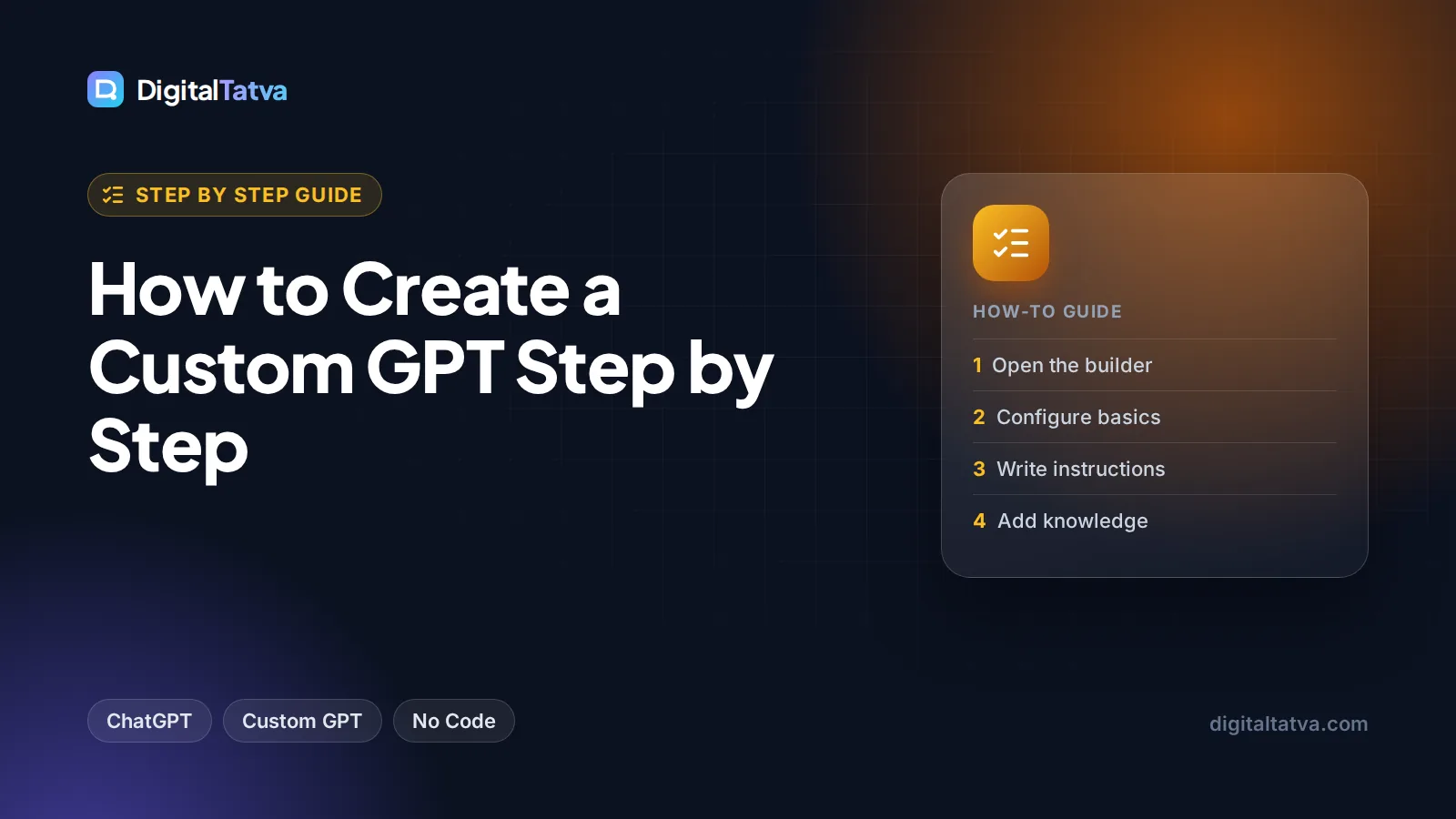
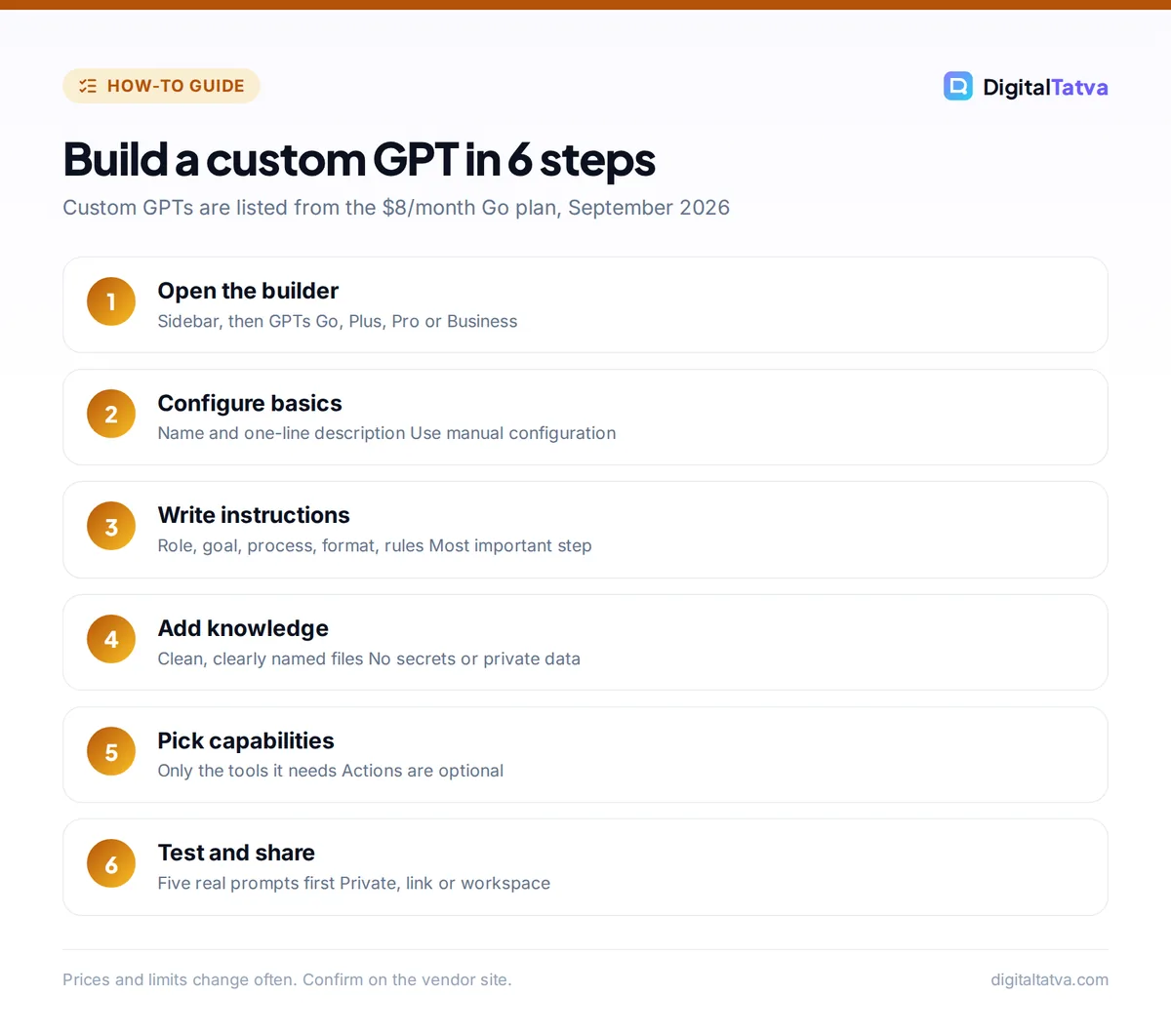
- Open the GPT builder. In ChatGPT on the web, open the sidebar and go to the GPTs area. Choose the option to create a new GPT. The builder usually offers two ways to work: a chat-style assistant that asks you questions, and a manual configuration view with fields you fill in yourself.
- Sketch it with the chat builder (optional). Describe your GPT in plain language, such as “A GPT that writes Instagram captions for a Jaipur jewelry brand in a warm, premium voice.” The builder drafts a name, description and instructions. This is a fast starting point, but always review what it writes.
- Switch to manual configuration. Open the configuration view and edit each field directly. This is where you get precise control. Add a clear name, a one-line description that tells users what the GPT does, and a profile image if you like.
- Write the instructions. Paste in a structured brief (template in the next section). This is the most important step. Be explicit about the role, steps, output format and what the GPT must not do.
- Add conversation starters. Write three or four example prompts that appear as buttons for users, like “Turn these notes into a follow-up email.” They teach people how to use the GPT correctly.
- Upload knowledge files. Add your reference documents in the knowledge section. The GPT can search these when answering. Use clean, well-structured files with clear headings.
- Choose capabilities. Turn on only the tools the GPT needs, such as web search, image creation, or code and data analysis for spreadsheets. Fewer tools mean fewer surprises.
- Add actions if needed. Actions let a GPT call an external API, such as your CRM or a weather service. You provide an API schema and authentication details. Skip this for your first GPT unless live data is essential.
- Test in the preview panel. Run your five test prompts in the preview side of the builder. Adjust instructions after each failure and test again.
- Publish and share. Save the GPT and choose who can access it: only you, anyone with the link, or (on Business and Enterprise) people in your workspace. Public listing in OpenAI’s GPT directory may also be available depending on your account.
Tip: Keep a copy of your instructions in a document outside ChatGPT. When you improve a GPT, you can track what changed and roll back if a new version performs worse.
How to write custom GPT instructions that actually work
Most weak GPTs fail because the instructions are either too vague (“be helpful and creative”) or a wall of text with conflicting rules. Use a short, structured template:
ROLE: You are [role] for [business or audience].
GOAL: Help users [specific outcome].
PROCESS:
1. If key details are missing, ask up to 3 short questions.
2. Check the knowledge files before answering.
3. Produce the output in the format below.
FORMAT: [length, headings, bullets, tone, spelling].
RULES:
- Use only facts from the knowledge files for prices and policies.
- If the answer is not in the files, say so. Do not guess.
- Never [off-limits topics or actions].
EXAMPLES: [one short good example].
Three principles make instructions stick:
- Put the most important rules first. Instructions near the top tend to be followed more reliably.
- Use numbered steps for process. Models follow ordered steps better than flowing paragraphs.
- Define the failure behavior. Telling the GPT what to do when information is missing prevents invented answers.
Our prompt engineering guide explains these techniques in depth, and our list of ChatGPT prompts for marketing is a good source of task ideas to turn into GPTs.
Knowledge files, capabilities and actions explained
Knowledge files
Knowledge files are documents your GPT can search when it answers. They are ideal for FAQs, policies, product catalogs, style guides and course notes. Tips for better retrieval:
- Use clear headings and short sections so relevant passages are easy to find.
- Remove duplicates and outdated versions.
- Prefer text-based formats over scanned images.
- Tell the GPT in its instructions which file to use for what, for example “Use pricing.pdf for all prices.”
Watch out: Assume that anyone who can use your GPT may be able to get it to reveal parts of its instructions or knowledge files. Never upload passwords, API keys, private customer data or confidential contracts to a GPT you share outside your team.
Capabilities
Capabilities are built-in ChatGPT tools you switch on or off per GPT. Web search helps with current information. Image creation suits design or social GPTs. Code and data analysis lets the GPT work with spreadsheets and CSV files, which is useful for reporting GPTs; see our guide to ChatGPT for Excel and data analysis for ideas.
Actions
Actions connect a GPT to external services through an API. For example, a sales GPT could look up a lead in your CRM, or a support GPT could check order status. You describe the API with a schema and set up authentication. Actions are powerful but add security and maintenance work. For no-code alternatives that connect apps together, our guide to automating tasks with Zapier and AI may be simpler.
Custom GPT ideas by user type
| User | GPT idea | Knowledge files | Capabilities |
|---|---|---|---|
| Freelancer | Proposal writer | Service list, past proposals | None or web search |
| Small business | Customer FAQ helper | Policies, product sheet | None |
| Marketer | Brand voice writer | Style guide, top posts | Image creation |
| Student | Exam quiz tutor | Lecture notes, syllabus | None |
| Analyst | Weekly report builder | Report template | Code and data analysis |
If you want a public-facing chatbot on your own site rather than inside ChatGPT, a GPT is not the right tool. See our guide on adding an AI chatbot to your website instead. Small business owners can find more use cases in our AI prompts for small business owners.
Common mistakes when building custom GPTs
Do
- Give each GPT one clear job
- Test with awkward, real prompts before sharing
- Name files clearly and reference them in instructions
- Review and update the GPT when your prices or policies change
Avoid
- One “does everything” GPT with dozens of rules
- Relying on the chat builder’s draft without editing it
- Turning on every capability by default
- Uploading secrets or confidential data
One more mistake: expecting a GPT to be perfectly consistent. It still runs on a language model, so outputs vary and can contain errors. Keep a human review step for anything client-facing, and write a simple team policy with our AI usage policy template.
Frequently asked questions
Can I create a custom GPT for free?
OpenAI’s plan listings show custom GPTs on Go, Plus, Pro, Business and Enterprise, but not on the Free plan. The cheapest option is ChatGPT Go at $8 per month in the US, which also includes projects and scheduled tasks. Check the app for current access rules, since OpenAI adjusts what Free users can do with GPTs built by others.
Do I need coding skills to build a custom GPT?
No. You build a custom GPT by writing instructions in plain language, uploading files and toggling capabilities. Coding knowledge only helps if you add actions, which connect the GPT to external APIs using a schema and authentication. Most useful GPTs, such as brand voice writers, FAQ helpers and tutors, need no code at all.
Can I make money from a custom GPT?
Revenue programs for GPT builders have changed over time and could not be confirmed for 2026, so check OpenAI’s current policies. The more reliable way to earn is indirect: build GPTs that speed up paid client work, package a GPT as part of a consulting service, or use one as a lead magnet that shows off your expertise.
Is my data safe in a custom GPT?
Treat anything you put in a shared GPT as potentially visible to its users, including instructions and knowledge files. On Business and Enterprise plans, OpenAI does not train on workspace data, and GPTs can be shared only inside your workspace. Never upload passwords, API keys, ID numbers or private customer records to a public or link-shared GPT.
What is the difference between a custom GPT and a ChatGPT project?
A project groups your own chats, files and instructions for ongoing work, like a client folder. A custom GPT is a packaged assistant with a fixed job that you can share with others by link or workspace. Use projects for your own evolving work, and custom GPTs for repeatable tasks that you or your team run the same way every time.
Next steps: build one small GPT this week
Pick the single task you repeat most, write a one-sentence purpose, collect two good examples and one clean reference file, and build a focused GPT in the manual configuration view using the template above. Test it with five real prompts, fix the instructions after each failure, and share it only when it passes. Once one GPT saves you real time, build the next.
For official details, see OpenAI’s ChatGPT pricing page and the ChatGPT Business overview. Plan features and prices change often, so confirm current details on OpenAI’s site before you upgrade.
Pricing and features are checked at the time of writing and can change. Some links may be affiliate links, which never affect our verdicts.