How to Automate Repetitive Tasks With Zapier and AI
Step-by-step guide to automating repetitive tasks with Zapier and AI: build an AI lead-handling Zap, pick the right plan, count tasks and avoid costly mistakes.

On this page
- Key takeaways
- What you need before you start
- Which Zapier plan do you need for AI automation?
- Step by step: build an AI lead-handling Zap
- How many tasks does this workflow use?
- Five more tasks to automate with Zapier and AI
- Common mistakes when automating with Zapier AI
- Advanced tips: Agents, Chatbots and MCP
- Frequently asked questions
- Next steps
To automate tasks with AI in Zapier, you pick a trigger (for example “new form entry” or “new email”), add an AI step that summarizes, classifies or drafts text, then add actions that send the result to your CRM, Slack, Gmail or a spreadsheet. You can build your first AI workflow in under an hour on the free plan, and Zapier Copilot will even draft the Zap for you if you describe it in plain English.
This guide walks through a complete, real example (an AI lead-handling workflow), then covers which plan you need, common mistakes that waste tasks, and advanced options like Zapier Agents, Chatbots and MCP.
Key takeaways
- A Zap is a trigger plus one or more actions. AI steps sit in the middle to read, sort or write content.
- Zapier Free gives 100 tasks a month but only two-step Zaps; most AI workflows need Professional, from $19.99/month, for multi-step Zaps and AI by Zapier.
- Each successful action counts as a task, so filters before AI steps save both tasks and tokens.
- Zapier Agents (400 free activities a month) handle open-ended jobs; classic Zaps are better for predictable, repeatable tasks.
- Always test with real sample data and keep a human review step for anything customer-facing.
What you need before you start
You do not need any coding skills. You do need a clear picture of the task you want to automate. The best first candidates are tasks you do the same way at least a few times a week, such as copying form entries into a CRM, sorting support emails or turning meeting notes into follow ups.
- A Zapier account. Free works for testing; you will likely need Professional for multi-step AI workflows.
- Logins for the apps involved, for example Google Forms or Typeform, Google Sheets or HubSpot, Slack and Gmail.
- Optional: an AI API key from OpenAI, Anthropic or Google if you want to choose your own model and pay per token instead of using Zapier’s built-in AI.
- A few real examples of the input (five or six real emails or form entries) so you can test properly.
Which Zapier plan do you need for AI automation?
Zapier counts usage in tasks: each successful action step uses one task, while the trigger usually does not. Here are the plans as listed on the official page on 1 October 2026.
| Plan | Price | What it allows | Good for |
|---|---|---|---|
| Free | $0 | 100 tasks/month, two-step Zaps, Zapier Copilot (beta) | Learning and very simple automations |
| Professional | From $19.99/month | Multi-step Zaps, premium apps, webhooks, AI fields, AI by Zapier | Solo users and small businesses |
| Team | From $69/month | 25 users, shared Zaps and connections, SAML SSO | Teams sharing workflows |
| Enterprise | Custom | Annual task limits, unlimited users, advanced admin | Large companies |
Higher task tiers cost more, so use the task slider on the official Zapier pricing page once you know your volume. Zapier Agents and Chatbots are billed separately, each with its own free tier.
Note: If you expect long workflows with many steps at high volume, compare Zapier’s task pricing with Make’s credits and n8n’s executions in our Zapier vs Make vs n8n comparison before committing.
Step by step: build an AI lead-handling Zap
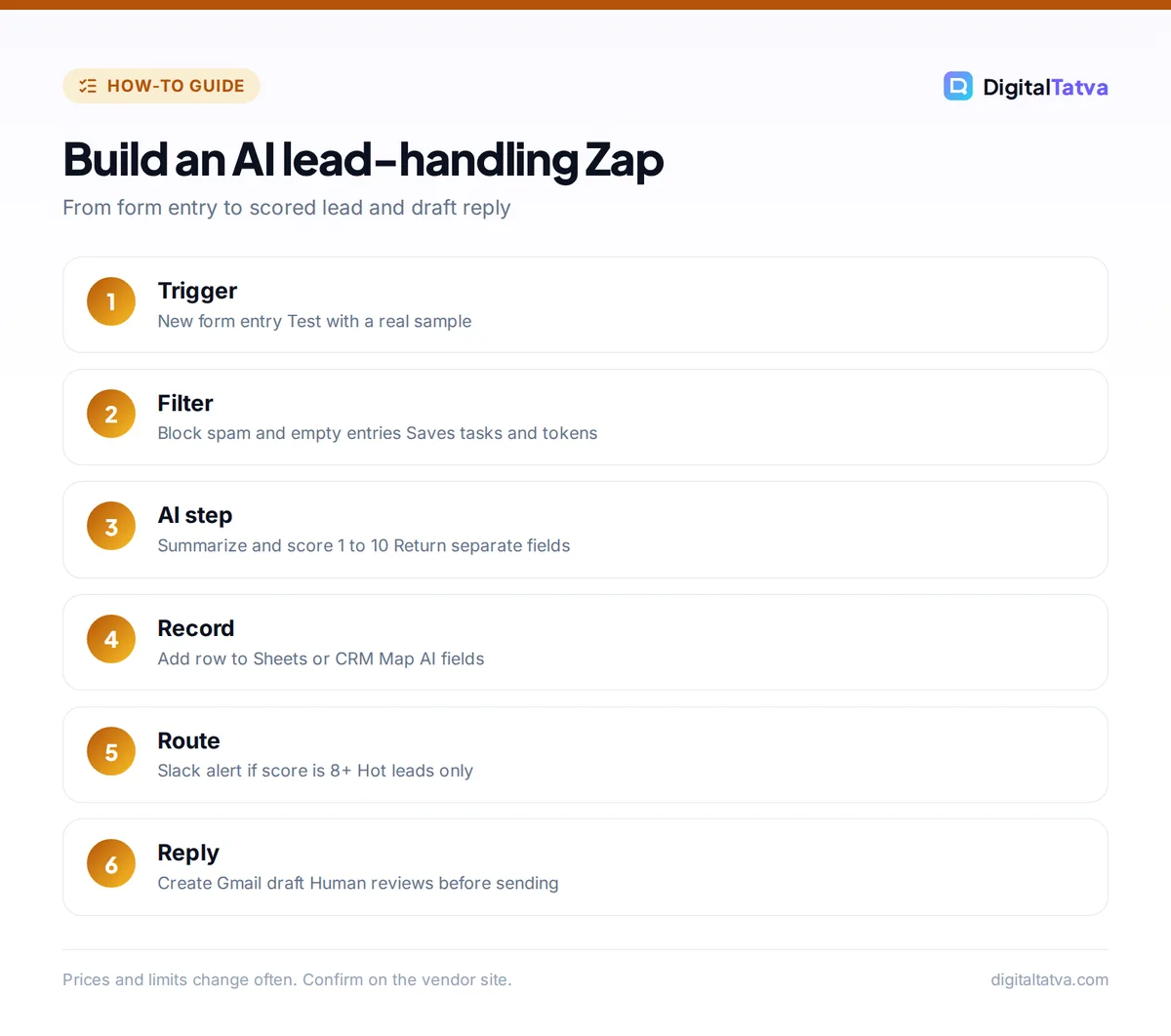
Our example: every new contact form entry is summarized and scored by AI, added to a Google Sheet (or your CRM), posted to Slack if it is a hot lead, and answered with a draft email. Adapt the apps to your own stack.
- Describe the Zap to Copilot (optional). From the Zapier dashboard, use the Copilot box and type something like “When someone submits my Typeform, use AI to summarize and score the lead from 1 to 10, add a row to Google Sheets and post hot leads to Slack.” Copilot drafts the steps for you to review. You can also build manually with the Create button.
- Set up the trigger. Choose your form app and the event (for example “New Entry”). Connect your account, pick the form, then click test so Zapier pulls in a real sample entry. Every later step uses fields from this sample.
- Add a filter. Add a Filter step so the Zap only continues if, for example, the email field does not contain obvious spam domains or the message field is not empty. Filters stop junk before it uses AI tasks and tokens.
- Add the AI step. Add an action and choose AI by Zapier (or the ChatGPT, Claude or Gemini app if you want to use your own API key). Write clear instructions and map in the form fields. Ask for structured output fields such as “summary”, “score” and “reason” so later steps can use each one separately.
- Write a precise prompt. For example: “You are a sales assistant for a web design agency. Summarize this enquiry in two sentences. Score it 1 to 10 for fit, where 10 means a business with a clear project and budget. Explain the score in one sentence.” Our prompt engineering guide covers more techniques.
- Send the result to your records. Add a Google Sheets “Create Spreadsheet Row” action (or your CRM’s “Create Contact” action) and map the original fields plus the AI summary and score.
- Route hot leads. Add a Paths or Filter step: only if score is 8 or higher, post a Slack message to your sales channel with the name, summary and score.
- Draft the reply. Add a second AI step that writes a short, friendly reply, then a Gmail “Create Draft” action. Use a draft, not “Send Email”, so a person checks it before it goes out.
- Test each step, then publish. Test every step with the sample data, check the sheet, Slack and Gmail draft, then turn the Zap on. Submit two or three real test entries to confirm it behaves as expected.
Tip: Ask the AI step to return the score as a plain number only. Text like “Score: 8/10” breaks number filters, while “8” works every time.
How many tasks does this workflow use?
Count the actions that run. In our example, a hot lead runs the filter, two AI steps, the sheet row, the Slack post and the Gmail draft. Filters and paths are generally not counted as tasks by Zapier, but check your task history to confirm, because counting rules can change.
- Hot lead: about 5 tasks (2 AI steps, sheet, Slack, Gmail).
- Normal lead: about 4 tasks (no Slack post).
- Spam stopped by the filter: close to 0 tasks.
At 200 genuine leads a month, that is roughly 800 to 1,000 tasks, already beyond the Free plan’s 100. If you use your own API key, add token costs. With a budget model like GPT-6 Luna ($0.10 input, $0.50 output per 1M tokens), 400 AI calls at about 1,500 input and 400 output tokens each come to 0.6M input and 0.16M output tokens: $0.06 + $0.08 = about $0.14 a month. Our guides to OpenAI API pricing and estimating AI API costs show how to run these numbers for any model.
Save money: Combine the summary, score and reply into one AI step that returns three fields. That saves one task per run and roughly halves token usage.
Five more tasks to automate with Zapier and AI
| Task | Trigger | AI step | Action |
|---|---|---|---|
| Support email triage | New Gmail email with a label | Classify as billing, bug or question; draft a reply | Add to helpdesk, create Gmail draft |
| Meeting follow ups | New transcript in your notetaker | Extract action items and owners | Create tasks in Asana or Trello |
| Content repurposing | New blog post in RSS or WordPress | Write three social captions | Add to Buffer queue or a sheet |
| Invoice and receipt logging | New email attachment | Extract vendor, amount and date | Add row to a finance sheet |
| Review monitoring | New review in your review tool | Detect sentiment, draft a response | Slack alert for negative reviews |
For support-heavy businesses, a dedicated helpdesk AI may beat a home-built Zap. Our guide to AI customer support tools compares the options. If spreadsheets are your main workspace, also see how to use ChatGPT for Excel and data analysis.
Common mistakes when automating with Zapier AI
- Automating a messy process. If you cannot write the steps on paper, AI will not fix it. Simplify first.
- Skipping filters. Every spam entry that reaches the AI step costs tasks and tokens.
- Vague prompts. “Summarize this” gives inconsistent output. Specify length, format and the fields you want back.
- Auto-sending AI emails. Use drafts or an approval step until you trust the output on dozens of real examples.
- Testing with fake data. Made-up samples hide real-world problems like empty fields, long messages and other languages.
- Forgetting error alerts. Turn on Zapier’s error notifications so a broken connection does not silently stop the Zap.
Watch out: Do not paste sensitive customer data into AI steps unless your plan and the model provider’s terms allow it. Agree internal rules first; our AI usage policy template helps.
Advanced tips: Agents, Chatbots and MCP
Zapier Agents for open-ended work
Zaps follow fixed steps. Zapier Agents take a goal (“research each new lead’s company and add notes to the CRM”) and decide which actions to take. Agents Free includes 400 activities a month, and Agents Pro costs $33.33/month ($400/year) for 1,500 activities. Use agents for research and judgment-heavy jobs, and Zaps for anything that must run the same way every time.
Zapier Chatbots for your website
Zapier Chatbots let you build a bot trained on your content that can also trigger Zaps, such as creating a lead when a visitor shares their email. Free allows 2 chatbots, Pro is $13.33/month ($160/year) for 5, and Advanced is $66.67/month ($800/year) for 20. Our guide on adding an AI chatbot to your website covers the setup and alternatives.
Zapier MCP for ChatGPT and Claude
Zapier MCP is included on all plans and lets AI assistants like Claude or ChatGPT call your Zapier actions directly, for example “add this to my CRM” from a chat. Each MCP tool call uses two tasks, so heavy use adds up quickly.
Choose the right model
For sorting and short summaries, a budget model is usually enough. Save flagship models for writing that customers will read. Our guide to picking the cheapest AI model for each task explains the trade-offs.
Frequently asked questions
Can I use AI in Zapier for free?
Partly. The Free plan includes Zapier Copilot to help build Zaps and 100 tasks a month, but it is limited to two-step Zaps and does not include AI by Zapier. Zapier Agents (400 activities a month) and Chatbots (2 bots) have their own free tiers. For multi-step AI workflows, you will usually need Professional, from $19.99 a month.
Do I need an OpenAI API key to use AI in Zapier?
No. AI by Zapier and AI fields work inside paid plans without your own key. A key is useful if you want a specific model, such as a cheap GPT-6 Luna or a Claude model, and pay the provider per token. Connecting your own key also makes token costs visible and easy to control.
How many tasks does an AI step use in Zapier?
Each successful action, including an AI step, generally counts as one task. Triggers usually do not count, and filters or paths generally do not either. A workflow with two AI steps and three app actions uses about five tasks per run. Check your Zap history for exact usage, as counting rules can change.
What tasks should a small business automate first?
Start with frequent, rule-based tasks: logging form leads into a CRM, sorting support emails, creating follow-up tasks from meeting notes and posting new blog content to social queues. These save time every week and are low risk. Avoid fully automating anything customer-facing until you have checked AI output on many real examples.
Is Zapier worth it compared with Make or n8n?
Zapier is worth it if you value speed and simplicity, because it has the largest app library and the easiest AI features. If your workflows have many steps at high volume, Make’s credit pricing or n8n’s per-execution pricing can be much cheaper. Many teams prototype in Zapier and move heavy workflows later.
Next steps
Pick one repetitive task you did this week, build it as a two-step Zap on the free plan, then add an AI step and filters once it works. Keep a person in the loop for anything customers see, and track the hours saved with our guide to measuring ROI from AI tools. When you are ready to compare platforms, browse our list of the best AI automation tools, and for ready-made prompt ideas see our AI prompts for small business owners. Zapier changes plans and task allowances often, so confirm the current pricing on Zapier’s site before you upgrade.
Pricing and features are checked at the time of writing and can change. Some links may be affiliate links, which never affect our verdicts.