How to Use Nano Banana in Gemini to Edit Photos With AI
A step-by-step guide to editing photos with Nano Banana in Gemini: which model you get, prompts that work, free vs paid limits, watermarks and API costs in October 2026.

On this page
- Key takeaways
- Nano Banana in Gemini: quick answer table
- What Nano Banana is, and which version you are using
- How to edit a photo with Nano Banana in Gemini, step by step
- Nano Banana prompts that work for photo editing
- Free vs paid: limits, resolution and which plan to pick
- Watermarks, SynthID and commercial use
- Nano Banana vs other AI photo editors
- Common Nano Banana mistakes and limitations
- Frequently asked questions
- Verdict: should you use Nano Banana for photo editing?
Nano Banana is the nickname for Google’s Gemini image models, and you use it simply by uploading a photo to the Gemini app and describing the edit you want in plain words, such as “remove the person in the background” or “make this look like golden hour”. It is free to start at gemini.google.com: the free plan uses Nano Banana 2 with 1K downloads, while a Google AI plan adds 2K downloads, higher limits and the option to redo an image with Nano Banana Pro.
This guide shows exactly how to edit photos with Nano Banana in Gemini as of October 2026, which model you get on each plan, prompts that work, the limits and watermarks to know about, and when another tool is the better choice.
Key takeaways
- “Nano Banana” now covers a family of models: Nano Banana 2 (the Gemini app default), Nano Banana 2 Lite, Nano Banana Pro and the new Nano Banana 2.1, released on 6 October 2026.
- To edit a photo, open Gemini, upload the image (or pick one from your Library), type the change you want and submit. You can keep refining the same image in follow-up messages.
- Image editing is limited to users aged 18 and over. Free users download at 1K resolution; Google AI plan subscribers get 2K and access to “Redo with Pro”.
- Every image carries an invisible SynthID watermark. Google has also kept a visible Gemini sparkle on free and AI Pro images, removing it only for AI Ultra subscribers.
- Developers can use the same models through the Gemini API, where Nano Banana 2.1 costs about $0.034 per 1K image.
Nano Banana in Gemini: quick answer table
The short version, with details below.
| Question | Short answer |
|---|---|
| What is Nano Banana? | Google’s family of Gemini image generation and editing models |
| Where do I use it? | The Gemini app and gemini.google.com, plus Google AI Studio and the Gemini API |
| Is it free? | Yes, with standard limits and 1K downloads on the free plan |
| Which model does the app use? | Nano Banana 2 on Flash or Pro, Nano Banana 2 Lite on Flash-Lite |
| What do paid plans add? | 2K downloads, 2x to 20x higher limits and “Redo with Pro” (Nano Banana Pro) |
| Minimum age for editing | 18 (generating new images is open from 13, or your local age) |
| Watermark | Invisible SynthID on all images; visible sparkle on free and AI Pro per Google’s policy |
| Cost for developers | From about $0.034 per 1K image with Nano Banana 2.1 or 2 Lite |
What Nano Banana is, and which version you are using
Nano Banana started as the public nickname for Gemini 2.5 Flash Image, the model that went viral in 2025 for photo edits that kept faces and products looking consistent. Google has since turned the name into a product family. According to Google’s official image generation docs, the current line-up looks like this:
- Nano Banana 2.1: the newest model, published on 6 October 2026 and built on Gemini 3.6 Flash. Google calls it the primary workhorse, with output up to 4K and grounding in Google Image Search.
- Nano Banana 2: Gemini 3.1 Flash Image, which became the Gemini app default in February 2026. It keeps up to five characters and ten objects consistent in one workflow.
- Nano Banana 2 Lite: the fastest and cheapest option, 1K only, and not built for multiple reference images or long editing chains.
- Nano Banana Pro: Gemini 3 Pro Image, the premium model for complex scenes, which accepts more style and character references.
- Nano Banana (original): now a legacy model.
In the Gemini app you do not pick the image model directly: Nano Banana 2 runs when your chat model is Flash or Pro, and Lite runs on Flash-Lite. Google’s model card lists the app as a channel for Nano Banana 2.1, but the help pages still name Nano Banana 2, so 2.1 may still be rolling out.
How to edit a photo with Nano Banana in Gemini, step by step
These steps work on the web at gemini.google.com and are almost identical in the Android and iPhone apps. Sign in with a personal Google account where you are 18 or older, because image editing is not available to younger users.
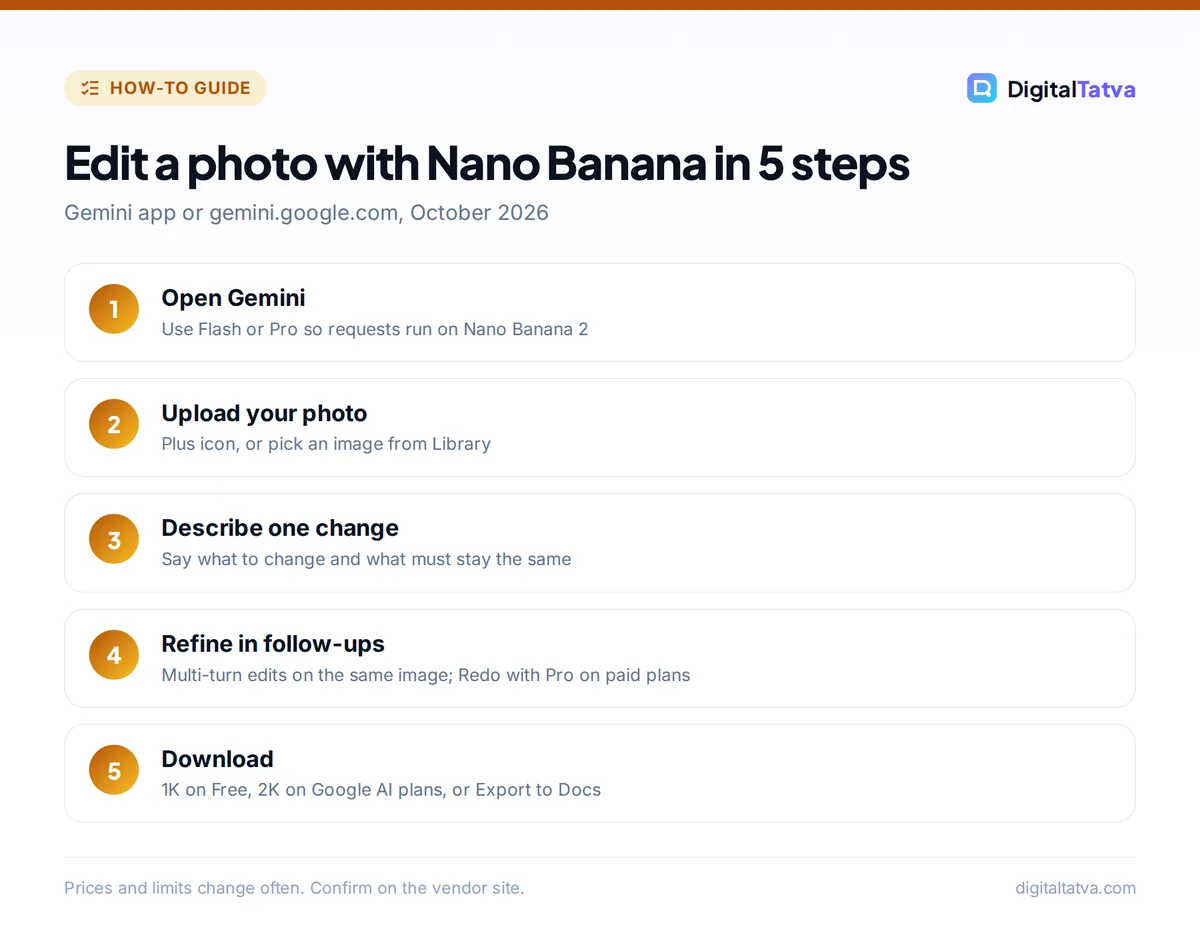
- Open Gemini and choose your model. Go to gemini.google.com or open the Gemini app. Keep the model on Flash or Pro so your request uses Nano Banana 2 rather than the Lite version. Lite is fine for quick drafts but weaker at multi-step edits.
- Upload the photo. Click the plus icon in the prompt box and upload your image, or open Library in the sidebar and select an image you generated earlier. You can upload several images if you want to combine them, for example a product shot and a background scene.
- Describe one clear change. Type what you want in plain language and submit. Be specific about what should stay the same: “Replace the grey wall behind the person with a sunny cafe interior. Keep the face, hair and clothing exactly as they are.”
- Refine in follow-up messages. Gemini keeps the conversation, so you can say “make the lighting warmer” or “move the coffee cup to the left” without starting over. Google’s docs call this multi-turn editing.
- Redo with Pro if you need more detail (paid plans). On a Google AI plan, click More at the bottom right of an image and choose “Redo with Pro” to regenerate it with Nano Banana Pro. This is useful for dense scenes, fine textures and text-heavy designs.
- Download or export. Hover over the image and click the download full-size button. Free accounts download at 1K and paid plans at 2K. You can also choose More and “Export to Docs” to drop the image straight into a Google Doc.
To start from scratch instead, open Images in the sidebar and choose a template or type a prompt. Google’s own Gemini image help page lists the current buttons and age rules.
Tip: Gemini in Chrome can also edit images with Nano Banana 2 from the browser side panel, which saves downloading and re-uploading when you find a picture online that you have the right to edit. Our guide to the best AI browsers covers what Gemini in Chrome can do.
Nano Banana prompts that work for photo editing
Nano Banana responds best to short, concrete instructions that name the subject, the change and what must not change. The general rules in our prompt engineering guide apply here too: one task per message, clear constraints, and examples when style matters.
| Goal | Example prompt |
|---|---|
| Remove a distraction | “Remove the person walking in the background on the right. Fill the space with the same street and keep everything else unchanged.” |
| Change the background | “Put this product on a clean white marble counter with soft morning light from the left. Do not change the product, label or color.” |
| Restyle a photo | “Turn this photo into a watercolor illustration with soft edges, keeping the composition and faces recognizable.” |
| Fix lighting and color | “Brighten the shadows on the face, warm up the color grade slightly and keep skin texture natural.” |
| Add or translate text | “Add the headline SUMMER SALE in bold white letters across the top.” or “Translate the sign into Hindi in the same style.” |
| Change the format | “Extend this image to a vertical 9:16 frame by adding more sky at the top.” |
If you create short videos as well, our roundup of the best AI tools for Instagram Reels and Shorts pairs well with this workflow, and online sellers will find more ideas in our guide to practical AI uses for ecommerce.
How to keep faces and products consistent
Consistency is Nano Banana’s best-known strength, but Google’s model card for 2.1 admits it is “not always accurate”. Tell the model what to preserve in every message, and if a face drifts after several edits, return to the original upload and apply the changes in one combined prompt.
Free vs paid: limits, resolution and which plan to pick
Google does not publish a fixed number of images per day for any plan. Its Gemini limits page describes usage as multiples of the free tier, and warns that media generation uses more of your allowance than text chat.
| Plan | Price (US / India) | Image limits | Download size | Nano Banana Pro |
|---|---|---|---|---|
| Free | $0 / Rs 0 | Standard limits | 1K | No |
| Google AI Plus | $4.99 / Rs 399 per month | 2x standard | 2K | Yes, via Redo with Pro |
| Google AI Pro | $19.99 / Rs 1,950 per month | 4x standard | 2K | Yes |
| Google AI Ultra | From $99.99 / Rs 6,500 per month | 5x or 20x AI Pro | 2K | Yes, no visible sparkle per Google’s policy |
One detail catches people out: if you reach your daily Nano Banana 2 quota, you also cannot redo more images with Nano Banana Pro until the quota resets. For a full look at what each tier includes beyond images, see our Gemini pricing guide.
Save money: Indian university students can get Google AI Plus free for a year (redeem by 31 December 2026), and Jio users on an eligible 5G plan can claim Google AI Pro free for 18 months. Our guide to free AI Pro plans in India explains both offers and their conditions.
Who should stay on Free: anyone editing a few personal photos a week. Who should pay: creators and small businesses who need 2K output, Nano Banana Pro for detailed product scenes, or simply more edits per day. AI Plus is the cheapest way to get both.
Watermarks, SynthID and commercial use
Every image made with Google’s tools carries SynthID, an invisible watermark embedded in the pixels. You cannot see it, but Google can detect it, and you can upload an image to Gemini and ask whether it was made with Google AI. Google’s docs state that “All generated images include a SynthID watermark.”
The visible watermark is a separate question. When Google launched Nano Banana Pro in November 2025, it said it would keep the visible Gemini sparkle on images from free and Google AI Pro users and remove it only for Google AI Ultra subscribers and in Google AI Studio. A July 2026 Android Authority teardown spotted a possible “Watermark settings” option, but Google has not confirmed any change, so check your downloads before you publish.
Watch out: Do not use Nano Banana to edit photos of real people in ways they have not agreed to, and do not try to strip SynthID or provenance data. For client work, keep a note of which images were AI edited, and check platform rules on AI disclosure for ads and marketplaces.
If a clean, unbranded file matters more than anything else, our list of free AI image generators with no watermark compares which tools add visible marks and which only embed metadata.
Nano Banana vs other AI photo editors
Nano Banana is the most convenient free option for conversational edits, but not the only good one.
| Tool | Best for | Free option | Entry paid price |
|---|---|---|---|
| Gemini (Nano Banana) | Quick conversational edits, consistent subjects | Yes, 1K downloads | $4.99/mo (AI Plus) |
| ChatGPT images | Editing inside a full writing assistant | Yes, limited | $8/mo (Go) |
| Adobe Firefly | Commercially safe edits, Generative Fill | Daily free generations | $9.99/mo (Standard) |
| Canva | Turning edits into finished social designs | Up to 20 AI uses | $144/yr (Pro) |
| Midjourney | Artistic restyling with the V8 Edit Model | No | $10/mo (Basic) |
Adobe Firefly even offers Nano Banana as a partner model, so Photoshop users can reach it without leaving Adobe’s tools. Our comparison of Canva AI vs Adobe Firefly helps if you design for brands, and the Midjourney vs ChatGPT images guide covers the artistic end. For the full ranked list, see our 10 best AI image generators.
Using Nano Banana through the Gemini API
Agencies that need hundreds of edits can call the same models directly. On the Standard tier, Nano Banana 2.1 costs about $0.0336 per 1K image, $0.0504 at 2K and $0.113 at 4K, roughly half the price of Nano Banana 2 ($0.067 at 1K). Batch costs half again, and there is no free API tier for these models. Our Gemini API pricing guide covers the text models and free tier limits.
Common Nano Banana mistakes and limitations
- Asking for too much at once. Five changes in one prompt usually means two are ignored.
- Tiny text. Google’s model card says small text often renders poorly, especially at 1K. Keep headlines short and large.
- Left and right confusion. Use landmarks (“next to the window”) instead of directions.
- Expecting print quality on Free. 1K is fine for social posts but too small for posters.
If you also use Gemini inside Gmail, Docs and Slides, our guide on how to use Gemini in Google Workspace shows how to drop these images into documents and presentations.
Frequently asked questions
Is Nano Banana free to use?
Yes. Anyone with a Google account can use Nano Banana 2 in the Gemini app for free, within standard daily limits, and download images at 1K resolution. Editing your own photos requires being 18 or older. Paid Google AI plans, starting with AI Plus at $4.99 per month or Rs 399 in India, raise limits, unlock 2K downloads and add Redo with Pro.
What is the difference between Nano Banana 2 and Nano Banana Pro?
Nano Banana 2 (Gemini 3.1 Flash Image) is the fast default model in the Gemini app and keeps up to five characters consistent. Nano Banana Pro (Gemini 3 Pro Image) is a slower premium model for complex scenes and accepts more references. In the app, paid subscribers reach Pro by choosing More and then Redo with Pro on an image.
What is Nano Banana 2.1?
Nano Banana 2.1 is Google’s newest image model, published on 6 October 2026 and built on Gemini 3.6 Flash. Google lists the Gemini app, AI Studio, the Gemini API, Search AI Mode, Google Ads, Flow and Stitch as channels. On the API it costs about $0.034 per 1K image, roughly half the price of Nano Banana 2.
Does Nano Banana add a watermark?
Every image gets an invisible SynthID watermark. Google also said in November 2025 that it would keep a visible Gemini sparkle on images from free and AI Pro users and remove it for AI Ultra subscribers and in Google AI Studio. Google has not announced a change since, so check each download before publishing.
Can I use Nano Banana images commercially?
Google does not publish a simple commercial license summary for Gemini app images, so read the Gemini terms that apply in your country before using edits in ads or products. Never edit photos of real people without consent, and avoid trademarks you do not own. For lower-risk client work, Adobe Firefly states its own models are commercially safe.
Verdict: should you use Nano Banana for photo editing?
For most people, yes. Nano Banana in Gemini is the easiest free way to edit photos by describing what you want, and it beats most free tools at background swaps, object removal and consistent product shots. Start on the free plan, upgrade to Google AI Plus if you need 2K files or more daily edits, and move to the API only if you edit at scale. Google changes models, limits and prices often, so confirm the current details on the official Gemini pages before you rely on them.
Related reading: our full Gemini review and AI student discounts and free plans.
Pricing and features are checked at the time of writing and can change. Some links may be affiliate links, which never affect our verdicts.