How to Use Claude AI: A Complete Beginner’s Guide (2026)
How to use Claude AI step by step: sign up, write better prompts, upload files, use Artifacts and Projects, connect apps, choose Sonnet, Opus or Haiku and manage usage limits.


On this page
- Key takeaways
- What is Claude?
- How to get started with Claude
- Claude plans and models
- How to write prompts that work in Claude
- Key Claude features and how to use them
- Using Claude for coding with Claude Code
- Practical ways to use Claude every day
- How to manage Claude usage limits
- Claude for business and teams
- Common beginner mistakes with Claude
- Claude pros and cons
- Frequently asked questions
- The bottom line
To use Claude, go to claude.ai or download the Claude app for desktop, iPhone or Android, sign up with an email or Google account, and type your request in plain language. The free plan gives you Claude Sonnet and Haiku models, web search, file uploads, code execution, memory, connectors and Artifacts. Upgrading to Claude Pro at $20 a month adds more usage, Opus models, Projects, Claude Code and features like scheduled tasks.
This beginner’s guide walks you through setting up Claude, writing good prompts, uploading files, using Artifacts and Projects, connecting your apps, choosing a model, coding with Claude Code and staying within usage limits. It finishes with ready-to-copy prompts for work, study and business.
Key takeaways
- Claude is Anthropic’s AI assistant, known for strong writing, long-document analysis and coding.
- Free users get Sonnet and Haiku; Pro ($20 a month, or $17 a month billed annually) adds Opus, Projects, Claude Code and much more usage.
- Artifacts turn outputs such as documents, code and small apps into a separate window you can edit, preview and share.
- Projects keep files and instructions together so every chat on a topic starts with the right context.
- Usage on paid plans resets in five-hour sessions, so long chats with big files use your allowance faster.
What is Claude?
Claude is an AI assistant made by Anthropic. It runs on Anthropic’s own large language models. The current generation is the Claude 5.5 family: Opus 5.5 (most capable), Sonnet 5.5 (fast and strong for everyday work) and Haiku 5.5 (fastest and cheapest). Claude can write, edit, summarize, analyze files and images, research the web, write and run code, and create documents, slides and spreadsheets. If you are comparing assistants, read our ChatGPT vs Claude comparison or the full Claude review.
How to get started with Claude
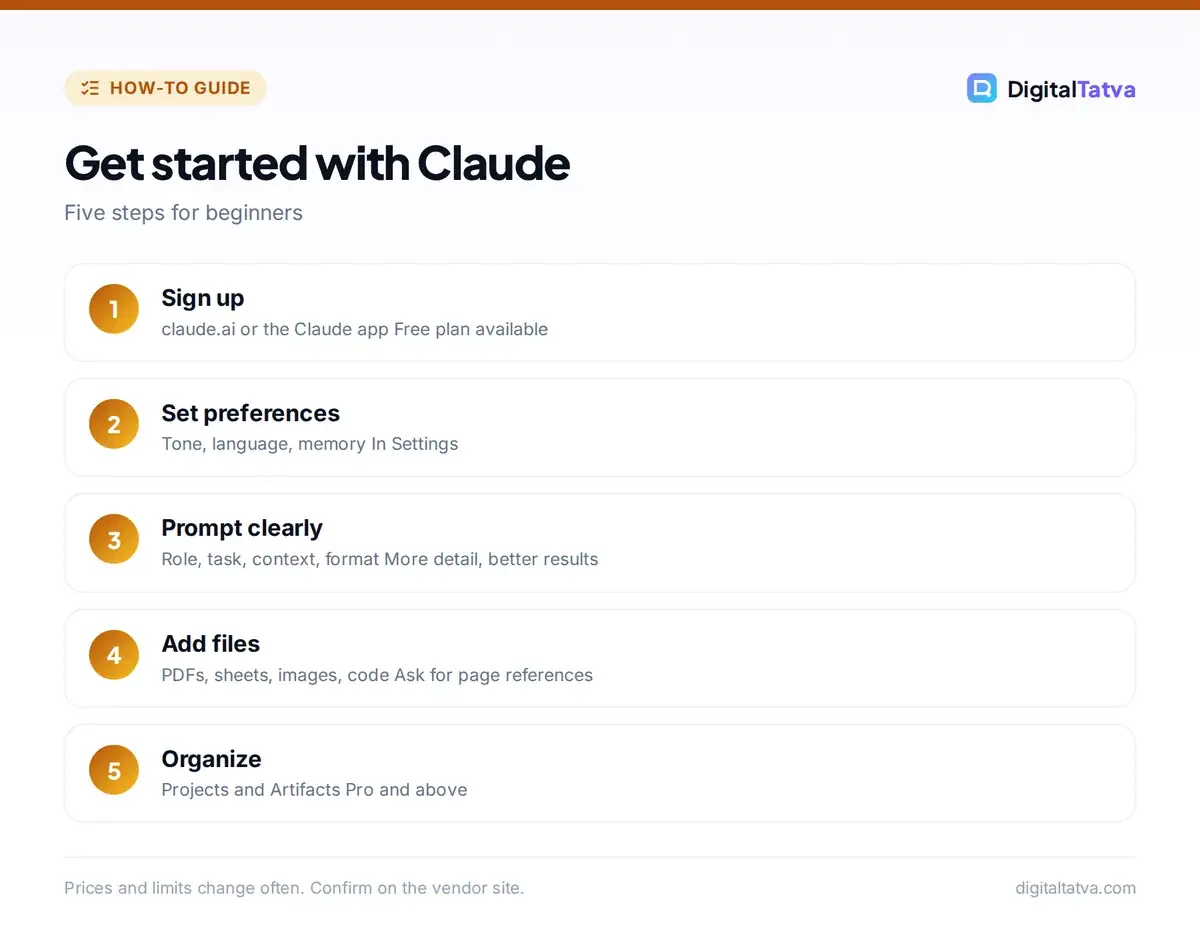
- Open Claude. Visit claude.ai in a browser, or install the app from the App Store, Google Play or claude.com for Windows and Mac.
- Create an account. Sign up with Google, Apple or an email address and verify it.
- Set your preferences. In Settings, add how you want Claude to respond, such as “Use simple English, Indian examples and short answers”, and turn memory on or off.
- Start a chat. Type your request, attach files with the paperclip icon or use voice on mobile.
- Refine. Ask follow-up questions, request changes or edit your message to try again.
Claude plans and models
| Plan | Price | Models | Best for |
|---|---|---|---|
| Free | $0 | Sonnet, Haiku | Trying Claude, light daily use |
| Pro | $20/month ($17/month annual) | Adds Opus | Regular personal and work use |
| Max 5x | $100/month | All models | Heavy users, coders |
| Max 20x | $200/month | All models | Full-time power users |
| Team | From $20/seat/month annual (Standard) | All models | Small teams with admin controls |
See our detailed Claude pricing guide and Claude Pro vs Max breakdown. For a quick model choice:
- Sonnet 5.5: the default for most tasks, including writing, analysis and code. Read our Sonnet 5.5 review.
- Opus 5.5: for the hardest reasoning, long research and complex coding; see Claude Opus 5.5.
- Haiku 5.5: quick answers and simple tasks; see Claude Haiku 5.5.
How to write prompts that work in Claude
Claude follows detailed instructions very well, so the more context you give, the better the result. A strong prompt includes:
- Role and audience: “You are an HR manager writing for new employees.”
- Task: “Draft a one-page welcome guide.”
- Context: paste the policy, notes or examples.
- Constraints: length, tone, words to avoid.
- Format: headings, bullet points, a table or an email.
Claude also responds well to structure such as XML-style tags, for example putting a document between <document> and </document> tags, and to the request “Ask me any questions you need before you start.” Our Claude prompts for writing and prompt engineering guide include templates.
Key Claude features and how to use them
Uploading files and images
Attach PDFs, Word files, spreadsheets, code or images and ask Claude to summarize, compare, extract data or answer questions. Claude’s large context window lets it read long reports and contracts in one go. Ask for page references so you can check answers.
Artifacts
When Claude creates something substantial, such as a document, a chart, code or a small interactive app, it can appear as an Artifact in a separate panel. You can keep editing it through chat, copy or download it, and publish it to share a link.
Projects
Projects, available on paid plans, are workspaces with their own files and custom instructions. Create a project for a client, a course or a product, upload the key documents, and every new chat inside it starts with that knowledge. Our Claude Projects guide shows setup step by step.
Web search and research
Claude can search the web for current information and cite sources. For bigger questions, research mode runs many searches and writes a structured report. Always open the key sources for important decisions.
Connectors
Connectors link Claude to apps like Google Drive, Gmail, Google Calendar, Notion, Slack and many others, so Claude can read and work with your real data when you allow it. They use the Model Context Protocol behind the scenes.
Memory
Claude can remember useful context from past chats, such as your role or preferences, so you repeat yourself less. You can view, edit or turn memory off in Settings. Our explainer on AI memory covers privacy trade-offs.
Using Claude for coding with Claude Code
Claude Code is Anthropic’s agentic coding tool, included on Pro and above. It works in your terminal, IDE, desktop app and web, reads your codebase, edits files, runs commands and tests, and can open pull requests. Beginners can describe an app in plain language and let Claude Code build it step by step. Start with our Claude Code tutorial, and compare it with OpenAI’s tool in Claude Code vs Codex.
Practical ways to use Claude every day
| Use | Example prompt |
|---|---|
| “Reply politely to this client email, decline the discount, offer a smaller package. Under 120 words.” | |
| Documents | “Summarize this 40-page report into five key points with page numbers and three risks.” |
| Study | “Explain compound interest like I am 15, then give me five practice questions.” |
| Marketing | “Write three ad headlines and a 90-word description for a Diwali sale on handmade candles.” |
| Data | “Analyze this sales CSV, show monthly trends as a chart and list the top five products.” |
| Planning | “Create a 30-day content calendar for a dentist in Ahmedabad as a table.” |
How to manage Claude usage limits
Paid plans use session-based limits that reset every five hours, and Anthropic may add weekly limits. Long conversations and large attachments use more of your allowance, because Claude rereads the whole conversation each time. To stretch your limit:
- Start a new chat for each new task instead of one endless thread.
- Put reference files in a Project rather than uploading them repeatedly.
- Use Sonnet or Haiku for simple tasks and keep Opus for hard ones.
- Ask for concise answers when you do not need detail.
Our guides to Claude usage limits and reducing token usage go deeper. The official Claude Pro usage article explains how limits work.
Claude for business and teams
If several people at your company use Claude, the Team plan adds shared Projects, central billing, admin controls and single sign-on options, and business data is not used to train models by default. Standard seats cost $25 per member per month billed monthly or $20 billed annually, while Premium seats, at $125 monthly or $100 annually, add much higher usage for heavy users such as developers. Enterprise plans add more security, compliance and usage-based billing.
Good first team uses include a shared Project with brand guidelines so everyone writes in the same voice, a sales Project holding product sheets and case studies, and a support Project with policies and past answers. Claude can also connect to the tools your team already uses through connectors, so it can pull a file from Google Drive or summarize a Slack thread when you ask. Before rolling Claude out, agree on rules for what data can be shared; our AI usage policy template gives you a ready starting point, and AI team plans explained compares Claude Team with ChatGPT and Gemini business plans.
Common beginner mistakes with Claude
- Prompts that are too short. “Write a blog” gives generic text. Add audience, goal, length and examples.
- One giant chat for everything. Old context confuses answers and burns usage. Start fresh chats or use Projects.
- Not checking facts. Claude can be wrong. Ask for sources or verify numbers before you publish or decide.
- Ignoring Artifacts. For documents and code, ask Claude to “create this as an artifact” so you can edit and reuse it easily.
- Pasting sensitive data casually. Remove personal details, passwords and confidential numbers unless your plan and company policy allow it.
Claude pros and cons
Pros
- Natural, high-quality writing
- Excellent with long documents
- Strong coding and Claude Code
- Artifacts and Projects for real work
- Clear controls for memory and data
Cons
- Usage limits can feel tight on heavy days
- Not built for photorealistic image generation
- Opus requires a paid plan
- Fewer consumer extras than ChatGPT
Frequently asked questions
Is Claude free to use?
Yes. Claude has a free plan with Sonnet and Haiku models, web search, file uploads, code execution, memory, connectors and Artifacts, subject to usage limits. Claude Pro costs $20 a month, or $17 a month billed annually, and adds Opus models, Projects, Claude Code and more usage.
How do I use Claude on my phone?
Download the Claude app from the App Store or Google Play, sign in with the same account you use on the web, and your chats sync across devices. The app supports voice input, photo and file uploads, and conversations you started on desktop.
Can Claude create images?
Claude can understand and analyze images, and it can create charts, diagrams, SVG graphics and designs through code and Artifacts. It does not generate photorealistic images the way ChatGPT or Gemini image tools do, so use a dedicated image generator for that.
Which Claude model should I use?
Use Sonnet 5.5 for most everyday writing, analysis and coding. Switch to Opus 5.5 on a paid plan for the hardest reasoning and complex projects, and use Haiku 5.5 for quick, simple tasks where speed matters most.
Is my data safe with Claude?
Anthropic lets you control whether consumer chats are used to improve models in privacy settings, and Team and Enterprise plans do not use business data for training by default. Avoid uploading highly sensitive personal data, and follow your company’s AI policy.
The bottom line
Claude is easy to start with and powerful once you learn its features. Begin on the free plan with clear, detailed prompts and file uploads. If you use it daily, Pro unlocks Projects, Opus and Claude Code, which turn Claude from a chat assistant into a full workspace for writing, research and building.
Pricing and features are checked at the time of writing and can change. Some links may be affiliate links, which never affect our verdicts.