How ChatGPT and Claude Memory Works and How to Control It
How ChatGPT memory and Claude memory work in 2026, what each plan gets, and step by step how to view, edit, pause or delete what your AI assistant remembers.


On this page
- Key takeaways
- ChatGPT memory vs Claude memory: quick comparison
- What AI memory is (and what it is not)
- How ChatGPT memory works
- How to view, edit and turn off ChatGPT memory
- How Claude memory works
- How to view, pause and reset Claude memory
- What about Gemini?
- Memory, privacy and training: what to know
- How to use AI memory well: 7 practical tips
- Frequently asked questions
- Our verdict: turn memory on, but manage it
ChatGPT memory works in two ways: saved memories (facts you ask it to remember, or that it saves as useful) and reference chat history (it draws on relevant past conversations). You control both under Settings > Personalization > Memory, and a Temporary Chat never creates or updates memories. Claude’s memory is similar but organized as editable “topics” under Settings > Memory, with a separate memory for each project and incognito chats that leave no trace.
This guide explains how ChatGPT memory and Claude memory actually work in October 2026, what each plan gets, how to view, edit, pause or delete what they know about you, and how to use memory so it saves time instead of causing awkward or private mix-ups.
Key takeaways
- ChatGPT memory has two parts: saved memories and reference chat history. Deleting a chat does not delete a memory created from it.
- Claude memory is on by default for Free, Pro and Max, and stored as topics you can read and edit. Each Claude project keeps its own separate memory.
- Temporary Chat (ChatGPT) and incognito chats (Claude) do not save to memory, which is ideal for sensitive or one-off questions.
- Memory is not the same as the context window: memory is a small set of notes carried between chats, not your full history.
- On personal plans, check your training settings separately. Memory controls and model training controls are different switches.
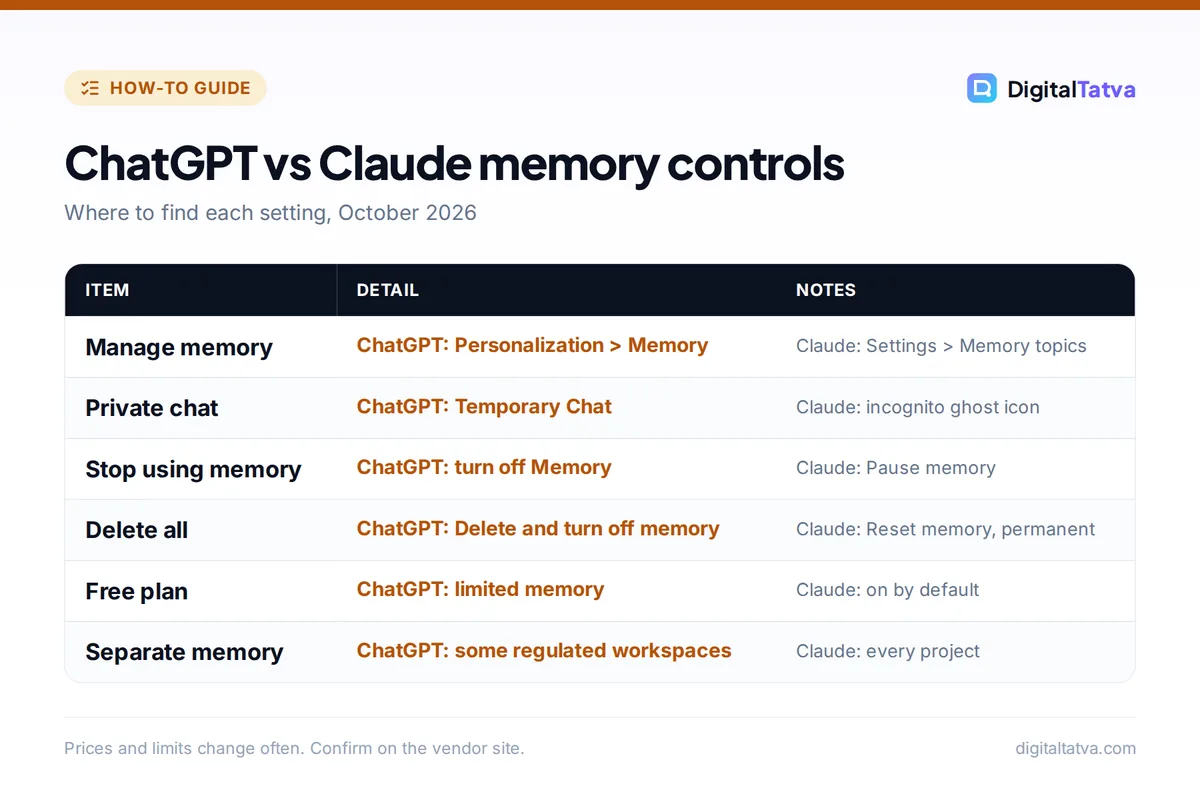
ChatGPT memory vs Claude memory: quick comparison
Here is how the two assistants handle memory side by side, based on OpenAI’s and Anthropic’s help centers as of October 2026.
| Feature | ChatGPT | Claude |
|---|---|---|
| How memory is stored | Saved memories plus reference chat history | Individual topics saved as you chat |
| Free plan | Yes, “limited memory and context” | Yes, on by default |
| Where to manage it | Settings > Personalization > Memory | Settings > Memory (topics) |
| Private, no-memory chats | Temporary Chat | Incognito chat (ghost icon) |
| Project-only memory | In some regulated workspaces | Yes, every project is separate |
| Search past chats | Through reference chat history | Paid plans only |
| Pause without deleting | Turn off Memory (keeps saved memories) | Pause memory |
| Delete everything | “Delete and turn off memory” | Reset memory (permanent) |
| Team plans | Workspace settings apply | Owner enables, then each member opts in |
What AI memory is (and what it is not)
Every AI model is stateless by default: each new chat starts blank. Memory is an app feature layered on top that stores a short set of notes about you, such as “runs a digital marketing agency in Ahmedabad” or “prefers US spelling and no em dashes”, and quietly adds the relevant ones to new conversations.
Memory is different from the context window, which is everything the model can read in a single chat, including your uploaded files and the full conversation so far. Memory is small and selective; the context window is large but resets with every new chat. Our context window explainer covers the difference in detail.
Memory is also different from custom instructions or a project’s instructions. Instructions are rules you write once and the app always applies. Memory is learned and can change over time, which is both its strength and its risk.
How ChatGPT memory works
Saved memories
Saved memories are details you ask ChatGPT to remember (“Remember that my store ships only within India”) or details it saves on its own as useful context, where that behavior is available. They are stored separately from your chat history, so deleting the original chat does not remove them.
Reference chat history
Reference chat history lets ChatGPT draw on relevant past conversations even if nothing was formally saved. Unlike a saved memory, this information can change as ChatGPT updates what seems most useful. OpenAI says “There is no separate storage limit for what ChatGPT can reference through chat history,” but also that the memory summary is high level and may omit details.
What each plan gets
OpenAI says memory features “can vary by plan, region, platform, and workspace settings.” The pricing page describes memory per plan in broad terms:
| ChatGPT plan | Price (US) | Memory description on pricing page |
|---|---|---|
| Free | $0 | Limited memory and context |
| Go | $8/month | Longer memory |
| Plus | $20/month | Expanded memory and context |
| Pro | From $100/month | Maximum memory and context |
Depending on plan and platform, you may also see memory search, sorting, “automatic prioritization” and version history. Our ChatGPT pricing guide explains everything else each plan includes.
How to view, edit and turn off ChatGPT memory
- Open memory settings. Go to Settings > Personalization > Memory. Here you can see the memory summary and the individual saved memories.
- Delete specific memories. Remove any saved memory that is wrong, outdated or too personal. Remember that deleting a chat alone does not delete a memory made from it.
- Turn off reference chat history only. If you want ChatGPT to keep your explicit saved memories but stop pulling from past chats, switch off Reference chat history. Remembered chat information is then scheduled for deletion within 30 days.
- Turn off memory entirely. Switch off Memory. Turning off Reference saved memories also turns off Reference chat history. Your past chats stay, and ChatGPT may create new memories from them if you turn memory on again later.
- Wipe it. Use the more options menu on the memory summary and choose “Delete and turn off memory”. To fully remove a detail, also delete the original chat and any copies in files or connected apps. OpenAI may keep logs of deleted saved memories for up to 30 days for safety and debugging.
Tip: Before a sensitive chat, start a Temporary Chat. It does not create or update memories, and choosing “Unpersonalized” before you begin also skips your existing memories, custom instructions and plugins. You cannot change that choice once the chat starts.
How Claude memory works
Anthropic redesigned Claude’s memory so it saves “a set of individual topics as you chat” rather than writing one summary at the end of each conversation. You can also simply say “remember that I write for a B2B audience” and Claude will store it.
Availability by plan
- Free, Pro and Max: memory is on by default on the web, desktop and mobile apps.
- Team and Enterprise: an owner must enable memory for the organization, and it stays off for each member until they turn it on.
- Chat search: searching and referencing past chats needs a paid plan (Pro, Max, Team or Enterprise).
Some accounts still use the legacy memory experience, which writes a synthesized summary of your chats refreshed every 24 hours and lives under Settings > Capabilities. See our Claude pricing breakdown for what each plan costs.
Project memory
Each Claude project has its own memory and project summary, kept separate from other projects and from chats outside projects. That makes projects the cleanest way to keep client A’s details away from client B. Our guide on how to use Claude Projects shows how to set them up.
How to view, pause and reset Claude memory
- Open Settings > Memory. Your memories appear under “Topics”. Select a topic to read exactly what Claude has stored.
- Edit or delete a topic. Correct anything wrong or remove it. You can also tell Claude in chat what to remember, change or forget.
- Pause memory. Claude keeps existing memories but stops using them and stops creating new ones. Useful during a short sensitive project.
- Reset memory. This permanently deletes all memories, including project memories, and cannot be undone.
- Use incognito for one-offs. Click the ghost icon in a new chat. Incognito chats are not saved to memory or chat history, and Claude will not search them later.
Note: Claude can import memories from other AI assistants and export its own memory for backup or migration. Anthropic describes this as experimental, so check the result in Settings > Memory after any import.
What about Gemini?
Google’s Gemini also remembers you. Google’s Gemini Live page says it “can remember key details across sessions, such as preferences and important dates.” We could not confirm the exact Gemini memory settings and plan limits on an official help page at the time of writing, so check the Gemini app’s settings for personal context and past chats controls. Our Gemini review covers the app more broadly.
Memory, privacy and training: what to know
Memory controls decide what the assistant remembers about you. Training controls decide whether the vendor may use your chats to improve its models. They are separate switches.
- ChatGPT personal accounts: OpenAI may use chats and remembered information to improve models when “Improve the model for everyone” is on. Turn it off under Data controls.
- ChatGPT business workspaces: by default OpenAI does not train on content from Business, Enterprise, Edu or Healthcare workspaces.
- Safety exception: OpenAI notes that limited safety-related context may still be used in rare, high-risk situations, even with memory off.
- Regulated work: improved memory is off by default in ChatGPT for Healthcare and Regulated Enterprise workspaces, and OpenAI says it is not covered under the BAA, so do not enter protected health information.
If you run a team, write these rules down. Our business guide to AI data privacy and AI usage policy template help you decide what staff may store in memory.
Watch out: Never let memory hold passwords, card numbers, Aadhaar or PAN numbers, client contracts or health details. Memory is designed to resurface information in future chats, which is exactly what you do not want for secrets.
How to use AI memory well: 7 practical tips
- Save stable preferences, not projects. Good memories: your role, audience, spelling, tone and formatting rules. Bad memories: this week’s campaign numbers.
- Tell it explicitly. “Remember: my agency’s clients are Indian D2C brands and I report in INR.” Explicit memories are more reliable than ones the AI infers.
- Use projects for client work. In Claude, project memory stays inside the project. In ChatGPT, keep client files in separate projects too.
- Audit monthly. Open the memory page and delete anything outdated. Old memories can quietly steer answers in the wrong direction.
- Go private for sensitive topics. Use Temporary Chat or incognito for health, legal, salary or personal questions.
- Do not rely on memory for long documents. Upload the file again or use a project knowledge base. Memory stores summaries, not full text.
- Combine with good prompts. Memory sets the background, but a clear prompt still decides quality. Our prompt engineering guide shows what to include each time.
Memory can also save usage. When the assistant already knows your context, you can write shorter prompts, which helps if you often hit caps. See our tips to reduce token usage in ChatGPT and Claude.
Common memory mistakes
- Assuming that deleting a chat deletes the memory it created. In ChatGPT it does not.
- Mixing personal and client work in one account without projects, so details leak between conversations.
- Forgetting that Claude team members must opt in, then wondering why memory is not working.
- Expecting memory to recall every detail. Both vendors say it keeps highlights, not everything.
Frequently asked questions
Does ChatGPT remember everything I say?
No. ChatGPT memory keeps saved memories plus relevant details from past chats through reference chat history, but OpenAI says memory does not keep every detail and its summary is high level. Temporary Chats are never added to memory. You can review, delete or turn off memory at any time in Settings > Personalization > Memory.
Is ChatGPT memory available on the free plan?
Yes, with limits. The ChatGPT pricing page lists “limited memory and context” for Free, “longer memory” for Go, “expanded memory and context” for Plus and “maximum memory and context” for Pro. OpenAI adds that exact memory features vary by plan, region, platform and workspace settings, so check your own settings page.
How do I make Claude forget something?
Open Settings > Memory, find the topic under “Topics” and edit or delete it, or simply tell Claude in chat to forget it. To stop memory temporarily, use Pause. To erase everything, including project memories, use Reset, which is permanent. For future private questions, start an incognito chat with the ghost icon.
Can I turn off ChatGPT memory but keep my chats?
Yes. Turning off Memory in Settings > Personalization keeps your past chats. You can also switch off only Reference chat history and keep your saved memories. If you later turn memory back on, ChatGPT may create new memories from existing chats, so delete old chats you do not want referenced.
Is my AI memory used to train models?
It depends on your plan and settings. For ChatGPT personal accounts, OpenAI may use chats and remembered information for training when “Improve the model for everyone” is on, which you can switch off in Data controls. OpenAI does not train on Business, Enterprise, Edu or Healthcare workspace content by default.
Our verdict: turn memory on, but manage it
For most people, memory is worth keeping on. It makes ChatGPT and Claude feel like assistants that know your business, and it trims the background you retype every day. Claude’s topic-based memory and strict project separation make it the tidier choice for freelancers and agencies juggling clients, while ChatGPT’s reference chat history is stronger at picking up context you never formally saved. Whichever you use, audit memory monthly and use Temporary or incognito chats for anything sensitive. Still deciding between the two? Read our ChatGPT vs Claude comparison. Features and plan details change often, so confirm current settings on the OpenAI memory FAQ and Claude memory help page before you rely on them.
Pricing and features are checked at the time of writing and can change. Some links may be affiliate links, which never affect our verdicts.