10 Best AI Tools for Excel and Google Sheets
Copilot, the ChatGPT add-in, Claude for Excel, Gemini in Sheets, Julius, Shortcut and four more AI tools for Excel and Google Sheets, compared on features, limits and 2026 prices.


On this page
- Key takeaways
- Quick picks: best AI tools for Excel and Google Sheets
- The 10 best AI tools for Excel and Sheets reviewed
- Comparison: what each AI tool for Excel can actually do
- How to choose the right AI tool for your spreadsheets
- Five AI prompts for Excel that work in any tool
- Pricing notes and how to save
- Frequently asked questions
- Our verdict: the best AI tools for Excel and Google Sheets
The best AI tools for Excel and Google Sheets in 2026 are Microsoft Copilot (built into Excel), the official ChatGPT for Excel and Google Sheets add-in (free on every ChatGPT plan), Claude for Excel for financial models, and Gemini’s =AI function in Google Sheets. For bigger analysis jobs, Julius AI, Shortcut and Rows add AI analysts and agents, while GPT for Work runs AI formulas across thousands of rows.
We compared ten AI tools for Excel and Sheets on what they do best (formulas, cleaning, analysis, modeling or bulk text work), where they run, and what they cost as of 10 October 2026. Every price below comes from the vendor’s own page; where a page did not show a price, we say so.
Key takeaways
- Best free start: the ChatGPT for Excel and Google Sheets add-in works on ChatGPT Free, with limited usage.
- Best inside Excel: Microsoft Copilot, included with Microsoft 365 Personal ($9.99 a month) and Premium, with the new =COPILOT function in preview.
- Best for financial models: Claude for Excel on Claude Pro ($20 a month), with cell-level citations and formula-safe edits.
- Best for Google Sheets: Gemini’s =AI function and GPT for Work for bulk AI formulas.
- No AI tool is a calculator you can trust blindly: check formulas and changed cells before you share a workbook.
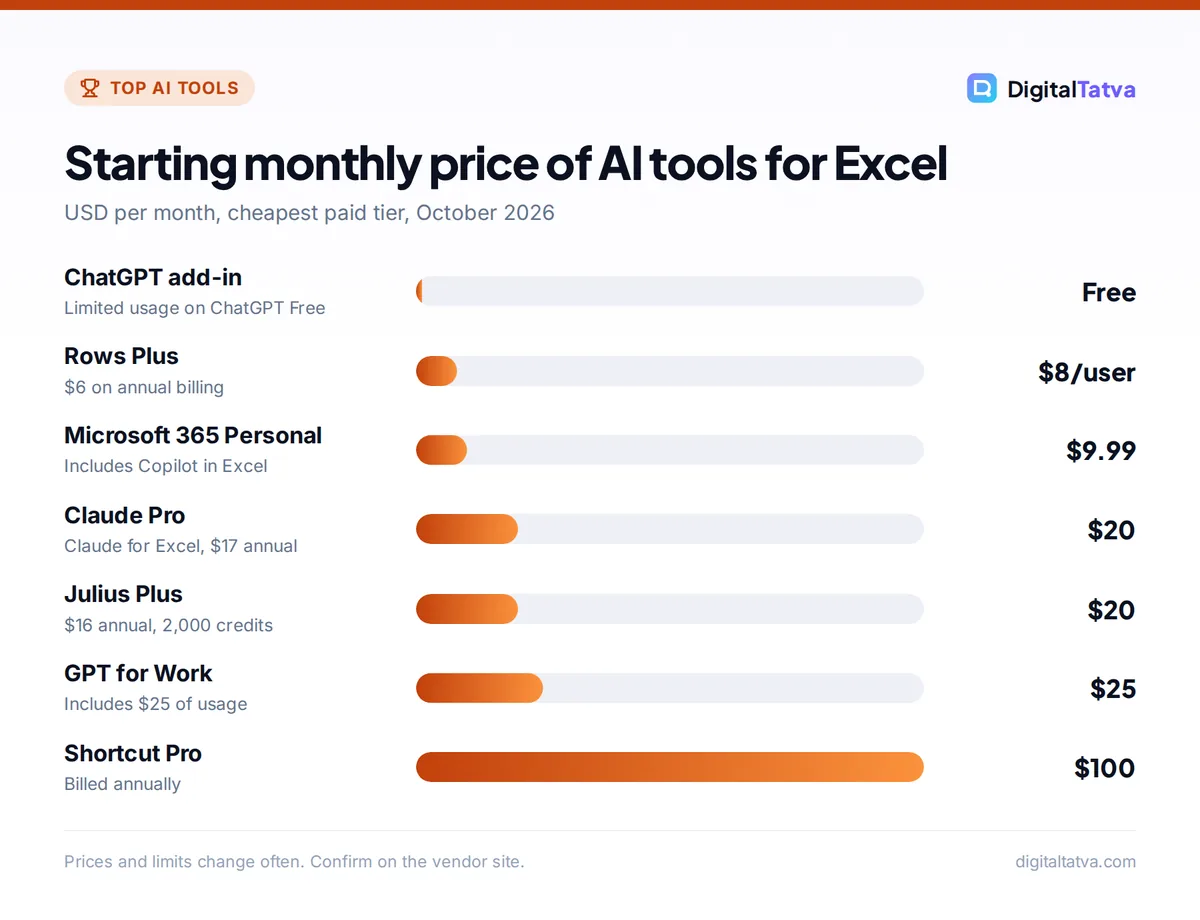
Quick picks: best AI tools for Excel and Google Sheets
| Tool | Best for | Works in | Starting price | Free option |
|---|---|---|---|---|
| Microsoft Copilot in Excel | Native Excel help and agent edits | Excel | Microsoft 365 Personal $9.99/mo | No (Copilot needs a subscription) |
| ChatGPT for Excel and Sheets | Formulas, cleaning and explanations | Excel and Sheets | Free; Plus $20/mo | Yes, limited |
| Claude for Excel | Financial models and debugging | Excel | Pro $20/mo ($17 annual) | No |
| Gemini in Google Sheets | =AI function and Smart Fill | Sheets | Google AI or Workspace plan | No |
| Julius AI | Upload-and-ask data analysis | Web (files, Google Drive) | Plus $20/mo ($16 annual) | Yes, daily credits |
| GPT for Work | AI formulas on thousands of rows | Sheets and Excel | Standard $25/mo | Free trial credits |
| Shortcut | Autonomous Excel agent | Excel, Sheets, web | Pro $100/mo (annual) | Yes, 20 credits/week |
| Rows | AI-native spreadsheet with live data | Rows (imports Excel) | Plus $8/user/mo ($6 annual) | Yes, 5 AI tasks/mo |
| Better Analyst (formerly Formula Bot) | Dashboards and reports from data | Web, Google Sheets flows | Starter $20/mo | Yes |
| Numerous.ai | Cheap AI functions in cells | Sheets and Excel | About $10/mo billed yearly | $1 seven-day trial |
The 10 best AI tools for Excel and Sheets reviewed
1. Microsoft Copilot in Excel: Best AI built into Excel
- Starting price: Microsoft 365 Personal $9.99/mo or $99.99/yr; Premium $19.99/mo
- Free plan: No, Copilot in the desktop apps needs a subscription
- Best for: people who already live in Excel and store files on OneDrive or SharePoint
Copilot sits in the Excel ribbon and suggests formula columns, builds charts and PivotTables, and highlights trends in your data. Microsoft says Personal, Family and Premium plans get the Word, Excel and PowerPoint desktop apps “enhanced with Copilot”, and third-party reports say Agent Mode, which makes multi-step edits for you, became the default experience in April 2026. Your workbook must be saved on OneDrive or SharePoint for Copilot to work.
The new =COPILOT function lets you call AI inside a cell, for example =COPILOT(“Classify this feedback as positive, neutral or negative”, B2). Microsoft lists it for Excel for Microsoft 365 on Windows and Mac, the web and iPhone, currently in preview channels. Limits are real: up to 100 COPILOT calculations every 10 minutes, it only sees the cells you pass to it, results can change when the sheet recalculates, and Microsoft itself recommends normal formulas for arithmetic. Business users pay for Microsoft 365 Copilot Business ($21 per user a month on annual billing, shown at an $18 promo) or Enterprise ($30). See our Microsoft Copilot pricing guide for every tier.
Skip it if: you use Google Sheets or keep files only on your local drive.
2. ChatGPT for Excel and Google Sheets: Best free AI add-in
- Starting price: Free; Go $8/mo; Plus $20/mo
- Free plan: Yes, limited usage on Free and Go
- Best for: formulas, cleanup, explanations and quick charts in either app
OpenAI’s official add-in puts ChatGPT in a sidebar inside Excel (desktop or web, from Microsoft Marketplace) and Google Sheets (from the Google Workspace Marketplace, then the Extensions menu). OpenAI says it is available globally to Free, Go, Plus, Pro, Business, Enterprise, Edu and K-12 users. It handles formulas, references, budgets, cleaning messy sheets, scenarios, charts and multi-tab workbooks, and keeps spreadsheet chats separate from your main ChatGPT history.
VBA and macros “may not be fully supported”, and OpenAI tells you to review formulas and changed cells before sharing. For a full walkthrough, read how to use ChatGPT for Excel and data analysis; for plan limits, see our ChatGPT pricing guide.
Skip it if: your company blocks third-party add-ins or consumer AI accounts.
3. Claude for Excel: Best for financial models and debugging
- Starting price: Claude Pro $20/mo or $17/mo billed annually
- Free plan: No, Pro, Max, Team and Enterprise only
- Best for: analysts, founders and accountants working with complex, multi-tab models
Claude for Excel is generally available on Pro, Max, Team and Enterprise plans and runs on Excel for the web, Windows (Microsoft 365) and Mac. Its standout feature is cell-level citations: ask “how is the revenue in C42 calculated?” and Claude answers with clickable links to the cells involved. It can change an assumption, such as a discount rate, while keeping formula relationships intact, trace #REF! and #DIV/0! errors to their root cause, build a model from a description, and handle sorting, filtering, pivot tables, conditional formatting and data validation.
Anthropic is candid about limits: no data tables, no macros or VBA, not for audit-critical numbers without verification, and a warning to use it only with trusted files because hidden instructions in external spreadsheets can manipulate it. Usage counts against your normal Claude limits. Our Claude pricing guide explains Pro vs Max.
Skip it if: you work mostly in Google Sheets, which Claude for Excel does not cover.
4. Gemini in Google Sheets: Best AI for Google Sheets users
- Starting price: an eligible Google AI plan (AI Pro $19.99/mo) or Workspace Business Standard and up
- Free plan: No
- Best for: teams on Google Workspace and anyone classifying or summarizing text in cells
Google’s =AI function works like this: =AI(“Summarize this review in five words”, A2). It generates text, summarizes, categorizes and analyzes sentiment, and can pull real-time information from Google Search. Google lists clear limits: output is text only, it cannot see the whole spreadsheet or other Drive files, only the first 350 selected cells generate at once, and you cannot undo a generation. Workspace Business Standard and higher also get Enhanced Smart Fill, which spots patterns and fills columns for you.
It requires “an eligible Google Workspace or Google AI plan”. Our guide to using Gemini in Gmail, Docs and Sheets shows the setup, and Gemini pricing covers which plan to buy.
Skip it if: you need AI to edit formulas across a whole workbook; =AI writes text into cells, not models.
5. Julius AI: Best for upload-and-ask data analysis
- Starting price: Plus $20/mo or $16/mo billed annually (2,000 credits)
- Free plan: Yes, a refreshing daily allowance on Julius Lite models
- Best for: marketers, students and analysts who want charts and answers without formulas
Julius is not an add-in. You upload a spreadsheet or connect Google Drive, ask a question in plain English, and it writes and runs the analysis, then returns charts, tables and summaries. It can also turn results into presentations and reports, and schedule recurring runs. Higher tiers unlock stronger models: Plus includes GPT-5.6 and Claude Sonnet 5 per its comparison table. Pro costs $45 a month ($37 annual) for 5,000 credits, and Business $450 ($375 annual) for teams of up to 50.
Skip it if: you want changes written back into your original workbook.
6. GPT for Work: Best for bulk AI formulas across thousands of rows
- Starting price: Standard $25/mo (includes $25 of usage)
- Free plan: Free trial credits, no card
- Best for: SEO, ecommerce and ops teams processing large lists
GPT for Work (known for its GPT for Sheets and GPT for Excel add-ins) adds AI functions you can drag down a column: write 2,000 product descriptions, translate a catalog, categorize support tickets or extract names from messy text. A subscription unlocks all models, including GPT-6 Astra and Claude Fable 5.1, and usage is billed at the AI providers’ token rates plus a service margin. Business seats cost $45 a month and support bring-your-own API keys.
Because you pay by tokens, test on 20 rows before running 20,000. Our guide on estimating AI API costs shows the arithmetic.
Skip it if: you only need occasional help with a formula; the free ChatGPT add-in is enough.
7. Shortcut: Best autonomous Excel agent
- Starting price: Pro $100/mo billed annually (1,000 credits)
- Free plan: Yes, 20 credits a week
- Best for: finance and consulting teams building models from scratch
Shortcut calls itself “a superhuman AI Excel agent”. Instead of answering questions, it builds and edits whole workbooks from instructions, such as a three-statement model or a cleaned and formatted data set. It runs on the web, a Windows desktop app, an Excel add-in and a Google Sheets plugin, plus an API. Messages typically use 2 to 15 credits depending on complexity, so the free 20 credits a week give you a handful of real tasks.
Skip it if: $100 a month is more than the time it saves you; Claude for Excel covers many modeling jobs for $20.
8. Rows: Best AI-native spreadsheet
- Starting price: Plus $8/user/mo or $6 annual (200 AI tasks)
- Free plan: Yes, 5 AI tasks a month, free forever
- Best for: marketers and founders who want live data from ads, analytics and CRMs in one sheet
Rows is a spreadsheet built around AI and integrations. Its AI Analyst answers questions about your data, builds summaries and charts, and its AI Vision reads PDFs and images into tables. Data Tables pull in live data from connected tools and refresh daily on Plus or every minute on Pro ($79 plus $8 per user monthly, or $59 plus $6 annual). Each message to the AI Analyst counts as one AI task.
Skip it if: your company standardizes on Excel files; Rows imports them but works best as your main spreadsheet.
9. Better Analyst (formerly Formula Bot): Best for dashboards from spreadsheets
- Starting price: Starter $20/mo (250 chat messages)
- Free plan: Yes, “free forever plan included” (limits not listed)
- Best for: small businesses that want AI dashboards and recurring reports
Formula Bot, a popular formula generator, has rebranded: its site now says “Formula Bot is now Better Analyst”, with the same accounts. It connects spreadsheets, databases and cloud files, answers questions, builds AI dashboards, enriches data and produces reports and presentations. Max costs $40 per user a month with unlimited chat, and Business $80 per user with more data sources and hourly data flows.
Skip it if: you only wanted a quick formula writer; any chatbot now does that for free.
10. Numerous.ai: Best budget AI functions in cells
- Starting price: about $10/mo billed yearly (per its pricing page)
- Free plan: No, a $1 seven-day trial
- Best for: individuals who want ChatGPT-style functions in Sheets or Excel cheaply
Numerous adds AI functions to Google Sheets and Excel for writing, categorizing and generating formulas, and its pricing page lists plans at about $10 a month billed annually, with 500,000 characters and 500 formula generations on the personal tier. The page showed identical figures for several plans, so confirm the exact plan details at checkout.
Skip it if: you need enterprise controls or audit trails.
Comparison: what each AI tool for Excel can actually do
| Task | Copilot | ChatGPT add-in | Claude for Excel | Gemini =AI | GPT for Work |
|---|---|---|---|---|---|
| Write and explain formulas | Yes | Yes | Yes | Limited | Yes |
| Edit the workbook for you | Yes (Agent Mode) | Yes | Yes, formula-safe | No | Writes to cells |
| Find and explain errors | Partial | Yes | Yes, with cell-level citations | No | No |
| Bulk text per row (classify, translate) | =COPILOT, 100 per 10 min | Partial | Partial | Yes, 350 cells at a time | Yes, best for volume |
| Google Sheets | No | Yes | No | Yes | Yes |
| Macros and VBA | Not stated | May not be fully supported | Not supported | No | No |
How to choose the right AI tool for your spreadsheets
- Start with where you work. Excel on Microsoft 365: try Copilot, then Claude for Excel. Google Sheets: Gemini or the ChatGPT add-in. Both: ChatGPT or GPT for Work.
- Name the job. Occasional formula help needs nothing more than a free plan. Row-by-row text work needs GPT for Work or =AI. Financial modeling needs Claude for Excel or Shortcut. One-off analysis of an export suits Julius.
- Check what you already pay for. If you have Microsoft 365 Personal or a ChatGPT or Claude subscription, you may already own a capable Excel AI. Our guide to AI subscriptions worth paying for helps avoid doubling up.
- Test on a copy. Duplicate the workbook, run the AI on the copy, and compare totals against the original.
- Review data rules. For client or payroll data, use business plans with training turned off, as explained in our AI data privacy guide.
Five AI prompts for Excel that work in any tool
- “Write a formula for column F that returns ‘Overdue’ if the due date in D is before today and status in E is not ‘Paid’. Explain it in one line.”
- “Clean this sheet: trim spaces, standardize phone numbers to +91 format, split full name into first and last name, and flag duplicates by email.”
- “Find why the total in the Summary tab does not match the sum of the monthly tabs. List each mismatch with cell references.”
- “Create a pivot table of revenue by region and month, then a line chart of the top three regions.”
- “Classify each customer comment in column B as Price, Delivery, Quality or Other, and add a one-sentence reason in column C.”
Our prompt engineering guide explains why giving column names, examples and the output format makes spreadsheet answers far more reliable.
Watch out: AI functions such as =COPILOT and =AI can return different answers when the sheet recalculates. Once you are happy with the results, copy the column and paste as values so your numbers stop changing.
Pricing notes and how to save
The cheapest serious setup for most people is the free ChatGPT add-in plus your existing spreadsheet app. If you already pay $20 a month for ChatGPT Plus or Claude Pro, you get the stronger add-in features at no extra cost, so a separate spreadsheet AI subscription only makes sense for bulk processing (GPT for Work) or agent-built models (Shortcut).
Save money: Claude Pro drops to $17 a month on annual billing, Julius Plus to $16 and Rows Plus to $6. Microsoft 365 Personal at $99.99 a year is the cheapest way to get Copilot inside desktop Excel. Small teams should also read our list of the best AI tools for small business owners before buying separate seats.
If your spreadsheets start life as PDFs (bank statements, invoices), pair these tools with one of the AI tools to chat with PDFs, or Rows’ AI Vision, to extract tables first.
Frequently asked questions
What is the best free AI tool for Excel?
The official ChatGPT for Excel and Google Sheets add-in is the best free option. OpenAI makes it available on the Free plan with limited usage, and it writes formulas, cleans data, explains workbooks and builds charts in a sidebar. Shortcut’s free tier (20 credits a week), Julius’s daily allowance and Rows’ free plan are useful alternatives for occasional analysis.
Is Copilot in Excel free?
No. Copilot inside the Excel desktop app needs a Microsoft 365 subscription that includes it, such as Personal at $9.99 a month, Family or Premium, or a Microsoft 365 Copilot business license. The =COPILOT cell function also requires a Copilot subscription and is currently in preview channels. The free Copilot web app can answer Excel questions but does not work inside Excel.
Can ChatGPT or Claude edit my Excel file directly?
Yes, through their add-ins. The ChatGPT add-in works inside Excel and Google Sheets on all ChatGPT plans, and Claude for Excel works inside Excel on Pro, Max, Team and Enterprise. Both can change cells and build formulas, and Claude keeps formula relationships intact when updating values. Neither fully supports macros or VBA, so review changes before saving.
Which AI works best with Google Sheets?
Gemini’s =AI function is built into Sheets on eligible Google AI and Workspace plans and is great for summarizing or categorizing text in cells. The ChatGPT add-in is the best free sidebar assistant for Sheets. For bulk work across thousands of rows, GPT for Work is the strongest choice, with usage billed by tokens.
Is it safe to use AI with company spreadsheets?
It can be, with care. Use business plans where your data is not used for training, keep sensitive files out of consumer accounts, and follow your company’s AI policy. Anthropic warns that spreadsheets from untrusted sources can contain hidden instructions that manipulate AI add-ins, so only open trusted files with AI tools enabled.
Our verdict: the best AI tools for Excel and Google Sheets
Install the free ChatGPT add-in first; it covers most everyday formula and cleanup work in both Excel and Sheets. If you already pay for Microsoft 365 Personal, use Copilot inside Excel. Choose Claude for Excel for serious financial models, Gemini’s =AI function if your team lives in Google Workspace, and GPT for Work when you need AI across thousands of rows. Julius, Shortcut, Rows and Better Analyst are worth a trial when you want analysis and dashboards rather than formulas.
Plans and prices change often, so confirm current details on each vendor’s pricing page before you subscribe.
Pricing and features are checked at the time of writing and can change. Some links may be affiliate links, which never affect our verdicts.