10 Best AI Tools to Chat With PDFs and Summarize Documents
NotebookLM, Claude, ChatGPT, Gemini, Adobe Acrobat AI Assistant, ChatPDF and four more tools to chat with PDFs, compared on upload limits, citations and 2026 prices.

On this page
- Key takeaways
- Quick picks: best chat with PDF AI tools
- Upload limits compared
- The 10 best AI tools to chat with PDFs reviewed
- How to chat with a PDF using AI, step by step
- Prompts for chatting with PDFs
- Accuracy, cost and privacy tips
- Frequently asked questions
- Our verdict: the best AI tools to chat with PDFs
The best chat with PDF AI tools in 2026 are Google’s NotebookLM (now called Gemini Notebook) for researching across many documents for free, Claude for long and complex PDFs of up to 1,000 pages, and ChatGPT or Gemini for quick summaries inside the assistant you already use. If you live in PDFs at work, Adobe Acrobat’s AI Assistant adds cited answers inside Acrobat, while ChatPDF, Humata, UPDF and Smallpdf are simple, low-cost options for occasional documents.
We compared ten tools on upload limits, citations, multi-document chat and price, using each vendor’s own help and pricing pages as of 10 October 2026. You will also find a step-by-step method, copy-ready prompts for contracts, research papers and reports, and the accuracy and privacy traps to avoid.
Key takeaways
- Best free: NotebookLM, with 50 sources per notebook, up to 500,000 words per source and cited answers on the free tier.
- Best for long PDFs: Claude, which accepts PDFs up to 1,000 pages and reads charts and images in the first 100 pages.
- Best inside Acrobat: Adobe’s AI Assistant on Acrobat Studio ($24.99 a month) with answers cited to your source documents.
- Cheapest dedicated tools: ChatPDF (2 documents a day free) and Humata (60 pages a month free, Expert $9.99).
- Always click the citation and check numbers, dates and clauses against the original page before you rely on an answer.
Quick picks: best chat with PDF AI tools
| Tool | Best for | Starting price | Free plan |
|---|---|---|---|
| NotebookLM (Gemini Notebook) | Research across many PDFs with citations | Free; higher limits with Google AI plans | Yes, generous |
| Claude | Very long PDFs, contracts and reports | Pro $20/mo ($17 annual) | Yes |
| ChatGPT | Quick summaries and follow-up tasks | Go $8/mo, Plus $20/mo | Yes, 3 uploads a day |
| Gemini app | Up to 10 files per prompt, Google Drive users | AI Plus $4.99/mo, AI Pro $19.99/mo | Yes |
| Adobe Acrobat AI Assistant | Working inside PDFs every day | Acrobat Express $9.99/mo; Studio $24.99/mo | Free trial |
| ChatPDF | Simple, fast single-PDF chat | Plus (price not shown) | 2 documents a day |
| Humata | Teams with page-based budgets | Expert $9.99/mo | 60 pages a month |
| Perplexity | Combining a PDF with web research | Pro $20/mo | Yes, weekly upload allowance |
| UPDF AI | Editing and chatting in one desktop app | AI add-on (price not shown) | 5 PDFs, 100 questions |
| Smallpdf | All-in-one PDF toolkit with AI | Pro (price not shown) | Limited AI use |
Upload limits compared
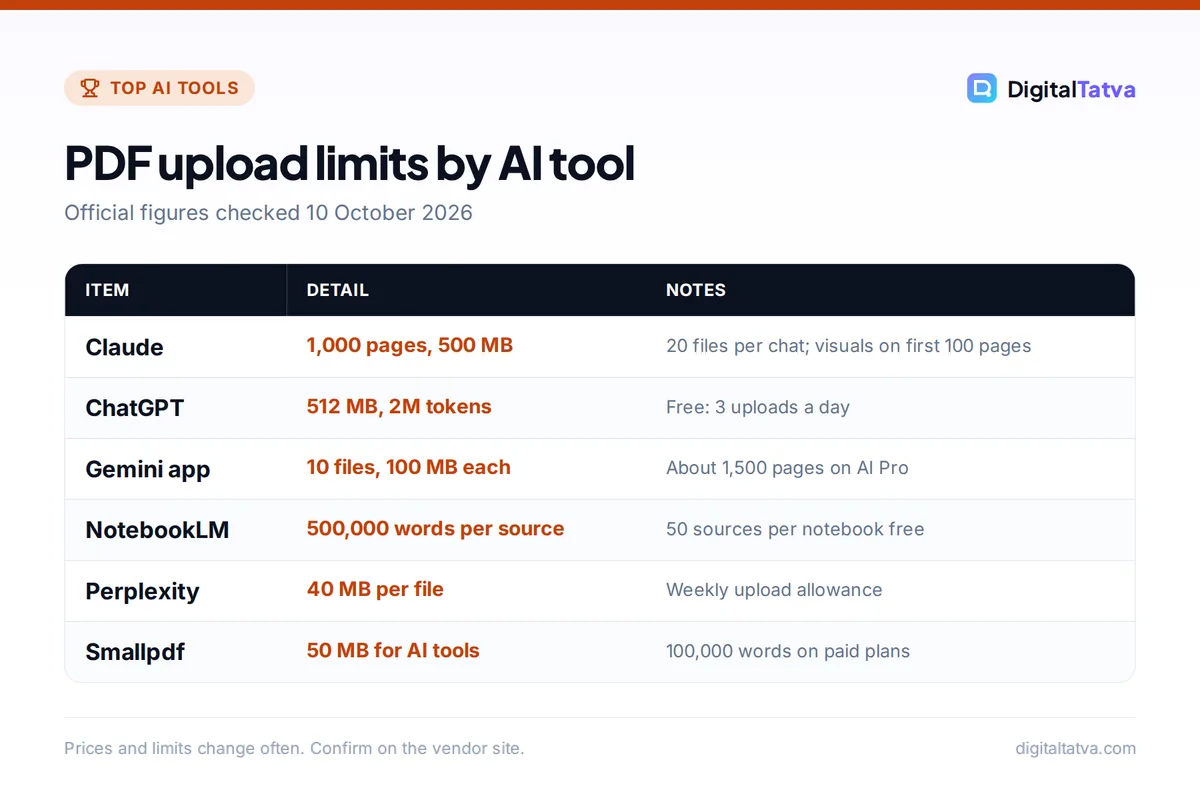
Limits decide which tool can even open your file. These are the official figures; “not published” means the vendor does not give a number.
| Tool | Max file size | Files at once | Page or length limit |
|---|---|---|---|
| Claude | 500 MB per file (30 MB in projects) | Up to 20 per chat | 1,000 pages; visuals read on the first 100 |
| ChatGPT | 512 MB per file | Up to 80 files every 3 hours (Free: 3 a day) | 2 million tokens per text document |
| Gemini app | 100 MB (non-video) | Up to 10 per prompt | 1M token context on AI Pro and Ultra (about 1,500 pages) |
| NotebookLM | 200 MB per uploaded file | 50 sources per notebook (free) | 500,000 words per source |
| Perplexity | 40 MB per file | Weekly allowance (not published) | Not published |
| Smallpdf | 50 MB for AI tools | Not published | 25,000 to 35,000 words free; 100,000 paid |
| UPDF AI | Conflicting figures on its page | 5 PDFs on the free trial | Up to 100 pages per PDF on the trial |
If you wonder why a 1,500-page limit and a “1M token” limit describe the same thing, our explainer on context windows shows how pages translate into tokens.
The 10 best AI tools to chat with PDFs reviewed
1. NotebookLM (Gemini Notebook): Best free tool for research across many PDFs
- Starting price: Free; more capacity with Google AI Plus, Pro and Ultra
- Free plan: Yes, 100 notebooks, 50 sources each, 50 chats a day
- Best for: students, researchers and anyone comparing several documents
Google renamed NotebookLM to Gemini Notebook in July 2026, but it still works as a standalone research tool at notebooklm.google. You upload PDFs, Google Docs, Slides, websites, YouTube links and audio as “sources”, and every answer cites the exact passage it used. Each source can hold up to 500,000 words or 200 MB, and the free tier gives 50 sources per notebook, 50 chats a day and 3 Audio Overviews (podcast-style summaries) a day. Higher Google AI tiers raise this to 300 sources and 500 chats on Pro.
Google says personal-account data is not used to train the model unless you send feedback. Our guide on how to use NotebookLM for study and research walks through setup.
Skip it if: you need to edit the PDF itself or write long deliverables; it is built for understanding, not authoring.
2. Claude: Best for long, complex PDFs
- Starting price: Pro $20/mo, or $17/mo billed annually
- Free plan: Yes, with lower usage limits
- Best for: contracts, annual reports, policy documents and technical manuals
Claude handles large files better than most chatbots: up to 500 MB per file, 20 files per chat, and PDFs of up to 1,000 pages. For PDFs of up to 100 pages it analyzes charts, tables and images as well as text; from 101 to 1,000 pages it reads the text only. Paid plans run models with 1 million token context, so you can ask questions across a whole contract bundle and get careful, well-structured answers.
Heavy PDFs use more of your usage allowance, so read Claude usage limits explained before uploading 20 long files at once. Our Claude review covers its writing and analysis strengths.
Skip it if: you need visual analysis of charts deep inside a very long PDF; split it into 100-page parts instead.
3. ChatGPT: Best for summaries plus follow-up work
- Starting price: Go $8/mo, Plus $20/mo
- Free plan: Yes, 3 file uploads a day
- Best for: summarizing a PDF and then turning it into emails, slides or tables
ChatGPT accepts files up to 512 MB, with text documents capped at 2 million tokens each, and paid users can upload up to 80 files every 3 hours. Its strength is what comes after the summary: turn a 40-page report into a client email, extract a table into a spreadsheet, or build a quiz from lecture notes. Projects let you keep 25 files on Go and Plus (5 on Free) for repeated questions.
Free users are limited to 3 uploads a day, which is fine for occasional use. See ChatGPT limits by plan and our ChatGPT pricing guide if you need more.
Skip it if: you need clickable page citations for every claim; NotebookLM and Acrobat are stronger there.
4. Gemini app: Best for Google Drive users and multi-file prompts
- Starting price: AI Plus $4.99/mo (Rs 399), AI Pro $19.99/mo (Rs 1,950)
- Free plan: Yes
- Best for: people whose PDFs already live in Google Drive or Gmail
The Gemini app takes up to 10 files per prompt at up to 100 MB each, and AI Pro and Ultra give a 1 million token context window, which Google describes as roughly 1,500 pages of text. Attach PDFs from Drive, ask for a comparison table, then export the answer to Google Docs. Upload limits are rolling and reset over time, with higher allowances on paid plans.
Our Gemini pricing guide explains which plan to pick, including free student and telecom offers in India.
Skip it if: you need reliable citations to page numbers; use NotebookLM, which shares Google’s models but is built around sources.
5. Adobe Acrobat AI Assistant: Best for professionals working in PDFs daily
- Starting price: Acrobat Express US$9.99/mo; Acrobat Studio US$24.99/mo (annual, billed monthly)
- Free plan: Free trial
- Best for: legal, finance and operations teams who already use Acrobat
Adobe’s AI Assistant lives inside Acrobat, so you can summarize, ask questions and get answers “always cited back to your source documents” without uploading files elsewhere. PDF Spaces let you combine several files to find insights across them and generate podcast-style overviews. Acrobat Studio and Acrobat Express include AI summaries and answers; Adobe’s page did not list AI Assistant among Acrobat Pro’s features or show a standalone add-on price.
Language support is limited to English and a set of European and Asian languages (Japanese and Korean among them), with no Indian languages listed. Check the official Acrobat AI Assistant page for current plans. Monthly-billed annual plans charge a fee if you cancel after 14 days.
Skip it if: you only chat with a few PDFs a month; free tools cover that.
6. ChatPDF: Best simple tool for a quick PDF chat
- Starting price: Plus (price not shown on the page we could read)
- Free plan: Yes, 2 documents a day
- Best for: students and one-off questions about a single file
ChatPDF does one thing well: upload a PDF and start asking questions. Answers include built-in citations that point back to the relevant part of the document, folders let you chat with several PDFs in one conversation, and it accepts PDFs in any language and can reply in any language, which helps with Hindi or other regional documents. The free plan allows 2 documents a day; Plus removes that cap.
Skip it if: you need team workspaces or very large document sets.
7. Humata: Best for teams budgeting by page
- Starting price: Expert $9.99/mo (500 pages, up to 3 users)
- Free plan: Yes, 60 pages a month
- Best for: small teams that process a predictable volume of documents
Humata prices by pages processed, which makes costs easy to forecast. Expert includes 500 pages a month and then $0.02 per extra page; Team costs $49 per user a month with 5,000 pages and $0.01 per extra page. It answers questions across your uploaded documents and highlights where the answer came from.
Skip it if: you regularly upload thousand-page files; page pricing adds up quickly.
8. Perplexity: Best for checking a PDF against the web
- Starting price: Pro $20/mo
- Free plan: Yes, with a weekly upload allowance
- Best for: analysts and journalists who need outside context
Perplexity accepts PDFs, other text files, images, audio and video up to 40 MB each. Its edge is combining your document with live web search: upload a company’s investor deck and ask how its claims compare with recent news, with sources for both. Free, Pro and Max each get a rolling weekly upload allowance, with more on Max, though exact numbers are not published.
See our Perplexity pricing guide and the wider list of AI research tools.
Skip it if: your PDFs are larger than 40 MB.
9. UPDF AI: Best for editing and chatting in one app
- Starting price: AI Assistant add-on, yearly, quarterly or monthly (prices did not display)
- Free plan: Yes, 5 PDFs and 100 questions
- Best for: freelancers who also need to edit, annotate and convert PDFs
UPDF is a full PDF editor for desktop and mobile with an optional AI Assistant that summarizes, translates and answers questions about documents. The free AI trial covers 5 PDFs and 100 questions, paid AI tiers allow 100 PDFs and 1,000 questions a month or unlimited use, and there is a 7-day AI trial. Its pricing page did not render prices when we checked, so confirm at checkout.
Skip it if: you only need chat; a free chatbot is simpler.
10. Smallpdf: Best all-in-one PDF toolkit with AI
- Starting price: Pro (monthly or yearly; prices did not display)
- Free plan: Yes, limited AI tools
- Best for: people who compress, convert, sign and summarize PDFs in one place
Smallpdf bundles 30+ PDF tools with Chat with PDF, an AI summarizer, PDF translation and a question generator. Free accounts get limited AI use on documents of about 25,000 to 35,000 words; Pro removes limits and raises the length to 100,000 words, with a 50 MB file cap for AI tools. A 7-day free trial is available.
Skip it if: you need deep analysis of long technical documents.
How to chat with a PDF using AI, step by step
- Check the file. Make sure the PDF has selectable text. Scanned pages without OCR give poor answers; run OCR first in Acrobat, UPDF or Smallpdf.
- Pick the tool by size. Under 100 pages: any tool. 100 to 1,000 pages: Claude, Gemini or NotebookLM. Many files: NotebookLM or Claude.
- Remove sensitive data. Redact ID numbers, bank details and personal data before uploading to consumer tools.
- Start with structure. Ask for a one-paragraph summary, then an outline of sections with page numbers.
- Ask targeted questions. Use the prompts below, and ask the tool to quote the exact sentence it relied on.
- Verify. Click citations or open the page and check every number, date and obligation you plan to use.
Prompts for chatting with PDFs
- Summary: “Summarize this document in 5 bullets for a busy manager. Then list the 3 decisions or actions it requires, with page numbers.”
- Contracts: “List every payment term, deadline, renewal clause, termination right and penalty in this contract, in a table with the clause number and an exact quote.”
- Research papers: “Explain the research question, method, sample size, main findings and limitations of this paper in plain English. Flag any claims not supported by the data.”
- Reports: “Extract all figures for revenue, costs and growth into a table by year. Mark any number you are unsure about.”
- Study: “Create 10 exam-style questions with answers from chapters 3 and 4, citing the page for each answer.”
- Comparison: “Compare these two proposals on price, scope, timeline and risks. Which one better fits a budget of [amount]?”
For spreadsheets extracted from PDFs, see our best AI tools for Excel and Google Sheets.
Accuracy, cost and privacy tips
Watch for confident mistakes
AI can misread tables, merge numbers from different pages or invent a clause that sounds plausible. Tools with clickable citations (NotebookLM, Acrobat, ChatPDF) make checking faster. For legal or financial decisions, treat AI output as a first read, never the final word.
Watch out: Claude reads charts and images only in the first 100 pages of a PDF; after that it reads text only. If a key chart sits on page 300, extract those pages into a separate file.
Keep costs down
Long PDFs use a lot of tokens and burn through usage limits quickly. Ask specific questions instead of “summarize everything” repeatedly, keep reused files in a project, and split giant files so you upload only the sections you need. Our guide to reducing token usage in ChatGPT and Claude has more tricks.
Save money: NotebookLM’s free tier and ChatGPT, Claude or Gemini free plans cover most personal use. Pay only if you process documents every day; Humata Expert at $9.99 and Gemini AI Plus at $4.99 are the cheapest paid steps up.
Protect confidential documents
Use business plans where your data is excluded from training for client files, and check your organization’s rules first. Our AI data privacy guide explains each vendor’s training and retention settings.
Frequently asked questions
What is the best free AI to chat with PDFs?
NotebookLM (Gemini Notebook) is the best free option: it allows 50 sources per notebook, up to 500,000 words each, and every answer cites the source passage. ChatGPT Free (3 uploads a day), Claude Free and the Gemini app also handle PDFs well. ChatPDF’s free plan allows 2 documents a day if you want a dedicated, simple tool.
Can ChatGPT read a PDF?
Yes. ChatGPT accepts PDF uploads up to 512 MB, with text documents capped at 2 million tokens each. Free users can upload 3 files a day, while paid plans allow up to 80 files every 3 hours. It can summarize, answer questions, extract tables and turn the content into emails, slides or quizzes.
Which AI can handle a very long PDF?
Claude accepts PDFs of up to 1,000 pages and 500 MB, and reads charts and images in the first 100 pages. The Gemini app on AI Pro or Ultra has a 1 million token context, which Google puts at about 1,500 pages. NotebookLM allows up to 500,000 words per source. For anything longer, split the file into sections.
Is it safe to upload confidential PDFs to AI tools?
It depends on the plan and your obligations. Business and enterprise plans from OpenAI, Anthropic and Google do not train on your data by default, while consumer plans may unless you change settings. Redact personal and financial details, follow your employer’s AI policy, and avoid uploading documents covered by confidentiality agreements to personal accounts.
Does Adobe Acrobat have AI to summarize PDFs?
Yes. Acrobat’s AI Assistant summarizes documents and answers questions with citations to the source, and PDF Spaces work across several files. Adobe lists AI summaries in Acrobat Studio (US$24.99 a month on annual billing) and Acrobat Express (US$9.99). Its supported languages do not include Indian languages, so use ChatPDF or a general chatbot for those.
Our verdict: the best AI tools to chat with PDFs
Start with NotebookLM if you research across several documents; it is free, generous and cites everything. Use Claude for long contracts and reports, and ChatGPT or Gemini when you want to turn a PDF into other work in the assistant you already pay for. Professionals who spend all day in PDFs should consider Acrobat Studio, while ChatPDF, Humata, UPDF and Smallpdf suit occasional or budget use. For broader study workflows, see our list of the best AI tools for students.
Upload limits and prices change often, so confirm current plans on each vendor’s pricing page before you subscribe.
Pricing and features are checked at the time of writing and can change. Some links may be affiliate links, which never affect our verdicts.