10 Best Image to Video AI Tools to Animate Photos
The 10 best image to video AI tools for animating photos in 2026, from Google Flow and Kling to Runway, Midjourney and Firefly, with free limits, clip lengths and prompt examples.

On this page
- Key takeaways
- Image to video AI quick picks
- The 10 best image to video AI tools, reviewed
- How to turn an image into a video with AI
- How to choose the right image to video AI
- Image to video AI pricing: what a clip really costs
- Frequently asked questions
- Our verdict: start with Google Flow, add Kling for people
The best image to video AI tool in October 2026 is Google Flow with Veo 3.1, which turns a photo into an 8-second clip and gives non-subscribers 50 free credits a day. Kling AI is the pick for realistic people and motion, Runway gives the most camera control, Midjourney animates its own art beautifully, and Adobe Firefly is the safest choice for commercial work.
Image to video AI takes a still picture, such as a product shot, a portrait or an old family photo, and generates a short video where the subject moves, the camera pans or the scene comes alive. Below are the 10 tools worth using, what each one charges, how long the clips are, and a step-by-step method with prompt examples that get natural motion instead of melting faces.
Key takeaways
- Google Flow (Veo 3.1) is the best overall image to video AI: start and end frames, 4 to 8 second clips, and 50 free daily credits for non-subscribers.
- Kling AI produces the most lifelike human motion; free output is watermarked and not licensed for commercial use.
- Runway’s Gen-4 family is built around an input image, with 5 or 10 second clips at 5 to 12 credits per second.
- Midjourney animates any image into a 5-second video you can extend to 21 seconds, from $10 per month.
- Write prompts about motion, not the scene: the image already shows what things look like, so describe what moves and how the camera behaves.
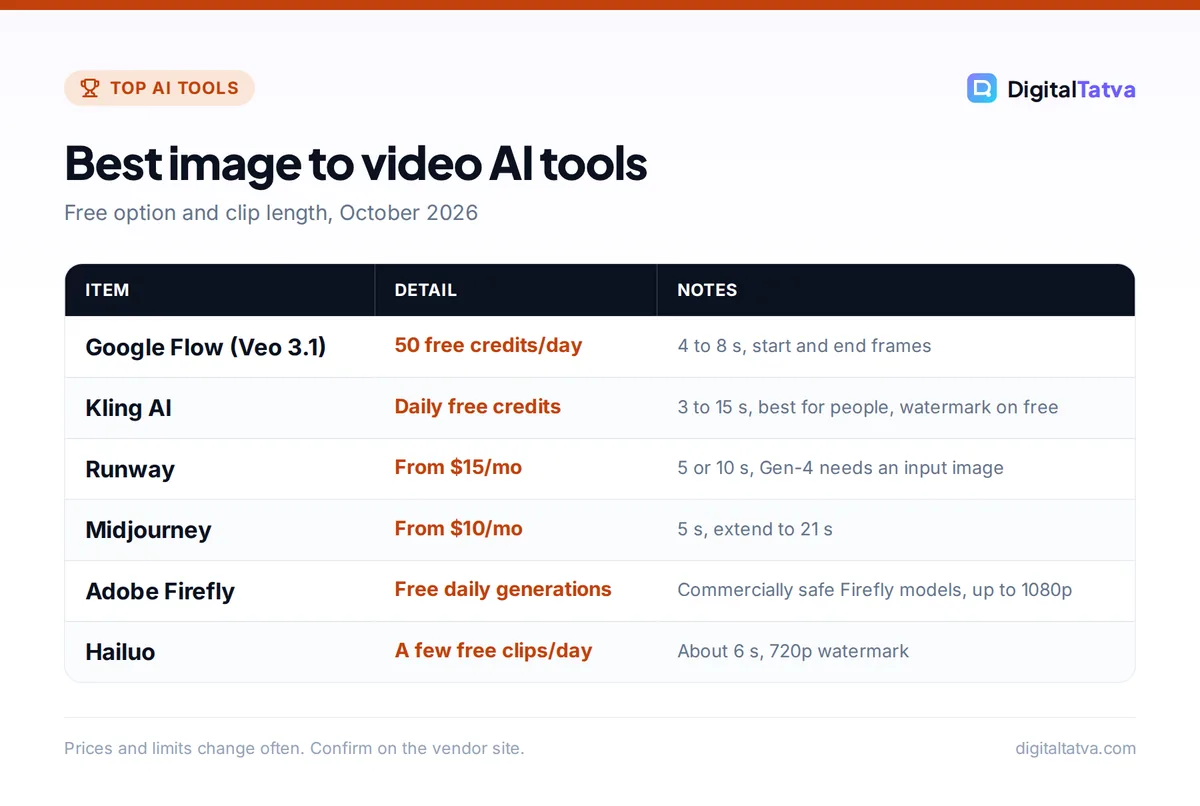
Image to video AI quick picks
Here is how the 10 tools compare. “Free option” means something you can keep using, not just a one-time trial, unless we say otherwise.
| Tool | Best for | Free option | Paid from | Clip length |
|---|---|---|---|---|
| Google Flow (Veo 3.1) | Best overall | 50 credits a day | $4.99/mo (Google AI Plus) | 4 to 8 s |
| Gemini app (Gemini Omni) | Quick phone animations | No, needs a Google AI plan | $4.99/mo | Short clips |
| Kling AI | Realistic people | Daily credits, watermark | About $7 to $10/mo | 3 to 15 s (Kling 3.0) |
| Runway | Camera control | 125 one-time credits | $15/mo ($12 annual) | 5 or 10 s |
| Midjourney | Animating art | No | $10/mo | 5 s, extend to 21 s |
| Adobe Firefly | Commercial safety | Free daily generations | $9.99/mo | A few seconds, up to 1080p |
| Luma Dream Machine | Cinematic drafts | Daily draft credits, watermark | About $9.99/mo | Short clips |
| Hailuo (MiniMax) | Quick social clips | A few clips a day, 720p watermark | About $7.99/mo | About 6 s |
| Pika | Keyframe transitions | Credit packs only | $10/mo ($8 annual) | Short clips |
| Instagram Edits | Free animation on your phone | Free, reported no watermark | Free | Short clips |
Need text to video rather than photo animation? Our roundups of the best AI video generators and free AI video generators cover that side.
The 10 best image to video AI tools, reviewed
1. Google Flow (Veo 3.1): Best image to video AI overall
- Free plan: 50 credits a day without a subscription
- Cost per clip: Veo 3.1 Lite 10 credits, Fast 20, Quality 100
- Image inputs: start frame, end frame, or “Ingredients” references
- Paid from: Google AI Plus $4.99/month (Rs 399), 200 extra credits
Google Flow’s Frames to video mode is the cleanest way to animate a photo. Add a start frame, optionally an end frame, describe the motion and pick 4, 6 or 8 seconds. With 50 daily credits you get about five Veo 3.1 Lite clips a day for free, and failed generations are not charged, according to Google’s Flow credits help page. Ingredients mode (on Veo 3.1 Lite, Fast and Gemini Omni Flash) instead uses your images as character or product references inside a new scene.
The catches: free video may be unavailable from roughly 2 PM to 5 PM UTC, Flow is 18+ only, and users in India get a visible watermark automatically on top of Google’s invisible SynthID mark. Our walkthrough on how to use Google Flow and Veo covers every setting.
2. Gemini app (Gemini Omni): Best for quick animations on your phone
- Free plan: No, personal accounts need a Google AI plan
- Image inputs: up to 5 images plus 1 video
- Extras: generates audio, multi-turn edits, share to YouTube
- Paid from: $4.99/month
In the Gemini app, choose “Create video,” tap Add image, describe what should happen and submit. Gemini Omni can generate sound, and you can refine the clip in follow-up messages (“slow the camera down,” “make it vertical”). It is the easiest option for casual users already paying for Google AI Plus or Pro. Video uploads for editing are unavailable in the EEA, Switzerland, the UK and some US states, and the feature is not available to users under 18.
3. Kling AI: Best for realistic people and motion
- Free plan: about 66 credits a day that expire in 24 hours (third-party figure)
- Clip length: 3 to 15 seconds on Kling 3.0
- Watermark: Yes on free, no commercial rights
- Paid from: about $6.99 first month, then about $10/month
Kling, from China’s Kuaishou, is the tool to beat when your photo has a person in it. Kling 3.0 handles walking, turning and hand movement with fewer glitches than most rivals, and it can add native audio with lip sync. Expect generation to take several minutes, and note that Kling’s own pricing page did not load for us, so prices are third-party figures. Kling 4.0, with clips up to 30 seconds and 4K HDR, launched in limited preview on 28 September 2026. Read our Kling AI review for quality tests and plan advice.
4. Runway: Best for camera control and editing
- Free plan: 125 one-time credits (a trial)
- Credits per second: Gen-4 12, Gen-4 Turbo 5, Gen-4.5 about 12
- Clip length: 5 or 10 seconds
- Paid from: Standard $15/month or $12/month annual, 625 credits
Runway’s Gen-4 help article says “Gen-4 requires an input image,” which tells you how central image to video is to the product. A 5-second Gen-4 clip costs 60 credits and a Turbo clip 25, so Standard’s 625 credits buy about ten Gen-4 clips or twenty-five Turbo clips a month. Gen-4.5 is the current flagship for both text and image to video. Runway is the best choice if you need to cut clips together, upscale them or move them into Premiere and DaVinci Resolve. Compare plans in our Runway pricing guide or see Runway vs Kling.
5. Midjourney: Best for animating AI art and illustrations
- Free plan: No
- Clip length: 5 seconds, extend by 4 seconds up to 21 seconds
- Resolution: 480p SD; 720p HD on Standard, Pro and Mega
- Paid from: Basic $10/month
Midjourney’s video feature “turns a single image into a dynamic 5-second video.” On the web, click Animate under any Midjourney image or upload your own picture as the starting frame. Choose Auto to animate immediately or Manual to write a motion prompt, and pick Low motion (subtle, the default) or High motion (bigger moves that can look glitchy). Video uses far more GPU time than images: a batch of four costs about 8 minutes at SD and 26 minutes at HD. Our guide on how to use Midjourney and the Midjourney pricing breakdown show which plan fits.
6. Adobe Firefly: Best for commercially safe client work
- Free plan: free daily generations, count not published
- Image inputs: start frame and optional end frame
- Controls: camera presets (zoom, track, tilt, locked), shot size, up to 1080p
- Paid from: Firefly Standard $9.99/month (2,000 credits); Pro $19.99 for up to 40 five-second videos
Firefly’s image to video works like a simple keyframe system: give it a start image, an optional end image and a camera move. Adobe says outputs from its own Firefly models are “safe for commercial use” because they are trained on licensed and public domain content, and every file carries Content Credentials. Partner models inside Firefly may have different terms and vary by country. If a client asks where your footage came from, Firefly gives you the cleanest answer.
7. Luma Dream Machine: Best for cinematic drafts
- Free plan: about 250 credits a day, drafts only, watermark, personal use (third-party)
- Model: Ray 3 and Ray 3.14
- Commercial use: from Plus, about $29.99/month
- Paid from: Lite about $9.99/month
Luma’s Ray models are good at atmospheric camera moves, such as slow push-ins and drifting shots, which suit landscapes and travel photos. The free tier is generous for testing ideas but limited to watermarked drafts for personal use, so plan to upgrade before any client or monetized project. Figures come from a June 2026 third-party review, so confirm on Luma’s site.
8. Hailuo (MiniMax): Best for quick social clips
- Free plan: daily credits for roughly 3 to 5 generations (third-party)
- Output: 720p with watermark on free
- Clip length: about 6 seconds
- Paid from: about $7.99/month
Hailuo is a handy second tool when your Flow credits run out. Upload a photo, describe the movement and you get a 6-second clip that works for Reels and Shorts. Free clips are watermarked, and commercial terms for free output were not stated in the sources we found.
9. Pika: Best for keyframe transitions and effects
- Free plan: no monthly credits, buy packs
- Features: Pika 2.5, Pikaframes keyframes
- Commercial license: Creator plan and up ($35/month or $28 annual)
- Paid from: Starter $10/month or $8 annual (no commercial license)
Pikaframes lets you set several images as keyframes and have Pika generate the motion between them, which is great for before and after reveals or morphing transitions. Pika also hosts third-party models such as Seedance 2.5 and Wan 3.0. Note that Starter does not include a commercial license, according to Pika’s pricing page.
10. Instagram Edits: Best free option on your phone
- Free plan: free, no subscription (reported)
- Feature: AI Animate (image to video)
- Platforms: iOS and Android only
- Best for: Reels creators
Instagram’s standalone Edits app includes an AI Animate tool that turns a photo into a short clip, alongside captions, green screen and 4K export. Third-party reviews describe it as free with no watermark, but also say animations can look blurry, so use it for quick Reels rather than polished ads. See our list of AI tools for Instagram Reels for more.
How to turn an image into a video with AI
The workflow is the same in every tool. Follow these steps to get natural motion on the first or second try.
- Pick a strong source image. Use a sharp, well-lit photo with a clear subject and some empty space around it so the camera has room to move. Upscale small images first with an AI image upscaler.
- Match the aspect ratio to the platform. Crop to 9:16 for Reels and Shorts or 16:9 for YouTube before uploading, because most tools keep the input’s shape.
- Write a motion prompt. Describe what moves, how fast, and what the camera does. Skip describing colors and objects; the image already shows them.
- Start short and cheap. Generate a 4 to 5 second clip on the lowest-cost model (Veo 3.1 Lite, Gen-4 Turbo, Midjourney SD) to test motion before paying for quality.
- Use an end frame for control. If the tool supports it, add an end frame to lock where the clip finishes, which reduces random drift.
- Extend, edit and add sound. Extend the best take, then finish in an editor; our AI video editors roundup lists good options.
Image to video prompt examples
- Product photo: “Slow 360 degree orbit around the bottle, soft studio light, gentle reflections, camera stays level.”
- Portrait: “She turns her head slightly toward the camera and smiles, hair moves in a light breeze, static camera.”
- Landscape: “Slow push-in toward the mountains, clouds drift left, water ripples, golden hour light.”
- Old family photo: “Subtle natural blinking and breathing, very small head movement, no camera movement.”
Tip: One motion idea per clip works best. Asking for a walk, a camera spin and a lighting change at once is the fastest way to get warped faces. For more wording ideas, borrow from our AI image prompts and add a motion line.
How to choose the right image to video AI
- Photos of people: Kling first, then Google Flow. Both handle faces and bodies better than most.
- Products and ads: Adobe Firefly for commercial safety, or Runway for precise camera moves.
- AI art and illustrations: Midjourney keeps the style of the original image most faithfully.
- Zero budget: Google Flow’s 50 daily credits, then Kling, Hailuo or Luma free tiers, accepting watermarks.
- Phone only: the Gemini app on a Google AI plan, or Instagram Edits for free.
Watch out: Only animate photos you own or have permission to use, and never animate real people in ways that could mislead or embarrass them. Google adds SynthID to Flow and Gemini clips, and Adobe attaches Content Credentials, so AI origin can be detected. Our guide to copyright and AI-generated content explains ownership rules.
Image to video AI pricing: what a clip really costs
Credit systems make prices hard to compare, so here is the arithmetic using official figures. On Runway Standard ($15 for 625 credits), a 5-second Gen-4 clip at 60 credits costs about $1.44, and a 5-second Turbo clip at 25 credits about $0.60. On Google AI Plus ($4.99 for 200 Flow credits), a Veo 3.1 Lite clip at 10 credits works out to about $0.25, and the 50 free daily credits cost nothing. Midjourney Basic ($10) includes 200 fast GPU minutes, so at about 8 minutes per SD batch of four you get roughly 25 batches a month if you make nothing else.
Remember that you will rarely keep the first take. Budget for two to four generations per usable clip, and test on cheaper models before switching to premium ones.
Frequently asked questions
What is the best free image to video AI?
Google Flow is the best free option, with 50 credits a day for non-subscribers, enough for about five 8-second Veo 3.1 Lite clips from your photos. Kling, Hailuo and Luma also have free daily credits but add watermarks and limit commercial use. Instagram Edits offers a free AI Animate feature on phones.
Can AI animate an old photo?
Yes. Upload a scan to Google Flow, Kling or Runway and ask for subtle motion such as blinking, breathing and a small head turn with no camera movement. Restore and upscale the scan first for better results, and keep motion minimal, because large movements on old, low-resolution photos often distort faces.
How long can an image to video AI clip be?
Most tools generate 4 to 10 seconds per clip. Google Flow makes 4, 6 or 8 seconds with Veo 3.1, Runway makes 5 or 10, Kling 3.0 makes 3 to 15, and Midjourney starts at 5 seconds and extends to 21. For longer videos, extend clips or stitch several together in an editor.
Can I use image to video AI clips commercially?
Usually only on paid plans. Kling and Luma free tiers are personal use only, and Pika’s Starter plan excludes a commercial license. Adobe Firefly markets its own models as safe for commercial use. Always check the license for your plan and make sure you have rights to the source image.
Does ChatGPT turn images into videos?
No. OpenAI discontinued the Sora app in April 2026 and the Sora API in September 2026, and video generation does not appear on current ChatGPT plans. ChatGPT is still useful for writing motion prompts, but use Google Flow, Kling or Runway for the video itself.
Our verdict: start with Google Flow, add Kling for people
For most people, Google Flow is the best image to video AI: generous free credits, start and end frames and solid quality from Veo 3.1. Add Kling when your photos feature people, Runway when you need editing and camera control, Midjourney for animating art, and Firefly when a client needs commercial safety. If you are building a full Shorts workflow, see our guide to making YouTube Shorts with AI. Credits and plan prices change often, so check each vendor’s pricing page before you subscribe.
Pricing and features are checked at the time of writing and can change. Some links may be affiliate links, which never affect our verdicts.