How to Use Google Flow and Veo to Make AI Videos
A step-by-step guide to Google Veo in Flow: which Veo 3.1 model to pick, Frames, Ingredients and Extend, Gemini Omni Flash, credit costs per clip and free daily limits.


On this page
- Key takeaways
- Google Veo in Flow: quick answer table
- What Google Flow and Veo are, and how they fit together
- What you need before you start
- How to use Google Veo in Flow, step by step
- Frames, Ingredients and Extend: the three features that matter
- When to switch from Veo to Gemini Omni Flash
- Google Veo pricing: what each plan really buys
- Prompting tips that get better Veo clips
- Common mistakes that waste Flow credits
- Google Veo vs other AI video generators
- Frequently asked questions
- Next steps: make your first Veo video today
To use Google Veo, open Google Flow at labs.google/fx/tools/flow in Chrome or Edge, start a project, switch the prompt box to Video, pick a Veo 3.1 model (Lite, Fast or Quality) and describe your shot. Each generation makes a 4 to 8 second clip that costs Flow credits: 10 for Veo 3.1 Lite, 20 for Fast and 100 for Quality, and Google’s help center lists 50 free credits a day without a subscription, plus 200 to 25,000 extra credits a month on Google AI plans.
This guide walks through Google Veo in Flow step by step as of 12 October 2026: which model to pick, how Frames, Ingredients and Extend work, where the newer Gemini Omni Flash model fits, what each plan really buys you, and the mistakes that burn credits.
Key takeaways
- Flow is Google’s AI filmmaking tool; Veo 3.1 (Lite, Fast, Quality) and Gemini Omni Flash are the video models inside it.
- Credit costs per clip: Veo 3.1 Lite 10, Fast 20, Quality 100, Omni Flash 720p 7 to 15 depending on length.
- Without a plan you get 50 credits a day (videos may be blocked at peak hours); Google AI Plus adds 200 credits a month, AI Pro 1,000 and AI Ultra 10,000 or 25,000.
- Flow is open to adults (18+) in over 140 countries, including India, where a visible watermark is added automatically.
- Start with Lite or Fast drafts, then spend Quality credits only on the shots you will actually publish.
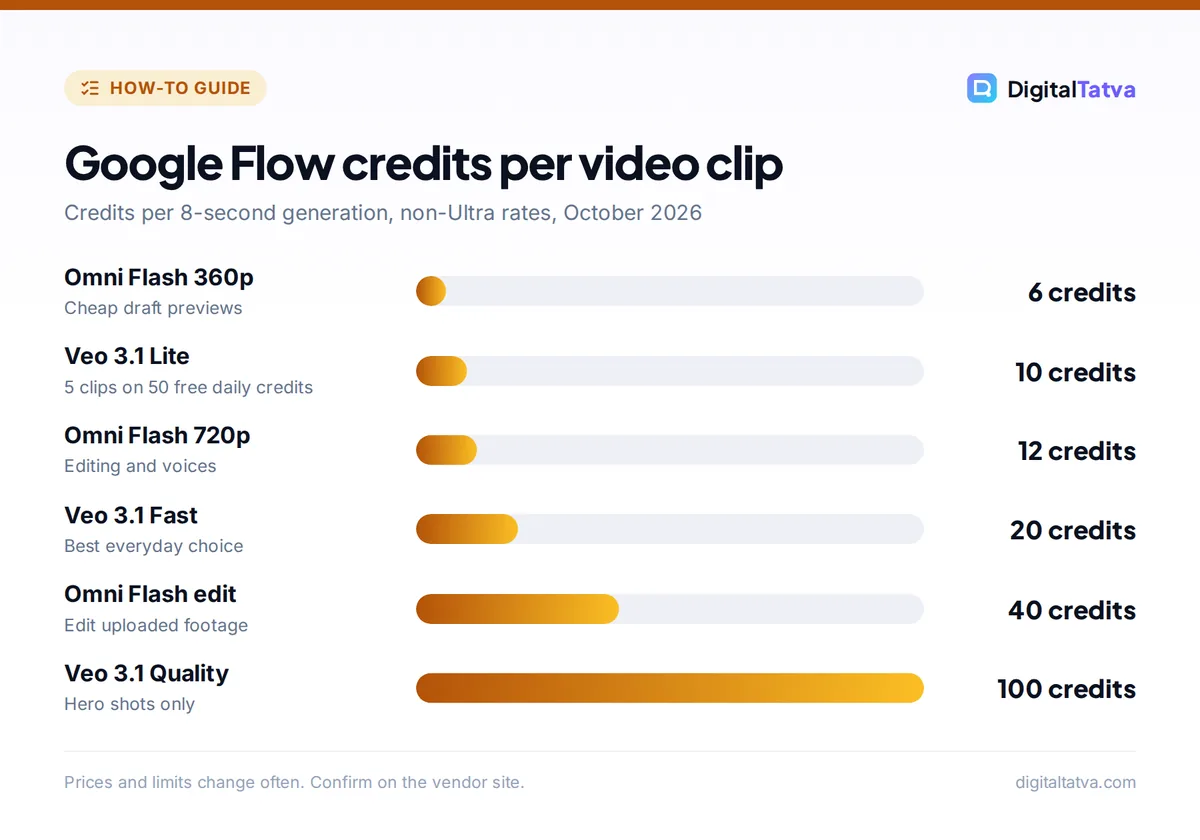
Google Flow credits per video clip
Credits per 8-second generation, non-Ultra rates, October 2026
Prices and limits change often. Confirm on the vendor site.
Google Veo in Flow: quick answer table
Here is everything you need before your first prompt. All figures come from Google’s official Flow credits help page and Flow models page, checked on 12 October 2026.
| Question | Short answer |
|---|---|
| Where do I use Google Veo? | Google Flow (labs.google/fx/tools/flow) on desktop Chrome or Edge; the Gemini app now uses Gemini Omni for video |
| Which Veo models are in Flow? | Veo 3.1 Lite, Veo 3.1 Fast, Veo 3.1 Quality |
| Clip length | 4, 6 or 8 seconds for Veo; up to 10 seconds for Omni Flash |
| Cost per clip | Lite 10 credits, Fast 20, Quality 100 (Ultra pays 5 and 10 for Lite and Fast) |
| Free use | 50 credits per day without a subscription; videos may be unavailable from roughly 2 PM to 5 PM UTC |
| Paid credits | AI Plus 200/month, AI Pro 1,000, AI Ultra 10,000 or 25,000 |
| Who can use it | 18+ with age verification, in supported countries including India and the US |
| Watermark | Invisible SynthID on everything; visible watermark toggle, forced on in India, South Korea and Vietnam |
What Google Flow and Veo are, and how they fit together
Veo is Google DeepMind’s family of video generation models. Veo 3 added synchronized audio such as dialogue and sound effects, and Veo 3.1, released in October 2025, added better prompt adherence plus editing features like Frames to Video, Ingredients to Video and Extend. Flow is the app where you use those models like a small film studio: projects, clips, references, a scene builder and an agent that can run multi-step tasks.
At Google I/O in May 2026, Google renamed the app Google Flow and added Gemini Omni, a newer model that Google says “can create anything from any input, starting with video.” Its first version, Omni Flash, sits next to Veo in Flow’s model picker. Think of it this way: Veo 3.1 is the dependable text-to-video and image-to-video engine, while Omni Flash is the newer model for editing real footage, reusing voices and keeping characters consistent.
The Gemini app also makes videos, but its help page now names only Gemini Omni and requires a Google AI plan, so Flow is the place for Veo (see our Gemini review).
Veo 3.1 Lite vs Fast vs Quality vs Omni Flash
| Model | Credits per clip | Lengths | Supports | Best for |
|---|---|---|---|---|
| Veo 3.1 Lite | 10 (Ultra 5) | 4, 6, 8 s | Text, Frames, Ingredients (8 s), Extend (8 s) | Cheap drafts and testing prompts |
| Veo 3.1 Fast | 20 (Ultra 10) | 4, 6, 8 s | Text, Frames, Ingredients (8 s) | Most social clips and B-roll |
| Veo 3.1 Quality | 100 | 4, 6, 8 s | Text and Frames only | Hero shots for ads and final cuts |
| Gemini Omni Flash (720p) | 7 to 15 | 4, 6, 8, 10 s | Text, Frames, Ingredients, video editing, voices | Editing real footage, consistent characters |
| Gemini Omni Flash (360p draft) | 4 to 7 | 4, 6, 8, 10 s | Same as above | Fast, cheap previews |
What you need before you start
- A Google account, age 18+ and a supported country. Flow verifies your age and is available in India, the US, Canada, Brazil, Japan and many more countries; editing uploaded videos and avatars are blocked in the EEA, Switzerland and the UK.
- Chrome or Edge on a desktop, as Google recommends.
- Credits. Free daily credits work for experiments; for regular output see our breakdown of Gemini and Google AI pricing.
- A shot idea in writing: one line each for subject, action, setting, camera and mood.
Tip: Google’s Flow help pages are not fully consistent about free access. The credits page lists 50 daily credits for non-subscribers, while the getting started page lists a Google AI plan as a requirement. If video generation is greyed out on a free account, try outside the 2 PM to 5 PM UTC peak window (7:30 PM to 10:30 PM in India).
How to use Google Veo in Flow, step by step
Flow also has an Agent mode that plans several generations from one request, but learn the standard prompt box first, because it shows exactly what each clip costs.
- Open Flow and sign in. Go to labs.google/fx/tools/flow in Chrome or Edge, sign in with your Google account and complete age verification if asked.
- Create a project. Click New project. A project holds your clips, images and references, so use one per video idea.
- Switch the prompt box to Video. Click the model name in the prompt box (Flow defaults to the Nano Banana Pro image model), then click Video.
- Pick a Veo model. Choose Veo 3.1 Lite or Fast for first drafts. The Settings icon at the top right of the prompt box shows the selected model and its credit cost before you spend anything.
- Set your preferences. Choose landscape or portrait aspect ratio, the number of outputs and the clip length (4, 6 or 8 seconds). Fewer outputs mean fewer credits.
- Write the prompt. Describe subject, action, environment, lighting, camera movement and style, plus any sound or dialogue. Example: “Close-up of a chai vendor pouring tea from height at a Mumbai street stall at dawn, steam rising, handheld camera slowly pushing in, warm golden light, ambient street sounds.”
- Generate and review. Click Generate. Each result appears as a tile. Watch every output fully before you change the prompt; note what worked.
- Upscale and download. Subscribers can upscale to 1080p for 0 credits; 4K upscaling costs 50 credits and is Ultra only. Download single clips, or add them to a scene first.
Frames, Ingredients and Extend: the three features that matter
Frames to Video: control the first and last shot
Click the model name, then Video, then Frames. Drag an image onto “+ Add start frame”, “+ Add end frame” or both, then describe the motion between them. It is the best way to animate a product photo or thumbnail; to prepare the still, see our guide to editing photos with Nano Banana in Gemini covers it, and Flow includes Nano Banana image models too.
Ingredients to Video: keep characters, products and places consistent
Click Video, then Ingredients, and add references by dragging files in, typing @ to search your project assets, or clicking Add. Then describe how each ingredient appears. Google recommends plain or segmented backgrounds for subject and product references, and a consistent look across all ingredient images. On Veo, Ingredients works with Lite and Fast at 8 seconds; Quality does not support it.
Extend: build scenes longer than 8 seconds
Click a Veo clip, click Extend at the bottom, describe how the action continues and generate. Extend works on Veo 3.1 Lite clips in Flow’s model table (Omni Flash extend is listed as coming soon). Then use Scenebuilder: hover a clip, click More, then Add to Scene, drag clips into order, trim with the handles, preview and download the finished scene.
Watch out: Insert, remove and camera edit modes cannot be applied to extended clips, so finish object edits before you extend.
When to switch from Veo to Gemini Omni Flash
Omni Flash does three things Veo in Flow does not. It edits real footage: upload a clip of up to 60 seconds and 1 GB, trim to 30 seconds, select a segment of up to 10 seconds and describe the change, with up to three conversational turns at 40 credits per edit. It uses voices: add one from Add, then Voices, and reference it as @Voice in an Ingredients prompt. And it places your own avatar in a scene when you type @me (not in the EEA, Switzerland or the UK). Its 360p draft mode also costs half the 720p price, which makes it the cheapest way to preview an idea. For final cinematic shots without real footage, Veo 3.1 Fast or Quality is still the safer choice.
Google Veo pricing: what each plan really buys
Flow uses credits, and the monthly allowance comes with Google’s consumer AI plans listed on the Google AI subscriptions page. Here is what that means in actual clips, using Google’s published credit costs (8-second clips, non-Ultra rates unless noted).
| Plan | Price | Flow credits | Veo 3.1 Lite clips | Veo 3.1 Fast clips | Veo 3.1 Quality clips |
|---|---|---|---|---|---|
| No plan | $0 | 50 per day | 5 per day | 2 per day | 0 |
| Google AI Plus | $4.99/mo (Rs 399) | 200 per month | 20 | 10 | 2 |
| Google AI Pro | $19.99/mo (Rs 1,950) | 1,000 per month | 100 | 50 | 10 |
| Google AI Ultra (5x) | $99.99/mo | 10,000 per month | 2,000 (5 each) | 1,000 (10 each) | 100 |
| Google AI Ultra (20x) | $199.99/mo | 25,000 per month | 5,000 | 2,500 | 250 |
The monthly credits are extra, on top of the 50 daily credits, according to Google’s wording. Monthly credits do not roll over, and unused daily credits vanish at the next refresh.
The real cost per second
On Google AI Pro, $19.99 buys 1,000 credits, or about $0.02 per credit if you ignore everything else in the plan. A Veo 3.1 Fast clip of 8 seconds costs 20 credits, about $0.40, which works out to roughly $0.05 per second. A Quality clip costs 100 credits, about $2.00, or roughly $0.25 per second. Compare that with Runway’s Gen-4.5 at about $0.19 to $0.29 per second on its Standard and Pro plans in our Runway pricing guide.
Save money: In India, Jio’s Google Gemini offer has bundled Google AI Pro free for 18 months with eligible 5G plans, and eligible university students can claim Google AI Plus free for a year until 31 December 2026. Check current terms in our guide to free AI Pro plans in India and our list of AI student discounts.
Subscribers can also buy extra AI credits in supported regions (not Japan); Google does not list top-up prices on the Flow help page.
Prompting tips that get better Veo clips
Write Veo prompts like a shot list, not a story. Our prompt engineering guide covers the basics; video adds these rules.
- One shot per prompt. An 8-second clip is one camera setup. “She walks in, sits down, then the camera flies outside” usually fails; split it into three clips and join them in Scenebuilder.
- Name the camera. “Slow dolly in”, “overhead drone shot”, “static tripod, eye level” and “handheld follow” give far more predictable results than “cinematic”.
- Describe light and time. “Overcast noon”, “neon-lit night, wet streets” or “golden hour backlight” changes the mood more than style words.
- Ask for sound explicitly. Veo 3.x can generate audio, so write the sound you want: “soft rain and distant traffic, no music” or a short line of dialogue in quotes.
For turning clips into full social videos, see our guides to the best AI tools for Instagram Reels and the best AI video editors.
Common mistakes that waste Flow credits
- Starting on Quality. One 100-credit Quality test costs the same as ten Lite drafts.
- Generating four outputs every time. Use one or two while exploring.
- Ignoring the peak window. Free users may be blocked from video between roughly 2 PM and 5 PM UTC.
- Messy references. Ingredients with busy backgrounds or extra people confuse the model.
- Forgetting disclosure and rights. Every Veo and Omni output carries SynthID, and platforms such as YouTube expect labels on realistic synthetic content. Read whether you can copyright AI content.
Google Veo vs other AI video generators
Veo through Flow is the best value for most creators because the credits come bundled with a plan many people already pay for. Runway is the more complete studio with editing tools and several third-party models, and Kling is a strong choice for realistic human motion; see our Runway vs Kling comparison and our Kling AI review. For no-cost options see our free AI video generators, and for avatar tools our best AI video generators list.
Frequently asked questions
Is Google Veo free to use?
Partly. Google’s Flow help center lists 50 free credits per day without a subscription, enough for about five Veo 3.1 Lite clips or two Fast clips, though free video generation may be unavailable from roughly 2 PM to 5 PM UTC. Veo 3.1 Quality needs 100 credits, so it effectively requires a Google AI plan. Video in the Gemini app also requires a Google AI plan.
How long can a Google Veo video be?
Each Veo 3.1 generation in Flow is 4, 6 or 8 seconds long, and Gemini Omni Flash goes up to 10 seconds. To make longer videos, use Extend on Veo 3.1 Lite clips to continue the action, then arrange several clips in Scenebuilder, trim them and download the full scene.
Can I use Google Flow in India?
Yes. Google’s availability page lists India among the supported countries for users aged 18 and over. One difference: Flow automatically adds a visible watermark for users in India, South Korea and Vietnam, on top of the invisible SynthID watermark every output carries. Indian users can pay Rs 399 a month for Google AI Plus or Rs 1,950 for Google AI Pro to get monthly credits.
Is Gemini Omni replacing Veo?
Not yet. Google added Gemini Omni Flash to Flow and the Gemini app in 2026, and the Gemini app’s video help page now names only Omni. In Flow, though, Veo 3.1 Lite, Fast and Quality remain in the model picker alongside Omni Flash. Use Omni for editing real footage, voices and avatars, and Veo for dependable text-to-video and image-to-video shots.
Next steps: make your first Veo video today
Open Flow, create a project and spend your first day’s free credits on Veo 3.1 Lite drafts of a single shot. Once the prompt works, rerun it on Fast, add a start frame or ingredients for consistency, and stitch two or three clips together in Scenebuilder. If you publish video weekly, Google AI Pro’s 1,000 monthly credits are the sweet spot; heavy studios can justify Ultra. For a complete production workflow, follow our guide on how to make an AI video from text and our list of AI tools for YouTubers. Credit costs, plans and prices change often, so confirm the current numbers on Google’s Flow help center and subscriptions page before you buy.
Pricing and features are checked at the time of writing and can change. Some links may be affiliate links, which never affect our verdicts.