How to Use Midjourney: Prompts, Settings and Tips
A beginner guide to Midjourney in 2026: setup on the website, writing prompts for V8.2, key parameters, references, the Edit Model, video and money-saving modes.

On this page
- Key takeaways
- What you need to start with Midjourney
- How to use Midjourney: step by step
- How to write Midjourney prompts that work
- Midjourney parameters cheat sheet
- Using references, Personalization and the Edit Model
- Fast, Relax, Draft and Stealth modes
- Making video with Midjourney
- Common Midjourney mistakes to avoid
- Advanced tips for better results
- Frequently asked questions
- Next steps: your first week with Midjourney
To use Midjourney, sign in at midjourney.com, choose a paid plan (there is no free trial), open the Create page and type a prompt into the Imagine bar at the top. Midjourney returns a set of four images; you then vary, upscale, edit or animate the one you like. Add parameters such as --ar 16:9 or --stylize 250 at the end of your prompt, or set them in the settings panel, to control shape and style.
This guide covers everything a beginner needs in October 2026: setup, writing prompts that work with the current V8.2 model, the settings that matter, references and the new Edit Model, video, and the mistakes that waste your fast GPU hours.
Key takeaways
- Midjourney now works mainly on its website (midjourney.com). Discord still works but is optional.
- The default model is V8.2 (July 2026). V8.1 is faster, renders native 2K HD images and follows prompts closely, especially with Raw mode.
- Describe the subject, setting, style, lighting and camera in plain sentences, then add a few parameters. Shorter, specific prompts beat long keyword lists.
- The new Edit Model replaces Omni Reference, Character Reference and Retexture. You can edit an image with written instructions or use up to four reference images.
- Use Draft mode and Relax mode to save fast hours; plans start at $10 a month.
What you need to start with Midjourney
You need three things: an account, a paid subscription and an idea. Midjourney does not list a free trial on its plans page, so budget at least $10 for the first month.
| Plan | Monthly | Yearly (per month) | Fast GPU time | Relax mode |
|---|---|---|---|---|
| Basic | $10 | $8 | 3.3 hours (200 minutes) | No |
| Standard | $30 | $24 | 15 hours | Unlimited images |
| Pro | $60 | $48 | 30 hours | Images and SD video |
| Mega | $120 | $96 | 60 hours | Images and SD video |
Prices are from the official Midjourney plan comparison. Basic is enough to learn; Standard is the better buy once you create every week, because Relax mode makes image generation unlimited. Our Midjourney pricing guide explains each tier in depth, and if the price is a problem, see our list of cheaper Midjourney alternatives.
How to use Midjourney: step by step
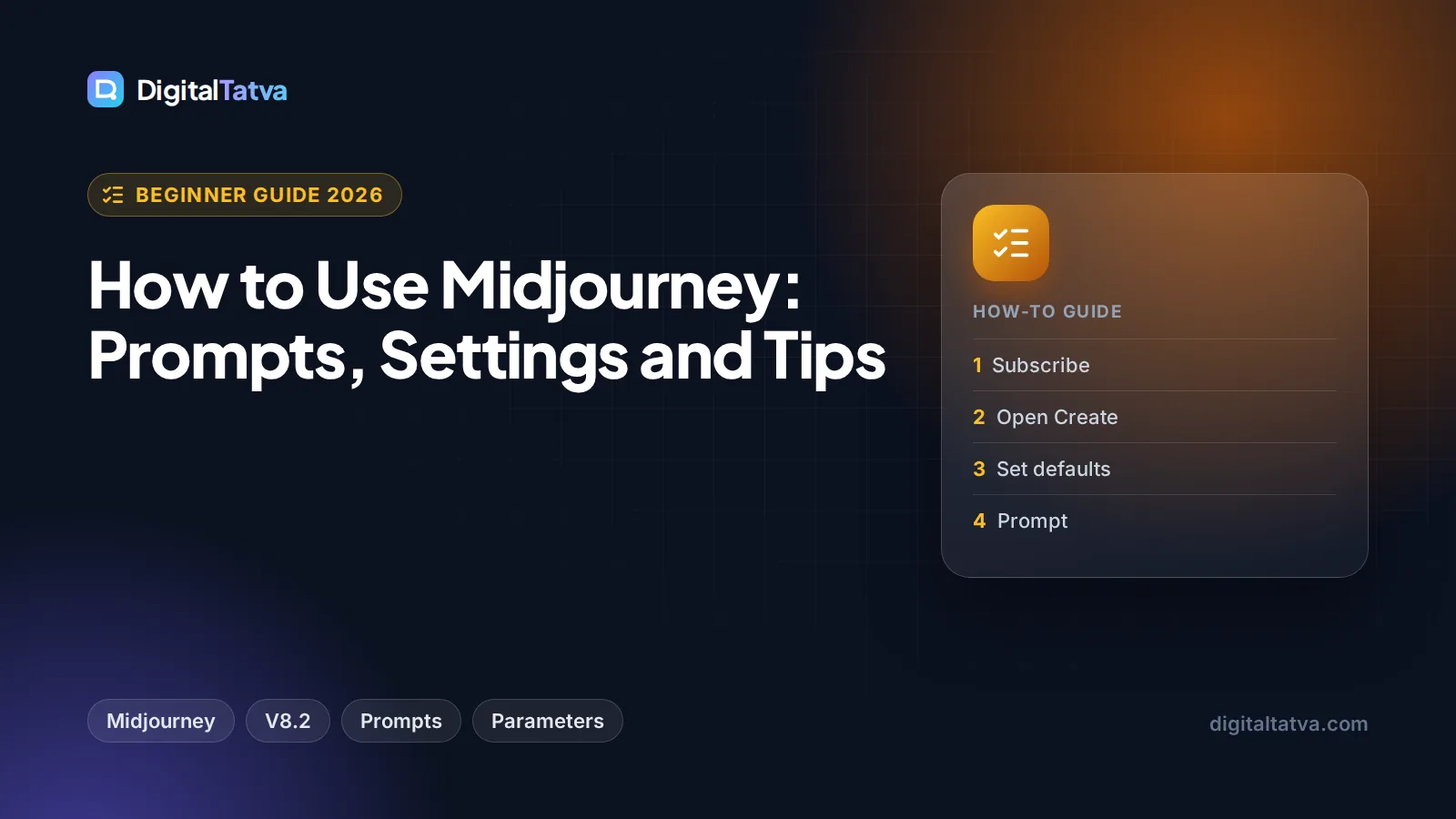
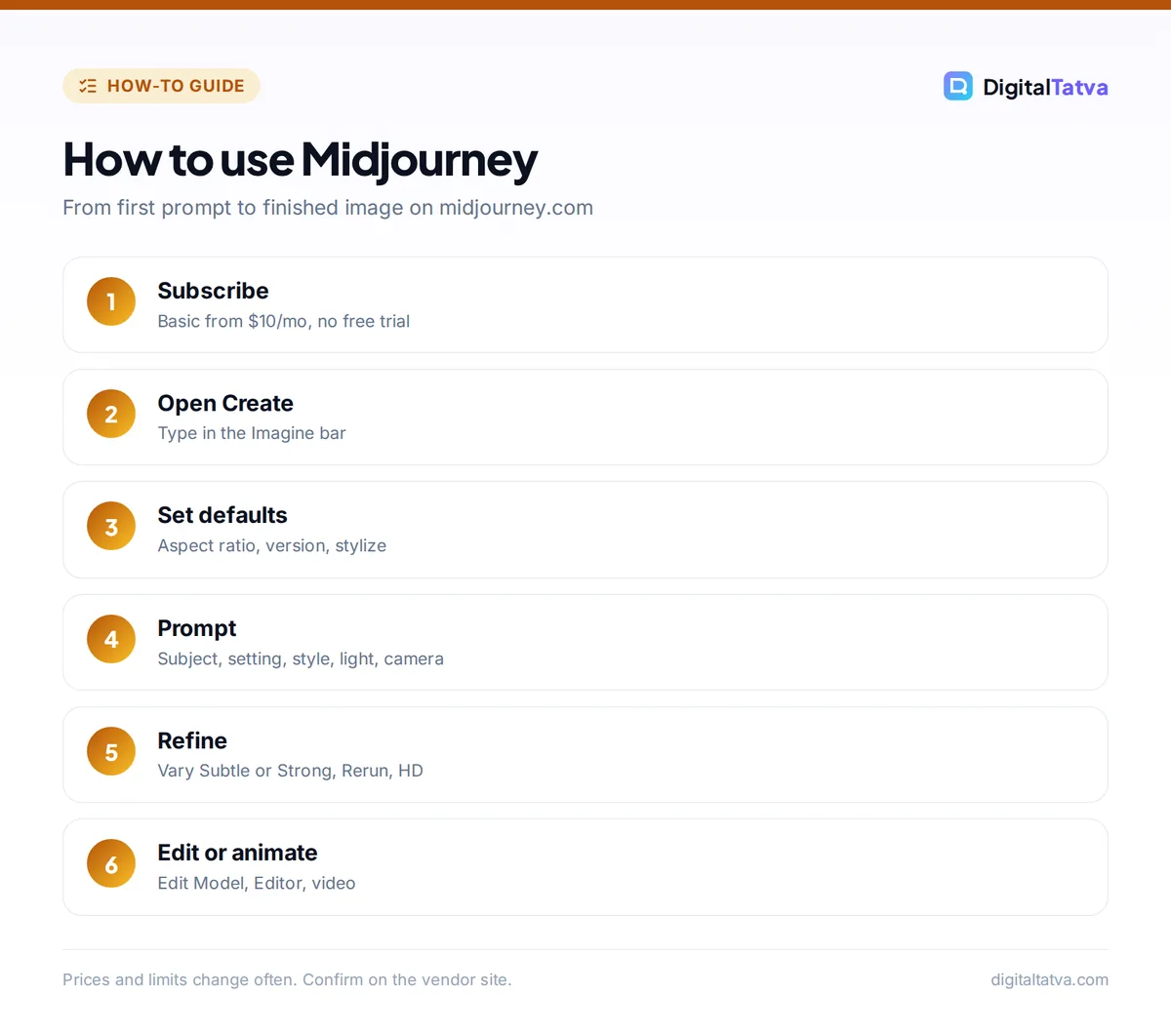
- Sign in and subscribe. Go to midjourney.com and log in. Pick a plan on the subscribe page; yearly billing saves 20%. Companies with more than $1 million in annual revenue need Pro or Mega for commercial use.
- Open the Create page. Go to the Create page at midjourney.com/imagine. The Imagine bar sits at the top of the page. It has an image icon for adding or uploading images and a settings icon for your default options.
- Set your defaults. Click the settings icon. Choose an aspect ratio, pick the model version (V8.2 is the default) and SD or HD size, and adjust the Aesthetics sliders for stylization, weirdness and variety. Under More Options you will find GPU speed (Fast or Relax), Stealth mode on Pro and Mega, video resolution and batch size.
- Write your first prompt. Type a clear description and press Enter. For example:
a ceramic coffee mug on a wooden table by a rainy window, soft morning light, shallow depth of field, editorial product photo --ar 4:5. Midjourney shows four images that fill in as they render. - Pick and refine. Hover over the image you like. Use Variations (Subtle keeps the composition, Strong changes more), Rerun to try the same prompt again, or “use prompt” to copy the text back into the Imagine bar and tweak it. Use Run batch as HD for higher resolution versions.
- Edit the result. Open the image in the Editor to extend the frame (outpaint), repaint an area (inpaint) or type a written instruction such as “change the mug to matte black”. This uses the Edit Model available in V8.1 and V8.2.
- Animate it (optional). Use the video option on an image to turn it into a short clip. All plans can make video in Fast mode; HD video needs Standard or above.
- Download and organize. Go to the Organize page to download, sort, filter and file your images into folders.
Tip: Midjourney’s docs recommend Raw mode (--raw) when you want the model to follow your prompt closely with less of its default “auto-pilot” styling. Use it for product shots, mockups and anything that must look exactly as described.
How to write Midjourney prompts that work
V8.x models understand natural language well. You get better results from a clear sentence than from a pile of comma-separated keywords like “8k, ultra detailed, trending”. A reliable structure is:
- Subject: who or what, with specific details (age, material, color, pose).
- Setting: where it is and what surrounds it.
- Style or medium: photo, watercolor, 3D render, flat vector illustration, 1970s film still.
- Lighting and mood: golden hour, neon, overcast, high-key studio.
- Camera or composition: close-up, wide shot, top-down, 85mm portrait.
- Parameters: aspect ratio, stylize, chaos and so on, after the text.
Example: portrait of an elderly Rajasthani puppet maker in his workshop, colorful puppets hanging behind him, warm window light, documentary photography, 85mm lens --ar 2:3 --stylize 150.
For 50 ready-made examples across photography, illustration, logos and product shots, see our collection of Midjourney prompts with styles and parameters. The general principles in our prompt engineering guide also apply: be specific, say what you want rather than what you do not, and change one thing at a time.
Midjourney parameters cheat sheet
Parameters go at the end of the prompt, each starting with two hyphens. These are the ones that work with V8.1 and V8.2, according to Midjourney’s parameter documentation.
| Parameter | What it does | Range and default | Example |
|---|---|---|---|
--ar |
Aspect ratio | Default 1:1, whole numbers only | --ar 16:9, --ar 9:16 |
--stylize / --s |
How strongly Midjourney’s aesthetic (and your Personalization) is applied | 0 to 1000, default 100 | --s 250 |
--chaos / --c |
Variety between the four images | 0 to 100, default 0 | --c 30 |
--weird / --w |
Unusual, quirky results | 0 to 3000, default 0 | --w 200 |
--raw |
Less default styling, closer prompt adherence | On or off | --raw |
--no |
Exclude elements | Comma separated words | --no text, people |
--seed |
Repeatable starting noise for testing | 0 to 4294967295 | --seed 1234 |
--tile |
Seamless repeating pattern | On or off | --tile |
--sref and --sw |
Style reference by image URL or code, and its weight | --sw 0 to 1000, default 100 |
--sref random |
--iw |
Image prompt weight | V8.1: 0 to 3, default 1 | --iw 1.5 |
--p |
Apply your Personalization profile | Needs a profile | --p |
--v |
Choose model version | V8.2 default | --v 8.1 |
--draft |
Cheap, fast low-resolution drafts | V7 and V8.1 | --draft |
Watch out: Several older parameters do not work in V8.1 and V8.2: --quality, multi-prompting with :: (V6 only), Omni Reference (--oref) and Turbo mode. Many tutorials online still use them, so if a prompt from an old guide fails, remove those parts first.
Using references, Personalization and the Edit Model
Image prompts and style references
Drag an image from your uploads into the Imagine bar and drop it into the section you want. An Image Prompt uses the picture’s content and composition as inspiration. A Style Reference copies the look (colors, texture, mood) without the content. Control how strongly they apply with --iw and --sw.
The Edit Model
V8.1 and V8.2 introduced an Edit Model that replaces Omni Reference, Character Reference and the Retexture tool. You can edit an existing image with written instructions, generate with up to four reference images (useful for keeping a product or character consistent), and inpaint or outpaint in the Editor. It works with image prompts, style references, Moodboards, Personalization and HD.
Personalization and Moodboards
On the Personalize page, rank pairs of images to teach Midjourney your taste. Once your profile unlocks, add --p to prompts to apply it. Your V7 global profile still works with V8.1 and V8.2. Moodboards let you upload a set of images to define a style you can reuse across projects, which is ideal for brand consistency.
Tip: For a brand, build one Moodboard from your best existing visuals and use it on every campaign image. It keeps social posts looking like one family without retyping long style descriptions.
Fast, Relax, Draft and Stealth modes
- Fast mode uses your monthly fast GPU hours. Extra fast time costs $4 per hour.
- Relax mode is unlimited for images on Standard and above. Jobs queue and take longer but do not use fast hours. Pro and Mega also get Relax SD video.
- Draft mode is the cheapest way to explore. In V8.1 a draft prompt costs 0.4 GPU minutes and returns 24 images at 512×512, so you can test many ideas before rendering finals.
- HD images in V8.1 render at 2K without upscaling but cost more GPU time (1.3 GPU minutes versus 0.8 for standard size).
- Stealth mode hides your images from the public gallery. It is only included on Pro and Mega, so on Basic and Standard assume your creations are visible to others.
Making video with Midjourney
Midjourney can animate your images into short clips on the website and on Discord. Clips can reach 21 seconds with extensions. Basic plans get SD video only; Standard and above get SD and HD. HD video is GPU hungry: a batch of four HD clips costs about 26 GPU minutes, so a Basic plan’s 200 minutes disappear quickly. If you want full AI videos with voiceover, follow our guide on how to make an AI video from text.
Common Midjourney mistakes to avoid
- Keyword soup. Strings like “masterpiece, 8k, best quality” add little in V8. Describe the scene instead.
- Decimal aspect ratios. Use whole numbers:
--ar 139:100, not--ar 1.39:1. - Asking for long text. Midjourney can render short words but is not the best at paragraphs or small print. For text-heavy designs, add the words in Canva (see our Canva pricing guide) or use a text-focused generator.
- Wasting fast hours on exploration. Use Draft or Relax for brainstorming and keep fast hours for client deadlines.
- Forgetting rights and privacy. Without Stealth mode, your images are public. Larger companies must be on Pro or Mega for commercial use.
- Changing everything at once. Change one word or parameter per rerun so you learn what actually made the difference.
Advanced tips for better results
- Lock a look with a seed. When testing small prompt changes, keep the same
--seedso differences come from your words, not randomness. - Use chaos to brainstorm. A
--chaosof 30 to 50 gives four very different directions; drop it to 0 once you pick one. - Lower stylize for accuracy. For realistic product or architectural images, try
--s 50with--raw. - Build patterns with tile.
--tilecreates seamless textures for packaging, wallpapers and fabric mockups, useful for ecommerce product visuals. - Save winning prompts. Keep a prompt library with the parameters you used, so your team can reuse them.
Still deciding whether Midjourney is the right tool? Our Midjourney review covers strengths and weaknesses, and Midjourney vs ChatGPT image generation compares it with the most popular alternative. For the wider market, see our ranking of the best AI image generators.
Frequently asked questions
Can I use Midjourney for free?
No. Midjourney’s plans page does not list a free plan or free trial, so you need at least the Basic plan at $10 a month, or $8 a month billed yearly. If you only want to experiment, free tools such as Gemini, Ideogram or Adobe Firefly’s free daily generations are good places to practice prompting first.
Do I still need Discord to use Midjourney?
No. You can do everything on midjourney.com: type prompts in the Imagine bar on the Create page, edit in the Editor, make videos and organize your images. Discord still works for generating images and video, and the Midjourney Discord server is useful for community help, but it is optional.
Which Midjourney version should I use?
Use the default V8.2 for most work, since Midjourney describes it as more creative, bold and sophisticated with better personalization. Switch to V8.1 with --v 8.1 when you want speed, Draft mode or very close prompt adherence. Use Niji 7 for anime styles, but note that Niji is not compatible with V8 generations.
How many images can I make on the Basic plan?
Basic includes 200 minutes of fast GPU time a month and no Relax mode, so the number depends on your settings. Standard size images use less GPU time than HD, and Draft mode in V8.1 costs only 0.4 GPU minutes for 24 small images. Heavy users should move to Standard for unlimited Relax images.
Can I use Midjourney images commercially?
Yes, all paid plans come with Midjourney’s General Commercial Terms. The exception is companies earning more than $1 million in annual revenue, which must use the Pro or Mega plan. Remember that images made without Stealth mode are visible publicly, which matters for unreleased products or client work.
Next steps: your first week with Midjourney
Start on Basic or Standard, set your default aspect ratio for the platform you post on, and spend your first session writing ten short prompts using the subject, setting, style, lighting and camera structure. Next, build a Personalization profile and a Moodboard so your images start to look like yours. Then try the Edit Model and one short video. Midjourney updates its models and plans often, so confirm current prices and features on the official Midjourney site before you subscribe.
Pricing and features are checked at the time of writing and can change. Some links may be affiliate links, which never affect our verdicts.