10 Best AI Image Upscalers to Enhance Photo Quality
The 10 best AI image upscalers in 2026, from Topaz Gigapixel and Let's Enhance to free Upscayl, Krea and Clipdrop, with prices, free limits and faithful vs creative upscaling.

On this page
The best AI image upscaler for most people is Topaz Gigapixel if you want maximum quality on your own computer, and Let’s Enhance if you would rather upload photos in a browser and get print-ready files up to 256 megapixels. For free upscaling, Upscayl is open source and runs offline on Windows, macOS and Linux, while Clipdrop and Krea offer free daily upscales on the web.
An AI image upscaler does more than stretch pixels: it predicts the missing detail, so a small or blurry photo can become sharp enough for print, ecommerce zoom or a 4K screen. Below are quick picks, ten tool cards with prices checked on 12 October 2026, the difference between faithful and creative upscaling, and settings that avoid the plastic, over-sharpened look.
Key takeaways
- Topaz Gigapixel ($29/month, or all Topaz apps for $399/year) gives the best faithful upscales and unlimited local rendering.
- Let’s Enhance is the easiest web option: 10 free credits (watermarked, up to 8MP), then $9/month on annual billing for 100 credits.
- Upscayl is completely free and open source, but needs a Vulkan-compatible graphics card.
- Magnific is a creative upscaler that invents new texture, great for AI art and renders, risky for real faces and products.
- Adobe’s Lightroom Super Resolution doubles width and height inside the app; Generative Upscale goes up to 4x for 10 to 20 credits.
Quick picks: best AI image upscalers compared
| Upscaler | Best for | Max scale or output | Starting price | Free option |
|---|---|---|---|---|
| Topaz Gigapixel | Best quality, desktop | Image models incl. Redefine | $29/mo | No |
| Let’s Enhance | Print and ecommerce, web | Up to 256MP | $9/mo annual ($12 monthly) | 10 credits, watermark |
| Upscayl | Free and offline | Several models | Free, open source | Yes |
| Magnific | Creative upscaling of AI art | Creative detail | $14.50/mo annual ($20 monthly) | No clear free plan |
| Adobe Lightroom and Photoshop | Photographers in Adobe | 2x (Super Resolution), 4x (Generative Upscale) | $19.99/mo (Photography) | Trial |
| Krea | Free daily upscales | 2x to 16x | $35/mo (Pro) | 100 compute units/day |
| Clipdrop | Quick 2x upscales | 2x free, 16x Pro | Pro, check site | 20 per 24 hours |
| Canva | Upscaling inside designs | Built-in upscaler | US$144/year (Pro) | 20 AI uses/month |
| Pixlr | Budget browser editing | Built-in upscaler | $1.99/mo annual | Limited |
| Picsart | Mobile and face enhancement | Upscale plus face fix | $9.45/mo billed yearly | Limited |
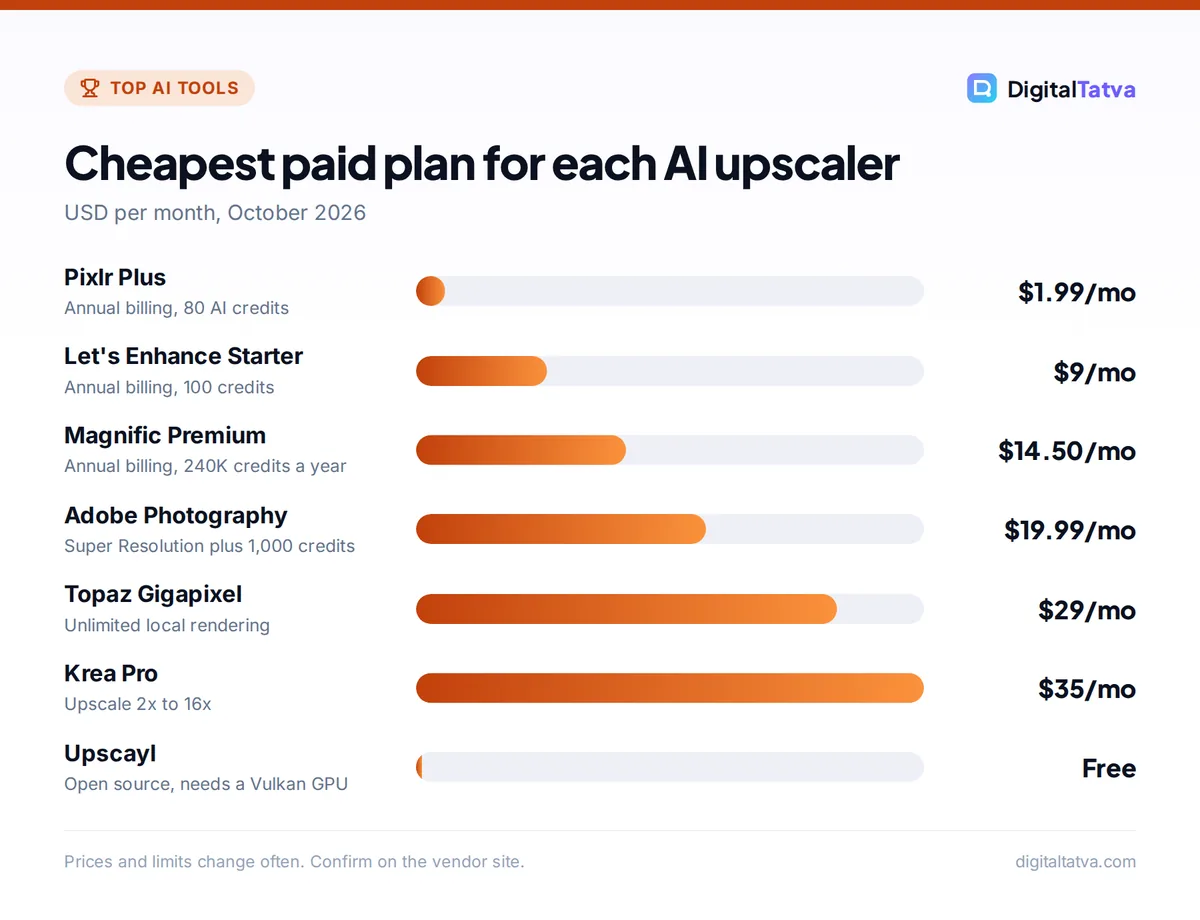
Cheapest paid plan for each AI upscaler
USD per month, October 2026
Prices and limits change often. Confirm on the vendor site.
Faithful vs creative upscaling: know the difference
Faithful upscalers (Topaz Gigapixel’s standard models, Let’s Enhance, Upscayl, Lightroom Super Resolution) try to keep the image exactly as it was, only sharper and larger. Use them for real photos of people, products, documents and anything where accuracy matters.
Creative upscalers (Magnific, Krea’s creative modes, Topaz’s Redefine model) use diffusion models to hallucinate new detail: skin pores, fabric weave, foliage. The result can look stunning, but it is no longer the same picture. That is ideal for AI art from tools in our best AI image generators list, and a problem for an ecommerce product that must match what ships.
Watch out: Creative upscaling can change faces, logos and text. Never use it on ID photos, evidence, product labels or client portraits without checking every detail at 100 percent zoom.
The 10 best AI image upscalers
1. Topaz Gigapixel: Best AI image upscaler for quality
- Starting price: Gigapixel $29/month; Topaz Studio (all apps) $69/month or $399/year
- Free option: No free plan
- Best for: Photographers, archivists and print shops
Gigapixel is the reference tool for upscaling. It runs on your own computer with unlimited local rendering, plus unlimited cloud image rendering, and offers several image models, including Standard, High Fidelity and the generative Redefine model. It suits batch work, since local rendering has no per-image cost.
Topaz now sells subscriptions rather than perpetual licenses, so compare plans on the official Topaz pricing page. Personal plans come with “limited commercial use” for individuals and organizations under $1M annual revenue; Studio Pro ($799/year) adds full commercial use. The page also showed a limited-time discount of up to 50 percent when we checked.
Skip it if: you only upscale a few images a year; a web credit plan is cheaper.
2. Let’s Enhance: Best web upscaler for print and ecommerce
- Starting price: Starter $9/month annual or $12 monthly (100 credits)
- Free option: 10 credits on signup, no card, output up to 8MP with a watermark
- Best for: Sellers, marketers and print-on-demand creators
Upload a photo, pick the size, and download the enlarged file. Paid plans output up to 256 megapixels, enough for large posters, while input images can be up to 24 megapixels on the free plan. Pro costs $24 a month annually for 300 credits, and Max $34 for 500 credits. Unused credits roll over up to a cap, which is friendly for irregular workloads.
The Let’s Enhance pricing page also mentions pay-as-you-go bundles and business plans with an API. Our AI for ecommerce guide shows where upscaling fits into product photography.
Skip it if: you want unlimited upscales for a flat fee.
3. Upscayl: Best free and open source upscaler
- Starting price: Free (AGPL-3.0 open source)
- Free option: Yes, unlimited, offline
- Best for: Students, hobbyists and privacy-minded users
Upscayl is a desktop app for Windows 10 and later, macOS 12 and later, and Linux. Drag in an image, choose a model and scale, and it upscales on your own graphics card with no uploads, accounts or watermarks. Version 2.15 is the latest release listed on its GitHub page.
The catch: you need a Vulkan-compatible GPU, and the project warns that many integrated graphics chips do not work. If you like running AI locally, see our guide to open source AI models you can use for free.
Skip it if: your laptop has only basic integrated graphics.
4. Magnific: Best creative upscaler for AI art
- Starting price: Premium $14.50/month annual or $20 monthly (240K credits a year)
- Free option: No clear free plan on the pricing page
- Best for: Digital artists, architects and AI image creators
Magnific made “creative upscaling” famous. Sliders for creativity, resemblance and detail let it reinvent texture as it enlarges, turning a soft render into something that looks hand-painted or photographed in high detail. The company behind Freepik rebranded its whole platform as Magnific in 2026, so plans now include image and video generation too.
Premium+ ($33.75/month annual) adds Topaz upscalers alongside Magnific’s own. Credits last a year with no monthly reset, and annual billing saves 25 percent.
Skip it if: you need the result to match the original exactly.
5. Adobe Lightroom and Photoshop: Best for photographers already in Adobe
- Starting price: Photography plan $19.99/month (1,000 generative credits); Lightroom plan includes 250
- Free option: Free trial
- Best for: Photographers enlarging RAW files and crops
Super Resolution, in Lightroom, Camera Raw and Photoshop, doubles width and height (four times the pixels), turning a 12MP photo into 48MP, enough for a 16 x 24 inch print. It outputs a new DNG and keeps your original.
For bigger jumps, Lightroom’s Generative Upscale uses Topaz Gigapixel to enlarge 2x or 4x up to 65,000 pixels on the long edge. It costs 10 generative credits for results up to 25MP and 20 credits above that. Photoshop also has its own Generative Upscale. Our best AI photo editors guide compares Adobe’s plans.
Skip it if: you do not otherwise need Adobe’s apps.
6. Krea: Best free daily upscales up to 16x
- Starting price: Pro $35/month (20,000 compute units); yearly billing 40 percent off
- Free option: Yes, 100 compute units a day with limited upscaling
- Best for: Creators who want strong upscales and AI generation in one app
Krea’s enhancer upscales 2x, 4x, 8x or 16x and can add creative detail or stay close to the source. The free plan’s daily compute units let you test it properly before paying, and Pro and Max add priority and far more volume. Krea also offers image and video generation, so it doubles as a creative suite.
Skip it if: you want predictable per-image pricing; compute units vary by job.
7. Clipdrop: Best quick free 2x upscales
- Starting price: Pro plan, check the Clipdrop site
- Free option: Yes, 2x upscales, 20 per 24 hours
- Best for: Social media images and quick fixes
Clipdrop’s free tier allows 20 two-times upscales a day, plus 20 background removals. Pro raises upscaling to 16x and 1,000 images a day. It is the fastest way to rescue a small image for a blog or slide without installing anything.
Skip it if: you need print-size output on the free tier.
8. Canva: Best for upscaling inside a design
- Starting price: Pro US$144/year (Rs 4,000/year in India)
- Free option: Yes, Image Upscaler counts toward Canva Free’s 20 AI uses a month
- Best for: Marketers fixing low-resolution logos and photos in templates
Canva’s Image Upscaler is classed as a Standard AI tool, so Free users can use it as part of their monthly allowance of 20 AI uses, which resets on the first of each month. It is convenient when a client sends a tiny logo or product photo and you need it sharp in a poster right now. See our Canva pricing guide for Pro, Pro Lite and Business.
Skip it if: you need batch upscaling or very large prints.
9. Pixlr: Best budget upscaler in a browser editor
- Starting price: Plus $1.99/month annual (80 AI credits); Premium $7.99/month annual (1,000 credits)
- Free option: Limited, with ads
- Best for: Students and occasional users who also need editing
Pixlr bundles an Image Upscaler with Background Remover and Generative Fill in a layer-based browser editor. For a couple of dollars a month you get an all-round editor rather than a single-purpose upscaler.
Skip it if: upscale quality is your top priority; dedicated tools do better.
10. Picsart: Best for mobile upscaling and face enhancement
- Starting price: Pro $9.45/month billed yearly; Enhance API $0.04 per generation
- Free option: Limited
- Best for: Old selfies, group photos and social content on a phone
Picsart’s Enhance model combines upscaling with face enhancement, which helps with soft, compressed phone photos. In the app it sits beside filters, background removal and AI generation. Developers can call the same Enhance model through Picsart’s API at $0.04 per generation.
Skip it if: you need precise control over the upscale settings.
How to upscale an image with AI in 6 steps
- Start with the best source. Use the original file, not a screenshot or a WhatsApp-compressed copy. Every compression pass removes detail the AI cannot recover.
- Decide the target size. For print, multiply inches by 300 (an 8 x 10 inch print needs about 2400 x 3000 pixels). For the web, 2000 to 4000 pixels on the long edge is usually enough.
- Pick faithful or creative. Choose a faithful model for real photos and a creative model only for art or renders.
- Denoise first. Remove noise and JPEG artifacts before enlarging, or the AI will sharpen them too. Adobe recommends running Denoise before Generative Upscale.
- Compare at 100 percent. Check eyes, hair, text and edges. Lower the sharpening or detail strength if skin looks waxy.
- Export in a quality format. Save as PNG or high-quality JPEG; avoid re-compressing the upscaled file.
Pricing compared: what an upscale really costs
| Tool | Pricing model | Cheapest paid option | Good value if |
|---|---|---|---|
| Topaz Gigapixel | Subscription, unlimited local | $29/month | You upscale hundreds of images |
| Let’s Enhance | Monthly credits, rollover | $9/month annual, 100 credits | You do a steady trickle of jobs |
| Magnific | Yearly credit pool | $14.50/month annual | You also generate AI images and video |
| Adobe Photography | Subscription with credits | $19.99/month | You already edit in Lightroom |
| Krea | Compute units | $35/month | You want generation plus upscaling |
| Upscayl | Free | $0 | You have a supported GPU |
Save money: Video creators on Runway’s Pro plan already get unlimited Topaz upscaling for video, so check what your existing subscriptions include before buying a separate upscaler. Our Runway pricing guide has the details.
Common upscaling mistakes to avoid
- Upscaling too far in one go. Going from 300 pixels to poster size rarely works. Expect clean results at 2x to 4x; beyond that, details become invented.
- Using creative mode on products. A creative upscaler can change a label, stitching or logo. Use faithful models for anything you sell.
- Ignoring licenses. Topaz’s personal plans allow limited commercial use only for individuals and businesses under $1M revenue. Read the terms before client work.
- Upscaling AI images twice. Midjourney now renders native 2K HD images, so you may not need an external upscaler at all; see our Midjourney pricing breakdown for HD costs.
- Forgetting the thumbnail use case. If you upscale a video frame for a YouTube thumbnail, aim for 3840 x 2160, YouTube’s recommended size. Our AI thumbnail makers guide covers the rest.
Frequently asked questions
What is the best free AI image upscaler?
Upscayl is the best free AI image upscaler if your computer has a Vulkan-compatible graphics card, because it is open source, unlimited and works offline. On the web, Clipdrop gives 20 free 2x upscales a day, Krea gives 100 free compute units a day, and Canva Free includes its upscaler in 20 monthly AI uses. Let’s Enhance’s 10 free credits add a watermark.
Can AI really improve image quality?
Yes, within limits. AI upscalers predict missing detail from patterns learned in millions of images, so a soft photo can become sharper and larger with convincing texture. They cannot recover information that was never captured, such as a face that is only a few pixels wide. Clean results usually come at 2x to 4x enlargement from a decent original.
Is Topaz Gigapixel worth it?
Topaz Gigapixel is worth it if you upscale often, because unlimited local rendering makes each image essentially free after the $29 monthly subscription or $399 yearly Studio bundle. For occasional use, a credit plan like Let’s Enhance at $9 a month on annual billing, or a free tool like Upscayl, is cheaper. Check Topaz’s commercial use limits for business work.
Which upscaler is best for printing photos?
For prints, use a faithful upscaler with high output limits: Let’s Enhance (up to 256MP on paid plans), Topaz Gigapixel or Lightroom’s Super Resolution and Generative Upscale. Aim for 300 pixels per inch at your print size, denoise first, and check skin and text at full zoom before sending the file to the printer.
Does upscaling an image remove the watermark or change copyright?
No. Upscaling does not change who owns an image, and you should never use it to strip watermarks from photos you do not have rights to. Only upscale images you own, have licensed or are allowed to edit. AI-generated images from paid plans of most tools can be upscaled and used under that tool’s commercial terms.
Our verdict
Pick Topaz Gigapixel if you want the best AI image upscaler and upscale regularly, Let’s Enhance if you want simple, high-resolution web upscales billed by credit, and Upscayl if you want a free, private desktop tool. Choose Magnific or Krea for creative upscales of AI art, and stay inside Lightroom if you already pay for Adobe’s Photography plan. For more no-cost tools, browse our best free AI tools list, and pair your upscaler with a good background remover for product shots. Pricing, credits and promotions change often, so confirm the current details on each vendor’s site before you subscribe.
Pricing and features are checked at the time of writing and can change. Some links may be affiliate links, which never affect our verdicts.