How to Generate Images in ChatGPT: Step by Step Guide
Learn how to generate and edit images in ChatGPT with Images 2.5: step-by-step creation, Select tool edits, Templates, Sketch, Images with thinking, limits by plan and prompt formulas.

On this page
- Key takeaways
- ChatGPT image generator: quick answer table
- What’s new in ChatGPT image generation in 2026
- How to generate an image in ChatGPT, step by step
- How to edit images in ChatGPT
- Images with thinking: what paid plans add
- Prompt formulas for better ChatGPT images
- Watermarks, metadata and using images commercially
- Common mistakes when generating images in ChatGPT
- ChatGPT images vs other AI image generators
- Frequently asked questions
- Next steps
To generate images in ChatGPT, open a chat and describe the picture you want (“Create an image of…”), or click More and then Images (or Images in the sidebar) to start from a template. The ChatGPT image generator, now called ChatGPT Images 2.5, works on every plan including Free, and you edit results by selecting part of the image and describing the change.
This step-by-step guide covers everything as of 12 October 2026: how to create, edit and reuse images, the new Templates and Sketch tools, what “Images with thinking” adds on paid plans, limits by plan, watermarks and metadata, and prompt formulas that get usable results the first time.
Key takeaways
- ChatGPT Images 2.5 launched on 8 September 2026 for all ChatGPT, ChatGPT Work and Codex users on every tier.
- Create images by asking in chat, through More then Images, or from Templates such as Poster and Merch; all results save automatically under Images in the sidebar.
- Edit with the Select tool, aspect ratio picker, Undo and Redo, or by describing changes in a follow-up message.
- “Images with thinking”, which can research and reason before drawing, is on Plus, Pro and Business; OpenAI does not publish exact image limits per plan.
- Images carry C2PA metadata and an invisible SynthID watermark, but no visible watermark unless you ask for one.
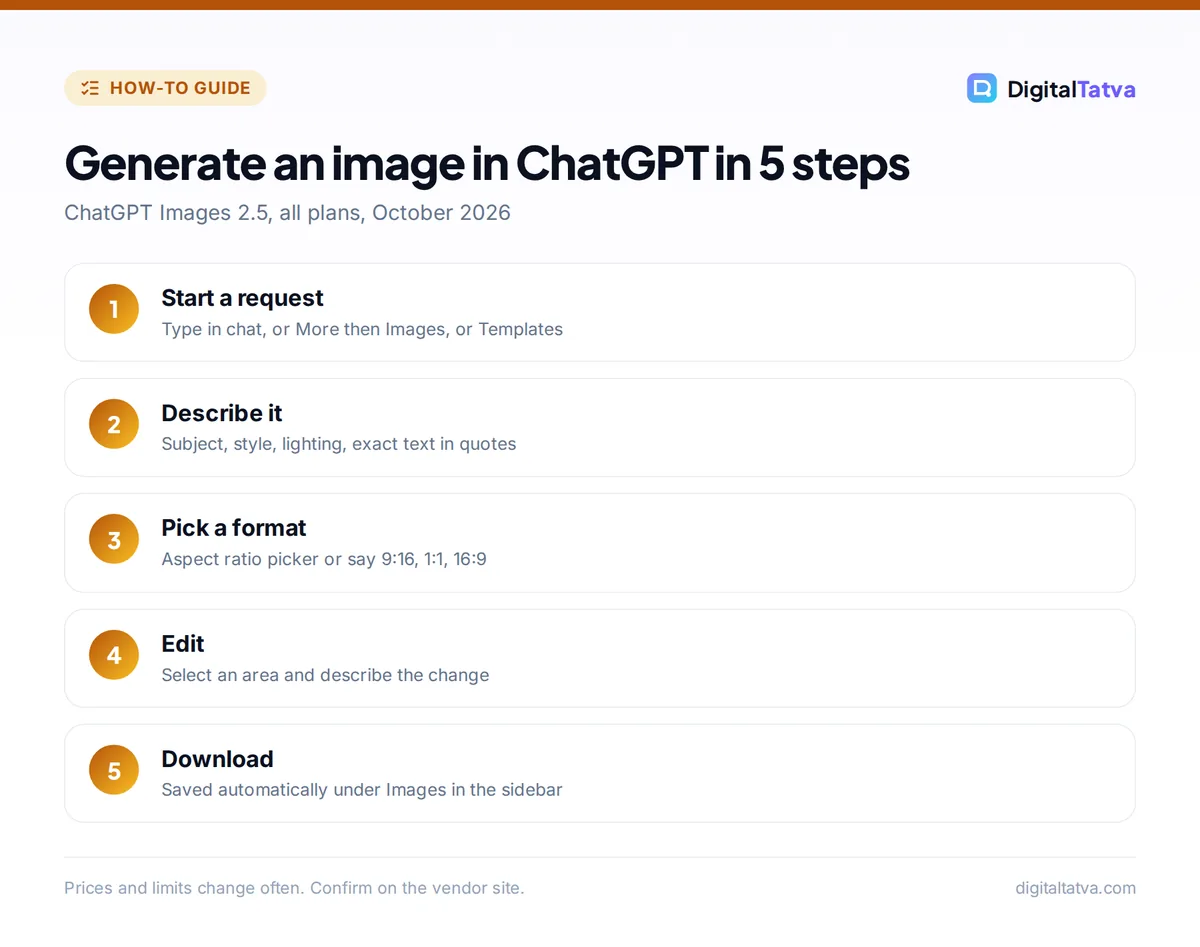
Generate an image in ChatGPT in 5 steps
ChatGPT Images 2.5, all plans, October 2026
- Start a request: Type in chat, or More then Images, or Templates
- Describe it: Subject, style, lighting, exact text in quotes
- Pick a format: Aspect ratio picker or say 9:16, 1:1, 16:9
- Edit: Select an area and describe the change
- Download: Saved automatically under Images in the sidebar
Prices and limits change often. Confirm on the vendor site.
ChatGPT image generator: quick answer table
| Question | Answer |
|---|---|
| Is the ChatGPT image generator free? | Yes, on all tiers, with limited image creation on Free |
| Current model | ChatGPT Images 2.5 (September 2026) |
| Where to start | Any chat, More then Images, or Images in the sidebar |
| Editing | Select tool, aspect ratio, Undo, Redo, follow-up prompts, comments on mobile |
| Aspect ratios | “Any aspect ratio” via the picker or your prompt |
| Images with thinking | Plus, Pro and Business (Enterprise and Edu coming) |
| Watermark | No visible mark by default; C2PA metadata and SynthID |
| Platforms | Web, iOS, Android, plus ChatGPT Work and Codex |
What’s new in ChatGPT image generation in 2026
OpenAI replaced DALL-E inside ChatGPT with native image generation, and the official DALL-E GPT has been retired. Two releases in 2026 changed how it works:
- ChatGPT Images 2.0 (21 April 2026) introduced a thinking model that can “research, reason, transform source materials, and generate polished visuals end-to-end,” with much better text rendering and multilingual text, including Hindi, Japanese, Korean and Chinese scripts.
- ChatGPT Images 2.5 (8 September 2026) improved fidelity to reference photos, made edits change “only what you ask for,” kept results more consistent across editing turns, handled complex layouts and transparent backgrounds better, and cut generation time by up to 50% compared with 2.0. It also added Sketch, Templates, comments on images and prompt sharing. See OpenAI’s Images 2.5 announcement.
If you are new to ChatGPT in general, start with our beginner guide to ChatGPT.
How to generate an image in ChatGPT, step by step
- Open ChatGPT. Go to chatgpt.com or open the iOS or Android app and sign in. Image generation works on Free, Go, Plus, Pro, Business and Enterprise.
- Start an image request. Either type your request in a normal chat, or click More (the plus or tools menu in the message box) and choose Images. You can also open the sidebar and select Images to see your library and start from there.
- Optionally pick a template. Select Templates to browse categories such as posters and logos. A template gives ChatGPT a ready structure, so you only fill in your content.
- Describe the image. Write the subject, setting, style, composition, lighting and any exact text. Example: “A flat-lay photo of a masala chai kit on a wooden table, top-down, soft morning light, minimal style, with the words ‘Chai Time’ in bold white letters at the top.”
- Set the aspect ratio. Use the aspect ratio picker, or write it in the prompt (“vertical 9:16 for Instagram Stories”, “wide 16:9 YouTube thumbnail”). OpenAI says you can generate in any aspect ratio.
- Send and wait. OpenAI notes that generation “may take a few minutes, depending on the complexity of your request,” and longer on thinking mode. ChatGPT may ask follow-up questions about style before it starts.
- Review and refine. Ask for changes in plain language (“make the background darker”, “move the text lower”, “same image but square”). Each change creates a new version you can compare.
- Download or share. Click the image to open it, then download it. Every image you create is saved automatically under Images in the sidebar, so you can find it later.
Tip: Start your prompt with “Create an image of” or “Generate an image of”. It removes any doubt about whether you want a picture or a text description, especially on Free where messages are limited.
How to edit images in ChatGPT
Editing is where ChatGPT now beats many standalone generators, because you can talk to it about the image.
Edit a specific area with the Select tool
- Open the image editor. Click the image you want to change. The editor shows Select, Aspect ratio, Undo, Redo, Cancel and Save.
- Select the area. Use the Select tool to highlight the part you want to change, such as a shirt, a sign or the sky.
- Describe the change. Type the edit in the chat panel (“change the shirt to navy blue”, “remove the person on the left”).
- Check and save. Compare the result, use Undo if needed, then Save.
OpenAI warns that highlights “are not always precise, and edits may extend beyond the area you selected,” so check edges carefully. You can also skip selection and simply describe the edit in the conversation.
Edit your own photos
Upload an image with the plus button and describe what to change: replace a background, restyle a room, clean up a product shot or turn a photo into an illustration. Images 2.5 is better at keeping faces, products and lighting faithful to the original. For heavier photo work, compare with our guides to the best AI photo editors, AI background removers and Nano Banana in Gemini.
Use comments and Sketch
- Comments: on mobile you can place comments directly on an image for focused edits, and use Resize and Remove controls.
- Sketch: type @ and select Sketch (OpenAI’s announcement uses “@Sketch”; the help center lists it for the mobile app), draw a rough layout, confirm with the checkmark, then add written instructions. This is the fastest way to control composition, for example where a product, headline and logo should sit.
Images with thinking: what paid plans add
On Plus, Pro and Business, ChatGPT can use “Images with thinking,” where the model reasons, searches and plans before generating. It is most useful for images that need facts or many elements to be correct: infographics, menus, product comparison graphics, labeled diagrams, slides and multi-panel layouts. It takes longer, so keep standard generation for quick illustrations.
ChatGPT image generation by plan
| Plan | Price | Image generation |
|---|---|---|
| Free | $0 | Limited image creation; separate usage limit from chat |
| Go | $8/month (about Rs 399 in India) | Higher image limits than Free |
| Plus | $20/month | “More complex image creation”, Images with thinking |
| Pro | $100, $200 or $500/month | “Unlimited and faster image creation” (abuse guardrails apply), Images with thinking |
| Business | $25/user/month ($20 annual) | Images with thinking, workspace data not used for training |
OpenAI does not publish exact image counts for any plan. The Free tier FAQ says image generation has its own usage limit, ChatGPT tells you when you hit it, and access resumes when the limit resets. For full plan details see our guides to ChatGPT pricing, ChatGPT limits by plan and the ChatGPT Plus price in India.
Save money: If you only need images occasionally, Free plus a second free generator is often enough. Our list of free AI image generators with no watermark ranks the best backups for when you hit ChatGPT’s limit.
Prompt formulas for better ChatGPT images
ChatGPT understands natural language well, so you do not need special syntax. You do need specifics. Use this formula: subject + action + setting + style + composition + lighting + text + format. General techniques from our prompt engineering guide apply too.
Ready-to-use prompts
- Instagram post: “Create a square image of a smiling woman holding a coffee cup in a sunlit cafe, candid lifestyle photo, shallow depth of field, warm tones, no text.”
- YouTube thumbnail: “Wide 16:9 thumbnail, a shocked young man pointing at a giant rupee symbol, bright yellow background, bold red text ‘5 Money Mistakes’, high contrast, clean layout.” See also our list of AI thumbnail makers.
- Logo concept: “Minimal flat vector logo for a bakery called ‘Rotiwala’, wheat stalk forming the letter R, two colors (orange and navy), white background, transparent background version too.” For dedicated tools see the best AI logo generators.
- Infographic (thinking mode): “Make a vertical infographic comparing tea and coffee: caffeine, typical price in India, origin and best time to drink, clean icons, readable labels.”
- Product mockup: “Place the uploaded label on a matte black glass jar on a marble counter, soft studio lighting, realistic reflections, keep the label text exactly as uploaded.”
Five habits that save time
- Put exact text in quotes and say where it goes.
- Change one thing per follow-up so you can see what each instruction does.
- Say what must stay the same (“keep the face, pose and lighting identical”).
- Ask for a transparent background when you need a logo or cutout.
- Save winning prompts; on mobile you can share the prompt behind an image via Share, then Prompt template.
For hundreds more ideas, browse our best ChatGPT prompts collection.
Watermarks, metadata and using images commercially
According to OpenAI’s help center, images created in ChatGPT, Codex and the API include C2PA metadata and SynthID, an invisible watermark. There is no visible watermark unless you ask for a visible disclosure. OpenAI also notes that C2PA “can sometimes be removed by platforms, editing tools, or file conversions,” so do not rely on it as proof of origin.
For commercial use, read OpenAI’s current terms and keep three rules: do not copy trademarks or recognizable characters, do not create realistic images of real people without consent, and remember that purely AI-generated images may not be protected by copyright. Our guide on whether you can copyright AI content explains the US and India positions.
Common mistakes when generating images in ChatGPT
- Vague prompts. “A nice poster” wastes a generation. Name the audience, mood, colors and text.
- Too many edits in one message. Five changes at once often break something that was already right.
- Trusting the Select tool blindly. Selections can spill over; zoom in before saving.
- Using Work mode for templates. OpenAI says Templates are not yet available in Work mode; use the regular Chat view.
- Expecting perfect small text. Images 2.0 and 2.5 render text far better than older models, but always proofread before printing.
- Forgetting the limit. On Free, plan your important images early in the day so you do not hit the limit mid-project.
ChatGPT images vs other AI image generators
ChatGPT is the best all-rounder for people who want to describe and edit images conversationally, get accurate text and follow complex instructions. Midjourney still leads for pure aesthetics and artistic styles; our Midjourney vs ChatGPT comparison goes deeper, and the best AI image generators list covers Gemini, Ideogram, Firefly and more.
Using the API instead
Developers can use the same technology through the OpenAI API. OpenAI’s API pricing lists gpt-image-2 at $8 per million image input tokens and $30 per million image output tokens, with the GPT-Image-2.5 Flare and Sunburst models at the same Standard rates and a 50% Batch discount. OpenAI does not list simple per-image prices, so estimate with its calculator; our OpenAI API pricing guide has the full table.
Frequently asked questions
Is ChatGPT image generation free?
Yes. OpenAI says ChatGPT Images is available on all tiers, including Free, on web, iOS and Android. Free users get limited image creation with its own usage limit, separate from text chats, and ChatGPT shows when the limit resets. Go, Plus and Pro raise the limits, and Plus, Pro and Business add Images with thinking for complex, accurate visuals.
How many images can I make in ChatGPT per day?
OpenAI does not publish a fixed number for any plan. Free has limited image creation, Go offers higher limits, Plus offers more complex image creation, and Pro lists unlimited and faster image creation subject to abuse guardrails. Limits can also tighten temporarily during peak traffic. If you hit the cap, ChatGPT tells you when you can generate again.
Does ChatGPT add a watermark to images?
Not a visible one by default. Images from ChatGPT include C2PA provenance metadata and an invisible SynthID watermark, and you can ask for a visible disclosure if you want one. Metadata can be stripped by some platforms, editing tools or file conversions, so if disclosure matters, add a visible label yourself.
Can ChatGPT edit my own photos?
Yes. Upload a photo with the plus button and describe the change, or open a generated image and use the Select tool to mark the area to edit. Images 2.5 keeps faces, products and lighting closer to the original than earlier versions. Avoid editing photos of other people without their consent, and teen accounts may see extra safety reminders.
What happened to DALL-E in ChatGPT?
DALL-E has been replaced by ChatGPT’s native image generation. OpenAI retired the official DALL-E GPT and recommends ChatGPT Images instead. The current version, ChatGPT Images 2.5, launched in September 2026 with better editing, Templates and Sketch, after Images 2.0 added a thinking model and much better text rendering in April 2026.
Next steps
Open ChatGPT, try one of the prompt formulas above, and practice a three-step loop: generate, select and edit one area, then resize for your platform. Once you are comfortable, use Templates for repeat formats like posters and thumbnails, and Sketch when layout matters. If you create images daily, Plus adds Images with thinking for infographics and text-heavy designs. Plans, limits and prices change often, so confirm the current details on OpenAI’s pricing and help pages before you upgrade.
Pricing and features are checked at the time of writing and can change. Some links may be affiliate links, which never affect our verdicts.