ChatGPT Dots: How OpenAI’s Always-On Agents Work and How to Use Them
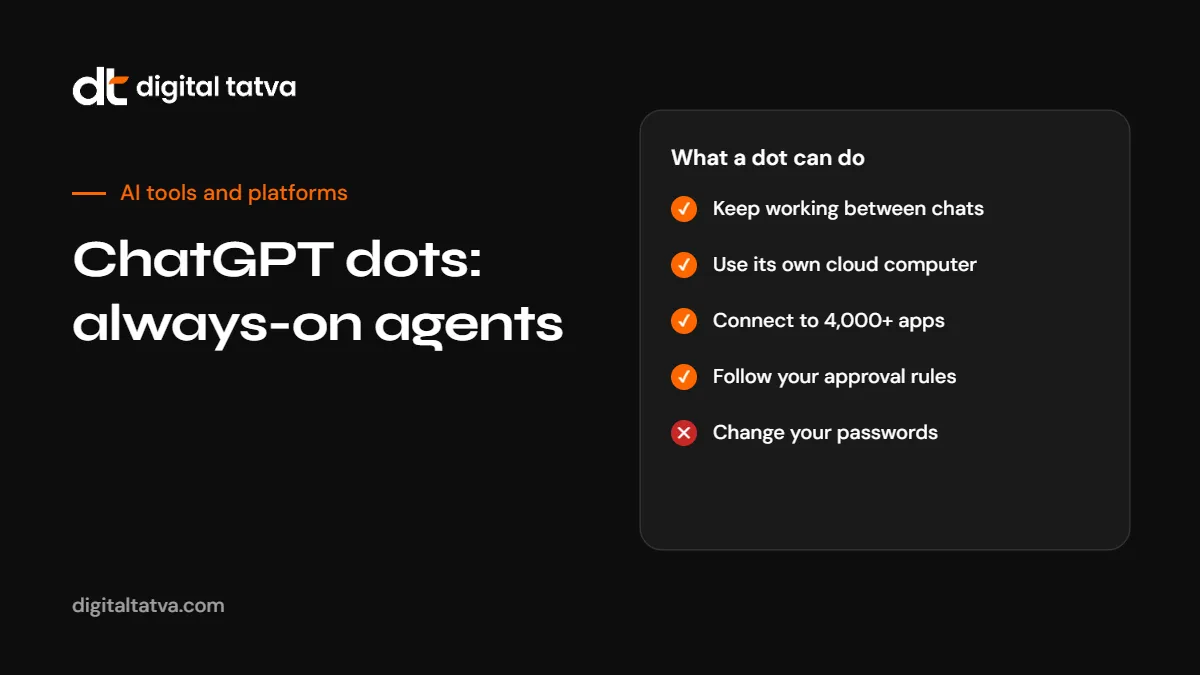
Dots are always-on ChatGPT agents with their own cloud computer that keep working between conversations. They became generally available for ChatGPT Enterprise, Edu and Healthcare on 4 November. Here is how dots work, who can use them, the controls and good first tasks.
On this page
- Key takeaways
- What a dot is
- Who can use dots
- How to set up your first dot
- Controls and safeguards
- Enterprise rollout: what admins should do before 18 November
- Good first tasks for a dot
- What not to delegate yet
- Usage limits and costs
- Dots vs other agents
- Specialist dots for businesses
- What dots mean for brands
- Writing instructions that make dots useful
- Reviewing a dot’s work
- Privacy checklist for personal and business use
- Common problems and fixes
- Frequently asked questions
Last updated: 9 November 2026
Quick answer: Dots are always-on personal agents in ChatGPT, launched by OpenAI on 29 September 2026. Each dot runs on GPT-6 Astra, has its own cloud computer and browser, connects to more than 4,000 apps through OpenAI’s plugin ecosystem, and keeps working toward your goals between conversations. You decide how much freedom it has with custom rules: act without asking, act only if pre-approved, ask first, or hand off to you. The first dot is included in ChatGPT Pro and Business Premium. On 4 November 2026 dots became generally available in ChatGPT Enterprise, Edu and Healthcare, with an admin preview until 18 November, after which they switch on by default. Dots can make mistakes, so review anything consequential.
Key takeaways
- A dot is an agent that persists: it remembers goals, works in the background and learns from feedback.
- It has its own cloud computer and browser, and can use your laptop only if you turn that on in the desktop app.
- Conversations with a dot do not count toward ChatGPT usage limits, but tasks it runs in Codex or ChatGPT Work do.
- Changing passwords always stays with you, and auto-review checks actions that could affect accounts or share information.
- Enterprise admins have until 18 November 2026 before dots switch on by default.
What a dot is
ChatGPT used to work one conversation at a time. A dot is different: it is a named, persistent agent that keeps working on your goals when you are not chatting. Think of it as an assistant that has its own computer, remembers what you care about and checks in when it has something for you.
| Feature | Details |
|---|---|
| Model | GPT-6 Astra |
| Environment | Its own cloud computer and browser |
| App connections | 4,000+ apps through OpenAI’s plugin ecosystem |
| Your laptop | Only if you enable access in the ChatGPT desktop app. Off by default. |
| Where you talk to it | ChatGPT on desktop, web and mobile, plus Slack and Microsoft Teams |
| Texting | Limited beta for US Pro users, not in Business or Enterprise workspaces |
| Creation | Create a dot on desktop or desktop web, not on mobile |
Who can use dots
| Plan | Availability |
|---|---|
| ChatGPT Pro | Available outside the EEA, Switzerland and the UK. First dot included. |
| ChatGPT Business Premium | Available in all supported ChatGPT regions. First dot included. |
| Enterprise, Edu and Healthcare | Generally available from 4 November 2026. Admin preview until 18 November, then on by default. |
| Plus and Free | Not included at launch |
OpenAI says users will later be able to add more dots and scale each dot’s output, but had not published prices for extra dots. See ChatGPT Plus vs Pro and ChatGPT pricing.
How to set up your first dot
- Open ChatGPT on desktop or desktop web. Dots cannot be created on mobile.
- Describe its job. Be specific: “Keep my client project tracker up to date and tell me each morning what is overdue.”
- Connect only the apps it needs. Start with one or two.
- Set custom rules. Choose, by type of action, whether it acts without asking, acts only if pre-approved, asks first or hands off to you.
- Decide on laptop access. Leave it off unless a task really needs local files.
- Review its first outputs closely and give feedback. Dots learn from it.
- Check Activity View to see what it has done.
Controls and safeguards
- Proactive research: when you are inactive, a dot can look for ways to help using read-only tools that cannot send messages, change app content or control the browser or computer.
- Custom rules: the four-level approval system above.
- Auto-review: checks actions that could affect accounts or share information.
- Passwords: changing a password always stays with the user.
- Safety monitoring: a system can pause or stop a dot for safety concerns.
- Memory: a dot forms memories from connected apps. Disconnecting an app does not delete what it learned; you need to reset the dot for that.
Enterprise rollout: what admins should do before 18 November
For ChatGPT Enterprise, Edu and Healthcare, admins control access, pausing, usage review and EU or US data residency, and set permissions for browser, network, computer and password manager access per workspace. Because dots switch on by default after the admin preview ends on 18 November 2026:
- Decide which groups should have dots at first.
- Set workspace permissions for browser, network, computer and password manager access.
- Choose data residency if relevant.
- Update your AI usage policy. See our AI usage policy template.
- Brief staff on approval rules and what not to delegate.
- Plan how you will review usage and incidents.
OpenAI says it does not use Business, Enterprise or Edu workspace content for training by default. See AI data privacy for business.
Good first tasks for a dot
| Role | Task | Suggested rule |
|---|---|---|
| Founder or manager | Morning summary of what needs a decision | Act without asking (read-only) |
| Marketer | Draft social posts and show notes from new content in your brand voice | Ask first before publishing |
| Content creator | Find clip-worthy moments in transcripts | Act without asking (drafts only) |
| Sales | Prepare account research before each meeting | Act without asking |
| Product launch lead | Update launch documents when scope changes | Ask first |
| Operations | Track overdue tasks across tools and draft reminders | Ask first before sending |
OpenAI’s own marketing examples follow the same pattern: the dot drafts, a person approves.
What not to delegate yet
- Payments and anything involving money movement.
- Messages to customers without review.
- Legal or contractual commitments.
- Changes to production systems.
- Anything involving sensitive personal data you are not permitted to share.
Usage limits and costs
Conversations with a dot do not count toward ChatGPT usage limits. Tasks a dot runs in Codex or ChatGPT Work do count. Pro and Business Premium users get extra capacity and extended limits in the first month. For Pro users, OpenAI also halved the Codex and ChatGPT Work usage included in Pro 200 from 30 October 2026, so heavy agent work may hit limits sooner. See ChatGPT message limits.
Dots vs other agents
| Agent | Best for |
|---|---|
| ChatGPT dots | Persistent personal or team agents with many app connections and flexible approval rules |
| ChatGPT agent mode | One-off tasks inside a conversation. See how to use ChatGPT agent |
| Claude Duet | Proactive briefings with approval-first actions, US preview. See Claude Duet |
| Gemini agent | Company-wide work agent across Workspace, Microsoft 365 and Slack. See Gemini agent |
Specialist dots for businesses
OpenAI is also previewing specialist dots that hold a fixed responsibility in an organisation, with their own identity, credentials and system access. Early testing covers procurement, invoice processing, email marketing, customer support and commercial contracting, in focused enterprise pilots. OpenAI is working with Microsoft to bring these under Microsoft Agent 365 governance, without a date.
What dots mean for brands
When people delegate research to dots, those agents browse the web and compare options for them. Your website, product data and reputation become inputs to an agent’s recommendation. See how to make your website agent-ready and ChatGPT SEO. For the launch event, see OpenAI DevDay 2026.
Writing instructions that make dots useful
A dot works best with a clear job description. A good one covers:
- Goal: what success looks like.
- Scope: which apps, projects or clients it should watch.
- Rhythm: when it should report, such as every weekday at 9am.
- Style: tone, length and format for drafts.
- Boundaries: what it must never do and when it must ask.
Example:
“You manage my content pipeline. Each weekday at 9am, check the content calendar and shared drive, list anything due in the next three days, and draft social posts for any article published yesterday in our brand voice: friendly, plain English, no hype. Ask before posting anything. Never contact clients directly.”
Reviewing a dot’s work
- Check Activity View daily for the first two weeks.
- Correct mistakes with specific feedback, such as “Too formal; shorten to two sentences.”
- Tighten rules where it acted when it should have asked.
- Loosen rules gradually for tasks it handles well.
- Reset the dot if it has learned something wrong or you disconnect sensitive apps.
Privacy checklist for personal and business use
- Connect only apps you are allowed to connect under your employer’s or clients’ rules.
- Avoid connecting accounts with highly sensitive data unless necessary.
- Remember that disconnecting an app does not delete what a dot learned; reset the dot to remove it.
- On personal plans, decide whether you allow the dot’s work to be used to improve models.
- Keep laptop access off unless a task truly needs local files.
Common problems and fixes
| Problem | Likely cause | Fix |
|---|---|---|
| Dot misses important items | Scope or urgency not defined | Name priority people, projects and keywords |
| Too many notifications | No quiet rules | Tell it what to ignore and how often to report |
| Drafts sound wrong | No style guidance | Give examples of good drafts |
| Hits usage limits | Heavy Codex or ChatGPT Work tasks | Reduce scope or upgrade capacity |
| Cannot create a dot on phone | Creation needs desktop | Use desktop app or desktop web |
Frequently asked questions
What are ChatGPT dots?
Always-on ChatGPT agents with their own cloud computer and browser that keep working on your goals between conversations.
Which model do dots use?
GPT-6 Astra.
Who can use dots?
ChatGPT Pro (outside the EEA, Switzerland and the UK), Business Premium, and Enterprise, Edu and Healthcare workspaces.
Are dots available in India?
Pro and Business Premium availability covers supported ChatGPT regions outside the EEA, Switzerland and the UK, which includes India. Rollout is gradual.
Do dots cost extra?
The first dot is included in Pro and Business Premium. Prices for extra dots had not been published.
Can a dot use my computer?
Only if you turn on laptop access in the ChatGPT desktop app. It is off by default.
Can a dot send messages without asking?
Only if your custom rules allow it. You can require approval for any action type.
When do dots switch on for Enterprise?
After the admin preview ends on 18 November 2026.
Product details, prices and features are checked at the time of writing and can change. Sources are linked in the text so you can check them yourself.
How does your brand appear in AI answers?
We test the questions your buyers ask across the major AI assistants and search engines, then show you what to fix first.
Get an AI Visibility Audit