ChatGPT Canvas Is Gone: How to Use Writing Blocks and Code Blocks Instead
OpenAI removed Canvas from ChatGPT's main models in June 2026 and replaced it with inline writing blocks and code blocks. Here is what changed, how to edit drafts and code in ChatGPT now, workarounds for long documents, and alternatives if you miss Canvas.
On this page
- Key takeaways
- What happened to ChatGPT Canvas?
- Writing blocks and code blocks explained
- How to use writing blocks
- How to use code blocks
- Workarounds for long documents
- Prompts that work well with writing blocks
- Canvas vs writing blocks: honest comparison
- Workflows for common tasks without Canvas
- Tips to keep long chats manageable
- Best alternatives if you miss Canvas
- Common problems with writing blocks and how to fix them
- A sample editing session, step by step
- Writing blocks for teams and businesses
- Why OpenAI may have made this change
- How to move your Canvas work out safely
- A note on quality and accuracy
- Our take
- Frequently asked questions
Last updated: 13 November 2026
Quick answer: ChatGPT Canvas, the side panel for editing documents and code, was removed from GPT-5.5 Instant and GPT-5.5 Thinking on 24 June 2026. In its place, ChatGPT now uses inline writing blocks for drafts such as emails, posts and reports, and code blocks for code and previews, both shown directly in the conversation. You can edit a writing block in place, ask ChatGPT for targeted changes, and copy, preview or run code from a code block. Paid users could still reach Canvas through older legacy models for a limited time, but new chats use blocks. For long, multi-section documents, the best workarounds are working section by section, using ChatGPT Projects to keep files and context together, or moving the draft to a dedicated document editor or another assistant’s document tool.
Key takeaways
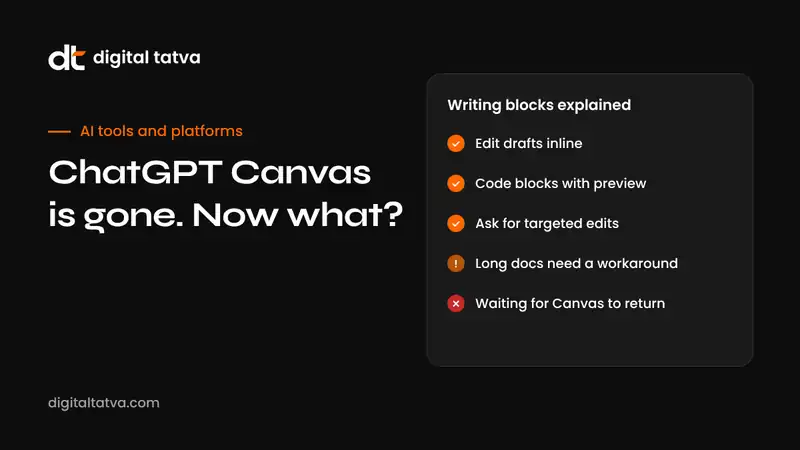
- Canvas has been replaced by writing blocks and code blocks inside the chat.
- Writing blocks are editable in place and work well for short and medium drafts.
- Code blocks keep code separate from the chat and offer copy, preview and run options where supported.
- Long, heavily structured documents are harder to manage without Canvas’s side panel.
- Projects, section-by-section editing and external editors are the best workarounds.
- If you depend on a side-by-side editor, alternatives such as Claude’s artifacts and Gemini’s Canvas still exist.
What happened to ChatGPT Canvas?
OpenAI introduced Canvas in 2024 as a separate workspace that opened beside the chat. It let you edit a document or piece of code directly, highlight a section and ask for changes, adjust length or reading level, add comments, and run some code. For many writers and developers, it was one of ChatGPT’s most useful features.
In June 2026, alongside an update that made GPT-5.5 Instant’s responses more natural and better structured, OpenAI removed Canvas from the GPT-5.5 Instant and GPT-5.5 Thinking models. Writing and coding work moved back into the main conversation, handled through special inline blocks. During the transition, paying users could still open Canvas by switching to older legacy models, and existing Canvas sessions on those models kept working, but OpenAI did not commit to a long-term end date for that access. Around the same time, OpenAI also retired GPT-4.5 from ChatGPT on 27 June 2026 and o3 on 26 August 2026.
The change drew strong reactions from some long-time users, especially people who used Canvas as a persistent workspace for long reports, books and code files. Others found the inline approach faster for everyday drafting.
Writing blocks and code blocks explained
| Feature | What it is | Good for |
|---|---|---|
| Writing blocks | Editable text areas inside the conversation | Emails, social posts, short articles, cover letters, summaries, scripts |
| Code blocks | Code kept separate from the chat with copy, preview or run options where supported | Scripts, snippets, small web pages, data analysis code |
| Canvas (legacy) | The old side-panel editor, available only through legacy models during the transition | Existing long documents already started in Canvas |
The key difference is where your work lives. With Canvas, the document sat in its own panel and stayed in view while you chatted. With blocks, each draft appears in the conversation flow, so newer versions appear further down as you iterate.
How to use writing blocks
- Ask for a draft clearly. For example: “Write a 150-word LinkedIn post announcing our new AEO audit service. Friendly, confident, no hashtags.” ChatGPT will usually return the draft in a writing block.
- Edit directly. Click into the block to change words yourself, just as you would in a document.
- Ask for targeted changes. Refer to specific parts: “Make the second paragraph shorter” or “Replace the closing line with a question.” Being specific avoids ChatGPT rewriting everything.
- Lock what you like. Tell ChatGPT what must not change: “Keep the first two sentences exactly as they are.”
- Request versions side by side. “Give me three alternative headlines” is often faster than editing one repeatedly.
- Copy out when finished. Paste the final text into your email, CMS or document tool.
How to use code blocks
- Describe the task and environment. “Write a Python script that reads a CSV of orders and outputs total revenue by month. Use pandas.”
- Review the code block. Read the code before running it, especially anything that deletes files or calls external services.
- Preview or run where supported. For supported content such as small web pages or data analysis, use the preview or run options.
- Ask for focused fixes. Paste the exact error message and ask for a fix to the relevant function, rather than regenerating the whole file.
- Copy into your project. For anything beyond a small script, move code into your editor and version control.
For more detailed advice, see how to use ChatGPT for coding. For larger codebases, an agent such as OpenAI Codex is a better fit than chat.
Workarounds for long documents
The biggest loss with Canvas is for long, structured work: reports, ebooks, proposals, course material and large code files. These approaches work well without it.
1. Outline first, then write section by section
Ask ChatGPT for a detailed outline and agree on it before writing anything. Then request one section at a time: “Write section 3, ‘Pricing models’, in about 400 words, matching the tone of section 2.” Short, focused requests produce better writing and are easier to review than one enormous response.
2. Use ChatGPT Projects as your workspace
Projects let you keep related chats, files and custom instructions together. Upload your outline, style guide and finished sections as files, and set project instructions such as “UK English, no em dashes, short paragraphs”. Each new chat inside the project then starts with that context. See how to use ChatGPT Projects.
3. Keep the master copy outside ChatGPT
Treat ChatGPT as a drafting assistant, not your filing system. Keep the master document in Google Docs, Word or Notion, paste in finished sections, and copy back only the part you want improved. This prevents losing track of the latest version as blocks pile up in the chat.
4. Ask for a change list, not a rewrite
For editing long text, ask ChatGPT to return a list of suggested changes with the original sentence and the proposed replacement. You stay in control and can apply changes in your editor.
5. Use a tool built for long-form editing
If side-by-side editing is essential, use a tool designed for it. Claude’s artifacts open documents and apps in a panel beside the chat, and Gemini offers its own Canvas. See how to use Claude artifacts.
Prompts that work well with writing blocks
| Goal | Prompt |
|---|---|
| Tighten a draft | “Cut this by 30 percent without losing any facts. Keep my opening line.” |
| Change tone | “Make this warmer and more conversational, as if written to a long-time client.” |
| Fix structure | “Reorder these paragraphs so the main benefit comes first. Do not change the wording.” |
| Adapt for a channel | “Turn this blog intro into a 3-line LinkedIn hook and a 1-line Instagram caption.” |
| Check clarity | “List any sentences a 15-year-old might find confusing and suggest simpler versions.” |
| Proofread only | “Correct spelling and grammar only. Do not change style or word choice.” |
| Style rules | “Use UK spelling, no em dashes, no exclamation marks, short paragraphs.” |
For more prompt ideas, see our ChatGPT prompts for LinkedIn and Instagram caption prompts.
Canvas vs writing blocks: honest comparison
| Aspect | Canvas | Writing and code blocks |
|---|---|---|
| Speed for short drafts | Opening a panel added a step | Faster; the draft appears right in the reply |
| Long documents | Easier to navigate many sections | Harder; versions spread through the chat |
| Targeted edits | Highlight a passage and ask | Describe the passage in your request or edit directly |
| Code | Edit and run in the panel | Copy, preview or run from inline blocks |
| Version tracking | Built-in version history | Earlier versions remain higher in the chat |
| Mobile use | Panel was cramped on phones | Inline blocks fit mobile screens better |
Workflows for common tasks without Canvas
Writing a blog post
- Give ChatGPT your topic, audience, goal and any facts or sources you want included.
- Ask for three headline options and a detailed outline. Choose and adjust.
- Request the introduction and first two sections. Edit them in the writing block or in your editor.
- Continue section by section, reminding ChatGPT of tone and length if it drifts.
- Paste the full draft into your editor, then ask ChatGPT to review the complete text for gaps, repetition and unclear sentences.
- Fact-check every statistic, date and claim yourself before publishing.
If the post is meant to be found in search and AI answers, structure it in an answer-first format with question headings and a short direct answer at the top. See answer-first content and AI writing tools for AEO.
Editing a proposal or report
Paste one section at a time with a clear brief: “This is the executive summary of a proposal for a mid-sized hospital. Make it more persuasive and concise, under 200 words, and keep all numbers.” Then assemble the improved sections in your document. Ask ChatGPT at the end for a consistency check across the full text, such as matching terminology and figures.
Drafting emails
Emails are where writing blocks shine. Describe the situation, recipient and goal, and ask for two versions with different tones. Edit in place and copy into your email client. For recurring email types, save your instructions in a Project or custom instructions so ChatGPT follows your style automatically.
Small coding tasks
For scripts and snippets, code blocks are usually enough: describe the task, review the code, run it, and paste back any errors. For multi-file projects, move to a proper code editor or an agent like Codex that can read your repository.
Social media content
Ask for a batch at once: “Write five Instagram captions for this product launch, each under 150 characters, with a different hook.” Pick the best, edit in place and schedule them in your usual tool.
Tips to keep long chats manageable
- Start a fresh chat for each major section inside the same Project, so the conversation does not become too long to scroll.
- Name your chats clearly, for example “Report: section 4 pricing”.
- Paste the current version when asking for changes, rather than referring to “the version above”, which can confuse the model after many turns.
- Summarise decisions. Periodically ask ChatGPT to list agreed decisions on tone, structure and terms, and save that list to the Project.
- Use memory carefully. ChatGPT’s memory can remember preferences, but explicit instructions in each request are more reliable. See AI memory explained.
Best alternatives if you miss Canvas
| Tool | Why consider it |
|---|---|
| Claude artifacts | Documents, code, diagrams and small apps open in a panel beside the chat and can be shared |
| Gemini Canvas | Side-by-side drafting and code with Google Docs export |
| Google Docs with Gemini | AI help directly inside the document you already use |
| Microsoft Word with Copilot | AI drafting and editing for Microsoft 365 users |
| Notion AI | AI writing within team wikis and project docs |
| Code editors with AI | Cursor, VS Code with Copilot and others for real coding work; see best AI coding assistants |
Common problems with writing blocks and how to fix them
| Problem | Fix |
|---|---|
| ChatGPT rewrites the whole draft when you asked for one change | Quote the exact sentence and say “change only this sentence; return the full text with everything else unchanged” |
| The reply is plain text, not a writing block | Ask explicitly: “Put the draft in a writing block so I can edit it” |
| Hard to find the latest version | Ask ChatGPT to restate the final version at the end, or keep the master copy in your editor |
| Style drifts over a long chat | Repeat your style rules in the request, or store them in Project instructions |
| Formatting lost when pasting | Paste into your editor as plain text first, then apply headings and styles |
| Code block will not run | Check whether the content type supports preview, or run it locally and paste back the error |
| Draft is too generic | Give specific examples, your audience, real facts and a sample of your own writing |
A sample editing session, step by step
Here is how a typical short editing session might look with writing blocks, using an illustrative example of a café owner writing a newsletter.
- First request: “Write a 200-word newsletter for my café in Ahmedabad announcing a new monsoon menu with masala chai, pakoras and a ginger lemon cooler. Warm, local, friendly. End with our opening hours, 8 am to 10 pm.”
- Edit in place: The owner changes “delicious” to “crispy” in the pakora line and adds the café’s actual address.
- Targeted change: “Shorten the second paragraph to two sentences and keep everything else exactly the same.”
- Variation: “Give me three subject lines under 45 characters.”
- Channel adaptation: “Turn this into a 2-line Instagram caption and a WhatsApp broadcast message.”
- Final check: “Proofread only. Do not change style.”
The whole session takes a few minutes and never needs a side panel, which is exactly the kind of task writing blocks were designed for.
Writing blocks for teams and businesses
On ChatGPT Business and Enterprise plans, writing blocks work the same way, but teams benefit from adding structure around them:
- Shared Projects for recurring content types, such as client reports or proposals, with a style guide and templates uploaded as files.
- Standard prompts stored in a shared document so everyone starts from the same instructions.
- A review step for anything client-facing or public, with a named reviewer.
- Clear data rules about what information can be pasted into AI tools; see AI data privacy for business.
Why OpenAI may have made this change
OpenAI did not publish a detailed rationale, so any explanation involves some interpretation. Several developments in 2026 point in the same direction, though. OpenAI has been simplifying ChatGPT: it merged Atlas, the desktop app and Codex into one app, launched ChatGPT Work as an agent for longer tasks, and retired older models. Keeping writing inside the conversation fits a design where the assistant does more of the work and the person reviews results, rather than the person editing in a separate workspace. Inline blocks also work better on mobile, where a growing share of ChatGPT use happens.
For long-form, document-heavy work, OpenAI’s direction appears to be agents and integrations, such as ChatGPT Work producing documents and connecting to tools like Google Drive, rather than a built-in editor. If that matches your work, it is worth exploring; see our review of what happened to ChatGPT Atlas for more on OpenAI’s desktop app strategy.
How to move your Canvas work out safely
- List your important Canvas chats. Search your ChatGPT history for long documents and code you still need.
- Open each on a legacy model if still available and copy the full content into a document or file.
- Save code to version control, such as a Git repository, rather than leaving it in chat history.
- Record useful prompts you used with Canvas so you can reuse them with writing blocks.
- Do not wait. Legacy access has no guaranteed end date, so move important work now.
A note on quality and accuracy
Whether you use Canvas, writing blocks or another tool, AI writing still needs human judgement. Check facts, figures and names. Watch for generic phrasing that does not sound like you or your brand. Read the final text aloud before sending. For business content, especially anything public, a human editor remains the most important quality control step. If your company is setting rules for AI-assisted writing, our AI usage policy template can help.
Our take
For short and medium drafts, writing blocks are genuinely fine and often faster than Canvas. For long documents and real coding projects, the loss is real, and the best answer is to combine ChatGPT with tools built for that work: a document editor for long text, a code editor or agent for software, and Projects to keep context organised. If side-by-side editing is central to how you work, try Claude’s artifacts or Gemini’s Canvas alongside ChatGPT and see which fits your workflow best.
Frequently asked questions
Is ChatGPT Canvas still available?
Canvas was removed from GPT-5.5 Instant and GPT-5.5 Thinking on 24 June 2026. Paid users could access it through legacy models during a transition period, but new chats use writing blocks and code blocks.
What replaced ChatGPT Canvas?
Inline writing blocks for text and code blocks for code, both shown directly in the conversation.
Can I still edit text directly in ChatGPT?
Yes. Writing blocks are editable in place, and you can ask ChatGPT for targeted changes to specific sections.
How do I work on a long document without Canvas?
Work section by section, keep the outline and finished sections in a ChatGPT Project, and assemble the final document in a dedicated editor.
Can ChatGPT still run code?
Code blocks offer copy, preview and run options for supported content, and ChatGPT’s data analysis features can still run code on uploaded files.
What happened to my old Canvas documents?
Existing Canvas sessions on legacy models kept working during the transition. Copy any important documents into your own files so you do not depend on legacy access.
What is the best alternative to ChatGPT Canvas?
Claude’s artifacts and Gemini’s Canvas both offer side-by-side editing. Many people also pair ChatGPT with Google Docs or Word for long documents.
Do writing blocks work on the ChatGPT mobile app?
Yes. Because they appear inline, writing blocks generally work more comfortably on phones than the old Canvas panel did.
Does Gemini still have a Canvas feature?
Yes, Gemini offers its own Canvas for side-by-side drafting and code, separate from ChatGPT’s discontinued Canvas. Check Google’s current documentation for features in your region.
Why did OpenAI remove Canvas?
OpenAI moved writing and coding into the main chat as part of simplifying ChatGPT and improving GPT-5.5 Instant’s responses. It did not publish a detailed explanation.
Can I still use Canvas on a free plan?
Legacy Canvas access was offered to paid users through older models during the transition. Free users use writing and code blocks.
Product details, prices and features are checked at the time of writing and can change. Sources are linked in the text so you can check them yourself.
How does your brand appear in AI answers?
We test the questions your buyers ask across the major AI assistants and search engines, then show you what to fix first.
Get an AI Visibility Audit