How to Use Google Flow and Veo: A Step-by-Step AI Video Guide
Google Flow is Google's AI filmmaking tool, built on Veo and the newer Gemini Omni video models. This guide walks through access, prompting, scene extension, keyframes, references and editing, with practical tips for marketers and creators.
On this page
- Key takeaways
- What is Google Flow?
- Flow, Veo, Gemini Omni and the Gemini app: what is the difference?
- Who can use Flow and what it costs
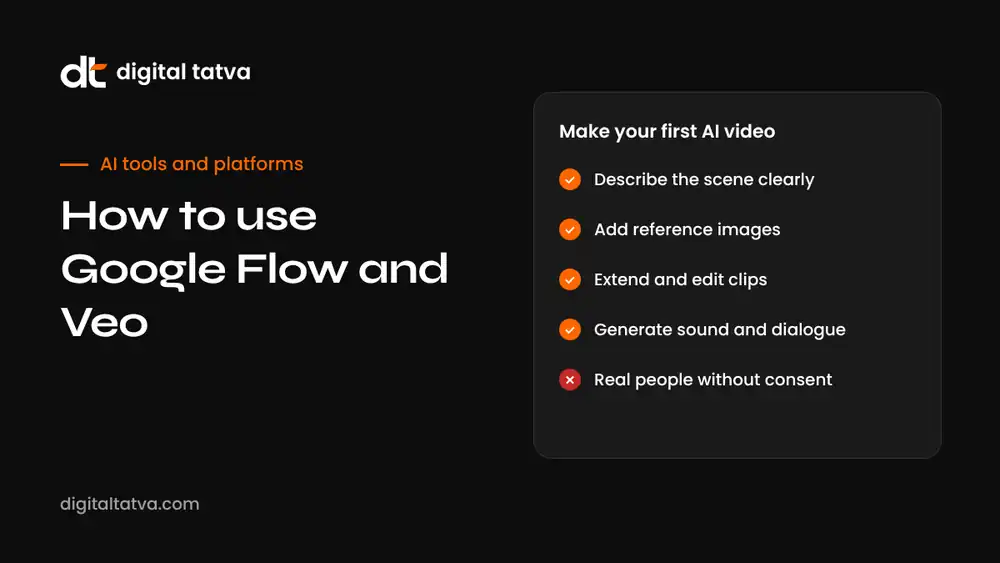
- Step-by-step: making your first video in Flow
- The prompt formula that works
- Advanced features worth learning
- Prompt examples for common business uses
- A simple workflow for a 30-second social ad
- Google Flow compared with other AI video tools
- Getting AI video found: YouTube, search and AI answers
- Planning your credits
- Common mistakes and how to fix them
- Using Flow on mobile
- Prompt tweaks that make a big difference
- Responsible use: consent, disclosure and brand safety
- Who should use Flow, and who should not
- Our take
- Frequently asked questions
Last updated: 13 November 2026
Quick answer: Google Flow is Google’s AI video creation tool. To use it, sign in with a Google account on a Google AI Plus, Pro or Ultra plan, open Flow, start a project, and describe your shot in a prompt covering subject, action, setting, camera, lighting, style and sound. Flow generates short clips using Google’s video models, including Veo and the newer Gemini Omni models. You can then add reference images or short video references for consistency, set first and last keyframes, extend scenes in 10-second steps, draft cheaply at low resolution, and render finished clips in 1080p or 4K. Every clip carries an invisible SynthID watermark. Since OpenAI shut down Sora in 2026, Flow has become one of the main tools people use for AI video.
Key takeaways
- Flow is Google’s filmmaking workspace; Veo and Gemini Omni are the models that generate the video.
- Access comes with Google AI Plus, Pro and Ultra plans, and features vary by plan and country.
- Clear, specific prompts with camera and lighting details produce far better results.
- Scene extension, keyframes and video references help you build longer, consistent sequences.
- Low-resolution drafts save cost while you experiment; render final versions at high resolution.
- Never generate real people without consent, and always label AI video honestly.
What is Google Flow?
Flow is a creative workspace from Google designed for making short films, ads, social videos and visual concepts with AI. Instead of generating one-off clips in a chat window, Flow organises your work into projects with scenes, shots and assets, closer to how a video editor or storyboard artist works.
Under the hood, Flow uses Google DeepMind’s video models. Veo powered Flow from its launch, with Veo 3 and 3.1 adding generated sound, dialogue and stronger realism. At Google I/O in May 2026, Google introduced Gemini Omni, a multimodal model that can create and edit video from any mix of text, images, audio and video, and brought it into Flow and the Gemini app. In August 2026, Gemini Omni 1.1 Flash added scene extension up to 40 seconds, keyframe control, cheaper drafts and higher-resolution output in Flow.
The result is that Flow now feels less like a novelty generator and more like a practical tool for producing short marketing and social video, with the usual caveat that AI video still needs a human eye for quality and accuracy.
Flow, Veo, Gemini Omni and the Gemini app: what is the difference?
| Name | What it is | Where you use it |
|---|---|---|
| Google Flow | A filmmaking workspace with projects, scenes and editing tools | Flow on the web and mobile apps |
| Veo | Google DeepMind’s video generation model family | Inside Flow, the Gemini app, Google AI Studio and Vertex AI |
| Gemini Omni | A newer multimodal model that generates and edits video conversationally | Flow, the Gemini app, YouTube Shorts and Create, and developer platforms |
| Gemini app | Google’s general assistant, which can also create short videos | gemini.google.com and mobile apps |
If you want a quick clip, the Gemini app is enough. If you want to build a sequence of consistent shots, edit them and keep everything organised, Flow is the better place.
Who can use Flow and what it costs
Flow is available to subscribers of Google AI Plus, Google AI Pro and Google AI Ultra, with higher tiers getting more generation credits, access to more capable models and fewer limits. Some features, such as Omni avatar videos, roll out gradually or only in certain countries. Google also offers video generation free of charge inside YouTube Shorts and the YouTube Create app, with tighter limits.
Plans, credit allowances and prices change often and vary by country, including India. Check Google’s current plan page before you subscribe, and look at how many credits each type of generation uses, because high-resolution renders and longer clips use more.
Step-by-step: making your first video in Flow
- Sign in and open Flow. Use the Google account linked to your AI plan. Create a new project and give it a clear name, such as “Diwali offer reel” or “Product launch teaser”.
- Choose your starting point. You can start from a text prompt, from an image (your product photo, a sketch or a generated frame), or from ingredients such as a character and a setting you have saved.
- Write a detailed prompt. Describe one shot at a time. See the prompt formula below.
- Generate a low-resolution draft. Drafts are faster and cheaper, so use them to test ideas before committing credits to a final render.
- Review and refine. Change one thing at a time: camera angle, lighting, pace or wording. Keep notes of what worked.
- Extend or add shots. Use scene extension to continue a clip, or add new shots that reuse the same character and setting.
- Use keyframes for control. Set a first and last frame when you need a precise transition or loop.
- Render the final version. Upscale chosen shots to 1080p or 4K where your plan allows, then export.
- Finish in an editor. Add captions, logos, music and voiceover in your usual editing tool, and check the result on a phone.
The prompt formula that works
Video models respond best to prompts that read like a short shot description from a director. A reliable structure is:
Shot type and camera + subject + action + setting + lighting and mood + style + sound.
| Element | Example |
|---|---|
| Shot and camera | Slow dolly-in, eye-level, shallow depth of field |
| Subject | A ceramic chai cup with steam rising, on a wooden table |
| Action | A hand places a biscuit beside the cup |
| Setting | A sunlit balcony in an Indian city, potted plants in the background |
| Lighting and mood | Warm early-morning light, calm and cosy |
| Style | Realistic, commercial food photography look |
| Sound | Soft birdsong and distant traffic, no music |
Put together: “Slow dolly-in at eye level with shallow depth of field on a ceramic chai cup with steam rising, on a wooden table on a sunlit balcony in an Indian city. A hand places a biscuit beside the cup. Warm early-morning light, calm and cosy. Realistic commercial food photography look. Soft birdsong and distant traffic, no music.”
Advanced features worth learning
Scene extension
Scene extension continues an existing clip so you can build a longer moment without starting over. With Gemini Omni 1.1 Flash, Flow can analyse up to the last 10 seconds of a clip, not just its final frame, which helps keep motion, lighting and story consistent. Extensions come in 10-second increments up to around 40 seconds in total. Use it for a product reveal that needs a little more time, a walk-through of a space, or a short narrative beat.
Tip: describe what should happen next rather than repeating the original prompt. “The camera continues to orbit and reveals the logo on the side of the box” works better than pasting the first prompt again.
Keyframe control
Keyframes let you set the first and last frames of a shot, and the model fills in the motion between them. This is useful for:
- Smooth transitions between two product angles.
- Perfect loops for social media backgrounds or website hero videos.
- Before and after shots, such as a messy room becoming tidy.
- Matching your brand’s existing photography at the start and end of a clip.
Ingredients and references
Flow lets you reuse characters, objects and settings across shots. You can upload reference images, and with Omni 1.1 you can provide up to three seconds of another video as a reference to help keep a character or style consistent. For brands, this is the key to making several shots that look like they belong in the same ad.
Draft and final resolutions
Drafts at 360p generate faster and cost a fraction of a standard render, so test pacing, framing and composition at low resolution. When a shot is right, render it at 1080p or 4K. This simple habit can stretch your monthly credits much further.
Conversational editing
Gemini Omni lets you edit video by describing changes in plain language, such as “make it dusk instead of morning” or “remove the second person in the background”. Results vary, so keep the original and compare versions.
Prompt examples for common business uses
| Use case | Example prompt |
|---|---|
| Product teaser | Macro close-up orbiting a matte black wireless earbud case on a reflective surface, soft studio lighting, slow and premium, subtle electronic hum |
| Restaurant reel | Overhead shot of hands tossing paneer tikka in a hot pan, flames flaring, steam rising, warm kitchen lighting, sizzling sound |
| Real estate | Smooth gimbal walk-through of a bright modern living room, large windows, afternoon light, calm instrumental ambience |
| Education explainer | Clean 3D animation of a water molecule rotating, labels appearing beside each atom, white background, gentle narration tone |
| Festival greeting | Slow push-in on a row of glowing diyas on a doorstep at dusk, marigold petals, soft bokeh lights, festive and peaceful |
| App promo | A smartphone on a desk, screen glowing, camera slowly rises to reveal a person smiling while using it, bright office, upbeat ambience |
For more on AI tools for short-form content, see our guide to the best AI tools for Instagram Reels.
A simple workflow for a 30-second social ad
Here is a practical process for turning an idea into a finished short ad with Flow. It assumes a small business with no film crew, just a product, a brand and a phone.
- Write a one-line message. What should the viewer remember? For example, “Our cold brew is smooth, strong and ready in the fridge.”
- Sketch a five-shot storyboard. Opening hook, product close-up, product in use, benefit moment, end card. Write each shot as one sentence.
- Prepare references. Photograph your real product on a plain background in good light. Upload it as a reference so Flow keeps the packaging accurate.
- Generate drafts for each shot. Make three or four low-resolution variations per shot and pick the best.
- Use keyframes for the hero shot. Set the first frame as the closed bottle and the last as the pour into a glass for a precise reveal.
- Render finals. Upscale only the selected shots.
- Assemble and brand. In your editor, add your logo, price, offer text, captions and a short voiceover or licensed music track.
- Test two versions. Run the ad with two different opening hooks and keep the one that holds attention better.
Expect the whole process to take an afternoon once you are familiar with the tools, compared with days for a traditional shoot. The trade-off is less control over fine details, which is why many brands mix AI shots with real product footage.
Google Flow compared with other AI video tools
| Tool | Strengths | Consider if |
|---|---|---|
| Google Flow (Veo, Gemini Omni) | Realism, native audio, scene extension, keyframes, Google ecosystem | You already pay for a Google AI plan or use YouTube heavily |
| Runway | Professional editing tools, references, strong creative community | You want fine control and editing features in one place |
| Kling | Longer clips and competitive pricing | You need longer generations on a budget |
| HeyGen | AI avatars and presenter videos | You need talking-head explainers; see how to use HeyGen |
| Descript | Editing real footage by editing the transcript | You record real video and want fast edits; see our Descript review |
For a broader comparison now that Sora is gone, read our guide to the best Sora alternatives.
Getting AI video found: YouTube, search and AI answers
Making a good video is only half the job. If you want people to find it through Google, YouTube or AI assistants, a few basics help:
- Publish on YouTube with a clear title and description that say what the video shows and who it is for. YouTube is one of the sources AI assistants frequently draw on; see YouTube for AEO.
- Add captions and a transcript. Text helps search engines and AI systems understand video content.
- Embed key videos on relevant pages of your website, with surrounding text that explains the topic.
- Use VideoObject schema on pages that host important videos. See schema markup for AEO.
- Keep claims accurate. AI assistants increasingly cross-check information, and misleading video can damage trust.
Planning your credits
Credit systems differ by plan and model, and Google updates them regularly, so treat any fixed numbers you see online with caution. A few principles apply regardless:
- Low-resolution drafts cost much less than final renders, so iterate there.
- Longer clips, extensions and 4K output use more credits.
- More advanced models usually cost more per generation than “Fast” or “Flash” variants.
- Set a monthly budget per project and track how many generations each finished second of video actually needs. After a few projects you will know your real cost per video.
If you use several AI subscriptions, our guide to API credits and AI subscriptions explains how to compare value across tools.
Common mistakes and how to fix them
- Too many ideas in one prompt. One shot, one action. Split complex scenes into several shots.
- Vague style words. “Cinematic” alone means little. Describe camera movement, lens, lighting and colour.
- Expecting perfect text. AI video still struggles with readable text and logos. Add text and logos in your editor afterwards.
- Hands and fine detail. Close-ups of hands, fingers and small mechanical parts can look odd. Reframe or change the action.
- Inconsistent characters. Use references and saved ingredients rather than describing the person differently each time.
- Burning credits on final renders. Draft first, render last.
- Skipping the phone check. Most viewers watch on mobile. Check framing, captions and pace on a phone.
Using Flow on mobile
Google announced mobile apps for Flow at I/O 2026, which makes it easier to capture a reference photo on your phone and turn it into a shot on the spot. Mobile is handy for quick social content, idea capture during a shoot, or reviewing drafts while away from your desk. For detailed editing, keyframing and organising many shots, the web version on a larger screen is still more comfortable. Your projects sync across devices when you use the same Google account.
Prompt tweaks that make a big difference
| Problem | Try adding |
|---|---|
| Motion feels too fast or chaotic | “slow, steady camera movement”, “subtle motion” |
| Looks artificial | “natural skin texture”, “realistic lighting”, “shot on a 35mm lens” |
| Flat lighting | “golden hour side light”, “soft window light”, “rim light” |
| Wrong mood | Name the feeling: “calm”, “energetic”, “nostalgic”, “premium” |
| Unwanted extras | “no people in the background”, “no text on screen” |
| Audio does not fit | Describe the sound precisely: “quiet room tone, a single clock ticking” |
Responsible use: consent, disclosure and brand safety
AI video is powerful enough to mislead, so responsible use matters for both ethics and reputation.
- Get consent for real people. Do not generate recognisable real people, including celebrities, without their permission. Omni’s avatar feature requires you to verify your own likeness for this reason.
- Label AI content. Platforms such as YouTube, Instagram and Meta increasingly require or encourage AI labels on realistic synthetic content. Follow their rules.
- Avoid misleading claims. Do not use AI video to show product results your product cannot deliver.
- Check trademarks and music. Avoid generating other brands’ logos or copyrighted characters.
- Keep records. Save prompts and source files, so you can show how content was made if questions arise.
If your company is writing rules for AI use, our AI usage policy template is a useful starting point.
Who should use Flow, and who should not
Flow is a strong fit for small marketing teams, solo creators, agencies producing concept videos for client pitches, educators building visual explainers, and businesses that need a steady stream of short social content without regular shoots. It is also useful for storyboarding: even if you plan a real shoot, generating rough versions of each shot helps everyone agree on the idea first.
It is a weaker fit when accuracy matters at the level of every detail, such as showing exactly how a product works, regulated industries where claims need careful control, testimonials (which must come from real customers), or content featuring real people who have not consented. In those cases, real footage, edited quickly with tools like Descript, is usually the better choice.
Our take
Flow has matured quickly. With Veo’s realism, Gemini Omni’s conversational editing, scene extension, keyframes and cheaper drafts, it is now a practical everyday tool rather than a demo. The best results still come from people who think like directors: clear ideas, specific shots, patient iteration and honest labelling. Treat Flow as a fast, flexible production assistant, and keep a human firmly in charge of the story and the facts.
Frequently asked questions
Is Google Flow free?
Flow requires a Google AI Plus, Pro or Ultra subscription. Limited free video generation is available inside YouTube Shorts and YouTube Create.
What is the difference between Flow and Veo?
Flow is the workspace where you create and edit. Veo is one of the AI models that generates the video inside it, alongside the newer Gemini Omni models.
How long can Flow videos be?
Individual generations are short. With scene extension in Gemini Omni 1.1 Flash, you can extend a clip in 10-second steps up to about 40 seconds, and combine several shots into a longer edit.
Can Flow generate sound?
Yes. Veo 3 and later models can generate sound effects, ambience and dialogue. Some audio editing features in newer models are still being rolled out.
Is Flow available in India?
Google AI plans are available in India, but individual features roll out at different times. Check availability in your account.
Can I use Flow videos commercially?
Check Google’s current terms for your plan. Many businesses use AI video in marketing, but you are responsible for the content, including any likeness, trademark or claims it contains.
How can people tell a video was made with Flow?
Videos carry Google’s SynthID watermark, which can be checked in Gemini and other Google tools. See our SynthID detector guide.
Can I upload my own product photos to Flow?
Yes. You can start from your own images or use them as references, which helps keep packaging, colours and shapes accurate across shots. Use clean, well-lit photos on a plain background for the best results.
Does Flow work for vertical video?
Yes. You can generate in vertical formats for Reels, Shorts and Stories. Choose the aspect ratio before generating, because reframing afterwards can crop important details.
What happened to Sora?
OpenAI shut down the Sora app in April 2026 and the Sora API in September 2026. See our guide to the best Sora alternatives.
Product details, prices and features are checked at the time of writing and can change. Sources are linked in the text so you can check them yourself.
How does your brand appear in AI answers?
We test the questions your buyers ask across the major AI assistants and search engines, then show you what to fix first.
Get an AI Visibility Audit