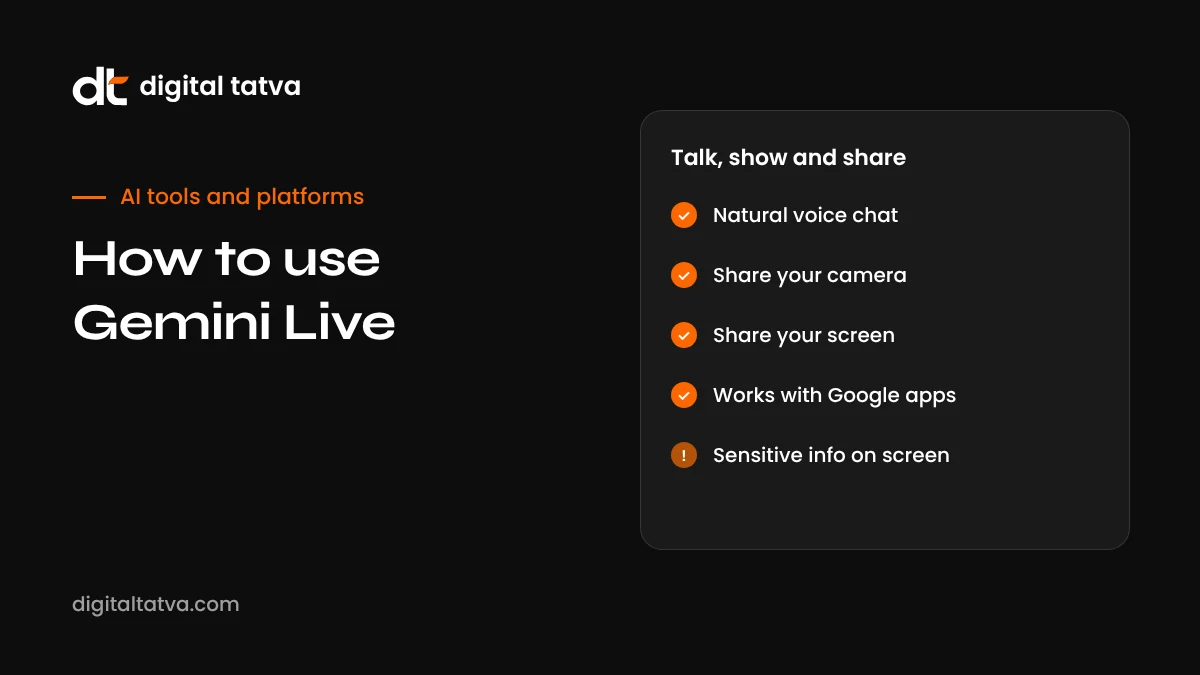
How to Use Gemini Live: Voice, Camera and Screen Sharing Explained
Gemini Live lets you talk to Google's AI in a natural, back-and-forth conversation, show it what your camera sees and share your screen. Here is how to start Gemini Live, use camera and screen sharing, connect apps, speak in Hindi and other languages, and protect your privacy.
On this page
- Key takeaways
- What is Gemini Live?
- What you need
- How to start a Gemini Live conversation
- How to use camera sharing
- How to use screen sharing
- Connected apps in Gemini Live
- Using Gemini Live in Hindi and other Indian languages
- 15 practical ways to use Gemini Live
- Gemini Live on different devices
- Is Gemini Live accurate?
- Gemini Live vs ChatGPT voice mode
- Privacy and safety tips
- Settings worth changing
- Troubleshooting Gemini Live
- Example conversations to try
- Accessibility benefits
- Gemini Live for small businesses
- Tips for better Gemini Live conversations
- Our take
- Frequently asked questions
Last updated: 13 November 2026
Quick answer: Gemini Live is the real-time conversation mode in the Gemini app. Open the Gemini app on Android or iPhone and tap the Live icon (the waveform button) to start talking. You can interrupt naturally, switch between typing and speaking without losing context, turn on your camera so Gemini can see what you are looking at, or share your screen so it can help with what is on your phone. After a 2026 redesign on Android, Gemini Live can also work with connected apps such as Google Maps, Calendar, Keep, YouTube Music, Google Home, Docs and Spotify. It supports many languages, including Hindi and several other Indian languages. Avoid sharing sensitive information on screen, and review Gemini Apps Activity settings to control what is saved.
Key takeaways
- Gemini Live is for natural, spoken conversations with Google’s AI, with interruptions allowed.
- Camera sharing lets Gemini see objects, documents and places; screen sharing lets it see your phone screen.
- Connected apps let Gemini Live take actions like adding reminders, finding places and playing music.
- It works in many languages, including Hindi, and can switch languages mid-conversation.
- Great for brainstorming, learning, troubleshooting, practising interviews and getting help hands-free.
- Check privacy settings and avoid showing passwords, bank details or other private information.
What is Gemini Live?
Gemini Live is a voice-first way to use Gemini. Instead of typing a question and reading an answer, you have a spoken conversation that flows like a phone call. You can interrupt Gemini mid-answer, change topic, ask follow-ups and think out loud. Since 2025, Live has included camera and screen sharing, so Gemini can respond to what you see as well as what you say.
In 2026, Google redesigned Gemini Live on Android as part of updates shown at Google I/O. The microphone handling was improved alongside newer Gemini models so you can speak at your own pace without being cut off, you can move between typing and voice without losing the conversation, and Live gained access to many more connected apps.
What you need
| Requirement | Details |
|---|---|
| Device | An Android phone or iPhone with the Gemini app; some features arrive first on recent Pixel and Samsung phones |
| Account | A personal Google account; work and school accounts depend on admin settings |
| Plan | Gemini Live, including camera and screen sharing, is available free on supported devices; Google AI plans add higher limits and newer models |
| Permissions | Microphone, and camera or screen recording permission for those features |
| Age and region | Available in many countries and languages, including India; some features roll out gradually |
How to start a Gemini Live conversation
- Open the Gemini app. On Android you can also long-press the power button or say “Hey Google” if Gemini is your assistant.
- Tap the Live button, the waveform icon next to the text box.
- Start talking naturally. Ask a question, describe a problem or just think out loud.
- Interrupt whenever you like. If Gemini goes off track, just speak and it will stop and listen.
- Pause or end. Use the pause button to stop temporarily or the end button to finish. A transcript of the conversation is saved in your chat history if Gemini Apps Activity is on.
How to use camera sharing
Camera sharing lets Gemini see through your phone camera in real time.
- Start Gemini Live.
- Tap the camera icon to turn on video.
- Point your camera at what you want help with and ask your question, for example “What plant is this, and why are its leaves turning yellow?”
- Switch between front and back cameras as needed.
- Turn the camera off when you are done.
Good uses include identifying objects, reading and explaining labels or documents, checking a recipe step, getting help assembling furniture, translating signs and menus, and understanding a maths problem on paper.
How to use screen sharing
- Start Gemini Live.
- Tap the screen share icon and confirm the system prompt to start sharing.
- Switch to the app or webpage you want help with.
- Ask your question out loud, such as “Which of these three phones has the better camera?” or “Help me understand this error message.”
- Stop sharing from the notification or status bar when finished.
Screen sharing is useful for comparing products while shopping, understanding a confusing settings page, getting feedback on a social post draft, or learning how to use a new app.
Connected apps in Gemini Live
The 2026 redesign on Android expanded the apps Gemini Live can work with during a conversation. Availability varies by device and region, but the list includes:
| Category | Apps | Example request |
|---|---|---|
| Google productivity | Calendar, Tasks, Keep, Docs, Sheets, Slides | “Add a reminder to call the accountant on Friday at 11” |
| Travel and places | Maps, Flights, Hotels | “Find a quiet café near me with Wi-Fi that is open now” |
| Media | YouTube, YouTube Music, Spotify | “Play some calm instrumental music” |
| Home | Google Home | “Turn off the living room lights” |
| Shopping | Google Shopping | “Compare prices for these running shoes” |
| Device | Utilities for timers, alarms and settings | “Set a 12-minute timer for the rice” |
| Phone makers | Notes, calendar and reminder apps from Samsung, Xiaomi, OnePlus, OPPO, vivo, HONOR and TECNO | “Save this idea to my Samsung Notes” |
Sending SMS or chat messages directly from a Live voice session was not yet available at the time of writing, as Google said the feature was still under safety review.
Using Gemini Live in Hindi and other Indian languages
Gemini Live supports many languages, including Hindi, Bengali, Gujarati, Kannada, Malayalam, Marathi, Tamil, Telugu and Urdu, with quality varying by language. You can set your preferred language in the Gemini app settings or simply start speaking, and you can switch languages mid-conversation. Hinglish and other mixed-language speech generally works well, which matches how many people in India actually talk.
Tips for better results:
- Speak naturally at a normal pace; you do not need to slow down or over-enunciate.
- If Gemini replies in the wrong language, say “Please reply in Hindi” or change the language in settings.
- For technical terms, using the English word is often clearer.
- Use a quieter place for better recognition, or headphones with a microphone in noisy environments.
For more on AI and Indian languages, see our guide to AI tools for Indian languages.
15 practical ways to use Gemini Live
| Area | How to use it |
|---|---|
| Brainstorming | Talk through business ideas, campaign names or blog topics while walking |
| Interview practice | Ask Gemini to act as an interviewer for a specific role and give feedback |
| Language learning | Practise conversation in English, Hindi or another language with corrections |
| Cooking | Show ingredients on camera and ask what you can make |
| Home repairs | Point the camera at a leaking tap or a router and ask for troubleshooting steps |
| Shopping | Share your screen while comparing products and ask for pros and cons |
| Studying | Show a textbook problem and ask for a step-by-step explanation |
| Travel | Point at a sign or menu abroad for translation and context |
| Fitness | Ask for a quick workout plan and talk through form questions |
| Writing | Dictate rough ideas and ask Gemini to organise them into an outline |
| Social media | Share your screen to get feedback on a caption or post design |
| Tech help | Share your screen on an unfamiliar settings page and ask what to change |
| Gardening | Identify plants and diagnose common problems |
| Planning | Plan a weekend trip, then add events to your calendar |
| Accessibility | Get descriptions of surroundings, labels and documents read aloud |
Gemini Live on different devices
| Device | What to expect |
|---|---|
| Pixel phones | Usually first to get new Live features and deepest Android integration |
| Samsung Galaxy | Strong support, including side button access and Samsung app connections |
| Other Android phones | Core Live features plus connected apps from many manufacturers; some features arrive later |
| iPhone | Live conversations, camera and screen sharing in the Gemini app; fewer system-level integrations |
| Wear OS and earbuds | Voice access to Gemini on supported watches and headphones, with lighter features |
| Cars with Android Auto | Gemini replaces Google Assistant for voice tasks while driving where available |
Feature availability changes regularly, so if you do not see something mentioned here, update the app and check again after a few weeks.
Is Gemini Live accurate?
Gemini Live is good at general knowledge, explanations, brainstorming and describing what it sees. Like all AI assistants, it can still be confidently wrong, misidentify objects in poor lighting, mishear names, or give outdated information. Treat it as a smart helper, not an authority. For anything with real consequences, such as medicine, money, legal matters or safety, confirm with a trusted source or professional. When Gemini uses Google Search for current information, you can ask it where the information came from.
Gemini Live vs ChatGPT voice mode
Both Google and OpenAI offer advanced voice assistants. In July 2026 OpenAI upgraded ChatGPT’s voice with its GPT-Live models for more natural, full-duplex conversation. Here is how the two compare at a high level:
| Aspect | Gemini Live | ChatGPT voice |
|---|---|---|
| Natural conversation and interruptions | Yes | Yes |
| Camera sharing | Yes | Yes, in supported apps |
| Screen sharing | Yes on Android and iOS | Yes in supported apps |
| Phone integration | Deep on Android, with connected Google and partner apps | More limited; works within the ChatGPT app |
| Google services | Maps, Calendar, Keep, YouTube, Home and more | Via connectors in some cases |
| Best for | Android users, Google ecosystem, hands-free phone tasks | People who already work mainly in ChatGPT |
For a detailed look at OpenAI’s side, read our guide to ChatGPT voice mode.
Privacy and safety tips
Voice and camera features are powerful, which means it is worth being careful about what you share.
- Check before sharing your screen. Close banking apps, private chats and anything showing passwords or personal numbers.
- Mind your surroundings on camera. Avoid showing other people’s faces, documents or screens without their knowledge.
- Review Gemini Apps Activity. In your Google account, you can see, delete and set auto-delete periods for Gemini activity.
- Understand human review. Google says some conversations may be reviewed to improve its services; avoid sharing confidential information you would not want reviewed.
- Use work accounts carefully. On Google Workspace accounts, your organisation’s admin controls what is allowed and how data is handled.
- Double-check important answers. Gemini can make mistakes, especially on health, legal or financial questions. Verify with reliable sources or professionals.
Businesses should set clear rules for using AI assistants with company information; our AI usage policy template and AI data privacy guide can help.
Settings worth changing
- Voice: Choose from several Gemini voices in settings; pick one you find clear at speed.
- Language: Set your main language and add others you use regularly.
- Apps: Turn on only the connected apps you actually want Gemini to use.
- Activity: Decide whether to keep Gemini Apps Activity and set an auto-delete period that suits you.
- Lock screen: Choose whether Gemini can respond when your phone is locked, balancing convenience with privacy.
- Personal context: If offered, decide whether Gemini can use information from your other Google apps to personalise answers.
Troubleshooting Gemini Live
| Problem | Try this |
|---|---|
| Live button missing | Update the Gemini app, check you are signed in with a personal account, and confirm your region and language are supported |
| Camera or screen share icon missing | Update the app and grant camera and screen recording permissions |
| Gemini keeps interrupting or cutting you off | Update the app, reduce background noise or use headphones |
| Wrong language responses | Change the language in Gemini settings or ask Gemini to switch |
| Connected app not working | Check that the app extension is enabled in Gemini settings and that you are signed in to that app |
| Conversation not saved | Turn on Gemini Apps Activity if you want transcripts kept |
Example conversations to try
Learning a topic
“I want to understand how answer engine optimization works. Explain it like I am a shop owner with no marketing background, then ask me three questions to check I understood.” Gemini will explain, pause and quiz you, adjusting based on your answers. You can follow up with our plain-language guide on what AEO is.
Fixing something at home
Turn on the camera and say “My Wi-Fi router has a red light blinking. What does it mean and what should I check?” Show the back of the router when Gemini asks about the cables.
Planning a trip
“Plan a relaxed two-day trip to Udaipur for a family with a five-year-old. We like lakes, food and short walks.” Then ask Gemini to find hotels near the lake and add the plan to your calendar.
Practising a presentation
“I am pitching an AI visibility audit to a hospital marketing team. Play the role of a sceptical marketing head and ask me tough questions one at a time.” Respond out loud and ask for feedback at the end.
Shopping on screen
Share your screen on a product listing and ask “Is this a good deal compared with similar models? What should I check in the reviews?”
Accessibility benefits
For people with visual impairments, limited mobility or reading difficulties, Gemini Live can be genuinely helpful. Camera sharing can describe surroundings, read labels and documents aloud, and identify objects. Voice control reduces the need for typing and tapping. Combined with Android’s built-in accessibility tools, it can make everyday tasks easier, though it should not replace dedicated assistive technology where reliability is critical.
Gemini Live for small businesses
Gemini Live is mostly marketed as a personal assistant, but small business owners can use it in practical ways during a busy day:
- Quick content ideas: On the way to a client meeting, talk through ideas for this week’s Instagram posts, then ask Gemini to save them to Keep.
- Product photos feedback: Show a product shot on camera and ask how to improve lighting or composition.
- Customer reply drafts: Read out a customer complaint and ask for a calm, polite reply you can edit and send.
- Pricing sanity checks: Talk through costs and margins to structure your thinking, then confirm the numbers in a spreadsheet.
- Learning new tools: Share your screen while setting up Google Business Profile or an ad account and ask what each setting does.
- Meeting preparation: Ask Gemini to quiz you on a pitch so you practise answering tough questions.
If your business wants to be recommended when customers ask Gemini questions, that is a different topic: see our Gemini SEO guide and Google Knowledge Panel guide.
Tips for better Gemini Live conversations
- Give context up front. “I run a small bakery in Surat and want to start selling online” leads to more useful advice than a bare question.
- Ask for short answers when moving. “Keep answers under 20 seconds” helps when you are walking or driving.
- Ask Gemini to summarise. At the end, say “Summarise what we decided in five bullet points”, then check the transcript.
- Use follow-ups. The strength of Live is conversation. Challenge answers and ask “why?” or “what would you do instead?”
- Combine with text. Switch to typing for precise details like addresses, names and numbers.
- Be safe while driving. Use hands-free modes only, and never look at the screen while driving.
Our take
Gemini Live has become one of the most useful everyday AI features on Android, especially since the 2026 redesign brought smoother conversation and more connected apps. Camera and screen sharing turn it from a talking chatbot into a genuine helper for real-world tasks. Use it freely for learning, planning and brainstorming, keep sensitive information off screen, and verify anything important before acting on it.
Frequently asked questions
Is Gemini Live free?
Yes. Gemini Live, including camera and screen sharing, is available at no cost on supported Android and iOS devices. Paid Google AI plans add higher limits and access to newer models.
Does Gemini Live work in Hindi?
Yes. Gemini Live supports many languages, including Hindi and several other Indian languages, and can switch languages during a conversation.
How do I turn on the camera in Gemini Live?
Start a Live conversation and tap the camera icon. Grant camera permission if asked.
Can Gemini Live see my screen all the time?
No. It only sees your screen when you start screen sharing and confirm it. You can stop sharing at any time.
Can Gemini Live send messages for me?
Not directly within a Live voice session at the time of writing; Google said this was still under safety review. It can work with many other connected apps.
Are Gemini Live conversations saved?
If Gemini Apps Activity is on, a transcript is saved to your history. You can review and delete activity in your Google account settings.
What is the difference between Gemini Live and Google Assistant?
Gemini Live is a conversational AI experience designed for open-ended discussion, with camera and screen understanding. It has largely replaced Google Assistant on Android for most tasks.
Can I type during a Gemini Live conversation?
Yes. After the 2026 redesign on Android, you can switch between typing and speaking without losing the conversation or connected app access.
Does Gemini Live use the internet for current information?
Gemini can use Google Search when needed for current facts. Ask it to name its sources when the answer matters.
Can Gemini Live control my smart home?
Yes, through the Google Home connection where available, for example turning lights on and off or adjusting a thermostat.
How do I delete my Gemini Live history?
Open Gemini Apps Activity in your Google account to review, delete individual conversations or set auto-delete after a chosen period.
Does Gemini Live work on iPhone?
Yes, through the Gemini app on iOS, including camera and screen sharing, though some Android-specific connected app features may not be available.
Can Gemini Live help me practise a presentation?
Yes. Ask it to play an audience member, listen to your pitch and give feedback on clarity, structure and confidence.
Does Gemini Live work offline?
No. Gemini Live needs an internet connection to process speech and generate responses.
Can Gemini Live take notes for me?
Yes. Ask it to save key points to Keep or Docs through connected apps, then review the notes afterwards for accuracy.
Product details, prices and features are checked at the time of writing and can change. Sources are linked in the text so you can check them yourself.
How does your brand appear in AI answers?
We test the questions your buyers ask across the major AI assistants and search engines, then show you what to fix first.
Get an AI Visibility Audit