ChatGPT Voice Mode in 2026: GPT-Live Features, Tips and Limits
ChatGPT's voice mode changed in 2026 with GPT-Live, a full-duplex model that listens and speaks at the same time. Here is how to turn it on, what Live, Advanced and Standard voice do, how plugins and Work fit in, practical uses, and the limits you should know.
On this page
- Key takeaways
- How ChatGPT voice changed in 2026
- Live vs Advanced vs Standard voice
- Availability by plan
- How to start a voice conversation
- What full duplex actually feels like
- Using connected apps by voice
- Voice in ChatGPT Work and the desktop app
- 15 practical ways to use ChatGPT voice
- Which voice mode should you use?
- Current limits to know
- ChatGPT voice vs Gemini Live
- Tips for better voice conversations
- Privacy and safety
- Voice for business owners and marketers
- Troubleshooting
- Our take
- Using ChatGPT voice in Hindi and Indian languages
- Choosing the right intelligence level
- How voice fits into AI search
- A short history of ChatGPT voice
- Frequently asked questions
Last updated: 13 November 2026
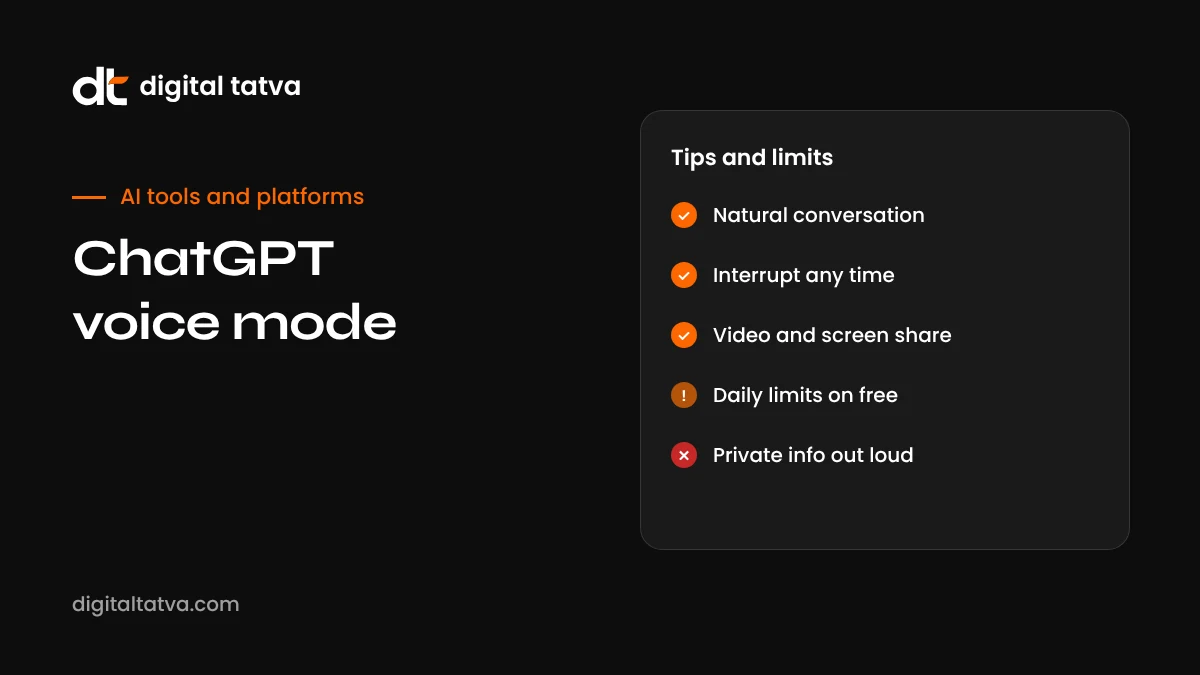
Quick answer: ChatGPT voice mode lets you talk to ChatGPT out loud and hear it reply. Since 8 July 2026, the default is GPT-Live, a full-duplex voice model that listens and speaks at the same time, so you can interrupt naturally, it can make small “mm-hmm” responses, and it waits while you think. For harder questions or web searches, Live hands the task to a more capable GPT reasoning model in the background (GPT-5.5 at launch) and keeps talking. Free users get GPT-Live-1 mini; Go, Plus and Pro get GPT-Live-1 with higher limits. Choose your voice type in Settings, then Voice (Live, Advanced or Standard). Live supports connected apps in conversation since September 2026, but video and screen sharing still require the older Advanced voice on mobile.
Key takeaways
- GPT-Live makes ChatGPT voice feel like a real phone conversation rather than walkie-talkie turns.
- Live delegates complex reasoning and search to a stronger reasoning model while the conversation continues.
- You can set how hard it thinks: Instant, Medium or High intelligence.
- Connected apps work during Live conversations, with on-screen approval for actions.
- Camera and screen sharing remain on Advanced voice on mobile for now.
- Business, Enterprise and Edu plans had different voice options at launch, so check your workspace.
How ChatGPT voice changed in 2026
ChatGPT has had voice features since 2023, first as Standard voice (speech converted to text, answered, then read aloud) and later as Advanced Voice Mode, which used a natively audio model for more natural, expressive speech. Advanced voice still worked in turns: you spoke, it detected silence, then it replied.
On 8 July 2026, OpenAI introduced GPT-Live and made it the default voice experience. GPT-Live is full duplex, meaning it processes your speech and its own replies at the same time. That allows natural interruptions, quick acknowledgements, and better handling of pauses, so it no longer jumps in the moment you stop to think. Behind the scenes, Live handles the conversation itself and passes demanding work, such as searching the web or reasoning through a hard problem, to GPT-5.5 at launch (OpenAI updates the underlying models over time), then weaves the result back into the conversation.
Later updates extended voice further. On 23 July 2026, voice arrived in the ChatGPT desktop app for Work and Codex on macOS and Windows. On 23 September 2026, OpenAI added connected apps (plugins) to Live voice on web and mobile and brought voice to ChatGPT Work there too.
Live vs Advanced vs Standard voice
| Option | How it works | Best for |
|---|---|---|
| Live (GPT-Live) | Full-duplex conversation with background delegation to a stronger reasoning model | Natural back-and-forth, brainstorming, practice, quick research by voice |
| Advanced | Earlier natively audio voice mode, turn-based | Video and screen sharing on mobile, which Live does not support yet |
| Standard | Speech to text, a text model answers, reply read aloud | Simple dictation-style use and maximum compatibility |
Availability by plan
| Plan | Live model | Voice usage |
|---|---|---|
| Free | GPT-Live-1 mini | Available with limits |
| Go and Plus | GPT-Live-1 | Expanded limits |
| Pro | GPT-Live-1 | Unlimited, subject to abuse guardrails |
| Business, Enterprise, Edu | Not included at launch | Existing voice options; check your admin settings for updates |
Availability also depends on region and app version, so update the ChatGPT app if you do not see Live.
How to start a voice conversation
- Update the ChatGPT app on iOS or Android, or open ChatGPT.com in a supported browser.
- Choose your voice type in Settings, then Voice: Live, Advanced or Standard.
- Pick a voice you find clear and pleasant.
- Set the intelligence level under Settings, Voice, Intelligence: Instant for speed, Medium for balance, High for harder reasoning.
- Tap the voice icon beside the message box to start.
- Talk naturally, interrupt when you want, and end the call when finished. The transcript appears in your chat.
What full duplex actually feels like
The difference between Live and older voice modes is easiest to understand through everyday moments:
- Interrupting: With older voice, interrupting often caused awkward overlaps. With Live, you can cut in mid-sentence, and it stops and adjusts naturally, like a person would.
- Thinking pauses: Pause to collect your thoughts and Live waits instead of assuming you are finished.
- Backchannelling: Small acknowledgements such as “mm-hmm” or “right” let you know it is following, which makes longer explanations feel less like dictation.
- Working while talking: Ask it to look something up and it can keep chatting while the reasoning model searches in the background, then share what it found.
The result is that voice becomes useful for real conversations, not just quick commands.
Using connected apps by voice
Since the September 2026 update, you can use your connected apps during a Live voice conversation on web, iOS and Android. Existing app permissions and limits apply. When an action needs approval, such as creating a calendar event or sending something on your behalf, ChatGPT shows an on-screen review that you confirm by tapping. You cannot approve actions by voice alone, which is a sensible safeguard.
Examples of what you might say:
- “Check my calendar for Thursday afternoon and suggest a time for a 30-minute call.”
- “Find the latest proposal in my Drive and summarise the pricing section.”
- “Draft a reply to the last email from the printing vendor, polite but firm about the delay.”
Always review drafts and actions before approving them, especially anything that sends messages or changes data.
Voice in ChatGPT Work and the desktop app
Voice is also available in ChatGPT Work, OpenAI’s agent for longer tasks, on web and mobile, and in the desktop app on macOS and Windows. You can dictate a task, such as “prepare a one-page summary of last month’s sales from the attached spreadsheet and draft three slides”, and the agent works on it. If the task is still running when you end the call, it continues in text. On desktop, voice can also be used to start tasks, check progress and coordinate agents, including Codex for coding tasks. See how to use OpenAI Codex.
15 practical ways to use ChatGPT voice
| Use | Example |
|---|---|
| Brainstorming on a walk | “Help me think through names for a new skincare line for men.” |
| Interview practice | “Interview me for a senior SEO role. Ask one question at a time and give feedback.” |
| Language practice | “Let’s practise conversational English. Correct my grammar gently after each answer.” |
| Learning a topic | “Explain answer engine optimization like I am new to marketing, then quiz me.” |
| Meeting preparation | “Play a sceptical client and challenge my pricing.” |
| Quick research | “What changed in Google’s November core update? Search and summarise.” |
| Cooking help | “I have paneer, spinach and onions. What can I make in 20 minutes?” |
| Writing drafts | “I will talk through a LinkedIn post idea. Turn it into a draft afterwards.” |
| Decision making | “Help me weigh up hiring a freelancer versus an agency.” |
| Travel planning | “Plan a relaxed weekend in Jaipur with good food and short walks.” |
| Hands-free help | “Walk me through resetting my router step by step.” |
| Storytelling for kids | “Tell a short bedtime story about a brave little elephant.” |
| Fitness | “Give me a 15-minute home workout and count me through it.” |
| Calendar and tasks | “Add a reminder to send the invoice on Monday morning.” |
| Accessibility | Using ChatGPT without typing, for people who find screens or keyboards difficult |
Which voice mode should you use?
For most people, Live is the right default: it is the most natural, it can use apps, and it can think harder when needed. Switch to Advanced voice on your phone when you want ChatGPT to see something, such as a product label, a homework problem or a settings screen. Use Standard voice if you prefer simple, predictable turn-taking, or if you are on a device or network where Live struggles. Business and enterprise users should follow whatever their workspace admin has enabled.
Current limits to know
| Limit | What it means | Workaround |
|---|---|---|
| No video or screen sharing in Live | Live cannot see your camera or screen yet | Switch to Advanced voice on mobile for visual help |
| Not in Temporary Chats at launch | Live voice conversations are saved like normal chats | Delete conversations you do not want kept |
| Not in custom GPTs at launch | Your custom GPTs may use older voice options | Use Projects with instructions instead |
| Language quality varies | Less common languages may have accent or fluency gaps | Switch to text for precise details |
| Business plans differ | Workspace plans kept existing voice options at launch | Check with your admin |
| Approval needs a tap | Actions with apps need on-screen confirmation | Keep the app visible when asking for actions |
OpenAI has said several of these, such as video and screen sharing in Live, are coming, so check settings regularly.
ChatGPT voice vs Gemini Live
Google’s Gemini Live is the main alternative. It offers camera and screen sharing in its main live experience and deep integration with Android and Google apps, while ChatGPT’s GPT-Live leads on full-duplex conversation feel and background delegation to a strong reasoning model. Which is better depends on your ecosystem: Android and Google Workspace users may prefer Gemini Live, while people who already live in ChatGPT, Projects and connected apps will find GPT-Live more convenient. Read our Gemini Live guide for a full walkthrough.
Tips for better voice conversations
- Set context first: “I run a small digital marketing agency in Ahmedabad” makes every answer more relevant.
- Ask for brevity when moving: “Keep answers to two or three sentences” works well while walking or commuting.
- Use the intelligence setting: Instant for chatting, High for hard problems where you can wait a little.
- Ask for a summary at the end and check the transcript for key details.
- Spell out names and numbers or switch to typing for exact details like addresses and figures.
- Use headphones in noisy places for better recognition and privacy.
- Combine with Projects: voice chats inside a project use that project’s files and instructions. See how to use ChatGPT Projects.
Privacy and safety
- Transcripts are saved to your history; delete conversations you do not want stored, and review data controls in settings.
- Be careful in public: others can hear both you and ChatGPT.
- Do not share secrets such as passwords, bank details or confidential client information.
- Verify important answers. Voice answers can sound confident even when wrong. For health, legal or financial questions, check reliable sources or professionals.
- Drive safely. Use hands-free modes only and never look at the screen while driving.
- Company use: follow your organisation’s AI policy; see our AI usage policy template.
Voice for business owners and marketers
For busy professionals, voice is less about novelty and more about capturing thinking time that would otherwise be lost: commutes, walks, waiting rooms and the minutes between meetings.
Content ideation
Talk through a topic you know well, then ask ChatGPT to turn the conversation into a blog outline, a LinkedIn post and three Instagram captions. Your spoken explanations often contain more natural, specific language than what you would type, which makes the drafts sound more like you. For a search-friendly structure, follow our answer-first content guide when editing the draft.
Sales and negotiation practice
Ask ChatGPT to play a difficult prospect, such as a procurement manager focused on price, and practise handling objections out loud. Then ask for feedback on what you said well and what to improve.
Learning new skills
Use voice to learn about topics like AI search, analytics or new tools on the go. Ask it to quiz you at the end of each session so the knowledge sticks.
Planning and prioritising
At the start of a week, talk through everything on your plate and ask ChatGPT to group tasks, suggest priorities and add key deadlines to your calendar through connected apps.
Customer insight
After a call with a client, dictate your notes and ask ChatGPT to extract decisions, follow-ups and risks. Remove confidential details or use an appropriate business plan.
Troubleshooting
| Problem | Try this |
|---|---|
| Live option missing | Update the app, check your plan and region, and look in Settings, Voice |
| ChatGPT keeps interrupting you | Reduce background noise, use headphones, or speak a little closer to the microphone |
| Answers too long | Ask for short answers at the start of the conversation |
| Need visual help | Switch to Advanced voice on mobile for camera or screen sharing |
| App action not working | Check the app is connected and permitted, and approve the on-screen review |
| Wrong language replies | Ask it to switch language, or adjust language settings |
Our take
GPT-Live is the biggest improvement to ChatGPT voice since it launched. Full-duplex conversation removes much of the awkwardness that made voice assistants feel robotic, and delegating hard questions to a stronger reasoning model means you no longer trade intelligence for speed. Connected apps and voice in Work push it further towards a real assistant. The main gap is visual: until Live supports camera and screen sharing, Gemini Live has an edge for “look at this” tasks. For thinking out loud, practising conversations and getting quick, well-reasoned answers hands-free, ChatGPT voice is now one of the best tools available.
Using ChatGPT voice in Hindi and Indian languages
ChatGPT voice understands and speaks Hindi and many other Indian languages, and it generally copes well with Hinglish, the natural mix of Hindi and English many people use. A few tips help:
- Start in the language you want or ask, “Please reply in Hindi.”
- Keep technical words in English if that is how you normally say them; it often improves accuracy.
- Expect some accent or fluency gaps in less common languages, as OpenAI acknowledges.
- Use text for precise information such as names, addresses and numbers.
- Practise languages: voice is a good partner for practising spoken English, Hindi or another language with gentle corrections.
For more on AI in regional languages, see our guide to AI tools for Indian languages.
Choosing the right intelligence level
| Setting | Use for | Trade-off |
|---|---|---|
| Instant | Casual chat, quick facts, practice conversations | Fastest, least deliberate reasoning |
| Medium | Most everyday questions, light research, planning | Balanced speed and depth |
| High | Complex problems, detailed comparisons, careful advice | Slower responses while it works in the background |
You can change the setting at any time. Many people keep Medium as the default and switch to High for specific conversations.
How voice fits into AI search
As more people ask ChatGPT questions by voice, often while walking, cooking or driving, answers become shorter and more direct, and fewer people click through to websites. For businesses, that makes it more important to be the brand ChatGPT mentions in its spoken answer. Clear, factual content, consistent business information and strong reviews all help. Our guides to ChatGPT SEO and voice search AEO explain how to prepare.
A short history of ChatGPT voice
| Period | Milestone |
|---|---|
| 2023 | Standard voice arrives in the ChatGPT mobile apps |
| 2024 | Advanced Voice Mode rolls out with more natural, expressive speech |
| 2024 to 2025 | Video and screen sharing added to Advanced voice on mobile |
| 8 July 2026 | GPT-Live launches as the default full-duplex voice experience |
| 23 July 2026 | Voice arrives for Work and Codex in the desktop app |
| 23 September 2026 | Connected apps in Live voice, and voice in Work on web and mobile |
The direction is clear: voice is becoming a primary way to use ChatGPT, not a side feature, and it is increasingly connected to agents that can take action on your behalf.
Frequently asked questions
What is GPT-Live?
GPT-Live is OpenAI’s full-duplex voice model, launched on 8 July 2026 as ChatGPT’s default voice experience. It listens and speaks at the same time for more natural conversation.
Is ChatGPT voice mode free?
Yes. Free users get GPT-Live-1 mini with usage limits. Paid plans get GPT-Live-1 with higher or unlimited usage.
Can ChatGPT voice see my camera or screen?
Not in Live mode at the time of writing. Video and screen sharing remain available through Advanced voice on mobile.
Can I use apps during a voice conversation?
Yes. Since September 2026, connected apps work in Live voice on web and mobile, with on-screen approval for actions. Approving by voice is not supported.
Does ChatGPT voice work in Hindi?
Yes. It supports many languages including Hindi, though OpenAI notes some languages may have accent or fluency gaps.
Is voice available in the ChatGPT desktop app?
Yes. Voice is available in the desktop app on macOS and Windows, including for Work and Codex tasks.
What is the intelligence setting in voice?
It controls how much reasoning the background model applies when Live delegates a task: Instant is fastest, High is most thorough.
Can I switch back to the old voice mode?
Yes. In Settings, Voice, you can choose Advanced or Standard instead of Live.
Does GPT-Live search the web?
Yes. When a question needs current information, Live can hand the search to a stronger model in the background and share the results while continuing the conversation.
Why does ChatGPT voice sometimes pause before answering?
For harder questions or higher intelligence settings, it may be working on the task in the background. Choose Instant for quicker replies.
Are voice conversations saved?
Transcripts are saved in your chat history unless you delete them. Live was not available in Temporary Chats at launch.
Is ChatGPT voice good for learning English?
Yes. You can practise conversations, ask for gentle corrections and request explanations of grammar or vocabulary, all by speaking naturally.
Can ChatGPT voice read documents aloud?
It can discuss and summarise documents you share in the chat. For long documents, ask it to summarise sections or explain key points rather than reading everything word for word.
Does voice mode use more of my plan’s limits?
Voice has its own usage limits that vary by plan, with Pro offering the most generous access. Check your plan details if you use voice heavily.
Can children use ChatGPT voice?
Follow OpenAI’s age requirements and use parental controls and supervision where appropriate.
Can I use ChatGPT voice hands-free while driving?
Only through safe, hands-free setups that follow local laws. Never look at or tap the screen while driving.
Does ChatGPT voice remember previous conversations?
It can use ChatGPT memory and project context where enabled. Review memory settings to control what is remembered.
Product details, prices and features are checked at the time of writing and can change. Sources are linked in the text so you can check them yourself.
How does your brand appear in AI answers?
We test the questions your buyers ask across the major AI assistants and search engines, then show you what to fix first.
Get an AI Visibility Audit