How to Get and Use Siri AI on iPhone in iOS 27
How to get Siri AI in iOS 27: supported iPhones, the waitlist steps, India and language rules, what Siri AI can do, prompts to try, privacy and fixes when it does not show up.

On this page
- Key takeaways
- Siri AI requirements in iOS 27
- How to turn on Siri AI: step by step
- What Siri AI can do
- Siri AI prompts to try first
- Is Siri AI private? How Gemini fits in
- Siri AI limits you should know
- Siri AI not showing up? Fixes
- Siri AI vs Gemini, ChatGPT and Copilot on iPhone
- Frequently asked questions
- Final thoughts
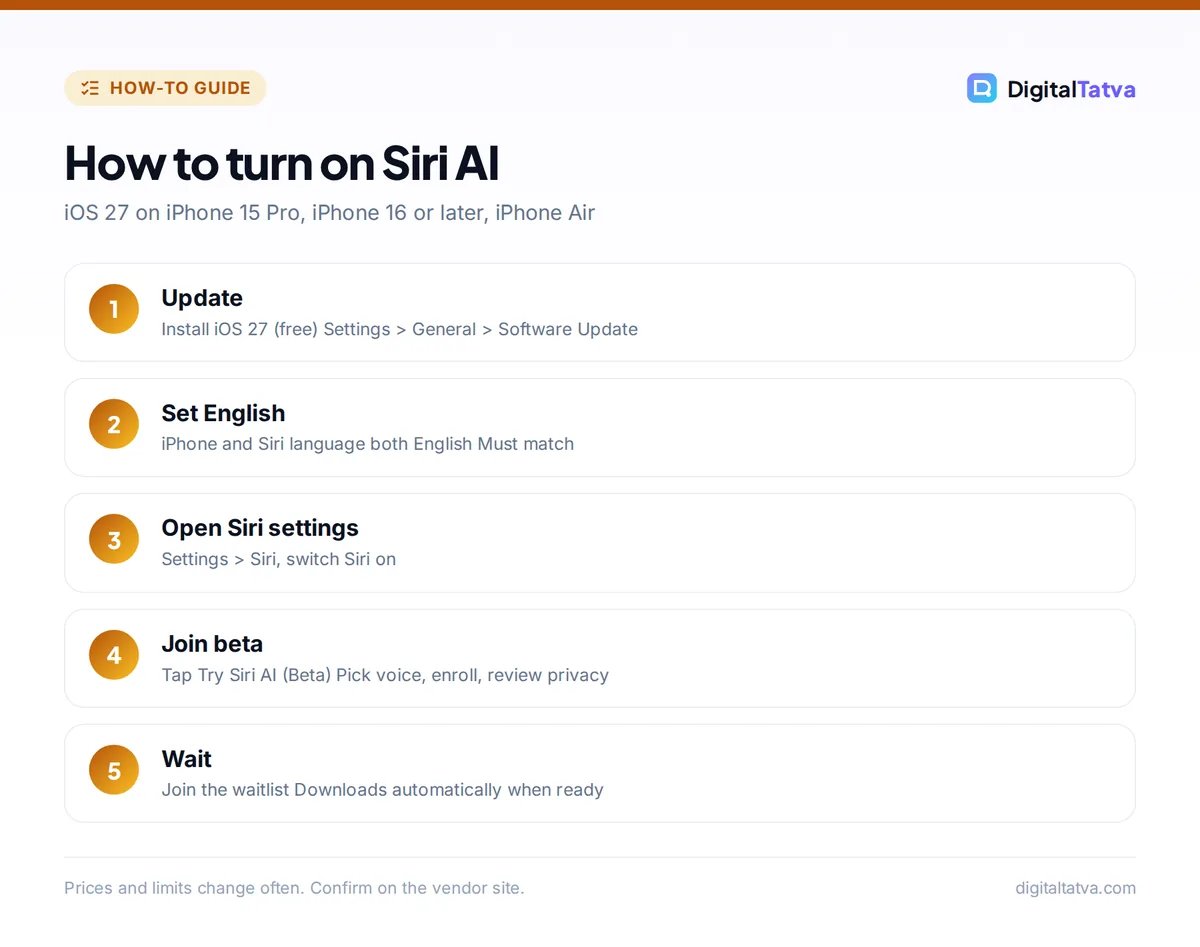
To get Siri AI in iOS 27, update a supported iPhone (iPhone 15 Pro, any iPhone 16 or later, or iPhone Air) to iOS 27, set both your iPhone and Siri language to English, then go to Settings > Siri and tap Try Siri AI (Beta). Apple adds you to a waitlist, and Siri AI downloads automatically when your turn comes. It is free, and it works in India as long as your device and Siri are set to English.
Siri AI is Apple’s rebuilt assistant, released in beta with iOS 27 on September 14, 2026. It can understand your messages, emails and photos, see what is on your screen, act inside apps such as WhatsApp, and hold real follow-up conversations. This guide shows how to turn it on, what Siri AI in iOS 27 can do, prompts worth trying, privacy settings, and fixes for common problems.
Key takeaways
- Siri AI needs iOS 27 on an iPhone 15 Pro, iPhone 16 or later, or iPhone Air. Older iPhones get iOS 27 (back to iPhone 11) but not Siri AI.
- Turn it on in Settings > Siri > Try Siri AI (Beta), then wait for your turn on the waitlist. Wait times vary.
- It works in English only for now. Apple plans French, Japanese, Korean, Portuguese and Spanish next; Hindi has not been announced.
- It is not available in the EU on iPhone, or with a mainland China Apple Account. India is not excluded.
- Apple’s new models were custom-built with Google’s Gemini, but requests run on your device or Apple’s Private Cloud Compute, where Apple says personal data is not stored.
Siri AI requirements in iOS 27
Before you start, check that your device, language and region are supported. These come from Apple’s official support page.
| Requirement | What you need |
|---|---|
| iPhone | iPhone 15 Pro or 15 Pro Max, any iPhone 16 or later, or iPhone Air, on iOS 27 |
| iPad | iPad mini (A17 Pro) or any iPad with M1 or later, on iPadOS 27 |
| Mac | Mac with M1 or later, on macOS 27 Golden Gate |
| Apple Watch | Series 9 or later, Ultra 2 or later, or SE 3, paired with an iPhone running Siri AI |
| Language | Device language and Siri language both set to English |
| Region | Eligible Apple Account region; not the EU on iPhone, iPad or Watch; not mainland China |
| Age | 13 or older |
| Price | Free with iOS 27; Apple says expanded access will cost extra in future |
Note for India: Apple Intelligence already works in English (India). For Siri AI, keep your iPhone language and Siri language on the same English option. If you use Siri in Hindi today, you will need to switch Siri to English to join the beta.
How to turn on Siri AI: step by step
- Back up and update. Go to Settings > General > Software Update and install iOS 27. It is a free update.
- Set the language. In Settings > General > Language & Region, set iPhone Language to English. Then in Settings > Siri, set Language to English as well.
- Turn Siri on. In Settings > Siri, make sure Siri is switched on.
- Tap Try Siri AI (Beta). You will find it on the Siri settings screen.
- Finish setup. Pick a voice, complete voice enrollment by saying a few phrases, and review the privacy settings.
- Wait for your turn. You join a waitlist. Apple says wait times vary, and early users report waits from minutes to hours. Keep your iPhone on Wi-Fi and charged.
- Let it download. When your wait ends, your iPhone notifies you and downloads the Siri AI models automatically.
Once enabled, Siri AI keeps working when you travel to other countries. Full details are on Apple’s How to get Siri AI support page.
What Siri AI can do
Understand your personal context
Siri AI can find information across your messages, emails and photos. Apple’s example: ask what a relative suggested for an upcoming visit, then have Siri pull a recipe from an email and add the ingredients to Reminders. This is the feature old Siri never managed, and it is the one most people will use daily.
Answer questions with world knowledge
Siri AI uses the web to answer questions on almost any topic, from a cricket score to a weekend plan. You can ask follow-up questions in the same conversation instead of starting over. For research-heavy questions, a dedicated assistant may still be better; our ChatGPT vs Google Search guide explains when to use which.
See what is on your screen
Onscreen awareness lets Siri act on whatever you are looking at. Viewing a team’s fixture list on a website? Ask Siri to add the home games to your calendar.
Take actions in apps
Siri AI works with built-in and third-party apps. Apple’s examples include texting a friend in WhatsApp and playing a book in Audible, with Microsoft Outlook, Notability and Tripsy support coming soon.
The new Siri app
Siri now has its own app where you can revisit past conversations or start new ones. History syncs through iCloud across your iPhone, iPad, Mac, Apple Watch and Vision Pro.
Camera Siri mode and Visual Intelligence
A new Siri mode in the Camera app acts on what the camera sees. Point it at an event poster, ask for the timings, and Siri can create calendar entries for you.
Writing help everywhere you type
Writing Tools now work wherever you type. You can ask Siri to draft from scratch, refine text by describing the change, get writing tips, and proofread automatically, including in most third-party apps. In Mail and Messages, it matches the tone you usually use with each person. For longer content work, compare it with our list of the best AI writing tools.
Shortcuts in plain English
You can describe an automation in plain language and Siri builds the Shortcut. Server-side Shortcuts models have daily usage limits.
Siri AI prompts to try first
| Task | Try saying |
|---|---|
| Find something in your messages | “What time did Rahul say the meeting moved to?” |
| Email to reminder | “Add the items from Priya’s grocery email to my Reminders.” |
| Screen to calendar | “Add these match dates to my calendar.” (while viewing a fixtures page) |
| WhatsApp message | “Send a WhatsApp to Amit saying I will be 10 minutes late.” |
| Photo search | “Show me photos from the Udaipur trip with the lake.” |
| Writing | “Make this email sound more polite and shorter.” |
| Shortcut | “Create a shortcut that turns on Do Not Disturb when I arrive at the office.” |
You can invoke Siri AI by saying “Hey Siri”, pressing the side button, or swiping down from the Dynamic Island. Ask a follow-up straight after an answer to keep the conversation going.
Is Siri AI private? How Gemini fits in
Apple says its next generation of Apple Foundation Models was “custom-built in collaboration with Google and its Gemini models.” That does not mean your requests go to Google. According to Apple, Siri AI runs on your device and, for bigger requests, on Apple’s Private Cloud Compute servers, where personal data is not stored or made accessible to Apple or anyone else, and outside experts can verify this. The parts that search your personal index run entirely on the device.
The separate ChatGPT integration is still optional. If you switch it on, requests you choose to send to ChatGPT go to OpenAI, under OpenAI’s policies. Our guide to whether ChatGPT is safe explains those settings, and our AI data privacy guide covers what not to share with any assistant at work.
Tip: During setup, read the privacy screen carefully. If you share your iPhone, check Siri’s personal requests settings so others cannot ask Siri about your messages.
Siri AI limits you should know
- English only for now. Apple plans French, Japanese, Korean, Portuguese and Spanish in October. Hindi and other Indian languages have not been announced. For Indian language AI today, see our AI tools for Indian languages guide.
- Daily limits. Server-side features, including Siri AI, have daily limits that vary by feature, request complexity and demand. Apple says expanded access will be offered for a fee in future.
- Beta quality. Expect mistakes. Check anything important, such as calendar entries and messages, before relying on it.
- Expressive voices need newer hardware. Adjustable voice expressiveness and pace need Apple’s AFM Core Advanced model, available on iPhone Air and the iPhone 17 Pro and 18 Pro models.
Siri AI not showing up? Fixes
- Check your model. A standard iPhone 15 or older does not support Siri AI, even on iOS 27.
- Match the languages. iPhone language and Siri language must both be English. A mismatch hides the option.
- Check your Apple Account region. EU and mainland China accounts are not eligible on iPhone.
- Turn Siri on first. The Try Siri AI (Beta) option only appears when Siri is enabled.
- Be patient with the waitlist. If you joined during an earlier beta, you need to join again. Leave the phone on Wi-Fi and charging.
- Free up storage. The models download to your device, so make room if storage is nearly full.
Siri AI vs Gemini, ChatGPT and Copilot on iPhone
Siri AI’s big advantage is deep access to your iPhone: messages, photos, apps and the screen. Gemini, ChatGPT and Copilot apps are better for long research, file analysis and image creation, and they work on older iPhones and in Hindi. Many people will use both: Siri for quick actions on the phone, and a chatbot app for bigger tasks. Our guides on how to use Gemini, how to use ChatGPT and how to use Microsoft Copilot for free cover the alternatives, and our comparison of Gemini Live, ChatGPT Voice and Alexa+ looks at voice assistants side by side.
Frequently asked questions
Which iPhones support Siri AI?
Siri AI needs iOS 27 on an iPhone 15 Pro or 15 Pro Max, any iPhone 16 or later model, or iPhone Air. iOS 27 itself installs on iPhone 11 and later, but older models and the standard iPhone 15 do not get Siri AI. Some features, such as expressive voices, need iPhone Air or iPhone 17 Pro and newer.
Is Siri AI available in India?
Yes, India is not on Apple’s list of excluded regions, which currently covers the EU on iPhone and mainland China. You need a supported iPhone on iOS 27 with both the device language and Siri language set to English, and then you join the waitlist from Settings > Siri.
Is Siri AI free?
Yes. Siri AI comes free with iOS 27 on supported devices. Apple says server-side features have daily limits and that expanded access will be available for a fee in future, but it has not announced a price.
Does Siri AI support Hindi?
Not yet. Siri AI is English only at launch, and Apple plans French, Japanese, Korean, Portuguese and Spanish next. Hindi and other Indian languages have not been announced. To use Siri AI, set both your iPhone and Siri language to English.
Does Siri AI use Google Gemini?
Apple says its new foundation models were custom-built in collaboration with Google and its Gemini models. Requests are processed on your device or on Apple’s Private Cloud Compute servers, which Apple says do not store your personal data, rather than being sent to Google.
Final thoughts
Siri AI is the biggest Siri upgrade in years: it finally understands your personal data, sees your screen and acts inside apps. If you have an iPhone 15 Pro or newer, update to iOS 27, set Siri to English and join the waitlist today. It is still a beta, so double-check important actions, and keep a chatbot app for long research. Features, languages and limits are changing quickly, so check Apple’s support pages for the latest details.
Related reading: best AI apps for Android and iPhone and what AI agents are.
Pricing and features are checked at the time of writing and can change. Some links may be affiliate links, which never affect our verdicts.