How to Use Microsoft Copilot for Free on Windows, Edge and Mobile
How to use Microsoft Copilot for free on Windows 11, in Edge and on your phone: shortcuts, Vision, file search, useful prompts and what still needs a Microsoft 365 plan.

On this page
- Key takeaways
- How to use Copilot: the quick answer by device
- What you need before you start
- How to use Copilot on Windows 11
- How to use Copilot in Microsoft Edge
- How to use the Copilot app on iPhone and Android
- Free Copilot vs paid Copilot: what you actually get
- 10 practical ways to use free Copilot every day
- Common mistakes and how to avoid them
- Copilot vs ChatGPT and Gemini: which free assistant to use
- Frequently asked questions
- Next steps: start with one task today
To use Microsoft Copilot for free, open copilot.microsoft.com in any browser, press the Copilot key or Windows + C on a Windows 11 PC, click the Copilot icon in Microsoft Edge, or install the Copilot app on your phone, then type or speak your question. You do not need to pay or even sign in for basic chat, but signing in with a free personal Microsoft account unlocks chat history, image creation, longer conversations and voice.
This guide shows how to use Copilot step by step on Windows, Edge and mobile, which features are free, where you hit a paywall (Copilot inside Word and Excel), and the prompts and settings that make it genuinely useful. Everything below was checked against Microsoft’s own support pages on 12 October 2026.
Key takeaways
- Free Copilot works at copilot.microsoft.com, in the Windows and Mac app, in Edge and in the iPhone and Android apps. Sign-in is optional but adds history, images and voice.
- On Windows, the fastest way in is the Copilot key or Windows + C, and you can set either one to open a small quick view instead of the full app.
- Copilot Vision can look at an app or browser window you choose and walk you through it, and the Windows app can search and read your local files if you allow it.
- Copilot inside desktop Word, Excel, PowerPoint and Outlook is not free: it needs Microsoft 365 Personal ($9.99/month), Family or Premium, and only the subscription owner gets it.
- Microsoft publishes no daily limits for the free tier and names no model, so expect slowdowns at busy times.
How to use Copilot: the quick answer by device
If you only need the shortcut for your device, start here. The rest of the guide explains each method in detail.
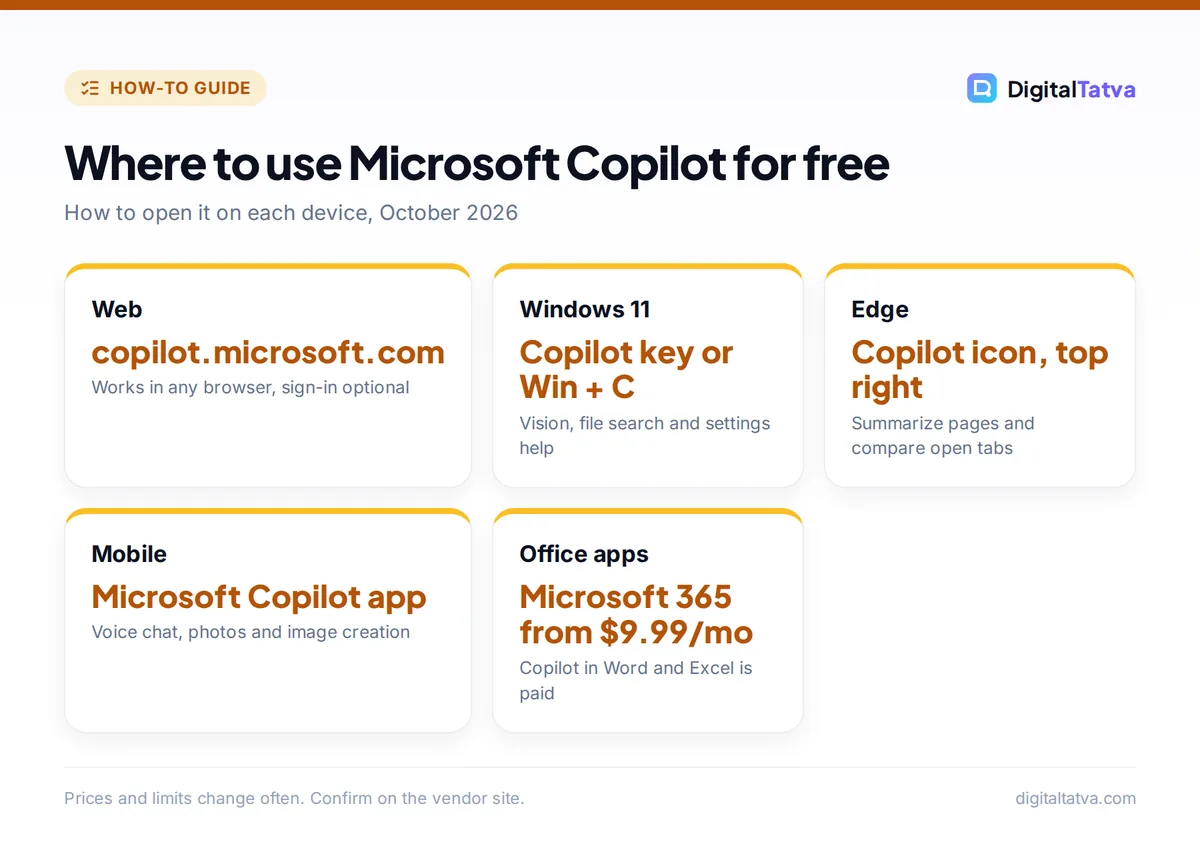
| Where | How to open Copilot | Cost | Best for |
|---|---|---|---|
| Any browser | Go to copilot.microsoft.com and type a question | Free | Quick questions on any computer |
| Windows 11 | Copilot key, Windows + C, or the taskbar icon | Free | Help with your screen, files and settings |
| Microsoft Edge | Copilot icon in the upper-right corner (sidebar) | Free chat; voice and Vision may need Microsoft 365 | Summarizing pages and comparing tabs |
| iPhone and Android | Install the Microsoft Copilot app and sign in | Free | Voice chat, photos, on-the-go answers |
| Word, Excel, PowerPoint | Copilot button in the ribbon | Microsoft 365 Personal, Family or Premium | Drafting and editing inside documents |
What you need before you start
Copilot is Microsoft’s AI assistant, and the free version covers most everyday jobs: writing help, brainstorming, summaries, web answers with sources, and webpage summaries in Edge. Microsoft notes that feature availability varies by region, so a few extras may not appear in every country.
- A free Microsoft account (recommended). Any Outlook.com, Hotmail or Xbox login works. Without it you can still chat, but Microsoft says a personal account unlocks chat history, image creation, longer conversations and voice interactions.
- A supported device. A Windows 11 PC usually has the Copilot app preinstalled. Mac, iPhone and Android users can download the app, and anyone can use the website.
- Microsoft Edge (optional). The Edge sidebar is the easiest way to use Copilot on the page you are reading.
If you are still deciding between assistants, our roundup of the best AI chatbots compared shows where Copilot sits next to ChatGPT, Gemini and Claude.
How to use Copilot on Windows 11
The Windows app is the most capable free version because it can see what is on your screen and, with permission, read files on your PC.
- Open the app. Press the Copilot key on newer keyboards, or press Windows + C. You can also click the Copilot icon on the taskbar or in the Start menu. If it is missing, install “Microsoft Copilot” from the Microsoft Store.
- Sign in. Click the profile area and sign in with your personal Microsoft account so your chats are saved and voice and images are unlocked.
- Choose full app or quick view. Go to Account, then Settings, then Copilot Keyboard Shortcuts, and decide whether the key opens the full window or a small quick view that floats over your work.
- Ask your first question. Type in the Composer box at the bottom, for example “Explain this error message in simple words and tell me how to fix it.”
- Add a screenshot when words are not enough. Click the “+” in the Composer, choose Take a Screenshot, drag over the part of the screen you mean, and ask about it.
- Turn on voice if you like. Copilot supports an opt-in wake word, “Hey, Copilot”, so you can ask questions hands-free once it is enabled in settings.
Copilot Vision: let it see an app and guide you
Copilot Vision can look at a browser window or app that you choose to share and answer questions about it or guide you step by step. It is handy for learning new software (“Where is the export option in this editor?”) or checking a form before you submit it. Share only the window you need and stop sharing when you are done.
File search: ask questions about documents on your PC
The Windows app can find, open and answer questions about files on your device, including synced OneDrive files. Microsoft lists .docx, .xlsx, .pptx, .txt, .pdf and .json as supported. You control this under Account, Settings, File Search and File Read. Try “Find the invoice from Sharma Traders I saved last month and tell me the total.”
Windows settings help
Describe what you want (“make the screen easier to read” or “stop notifications during meetings”) and Copilot points you to the right Windows setting. It is faster than digging through menus.
Tip: Have a pen-enabled laptop? Go to Settings, Bluetooth and Devices, Pen and Windows Ink, and set the pen’s shortcut button to “Same as Copilot key” so one click opens Copilot.
How to use Copilot in Microsoft Edge
Copilot in Edge is built for the page you are already reading. Sign in to Edge with your personal Microsoft account first.
- Open the sidebar. Click the Copilot icon in the upper-right corner of Edge. Copilot opens beside the page.
- Summarize the page. Click “Create a Summary” for a quick breakdown, or “Expand on this topic” to go deeper. This works well on long news articles, product pages and documentation.
- Use your tabs as context. When prompted, allow Copilot to use the current page and open tabs. Then ask, “Compare the three laptops in my open tabs on price, battery and weight.”
- Talk instead of typing. The microphone button turns speech into text. The Waves button starts a spoken conversation and lets you share the screen. Microsoft’s Edge help page lists voice and Vision as Microsoft 365 subscriber features, while a May 2026 Edge update said they were reaching everyone in Copilot markets, so check what your sidebar shows.
- Try the Copilot new tab page. From the More menu (…), choose Copilot and AI to turn on a new tab page that combines chat, search and navigation.
Watch out: Copilot Mode in Edge was retired in May 2026, and its agent-style “Browse with Copilot” feature is limited to Microsoft 365 Premium subscribers in the US. Older tutorials that tell you to switch on Copilot Mode are out of date. Our guide to the best AI browsers in 2026 covers the alternatives.
How to use the Copilot app on iPhone and Android
The mobile app is free and is the best way to use Copilot by voice. Edge on mobile also includes Copilot if you prefer to keep everything in your browser.
- Install the app. Search for “Microsoft Copilot” in the App Store or Google Play and check that the publisher is Microsoft.
- Sign in. Use the same Microsoft account as your PC so your chat history syncs.
- Chat, speak or snap. Type a question, tap the microphone for a voice conversation, or attach a photo (a menu, a plant, a maths problem) and ask about it.
- Create images. Describe what you want, such as “A clean flat illustration of a chai stall at sunrise for an Instagram post.” Image creation needs you to be signed in.
For more free apps worth installing next to Copilot, see our list of the best AI apps for Android and iPhone.
Free Copilot vs paid Copilot: what you actually get
This is where most people get confused, because the word “Copilot” covers a free chatbot and a paid feature inside Office apps. Here is the split, based on Microsoft’s own comparison page.
| Feature | Free Copilot | Microsoft 365 Personal, Family, Premium |
|---|---|---|
| Chat, writing help, web answers | Yes | Yes |
| Chat history, images, voice | Yes, when signed in | Yes |
| Webpage summaries in Edge | Yes | Yes |
| Copilot inside desktop Word, Excel, PowerPoint, Outlook, OneNote | No | Yes, subscription owner only |
| Usage limits | Not published | Governed by AI credits (numbers not published) |
| Researcher and Analyst agents | No | Premium only ($19.99/month) |
Microsoft 365 Personal costs $9.99/month or $99.99/year, Family $12.99/month and Premium $19.99/month. On Family and Premium, other members get Copilot Chat but not Copilot in the desktop apps. The old Copilot Pro plan is gone for new buyers. Our full Microsoft Copilot pricing breakdown explains every tier and the business add-ons.
Save money: If you mainly want AI help in Excel, test the free options in our guide to the best AI tools for Excel and Google Sheets before buying Microsoft 365. Also note that Copilot in Excel needs your workbook saved to OneDrive or SharePoint.
10 practical ways to use free Copilot every day
Copilot is only as good as what you ask. These prompts work well in the free version and follow the basics from our prompt engineering guide: give context, say what you want back, and set a format.
- Rewrite an email: “Rewrite this message to my landlord so it is polite but firm, under 120 words.”
- Summarize a long page in Edge: “Summarize this article in five bullet points and tell me what it leaves out.”
- Plan your week: “Here are my tasks and deadlines. Build a Monday to Friday plan with two focused hours a day.”
- Explain a bill or document: share a screenshot and ask, “What am I being charged for, line by line?”
- Learn software with Vision: share the app window and ask, “Show me how to add a table of contents here.”
- Find a file: “Open the PDF about the GST registration I downloaded last week.”
- Draft social posts: “Write three LinkedIn post ideas about our new coworking space in Ahmedabad, friendly tone.”
- Compare products: open three product tabs in Edge and ask for a comparison table.
- Make a quick image: “Create a minimal banner with the text Diwali Sale, 20% off, warm colors.”
- Practice a language: start a voice chat on your phone and ask Copilot to correct your Hindi or English as you speak.
If you also use ChatGPT, many of these prompts carry over. Our beginner guide on how to use ChatGPT explains the differences in workflow.
Common mistakes and how to avoid them
- Using it signed out and losing your work. Without a Microsoft account, Copilot does not keep your chat history. Sign in before long sessions.
- Expecting Copilot inside Word for free. The Copilot button in desktop Office apps needs a Microsoft 365 plan. The free chatbot can still draft text that you paste into Word.
- Trusting every answer. Copilot shows sources for web answers. Click them for anything involving money, health or legal matters, because AI answers can be wrong or out of date.
- Sharing too much on screen. Vision sees the window you share. Close banking tabs and private chats before you start.
- Giving file access you do not need. File search is useful, but you can switch File Search and File Read off in settings if you work with confidential documents. Our business guide to AI data privacy covers safe defaults for teams.
Copilot vs ChatGPT and Gemini: which free assistant to use
Copilot’s advantage is that it is built into Windows and Edge, so it can see your screen, read your files and summarize pages without copying and pasting. ChatGPT’s free tier has a broader feature set inside the chat itself, including image generation and study tools, and Gemini is the natural choice if you live in Gmail and Google Docs. Read our beginner guide to Google Gemini if you use Android, and our ChatGPT vs Gemini comparison for a head to head on features. For a broader list of free options, see the best free AI tools you can use today.
Many people use two: Copilot for Windows and Edge tasks, and ChatGPT or Gemini for longer writing and research.
Frequently asked questions
Is Microsoft Copilot really free?
Yes. Microsoft’s support page says the free Copilot costs nothing and works at copilot.microsoft.com, in the desktop and mobile apps, and in Edge. You can chat without signing in, and a free Microsoft account adds chat history, image creation, longer conversations and voice. You only pay if you want Copilot inside desktop Word, Excel, PowerPoint and Outlook, which needs a Microsoft 365 plan.
How do I open Copilot on Windows 11?
Press the Copilot key on your keyboard or press Windows + C. You can also click the Copilot icon on the taskbar or in the Start menu. If the app is missing, install Microsoft Copilot from the Microsoft Store. In Account, Settings, Copilot Keyboard Shortcuts, you can choose whether the shortcut opens the full app or a smaller quick view.
Does free Copilot work in Word and Excel?
Not inside the desktop apps. Copilot in Word, Excel, PowerPoint, Outlook and OneNote requires Microsoft 365 Personal, Family or Premium, and on Family and Premium only the subscription owner gets it. With the free version you can still ask Copilot to draft text or explain a formula in the chat and then paste the result into your document.
Does Copilot have usage limits on the free plan?
Microsoft does not publish daily message limits for free Copilot, and it does not name the model behind it. In practice you may see slower responses or temporary limits during busy periods, especially for image creation. Paid Microsoft 365 plans use an AI credit system for in-app features, but Microsoft does not publish those numbers either.
Can I use Microsoft Copilot in India?
Yes. The website, Windows app, Edge sidebar and mobile apps all work in India with a free Microsoft account. Microsoft notes that feature availability varies by region, and some newer extras such as Browse with Copilot in Edge are currently US only. Microsoft 365 plans that include Copilot in Office apps are sold in India too; check the local price on Microsoft’s site.
Next steps: start with one task today
The quickest way to learn Copilot is to give it one real job: summarize a page you were going to read anyway in Edge, or press Windows + C and ask it to fix a setting that annoys you. Once that feels natural, try Vision on an app you are learning, then decide whether Copilot inside Office is worth a Microsoft 365 plan for you. For the full plan details, compare options on Microsoft’s official Microsoft 365 plans page and the Getting started with Copilot on Windows guide. Pricing and features change often, so confirm the current details on Microsoft’s website before you subscribe.
Pricing and features are checked at the time of writing and can change. Some links may be affiliate links, which never affect our verdicts.