How to Build Your First AI Workflow in n8n
Step-by-step guide to building your first n8n AI workflow: a chat agent with memory and tools, plus an AI lead triage chain, with real costs and common mistakes to avoid.

On this page
- Key takeaways
- What you need before you start
- Key n8n AI concepts in plain English
- Project 1: build an AI chat agent with memory and tools
- Project 2: an AI lead triage workflow
- What your n8n AI workflow will cost
- Common mistakes when building n8n AI workflows
- Advanced tips for n8n AI workflows
- Frequently asked questions
- Next steps
To build your first AI workflow in n8n, create a new workflow, add a Chat Trigger node, connect an AI Agent node, attach a chat model (such as the OpenAI Chat Model with your API key) and a Simple Memory node, then open the chat panel and test it. That gives you a working AI chatbot in about 15 minutes. From there you add tools, such as a Google Sheet lookup or another workflow, so the agent can take real actions instead of just chatting.
This step-by-step guide walks through two beginner projects: an AI chat agent with memory and tools, and an automated lead triage workflow that classifies form submissions with AI. You do not need to be a developer, but you should be comfortable copying an API key and reading simple JSON.
Key takeaways
- An n8n AI workflow is built from a trigger, a root node (AI Agent or a chain like Basic LLM Chain) and sub-nodes for the chat model, memory and tools.
- You can start free on a self-hosted Community Edition (Docker, port 5678) or use an n8n Cloud trial; Cloud Starter is EUR 20 a month billed annually for 2,500 executions.
- Every chat message sent to a Chat Trigger runs the workflow and counts as one execution.
- Model costs are separate: a budget model such as GPT-6 Luna costs $0.10 input and $0.50 output per 1M tokens.
- Use an Ollama Chat Model with a local open model if your data must never leave your own machine.
What you need before you start
- An n8n instance. Either sign up for n8n Cloud (Starter and Pro trials do not need a credit card) or run the free Community Edition yourself. If you have Docker installed, n8n’s docs show two commands:
docker volume create n8n_data, thendocker run -it --rm --name n8n -p 5678:5678 -v n8n_data:/home/node/.n8n n8nio/n8n. Openhttp://localhost:5678in your browser and create an owner account. For a permanent server, n8n recommends Docker Compose. - An AI model API key. OpenAI, Anthropic or Google Gemini all work. API billing is separate from ChatGPT, Claude or Gemini app subscriptions. Google’s Gemini API has a free tier for its Flash models, which is handy for testing.
- Optional: a Google account for the Sheets tool in Step 7, and a form tool for Project 2.
- About an hour for both projects.
Not sure n8n is the right tool? Our comparison of n8n vs Zapier explains when self-hosted automation beats no-code, and Zapier vs Make vs n8n adds Make to the picture.
Key n8n AI concepts in plain English
n8n’s AI features are built on LangChain ideas, organized as “root nodes” with “sub-nodes” attached underneath them.
| Building block | Example nodes | What it does |
|---|---|---|
| Trigger | Chat Trigger, Webhook, form or schedule triggers | Starts the workflow |
| Agent (root node) | AI Agent | Uses a model to decide which actions to take and which tools to call |
| Chain (root node) | Basic LLM Chain, Summarization Chain, Question and Answer Chain | Runs a fixed prompt sequence, no decisions |
| Chat model (sub-node) | OpenAI Chat Model, Anthropic Chat Model, Ollama Chat Model | The AI brain the root node uses |
| Memory (sub-node) | Simple Memory, Postgres Chat Memory, Redis Chat Memory | Remembers earlier messages in a conversation |
| Tools (sub-node) | Call n8n Workflow Tool, Custom Code Tool, Wikipedia, app nodes | Actions the agent can take |
| Output parser (sub-node) | Structured Output Parser | Forces the AI to return clean JSON fields |
The key difference: a chain follows the same steps every time, while, in n8n’s words, “an agent uses a language model to determine which actions to take.” Use a chain when the task is predictable (classify, summarize, extract) and an agent when the AI must choose between tools.
Project 1: build an AI chat agent with memory and tools
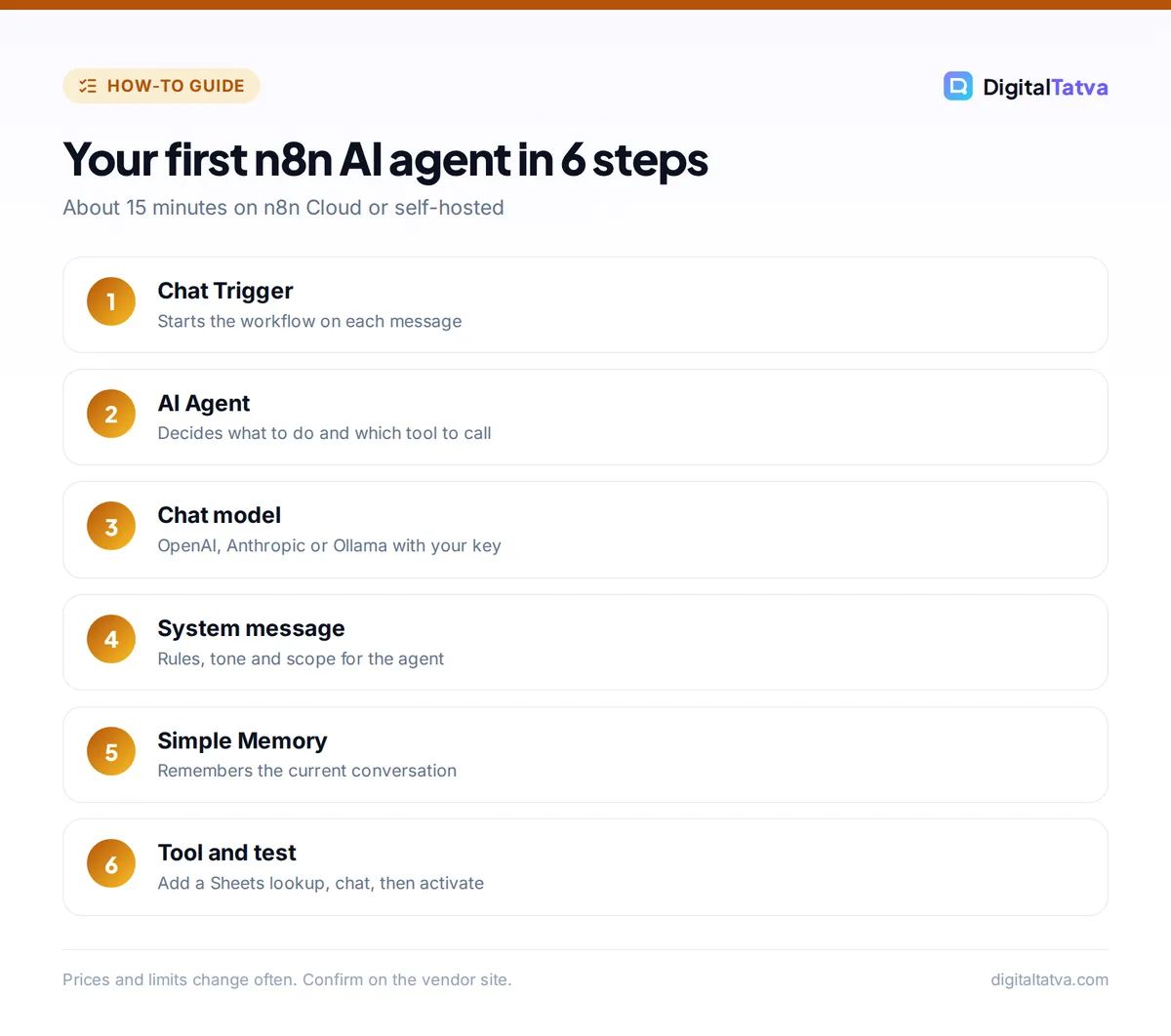
- Create a new workflow. In the n8n editor, create a workflow and give it a clear name such as “Support assistant”. The empty canvas shows a button to add your first step.
- Add a Chat Trigger node. Search the node panel for “Chat Trigger” and add it. Leave “Make Chat Publicly Available” switched off for now, so the chat only works inside the editor while you build. Later you can turn it on and choose Hosted Chat (n8n’s ready-made chat page) or Embedded Chat (a widget on your site).
- Add an AI Agent node. Click the plus on the right of the Chat Trigger and add “AI Agent”. You will see connection points underneath it for Chat Model, Memory and Tool. The agent will not run until a chat model is attached.
- Attach a chat model and credentials. Click the Chat Model connector and pick “OpenAI Chat Model” (or Anthropic Chat Model, or Ollama Chat Model for a local model). Create a new credential, paste your API key and save. Then choose a model. A budget model is fine for learning; you can switch later.
- Write the system message. Open the AI Agent node’s options and add a system message, the standing instructions for the agent. For example: “You are the assistant for Sharma Interiors. Answer only questions about our services, prices and bookings. If you do not know, say so and offer to connect the customer with our team. Keep replies under 80 words.” Our prompt engineering guide has more techniques.
- Add Simple Memory. Click the Memory connector and add “Simple Memory”. It stores a customizable length of chat history for the current session, so the agent remembers what the user said three messages ago. Keep the history short at first; longer memory means more tokens per message.
- Give the agent a tool. Click the Tool connector and add a tool. Easy options are the Google Sheets node (read a price list), the Wikipedia tool, or “Call n8n Workflow Tool” to run another workflow you built. Write a clear tool description, such as “Look up current service prices by service name”, because the agent reads it to decide when to use the tool.
- Test in the chat panel. Open the chat from the Chat Trigger and ask questions: “What does a kitchen redesign cost?”, then “And how long does it take?” to check memory. Click on each node to see its input and output, which shows exactly what the model received and returned.
- Activate and share. When it works, switch on “Make Chat Publicly Available”, choose Hosted Chat, set authentication if needed (Basic Auth or n8n User Auth), and activate the workflow. Share the chat URL with your team or embed it on your site.
Tip: If you would rather not wire nodes by hand, newer n8n versions include an Agent Builder (in preview) where you set the model, instructions and tools in one screen and test with a Preview chat, plus an AI Workflow Builder that drafts workflows from a plain English description. Building manually once still helps you understand and debug what they create.
Project 2: an AI lead triage workflow
Agents are great for chat, but many business automations are better as a predictable chain. This workflow reads each new enquiry, asks AI to classify it, and routes it.
- Add a trigger. Use a form trigger, a Webhook from your website form, or a Gmail trigger for new emails. Submit one test entry so n8n has sample data to map.
- Add a Basic LLM Chain. Connect it to the trigger and attach a chat model sub-node. In the prompt, reference the form fields with n8n expressions (drag the field from the input panel into the prompt box). Ask: “Classify this enquiry as hot, warm or cold, give a one-line summary and the service requested.”
- Attach a Structured Output Parser. Define the fields you want back, such as score, summary and service. This forces the AI to return clean JSON instead of free text, so later nodes can use each field reliably.
- Add an IF or Switch node. Route “hot” leads to one branch and the rest to another.
- Add actions. On the hot branch, post to Slack or send a WhatsApp alert to your sales team; on the other branch, add the lead to a Google Sheet or CRM and send a polite auto-reply.
- Test with five real enquiries. Check every classification. Adjust the prompt with examples of what “hot” means for your business, then activate the workflow.
The same pattern powers customer support routing, review tagging and invoice data extraction. For ready-made support platforms instead, see our guide to AI customer support tools, and for a WhatsApp front end, read WhatsApp AI for business.
What your n8n AI workflow will cost
You pay for two things: n8n itself and the AI model.
- n8n: Community Edition is free to self-host (you pay for the server). n8n Cloud Starter is EUR 20 a month billed annually for 2,500 executions, and Pro is EUR 50 for 10,000. Each chat message to a Chat Trigger counts as one execution.
- AI model: billed per token by your provider.
Worked example: 2,000 chat messages a month
Say your assistant handles 2,000 messages a month, each using about 1,500 input tokens (system message, memory and question) and 300 output tokens. That is 3M input and 0.6M output tokens.
- GPT-6 Luna ($0.10 input, $0.50 output per 1M): $0.30 + $0.30 = $0.60 a month.
- Claude Haiku 4.5 ($1 input, $5 output): $3 + $3 = $6 a month.
- Claude Sonnet 5.5 ($2 input, $10 output): $6 + $6 = $12 a month.
Add n8n: 2,000 executions fit within Cloud Starter at EUR 20 a month (annual), or cost nothing extra if self-hosted. Compare model rates in our guides to OpenAI API pricing, Claude API pricing and Gemini API pricing.
Save money: Memory and long system messages are resent with every message, so they dominate input tokens. Keep the system message tight, limit memory length, and use a budget model for routine questions. Our guide on picking the cheapest AI model for each task shows which jobs need a premium model.
Common mistakes when building n8n AI workflows
- No chat model attached. The AI Agent and chain nodes need a chat model sub-node; without it the workflow errors immediately.
- Vague tool descriptions. The agent picks tools from their descriptions. “Sheet” tells it nothing; “Look up service prices by service name” works.
- Forgetting to activate. Workflows that test fine in the editor do nothing in production until activated, and a public chat also needs “Make Chat Publicly Available” switched on.
- Exposing a public chat with no limits. Each message is an execution and costs tokens. Add authentication or keep the bot focused so it cannot be abused as a free general chatbot.
- Trusting free-text output. When later steps depend on the AI’s answer, use a Structured Output Parser instead of parsing sentences.
- Sending sensitive data to a cloud model. Check your obligations first; our AI data privacy guide covers what not to send.
Watch out: If you self-host, your n8n instance stores API keys for every connected app. Use HTTPS, a strong owner password, and keep the software updated. Do not expose port 5678 directly to the internet without protection.
Advanced tips for n8n AI workflows
- Go fully private with local models. Swap the OpenAI Chat Model for the Ollama Chat Model and run an open model like Gemma 4 or gpt-oss on your own machine. See how to run an LLM locally with Ollama and our list of open source AI models you can use for free.
- Add knowledge with a vector store. Load your FAQs or PDFs into a vector store such as Simple Vector Store, Pinecone or Qdrant, and give the agent a retriever, so it answers from your documents instead of guessing.
- Connect MCP servers. n8n lets you connect an AI agent to an MCP registry server in one click, giving it access to external tools without custom code.
- Use evaluations. Build a small test set of questions and expected answers, and use n8n’s evaluations feature to check quality whenever you change the prompt or model.
- Persist memory properly. Simple Memory is fine to start; for production chatbots with many users, move to Postgres Chat Memory or Redis Chat Memory.
To see how n8n agents compare with other agent platforms, read our roundup of the best AI agents you can use in 2026.
Frequently asked questions
Is n8n free for AI workflows?
The self-hosted n8n Community Edition is free, including its AI nodes, though you pay for your server and the AI model’s tokens. n8n Cloud starts at EUR 20 a month billed annually for 2,500 executions. Model costs can be tiny: 2,000 chat messages on GPT-6 Luna cost about $0.60 a month in our example.
Which AI models work with n8n?
n8n has chat model sub-nodes for OpenAI, Anthropic and Ollama, and nodes for Google Gemini, among others. Ollama lets you run local open models such as Gemma 4 or gpt-oss, so no data leaves your machine. You can switch models by replacing the chat model sub-node without rebuilding the workflow.
What is the difference between the AI Agent node and Basic LLM Chain?
Basic LLM Chain runs a fixed prompt and returns the answer, ideal for predictable tasks such as classifying or summarizing. The AI Agent node uses the model to decide which actions to take, including calling tools, and supports memory. Use a chain when the steps never change and an agent when the AI must choose.
Do I need to know how to code to use n8n AI?
No. You can build both projects in this guide by adding nodes, pasting an API key and writing prompts. Basic comfort with JSON and n8n expressions helps when mapping data between nodes. The optional code nodes and Custom Code Tool are there when you need them.
How many executions does an n8n AI chatbot use?
Each message a user sends to a Chat Trigger runs the workflow once, so it counts as one execution regardless of how many nodes or tool calls happen inside. A chatbot handling 2,000 messages a month needs about 2,000 executions, which fits within n8n Cloud Starter’s 2,500.
Next steps
Build Project 1 today with a budget model, share the chat with a colleague, and note where it gets answers wrong. Then turn one repetitive task, like enquiry routing, into Project 2. Once you are comfortable, explore local models, vector stores and MCP tools. If you prefer a no-code route for simple jobs, our guide on automating tasks with Zapier and AI is a good companion. Node names and plans evolve quickly, so check the n8n AI documentation and the n8n pricing page for current details before you go live.
Pricing and features are checked at the time of writing and can change. Some links may be affiliate links, which never affect our verdicts.