How to Use Leonardo AI: A Beginner’s Guide to Images and Video (2026)
Leonardo AI is a creative platform for generating and editing images and short videos, with its own models like Phoenix and Lucid Origin plus access to third-party models. This beginner's guide covers plans and tokens, choosing a model, writing prompts, Canvas editing, image-to-image, video and practical tips.
On this page
- Key takeaways
- What is Leonardo AI?
- Leonardo AI plans and tokens
- Choosing a model
- How to create your first image
- Writing prompts that work in Leonardo
- Image-to-image and references
- Editing with Canvas
- Making videos with Leonardo
- Understanding the main settings
- Saving tokens: practical tips
- Leonardo AI for marketing teams
- Leonardo vs other image tools
- Common mistakes
- A beginner’s 30-minute practice session
- Example: a festive campaign in an afternoon
- Building a consistent brand look
- Licensing, privacy and responsible use
- Image SEO for Leonardo images
- Real-time generation and other handy features
- Leonardo on mobile
- Who should use Leonardo AI?
- Our take
- Leonardo AI checklist for better results
- Bottom line
- Frequently asked questions
Last updated: 13 November 2026
Quick answer: Leonardo AI is an image and video generation platform, owned by Canva, that combines its own models (such as Phoenix and Lucid Origin) with access to third-party models in one workspace. To use it, sign up at leonardo.ai, open Image Creation, pick a model and style, choose an aspect ratio, write a detailed prompt, and generate. You can then refine results with image-to-image, edit areas in Canvas (inpainting and outpainting), upscale, or animate images into short videos with Motion and other video models. The free plan gives 150 fast tokens per day; paid plans start at around $12 a month and add private creations, more tokens and relaxed unlimited generation on higher tiers.
Key takeaways
- Leonardo gives you many models and fine controls in one place, which suits creators who like to experiment.
- Free users get 150 tokens a day; heavier settings and video use more tokens.
- Phoenix is a strong default for prompt accuracy; Lucid Origin targets Full HD output with legible text.
- Canvas lets you fix parts of an image or extend it beyond its edges.
- Image-to-image and references help keep products, characters and styles consistent.
- Free creations are public, so use a paid plan for private client work.
What is Leonardo AI?
Leonardo AI started as a tool for generating game assets and concept art, then grew into a general creative platform used by marketers, designers, illustrators and content creators. Canva acquired Leonardo in 2024, and Leonardo’s technology now powers some of Canva’s AI image features, while Leonardo itself continues as a standalone platform for people who want more control.
What sets Leonardo apart is choice. Instead of one model with a single look, you can choose from Leonardo’s own foundation models, specialised models for styles like anime, community fine-tunes, and third-party image and video models, all billed through one token system.
Leonardo AI plans and tokens
| Plan | Approximate monthly price | Fast tokens | Highlights |
|---|---|---|---|
| Free | $0 | 150 per day | Public creations, basic features |
| Essential | Around $12 | 8,500 per month | Private creations, token rollover |
| Premium | Around $30 | 25,000 per month | Unlimited relaxed image generation on selected models |
| Ultimate | Around $60 | 60,000 per month | Relaxed video on selected models, more simultaneous jobs |
Annual billing is cheaper. Token cost per image depends on the model, resolution, number of images and features used; video and premium third-party models use far more tokens than a basic image. Prices and allowances change, so confirm on Leonardo’s pricing page.
Choosing a model
| Model | Best for |
|---|---|
| Phoenix | Accurate prompt following, product shots, marketing visuals, simple text on signs and labels |
| Lucid Origin | High-resolution Full HD images with strong detail and legible text |
| Leonardo Diffusion XL | General-purpose images and styles |
| Anime XL | Anime and manga-style illustrations |
| Community models | Specific looks trained by other users, such as particular art styles |
| Third-party models | Access to other leading image and video models without separate subscriptions |
If you are unsure, start with Phoenix or Lucid Origin. Try the same prompt on two or three models to see which look suits your brand.
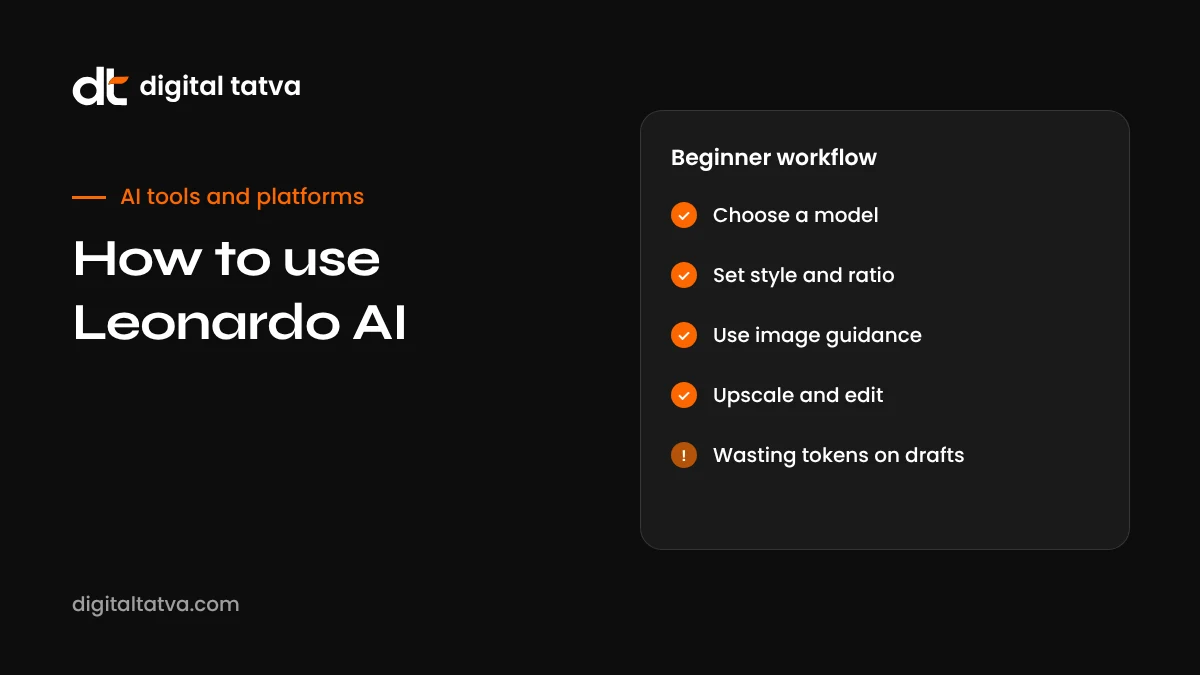
How to create your first image
- Sign up at leonardo.ai with Google, Apple, Microsoft or email.
- Open Image Creation from the left menu.
- Choose a model and preset style, such as photography, illustration, 3D render or cinematic.
- Set the aspect ratio and number of images. Fewer images per generation saves tokens.
- Write your prompt. Describe subject, setting, lighting, mood, style and composition.
- Add a negative prompt if supported, listing things to avoid, such as “blurry, extra fingers, text, watermark”.
- Generate, then compare results.
- Refine with image-to-image, Canvas or upscaling, and download.
Writing prompts that work in Leonardo
Leonardo’s models respond best to descriptive, organised prompts. A useful structure is:
Subject + details + setting + lighting + camera or art style + mood + colour palette.
| Use case | Example prompt |
|---|---|
| Product photo | A stainless steel water bottle with an orange cap on a mossy rock beside a mountain stream, morning mist, soft natural light, shallow depth of field, commercial product photography |
| Blog header | Flat vector illustration of a small business owner talking to an AI assistant on a laptop, speech bubbles with simple icons, orange and charcoal palette, clean white background, wide format |
| Food visual | Overhead shot of a thali with dal, rice, roti, sabzi and pickle on a brass plate, warm rustic wooden table, natural window light, appetising and vibrant |
| Character concept | Friendly robot mascot with rounded shapes, orange and white body, big expressive eyes, waving, 3D Pixar-like render, plain background |
| Real estate mood | Modern balcony with plants overlooking a city skyline at sunset, cosy chairs, warm fairy lights, architectural photography |
Avoid stacking many unrelated styles (“photorealistic anime oil painting”), which confuses models. Pick one clear direction.
Image-to-image and references
Image-to-image lets you upload an image and use it as a starting point. You control how strongly the result follows the original with a strength setting: low strength keeps the composition close to your upload, high strength gives the model more freedom.
Practical uses:
- Restyle a product photo, placing your real product into new backgrounds and moods.
- Turn a sketch into a finished illustration.
- Keep a character consistent across a series by using the same reference image.
- Match a brand look by using an existing campaign image as a style reference.
When placing a real product into new scenes, check that labels, shapes and colours stay accurate, because models sometimes alter small details.
Editing with Canvas
Leonardo’s Canvas is an editor for fixing and extending images:
- Inpainting: select an area, such as a hand, a sign or a background object, and regenerate only that part with a new prompt.
- Outpainting: extend the image beyond its borders, useful for turning a square image into a wide banner.
- Sketch to image: draw rough shapes and let the model turn them into a detailed scene.
Canvas is often where good images become usable ones: fixing an odd hand, removing an unwanted object, or adding space for a headline.
Making videos with Leonardo
Leonardo can animate still images with its Motion models and offers selected third-party video models within the same token system. A typical workflow is to create the perfect still image first, then animate it with a short motion prompt, such as “slow zoom in, steam rising from the cup, gentle camera drift”. Video uses many more tokens than images, so test on short clips and lower settings first. For more advanced AI video, compare with dedicated tools in our guide to the best Sora alternatives and how to use Google Flow.
Understanding the main settings
| Setting | What it does | Tip |
|---|---|---|
| Model | Chooses the underlying generator and its look | Test two models on the same prompt |
| Preset style | Applies a style such as photography, illustration or 3D | Use “none” or “dynamic” when you want full prompt control |
| Aspect ratio | Sets the image shape | Pick it before generating to avoid awkward crops |
| Number of images | How many variations per generation | Use 1 or 2 while exploring to save tokens |
| Contrast or guidance | Controls how strongly the image follows your prompt and how punchy it looks | Medium settings are a safe start |
| Negative prompt | Lists things to avoid | Keep a reusable list for common artefacts |
| Private mode | Keeps creations out of the public feed | Available on paid plans; use for client work |
Saving tokens: practical tips
- Generate fewer images per batch while exploring, then increase once you have a direction.
- Use lower resolution for drafts and upscale only final picks.
- Turn off extras like alchemy or ultra modes when testing ideas, if your model offers them.
- Reuse good seeds or references to get closer results faster.
- Use relaxed mode on paid plans when you are not in a hurry.
- Check the token estimate shown before you generate, especially for video and third-party models.
Leonardo AI for marketing teams
Leonardo works well for teams that need a steady flow of visuals:
| Need | How Leonardo helps |
|---|---|
| Social media visuals | Quick on-brand images in multiple aspect ratios |
| Blog and website headers | Custom illustrations instead of overused stock photos |
| Ad creative testing | Many visual variations to test different angles |
| Product mockups | Concept scenes and lifestyle backgrounds for products |
| Mascots and characters | Consistent characters using references |
| Presentation visuals | Custom images for decks and reports |
Teams on Canva can also use Leonardo-powered features inside Canva, which is convenient for non-designers. Leonardo itself is better when you want detailed control over models and settings.
Leonardo vs other image tools
| Tool | Choose it when |
|---|---|
| Leonardo AI | You want many models, fine controls, Canvas editing and video in one place |
| Ideogram | Your images need accurate text; see how to use Ideogram |
| Midjourney | You want striking artistic aesthetics |
| ChatGPT or Gemini image generation | You want quick images inside your AI assistant with conversational edits |
| Canva AI | You need finished designs from templates with minimal effort |
| Adobe Firefly | You work in Photoshop and Illustrator and want integrated tools |
Common mistakes
- Using public free creations for client work. Free images are public; use a paid plan for confidential projects.
- Too many style words. Pick one style and describe it well.
- Ignoring negative prompts. They reduce common artefacts like extra limbs or unwanted text.
- Not checking hands, faces and text. Zoom in before publishing.
- Burning tokens on video too early. Perfect the still image first.
- Generating real people or brands. Avoid likenesses and trademarks without permission.
A beginner’s 30-minute practice session
If you are new to Leonardo, this short exercise teaches the main features quickly:
- Minutes 1 to 5: Generate the same simple prompt, such as “a cup of masala chai on a wooden table by a rainy window”, with Phoenix and Lucid Origin. Compare the results.
- Minutes 5 to 10: Change one element at a time: lighting (“golden hour”), angle (“overhead shot”), then style (“watercolour illustration”). Notice what each word does.
- Minutes 10 to 15: Add a negative prompt and see whether unwanted details disappear.
- Minutes 15 to 20: Upload a photo from your phone and try image-to-image at low and high strength.
- Minutes 20 to 25: Open your best image in Canvas, remove one object with inpainting and extend the image sideways with outpainting.
- Minutes 25 to 30: Animate the final image with a simple motion prompt and download both versions.
Keep notes on what worked. Within a week of short sessions like this, most people develop a reliable personal prompting style.
Example: a festive campaign in an afternoon
As an illustrative example, imagine a small sweet shop preparing Diwali social posts. The owner writes a style line (“warm golden light, rich reds and golds, brass and marigold details, close-up food photography”), then generates hero images of kaju katli, laddoos and gift boxes with Phoenix. One image has an odd reflection, fixed in Canvas. The best image is extended with outpainting to create a wide website banner, and animated into a short clip with steam and twinkling lights for Instagram. Finally, offer text and prices are added in Canva, where Hindi and English text can be placed accurately. The result is a coherent set of visuals for feed, Stories, website and WhatsApp, created without a photoshoot, though real photos of the actual sweets are still used on product pages so customers know exactly what they will receive.
Building a consistent brand look
AI images can easily look random across a feed or website. To keep a consistent brand style in Leonardo:
- Write a brand style line you add to every prompt, such as “warm natural light, earthy tones with orange accents, minimal composition”.
- Stick to one or two models for most work.
- Use style references from approved images.
- Save successful prompts in a shared document with example outputs.
- Review images together before publishing to catch off-brand results.
Licensing, privacy and responsible use
Leonardo’s terms generally allow commercial use of generated images, but there are details to watch. Free creations are public in the community feed, third-party models may have their own terms, and you remain responsible for not infringing others’ rights. Avoid generating real people without consent, other brands’ logos or copyrighted characters. Label realistic AI images where platforms require it, and keep original photos for anything that must show your real product accurately. For image detection and watermarking, see our SynthID detector guide.
Image SEO for Leonardo images
If you use Leonardo images on your website, optimise them like any other image: descriptive file names, meaningful alt text, compression to WebP, and placement near related text. Original images can also help your pages stand out from competitors using the same stock photos. Our visual search optimization guide explains more.
Real-time generation and other handy features
Leonardo includes several tools that make experimentation faster:
- Real-time generation: results update as you type or adjust the prompt, which is a fast way to explore ideas before committing tokens to full-quality images.
- Upscaler: increase resolution and sharpness for print, large banners or detailed product shots.
- Background removal: isolate subjects for use in other designs; compare with the best background removers.
- Collections: organise images by project or client.
- Prompt history: revisit what you generated and reuse settings that worked.
- API: developers can generate images programmatically for apps and automated workflows, with separate API pricing.
Leonardo on mobile
Leonardo offers mobile apps for iOS and Android, which are useful for generating quick ideas, reviewing results and sharing images on the go. For detailed Canvas editing and managing many settings, the desktop web version is more comfortable. Your creations sync across devices.
Who should use Leonardo AI?
Leonardo is a great fit for creators, small marketing teams, game and app designers, illustrators and agencies who want control and variety. It is less ideal if you want the simplest possible experience; in that case, Canva’s AI tools or the image features inside ChatGPT and Gemini may be quicker. For text-heavy graphics, Ideogram is still the specialist.
Our take
Leonardo AI rewards curiosity. Its range of models, Canvas editing and video features make it one of the most flexible creative platforms available, and the daily free tokens are generous enough to learn properly before paying. Start with Phoenix or Lucid Origin, build a brand style line, use Canvas to fix details, and keep a human eye on accuracy and rights. Used that way, it can replace a lot of generic stock imagery with visuals that actually fit your brand.
Leonardo AI checklist for better results
Before you generate, run through this short checklist. It prevents most of the wasted tokens and disappointing results beginners experience.
- Purpose: Do you know where this image will be used and at what size and aspect ratio?
- Model: Have you chosen a model that fits the style, such as Phoenix for accurate marketing visuals or a specialist model for anime or illustration?
- Prompt structure: Does your prompt cover subject, setting, lighting, style, mood and colours in clear language?
- Negative prompt: Have you listed common artefacts to avoid, such as extra fingers, blurry details, unwanted text or watermarks?
- References: If consistency matters, have you added a reference image or style guide image?
- Batch size: Are you generating only one or two images while exploring?
- Privacy: If this is client work, are you on a plan that keeps creations private?
- Rights: Does the image avoid real people, logos and characters you do not have permission to use?
- Finishing: Will you need Canvas edits, upscaling or text added in a design tool afterwards?
After a few projects, this checklist becomes second nature, and you will spend far more of your tokens on images you actually use. Keep a small library of your best prompts and outputs so teammates can learn from what worked and match your brand style quickly.
Bottom line
Leonardo AI is one of the most flexible creative platforms available, and its daily free tokens make it easy to learn properly before paying. Start with one model, write structured prompts, use negative prompts and references, fix details in Canvas, and keep client work private on a paid plan. With a consistent brand style line and a library of proven prompts, it can replace much of the generic stock imagery on your website and social channels with visuals that genuinely fit your brand.
Frequently asked questions
Is Leonardo AI free?
Yes, there is a free plan with 150 fast tokens per day that reset daily. Free creations are public.
Who owns Leonardo AI?
Canva acquired Leonardo AI in 2024. It continues to operate as a standalone platform.
Which Leonardo model is best?
Phoenix is a strong default for prompt accuracy, and Lucid Origin is designed for high-resolution output with good text. The best choice depends on your style.
Can Leonardo AI make videos?
Yes. You can animate images with Leonardo’s Motion models and use selected third-party video models, which use more tokens than images.
Can I use Leonardo images commercially?
Leonardo’s terms generally allow commercial use, with paid plans offering private creations. Check the current terms, especially for third-party models.
How many images can I make with free tokens?
It depends on the model, resolution and features. Simple images use few tokens; high resolution, premium models and video use many more.
Is Leonardo better than Midjourney?
Leonardo offers more model choice and editing tools in one place; Midjourney is known for its distinctive artistic quality. Many creators use both.
What are tokens in Leonardo AI?
Tokens are Leonardo’s usage currency. Each generation costs tokens based on the model, resolution, number of images and features used. Free users get a daily allowance; paid plans include monthly tokens.
Can I keep my Leonardo images private?
Yes, on paid plans. Free plan creations are public in the community feed.
Can Leonardo add text to images?
Phoenix and Lucid Origin handle short text reasonably well. For text-heavy designs, Ideogram or adding text in a design tool is more reliable.
Does Leonardo work in India?
Yes. Leonardo is available in India, with prices charged in US dollars on most plans.
Does Leonardo AI have a mobile app?
Yes, on iOS and Android, useful for quick generations and reviewing results on the go.
Product details, prices and features are checked at the time of writing and can change. Sources are linked in the text so you can check them yourself.
How does your brand appear in AI answers?
We test the questions your buyers ask across the major AI assistants and search engines, then show you what to fix first.
Get an AI Visibility Audit