ChatGPT Not Working? 15 Fixes for Common Errors
ChatGPT not working? Check if it is down, then fix Something went wrong, network errors, endless spinners, login loops and missing features with 15 proven steps.

On this page
- Key takeaways
- ChatGPT not working? Quick fixes by error message
- Step 1: Check whether ChatGPT is down for everyone
- Step 2: Quick fixes in your browser
- Step 3: Fix network and connection problems
- Step 4: Fix slow, stuck or failing responses
- Step 5: Fix app and feature-specific problems
- Common ChatGPT problems on mobile and in India
- What to use while ChatGPT is down
- Frequently asked questions
- Final checklist before you give up
If ChatGPT is not working, first check status.openai.com to see whether OpenAI has a known outage, then refresh the page or start a new chat. If the service is up, most errors are fixed by turning off your VPN, disabling browser extensions, clearing cache and cookies, or trying a private window, a different browser or another network.
Below are 15 fixes that cover almost every ChatGPT problem we see readers report, from “Something went wrong” and network errors to endless spinners, login loops, file download failures and features that seem to have vanished. Each fix is based on OpenAI’s own troubleshooting guidance, checked in October 2026.
Key takeaways
- Always check status.openai.com first. If OpenAI reports an incident, no fix on your side will help, so wait it out or switch tools.
- VPNs, proxies, secure DNS and script-blocking extensions cause a large share of ChatGPT errors.
- Very long conversations slow ChatGPT down and can stall responses. Start a fresh chat and paste in a short summary.
- Some “broken” features were actually retired: ChatGPT agent, the Atlas browser and Sora are gone, and ChatGPT Work replaces agent mode.
- If nothing works, record a HAR file and contact OpenAI support with the time, model and conversation ID.
ChatGPT not working? Quick fixes by error message
Find your error in this table for the fastest fix. The detailed steps follow below.
| What you see | Most likely cause | Fastest fix |
|---|---|---|
| “Something went wrong” | Outage, stale session or extension conflict | Check status page, refresh, start a new chat |
| “A network error occurred” or websocket error | VPN, proxy or security filter | Turn off VPN and filters, switch network |
| “Unusual activity detected” | VPN, shared account or automation | Disable VPN, change password, use one device |
| “There was a problem preparing your chat” | Script-blocking extension | Disable extensions or use a private window |
| “There was an error generating a response” | One-off server hiccup | Click Regenerate |
| Stuck on Thinking or endless spinner | Long chat or busy servers | Wait 30 to 60 seconds, stop, regenerate |
| Blank or frozen screen | Cached files or broken session | Hard refresh, sign out and back in |
| “Download failed” or “File not found” | Expired file link | Regenerate and download right away |
| Usage limit message | Plan cap reached | Wait for reset or upgrade your plan |
Step 1: Check whether ChatGPT is down for everyone
1. Check the official OpenAI status page
Open status.openai.com. It lists ChatGPT, the API, Codex and other services separately, and shows ongoing incidents and partial outages. If ChatGPT shows a problem, the issue is on OpenAI’s side.
Outages do happen. On 19 July 2026, users in India, the US, Europe and Japan reported a global ChatGPT outage with “502 Bad Gateway” and “503 Service Unavailable” errors. On 7 October 2026, a partial outage blocked new ChatGPT Work threads in one desktop app version for several hours until OpenAI released fixed app updates.
Tip: If the status page is green but ChatGPT still fails, ask a friend on a different network to try. If it works for them, the problem is your browser, device or connection, and the fixes below will help.
Step 2: Quick fixes in your browser
2. Refresh the page or start a new chat
A simple refresh clears many one-off glitches. If one conversation keeps failing, open a new chat. OpenAI recommends this first for “Something went wrong” errors.
3. Click Regenerate
“There was an error generating a response” is often a single failed request. Click the Regenerate button under the last message before trying anything bigger.
4. Do a hard refresh
For a blank, frozen or endlessly loading page, press Ctrl + Shift + R on Windows or Cmd + Shift + R on Mac. This reloads the page without old cached files. In the desktop app, force reload or quit and reopen it.
5. Clear cache and cookies for ChatGPT
Corrupted site data can break logins and chat loading. In your browser settings, clear cookies and site data for chatgpt.com (and chat.openai.com if you used the old address). You will need to log in again afterwards.
6. Try a private or incognito window
A private window loads ChatGPT without your extensions and saved data. If ChatGPT works there, the cause is an extension or cached data in your normal profile.
7. Disable browser extensions
Ad blockers, script blockers, privacy tools and extensions that change page content can trigger “There was a problem preparing your chat.” Turn them all off, confirm ChatGPT works, then switch them back on one at a time to find the culprit. If you rely on AI add-ons, our list of the best AI Chrome extensions notes which ones play nicely with ChatGPT.
Step 3: Fix network and connection problems
8. Turn off your VPN, proxy and secure DNS
This is the single most common fix. OpenAI lists VPNs, proxies and secure DNS as causes for network errors, websocket errors, “Something went wrong” and “Unusual activity detected.” Office networks with security filters such as web protection tools can cause the same problems.
9. Switch networks or devices
Move from Wi-Fi to mobile data, or try another device. If ChatGPT works on your phone’s mobile data but not on office Wi-Fi, your network is blocking or filtering it, and your IT team may need to allow it.
10. Sign out and sign back in
Login loops, blank screens and stuck sessions often clear after you sign out on every device and sign back in. If you see “Unusual activity detected,” also make sure nobody else is using your account, change your password and secure the email account linked to ChatGPT.
Watch out: Shared or resold “Plus” accounts are a common trigger for suspicious activity warnings and lockouts. Pay for your own plan directly. Our guide to the ChatGPT Plus price in India covers the cheapest legitimate ways to pay, including UPI for Go and Plus.
Step 4: Fix slow, stuck or failing responses
11. Start a fresh chat when conversations get long
ChatGPT has to re-read the whole conversation for every reply. Very long threads slow down, stall on “Thinking” or “Generating,” and lose track of early details. OpenAI’s advice for stuck responses is to wait 30 to 60 seconds, then stop and regenerate, and to start a new chat if the conversation is long.
Before you switch, ask ChatGPT to “summarize this conversation in 10 bullet points,” then paste that summary into a new chat. Our explainer on the AI context window shows why this works, and our guide to reducing token usage in ChatGPT and Claude has more ways to keep chats lean.
12. Download files immediately
“Download failed” and “File not found” usually mean a generated file link has expired. Files expire quickly, so download them as soon as ChatGPT creates them, or ask it to regenerate the file. Uploads must stay under OpenAI’s 512 MB file limit. For custom GPTs that create files, the builder must have Code Interpreter turned on.
13. Check whether you hit a usage limit
Sometimes ChatGPT works but a feature stops. Free users get unlimited everyday text chats but only limited uploads, image creation, voice and deep research. Even Plus can hit message caps at peak times. When you hit a cap, the app shows a limit message and may tell you when it resets.
Our breakdown of ChatGPT limits by plan explains every cap and how to avoid it, and our ChatGPT pricing guide helps if you are deciding whether Go at $8 a month or Plus at $20 a month is worth it.
Step 5: Fix app and feature-specific problems
14. Update the app, and know which features were retired
Old app versions cause many problems. Update the ChatGPT app from the Play Store, App Store, or the desktop app’s update option. Then check whether the feature you want still exists, because several were retired in 2026:
- ChatGPT agent mode: OpenAI’s help center now says “ChatGPT agent is no longer available” and points users to ChatGPT Work for longer multi-step tasks. Our guide to ChatGPT agent tasks explains the switch.
- ChatGPT Atlas browser: deprecated and scheduled to stop working on 9 August 2026.
- Sora: the web and app experiences were discontinued on 26 April 2026.
- Interactive answers: GPT-6’s Intelligent UI does not work in older macOS and Windows desktop apps, so use the web or update the app. Our Intelligent UI guide covers how to turn the visuals on or off.
- Phone number prompt: the Windows and macOS apps may ask for a mobile number from a supported country before you can continue.
If image creation is the problem, our step-by-step guide on generating images in ChatGPT covers limits and common errors.
15. Contact OpenAI support with a HAR file
If nothing above works, OpenAI asks you to collect a HAR file (a recording of your browser’s network activity) plus any console errors, with timestamps. Note the model you used and the conversation ID, then contact support through the help center. The official ChatGPT error messages article links to the support chat.
Note: A HAR file can contain sensitive data such as session details. Share it only with OpenAI support, never in public forums.
Common ChatGPT problems on mobile and in India
A few issues come up again and again for readers in India and on phones:
- Payment failing: UPI works only for the Go and Plus plans in India, not Pro or Business. Cards work for all plans. App store subscriptions are billed and managed by Apple or Google.
- ChatGPT missing from WhatsApp: WhatsApp stopped allowing general-purpose third-party chatbots on 15 January 2026, so ChatGPT on WhatsApp no longer works. Use the app or chatgpt.com instead.
- Voice mode cutting out: voice needs a stable connection. Switch from weak Wi-Fi to mobile data, or the reverse, and give the app microphone permission in your phone settings.
- App crashes: update the app, restart the phone, and clear the app cache on Android before reinstalling.
What to use while ChatGPT is down
If OpenAI has a real outage, the fastest fix is a backup assistant. Claude, Gemini, Perplexity and Microsoft Copilot all have free plans that handle most everyday tasks. Our list of the best ChatGPT alternatives compares them, and free alternatives to ChatGPT Plus covers options with strong free tiers. Gemini is a particularly easy switch because it runs in any browser with a Google account, as our Gemini beginner guide explains.
Save money: Keep one free backup assistant signed in on your phone. When ChatGPT goes down before a deadline, you can paste your prompt elsewhere in seconds instead of waiting, and you avoid paying for a second subscription you rarely need.
Frequently asked questions
Why is ChatGPT not working right now?
Either OpenAI has an outage or something on your side is blocking it. Check status.openai.com first. If no incident is listed, the usual causes are a VPN or proxy, a browser extension, corrupted cookies, a very long conversation or a weak network. Refreshing, starting a new chat and trying a private window fix most cases within a minute.
How do I know if ChatGPT is down for everyone?
Visit status.openai.com, OpenAI’s official status page, which shows incidents for ChatGPT, the API and other services. You can also ask someone on a different network to test it. If the status page is green and ChatGPT works for others, the problem is your browser, device, account or connection.
What does “Unusual activity detected” mean in ChatGPT?
It means OpenAI’s systems flagged your traffic as suspicious. VPNs, proxies, shared accounts and automation tools are common triggers. Turn off your VPN, restart your browser, use a private window and make sure nobody else uses your login. Change your password and secure your email, and contact support if you do not use bots.
Why does ChatGPT keep saying “Something went wrong”?
This generic error appears during outages and when your session, extensions or network interfere. Refresh or start a new chat, check the status page, clear cache and cookies, try a private window, and turn off extensions, VPNs and secure DNS. If it keeps happening on one network only, switch to mobile data to confirm.
Why is ChatGPT so slow or stuck on thinking?
Long conversations, heavy reasoning modes and busy servers all slow ChatGPT down. Wait 30 to 60 seconds, then stop and regenerate. If the chat is very long, ask for a summary and continue in a new chat. Also check the status page, because partial outages often show up as slow responses first.
Final checklist before you give up
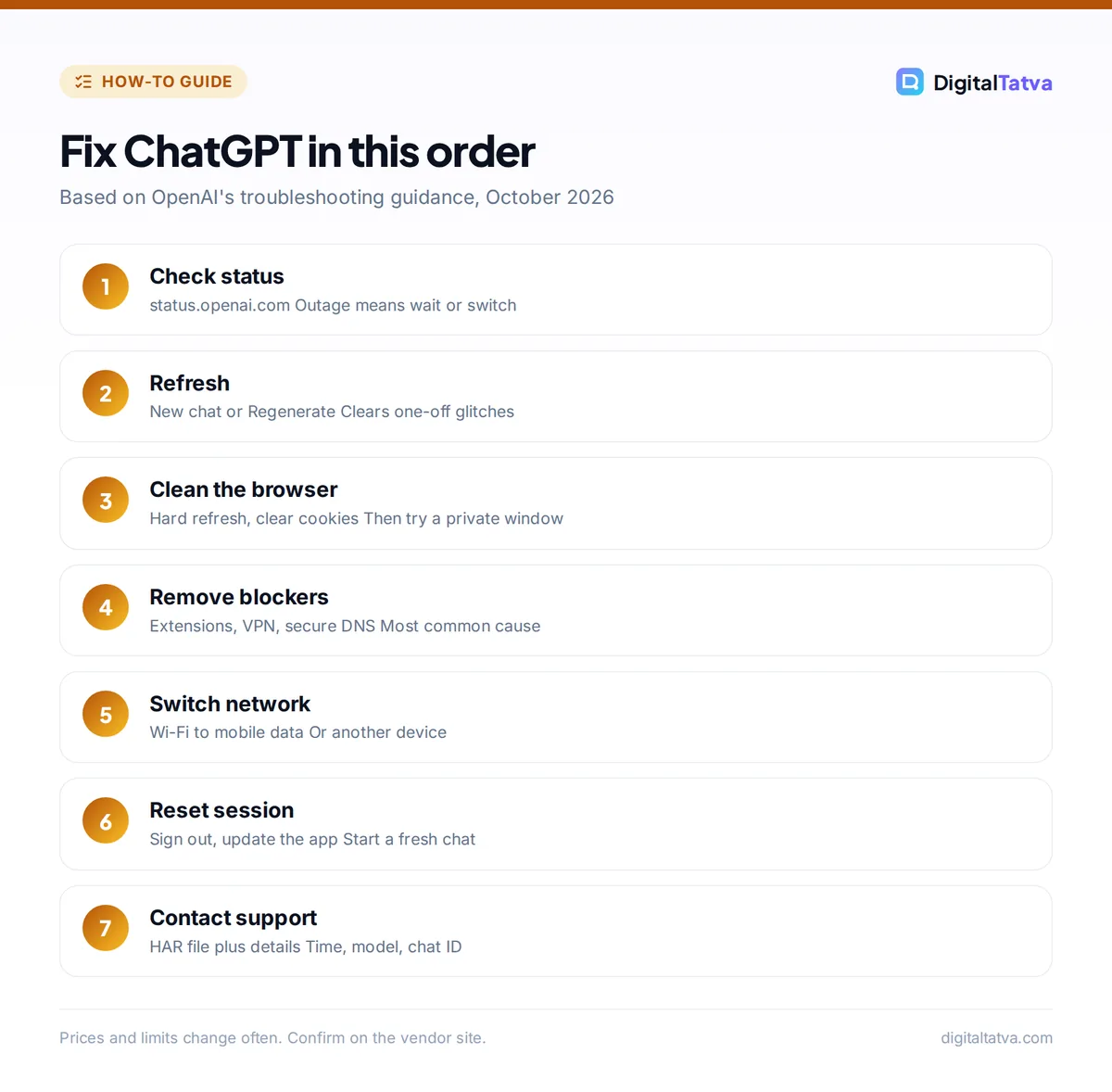
Work through the fixes in order: check the status page, refresh, regenerate, hard refresh, clear cookies, try a private window, disable extensions and VPN, switch networks, sign out and in, start a fresh chat, and update the app. That sequence solves the vast majority of ChatGPT problems. If you keep running into limits rather than errors, compare plans in our ChatGPT pricing guide, and remember that plans, limits and features change often, so confirm current details on OpenAI’s official pages.
Pricing and features are checked at the time of writing and can change. Some links may be affiliate links, which never affect our verdicts.