10 Best AI Tools for Data Analysis, From Spreadsheets to BI
The 10 best AI tools for data analysis in 2026: ChatGPT, Julius AI, Claude, Copilot in Excel, Shortcut, Power BI, Tableau Pulse, ThoughtSpot, Hex and Gemini in BigQuery, with prices.

On this page
The best AI tools for data analysis in 2026 are ChatGPT and Julius AI for quick analysis of uploaded spreadsheets, Claude for explaining results and long reports, Microsoft Copilot in Excel and Shortcut for working inside workbooks, and Power BI Copilot, Tableau Pulse and ThoughtSpot for company dashboards. For most freelancers and small teams, ChatGPT Plus or Julius AI at $20 a month covers most everyday analysis; larger teams with a data warehouse should look at BI tools with built-in AI.
This list ranks 10 AI tools for data analysis by use case, with verified prices and free plans, then explains how to choose, a sample workflow, prompts that produce reliable results and the mistakes that lead to wrong numbers.
Key takeaways
- ChatGPT runs real Python on your CSV, Excel, JSON and PDF files and shows the code, which makes its analysis checkable.
- Julius AI is the easiest dedicated tool for spreadsheet analysis, with a free plan and paid plans from $20 a month.
- Copilot in Excel needs a Microsoft 365 Copilot license and files saved on OneDrive or SharePoint.
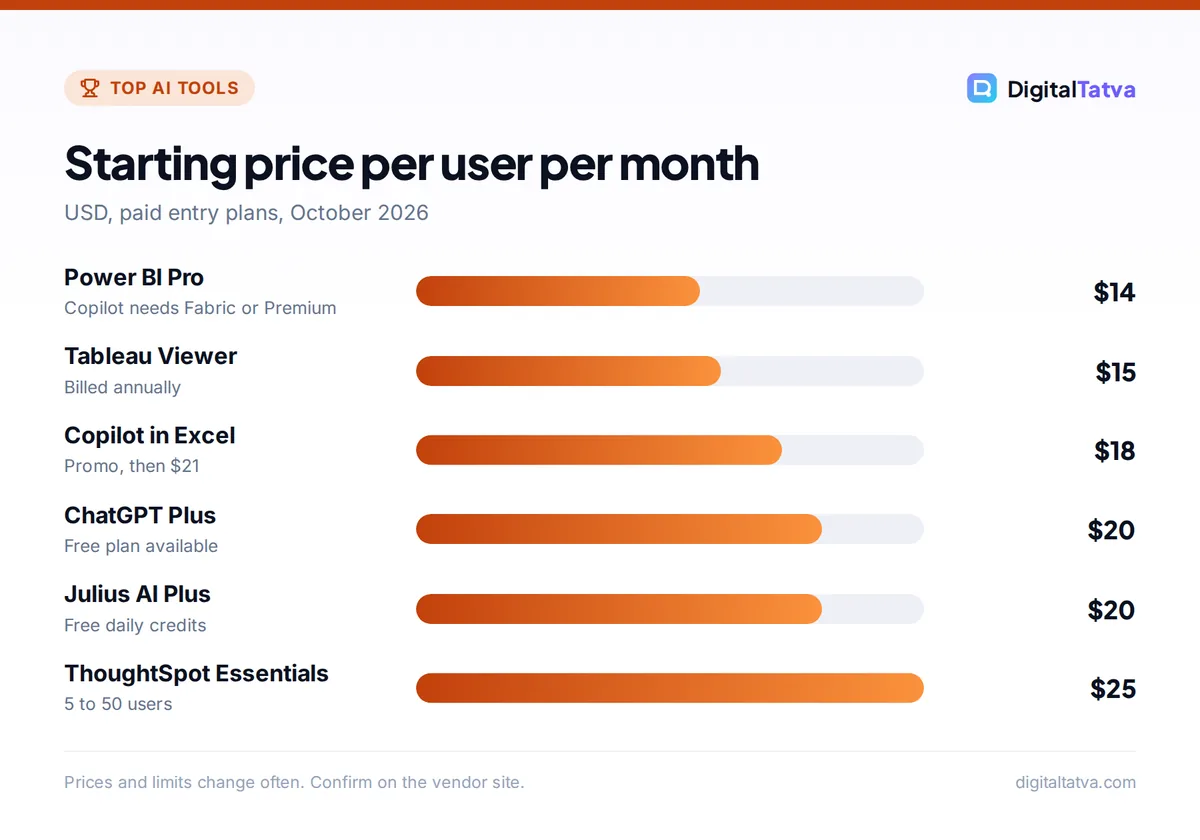
- BI tools like Power BI (Pro $14 per user per month) and Tableau add AI to governed company data, but Copilot in Power BI needs Fabric or Premium capacity.
- AI can miscalculate or misread columns. Always check totals, filters and assumptions before sharing results.
Best AI tools for data analysis: quick picks
| Tool | Best for | Starting price | Free plan |
|---|---|---|---|
| ChatGPT | Ad hoc analysis of uploaded files | Plus $20/month | Yes, limited uploads |
| Julius AI | No-code spreadsheet analysis | Plus $20/month | Yes, daily credits |
| Claude | Explaining results, long reports | Pro $20/month | Yes |
| Microsoft Copilot in Excel | Teams working in Excel | $18/user/month (promo), then $21 | Copilot Chat only |
| Shortcut | Agent that builds Excel models | Pro $100/month (annual) | Yes, 20 weekly credits |
| Power BI with Copilot | Microsoft BI dashboards | Pro $14/user/month | Free desktop, no Copilot |
| Tableau Pulse | Proactive KPI alerts | Viewer from $15/user/month | Trial |
| ThoughtSpot | Search-style self-service analytics | $25/user/month | Trial |
| Hex | SQL and Python notebooks with AI | Paid team plans | Yes |
| Gemini in BigQuery | Teams on Google Cloud | Usage-based | Google Cloud trial credits |
The 10 best AI data analysis tools
1. ChatGPT: Best all-round AI data analyst
- Starting price: Plus $20/month
- Free plan: Yes, limited
- Best for: Quick analysis of files you upload
ChatGPT writes and runs Python in a sandbox, so it can clean data, calculate statistics, build charts and export results from CSV, Excel, JSON and PDF files. It also reads connected Google Drive, OneDrive and SharePoint files. Because it shows its code and assumptions, you can check how a number was produced. Free has limited uploads; Plus adds stronger models and higher limits. Our ChatGPT Free vs Plus guide explains the difference, and how to use ChatGPT for Excel has step-by-step examples.
2. Julius AI: Best dedicated tool for spreadsheets
- Starting price: Plus $20/month ($16 billed annually)
- Free plan: Yes, daily credits
- Best for: Non-technical users and analysts
Julius AI is built only for data analysis. Upload a spreadsheet, ask questions in plain English and get charts and reports. Plans on its official pricing page run from Free with daily credits to Plus at $20 (2,000 credits a month), Pro at $45, Max at $200 and Business at $450 with scheduled analysis and up to 50 members. Live connectors to databases make it more than a chat-with-file tool.
3. Claude: Best for explaining results
- Starting price: Pro $20/month ($17 billed annually)
- Free plan: Yes
- Best for: Reports, exploratory reasoning, long context
Claude’s analysis tool and 1M token context window on its latest models make it strong at reading big files and writing clear explanations of what the data means. Claude for Excel brings it inside workbooks. It is the tool we reach for when the written insight matters as much as the chart. See our Claude pricing guide for plans.
4. Microsoft Copilot in Excel: Best for Excel-first teams
- Starting price: $18/user/month on promotion through December 31, 2026, then $21
- Free plan: Copilot Chat only
- Best for: Finance and operations teams
Copilot in Excel explains and writes formulas, builds editable charts and PivotTables, and spots trends and outliers in shared workbooks. It needs a Microsoft 365 Copilot license and files stored on OneDrive or SharePoint. Compare it with other add-ins in our list of the best AI tools for Excel and our Microsoft Copilot pricing guide.
5. Shortcut: Best AI agent for building spreadsheets
- Starting price: Pro $100/month billed annually
- Free plan: Yes, 20 weekly credits
- Best for: Financial models and complex workbooks
Shortcut calls itself “a superhuman AI Excel agent”. It works on the web, Windows desktop, as an Excel add-in and in Google Sheets, and builds or edits whole models from a description. Messages typically cost 2 to 15 credits, so the free 20 weekly credits are enough to test it.
6. Power BI with Copilot: Best for Microsoft BI
- Starting price: Pro $14/user/month; Premium Per User $24
- Free plan: Free Power BI, without Copilot
- Best for: Reporting on a maintained data model
Copilot in Power BI generates reports and DAX, summarizes pages and answers questions about your data model. The catch is licensing: Copilot needs Fabric F2 or higher, or Premium P1 or higher capacity, so it suits companies already invested in Microsoft’s data stack.
7. Tableau Pulse: Best for proactive KPI alerts
- Starting price: Viewer from $15/user/month; Creator $75 (billed annually)
- Free plan: Trial
- Best for: Leaders who want insights delivered
Tableau Pulse watches your metrics and sends plain-language insights to Slack, Teams, email or mobile when something changes. Enhanced natural-language Q&A needs the Tableau+ tier. Best for businesses that already define KPIs in Tableau.
8. ThoughtSpot: Best for search-style analytics
- Starting price: Essentials $25/user/month (5 to 50 users, annual)
- Free plan: Trial
- Best for: Business users asking their own questions
ThoughtSpot’s Spotter agent answers questions about governed company data, shows the query logic it used, and can run multi-step analysis and automated change analysis. Pro costs $50 per user per month. It works best with a well-modeled data warehouse.
9. Hex: Best for data teams
- Starting price: Paid team plans
- Free plan: Yes
- Best for: SQL, Python and shareable data apps
Hex combines SQL and Python notebooks with AI that writes and fixes queries, plus collaboration and shareable apps for stakeholders. It is aimed at analysts who code. Deepnote is a similar notebook option with a free plan.
10. Gemini in BigQuery: Best for Google Cloud data
- Starting price: Usage-based Google Cloud pricing
- Free plan: Google Cloud trial credits
- Best for: Teams whose data lives in BigQuery
Gemini in BigQuery generates SQL and Python, explains queries and supports conversational analytics on warehouse data. For lighter Google Workspace use, Gemini in Sheets helps with formulas and summaries; see our Gemini pricing guide for which plans include it.
How to choose an AI data analysis tool
| Your situation | Start with |
|---|---|
| Occasional spreadsheets, solo | ChatGPT Free or Julius Free |
| Weekly reporting, small team | ChatGPT Plus or Julius Plus |
| Everything lives in Excel | Copilot in Excel, Claude for Excel or Shortcut |
| Company dashboards on Microsoft | Power BI with Copilot |
| KPI monitoring for leaders | Tableau Pulse or ThoughtSpot |
| Data team with SQL and Python | Hex or Gemini in BigQuery |
Also weigh where your data is stored and who may see it. Our guide to AI data privacy for businesses explains which plans keep your files out of model training.
A simple AI analysis workflow
- Clean the file first. One header row, one table per sheet, consistent dates and no merged cells.
- Explain the data. Tell the AI what each column means and what period it covers.
- Ask one clear question. “Which product category grew fastest month over month in Q2?” beats “analyze this”.
- Ask to see the method. Request the code or formula and a check of row counts and totals.
- Verify a sample. Recalculate one or two numbers yourself in Excel.
- Ask for the story. “Summarize the three most important findings for a non-technical manager.”
Prompts for reliable AI data analysis
- “Before analyzing, list the columns, data types, row count and any missing or odd values you find.”
- “Calculate monthly revenue by region and show the code you used. Confirm the grand total matches the sum of the Revenue column.”
- “Find the top five drivers of customer churn in this file. Explain each in one sentence and say how confident you are.”
- “Create a line chart of weekly sign-ups with a 4-week moving average, labeled for a slide.”
- “Flag any rows that look like duplicates or data-entry errors and explain why.”
Watch out: AI tools sometimes drop rows, misread date formats or treat text numbers as zeros. Always compare row counts and totals with your source before you trust a chart.
Common mistakes to avoid
- Uploading confidential data to personal accounts. Use business plans for client or company data, and anonymize where possible.
- Asking vague questions. Specific questions get specific, checkable answers.
- Skipping the method. If you cannot see how a number was produced, do not present it.
- Buying BI before the basics. Many small teams get more value from ChatGPT or Julius than from an enterprise BI rollout.
Accountants and finance teams can find more specific workflows in our guide to AI for accountants, and our guide to measuring AI ROI helps you prove the time saved. For research reports rather than numbers, see the best AI research tools.
Frequently asked questions
What is the best AI tool for data analysis?
For most people, ChatGPT is the best all-round choice because it runs real Python on uploaded files and shows its code. Julius AI is the easiest dedicated alternative for spreadsheets. Teams with company dashboards should look at Power BI with Copilot, Tableau Pulse or ThoughtSpot.
Is there a free AI tool for data analysis?
Yes. ChatGPT Free, Julius AI’s free plan with daily credits, Claude’s free plan, Shortcut’s free 20 weekly credits and the free Power BI desktop app all let you analyze data at no cost, with limits on uploads, credits or AI features.
Can ChatGPT analyze Excel files?
Yes. Upload an Excel or CSV file and ChatGPT uses Python to clean data, calculate figures, build charts and export results. Ask it to show the code and confirm totals so you can check its work. Free plans have limited uploads; Plus raises the limits.
Will AI replace data analysts?
AI speeds up cleaning, querying and charting, but analysts still define the right questions, check data quality, understand the business context and explain what results mean. AI makes analysts faster rather than unnecessary, especially for routine reporting.
Is it safe to upload company data to AI tools?
Use business or enterprise plans that do not train on your data, remove personal details where possible, and follow your company’s AI policy. Avoid putting customer or financial data into personal free accounts.
Our verdict
Start with ChatGPT or Julius AI for everyday analysis, add Claude when you need clear written insight, and use Copilot in Excel or Shortcut if your work lives in spreadsheets. Move to Power BI, Tableau or ThoughtSpot only when you need governed dashboards for a whole company. Whatever you choose, ask to see the method and verify the numbers. Prices and plans change often, so confirm the latest pricing on each vendor’s site.
Related reading: best AI tools for small business and how to use NotebookLM.
Pricing and features are checked at the time of writing and can change. Some links may be affiliate links, which never affect our verdicts.