Gemini Tasks Mode: How to Use Gemini’s Background Agent
How to use Gemini tasks mode (Gemini Spark): who can use it, how to start, monitor and stop tasks, limits, approvals and 10 task ideas you can copy today.

On this page
- Key takeaways
- What is Gemini tasks mode?
- Who can use Gemini tasks?
- How do you start a task in Gemini?
- How to monitor, approve and stop Gemini tasks
- What can Gemini tasks do? 10 ideas to copy
- Gemini tasks limits and rules
- Gemini tasks vs ChatGPT Work and Copilot Cowork
- Frequently asked questions
- Should you use Gemini tasks?
- Sources
Last updated: 22 October 2026
Quick answer: Gemini tasks mode lets Google’s Gemini app keep working on a goal in the background, using Gmail, Docs, Calendar, Chrome and 40+ connected apps, even after you close the app. To use it, you need Google AI Pro or Ultra, a personal Google Account and age 18+. Open Menu, then Spark, describe the task and tap Submit.
Gemini tasks arrived with Gemini 4 Argon in the Gemini app on 13 October 2026. The agent behind tasks is called Gemini Spark: you give it a goal such as “plan a team offsite next month” or “every Monday, summarize unread client emails into a Doc”, and it plans the steps, works across your apps and asks for approval before anything important.
This guide explains what Gemini tasks are, who can use them, how to start, monitor and stop a task, the limits, and practical task ideas you can copy.
Key takeaways
- Tasks are available only on Google AI Pro ($19.99/month) and Ultra, not on Free or AI Plus.
- You need a personal Google Account, age 18 or older and Gemini Apps Activity turned on; work and school accounts are not supported yet.
- Tasks are not available in the European Economic Area, the UK, Switzerland or Nigeria as of October 2026.
- You can run up to 15 tasks at once, and tasks can repeat on a schedule or start after an event.
- Gemini asks before sending messages, changing your data, buying anything or submitting forms.
What is Gemini tasks mode?
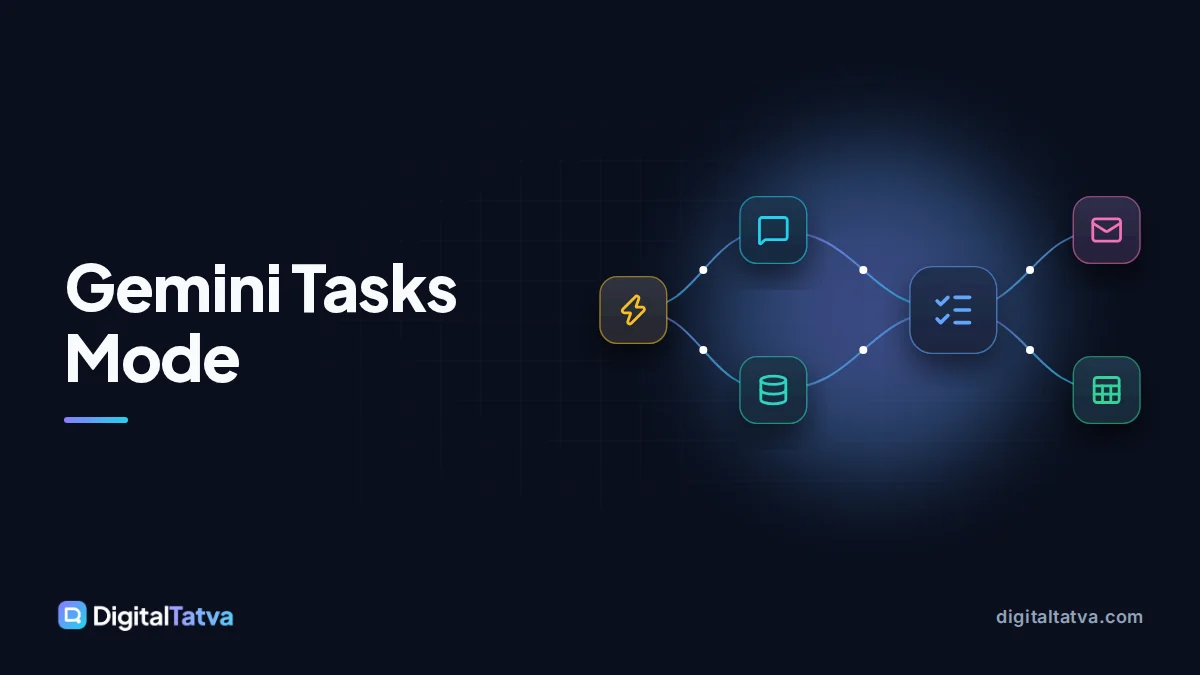
Gemini tasks mode is a background agent in Google’s Gemini app that completes multi-step goals for you instead of answering one prompt at a time. Google calls the agent Gemini Spark, and it can keep working after you close the app or put your laptop away.
Google’s help center defines three building blocks. A task is a high-level goal. A schedule decides when it runs, either at a set time or after an event. A skill is a reusable set of instructions, which replaced Gems in October 2026 (see our guide to Gemini Skills). Spark can use your connected apps, earlier chats, signed-in websites, Personal Intelligence and location.
| Key fact | Detail |
|---|---|
| Developer | |
| Launched | 13 October 2026, with Gemini 4 Argon in the Gemini app |
| Agent name | Gemini Spark |
| Plans | Google AI Pro and Google AI Ultra |
| Where it works | Gemini mobile app, Gemini Mac app, gemini.google.com |
| Not available in | EEA, UK, Switzerland, Nigeria; work and school accounts |
| Limit | Up to 15 tasks at once, plus compute-based usage limits |
If you are new to the model itself, our Gemini 4 Argon review explains what changed in reasoning and answer style.
Who can use Gemini tasks?
Gemini tasks are available to adults on Google AI Pro or Google AI Ultra who sign in with a personal Google Account outside Europe, the UK, Switzerland and Nigeria. Google’s help page lists four requirements:
- Age 18 or older.
- A personal Google Account. Google Workspace work and school accounts are not supported yet.
- Google AI Pro or Ultra. Google AI Pro costs $19.99 a month in the US and Rs 1,950 a month in India; Free and Google AI Plus do not include tasks.
- Gemini Apps Activity turned on.
If you are deciding whether to upgrade for tasks, compare plans in Gemini Free vs Google AI Pro and our full Gemini pricing guide.
How do you start a task in Gemini?
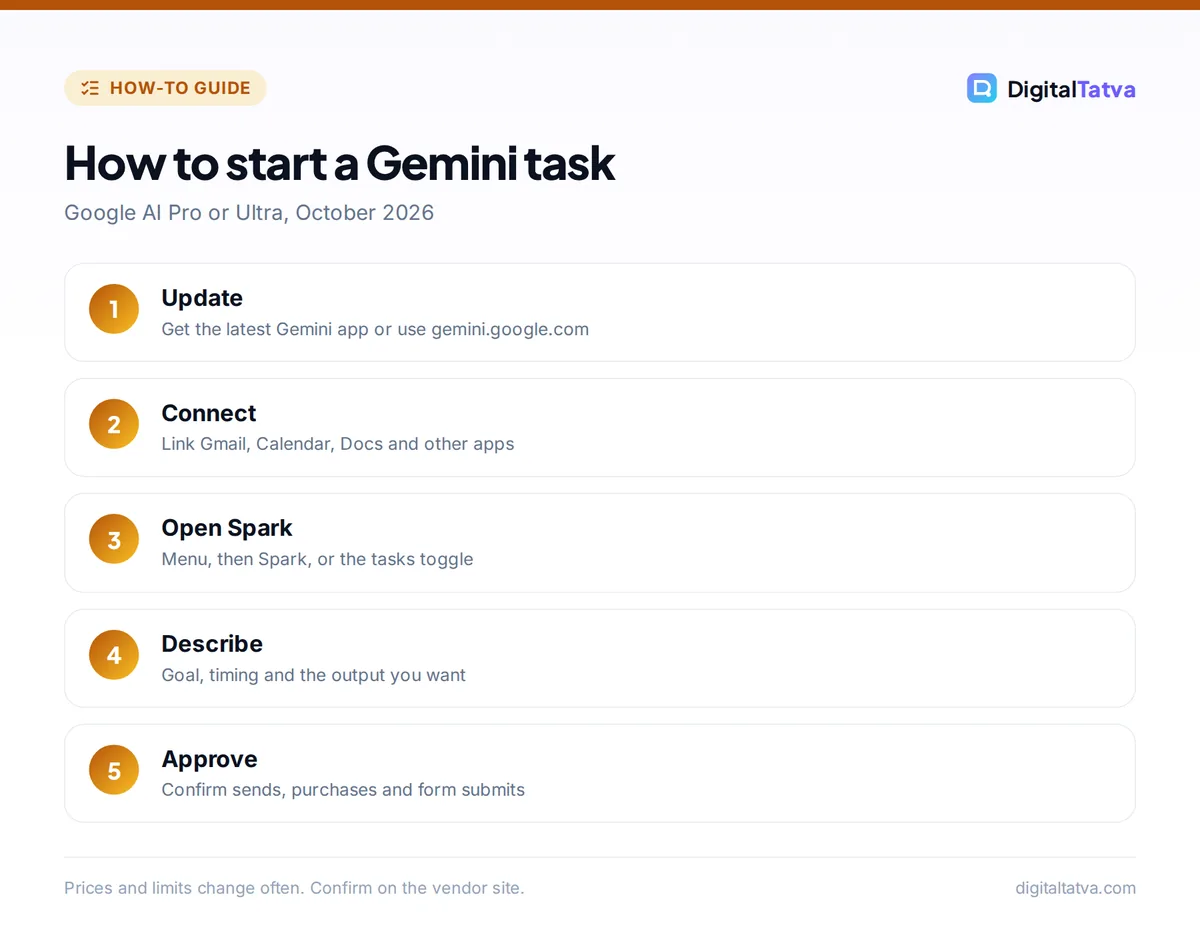
You start a Gemini task from the Spark section of the Gemini app or website by describing your goal in plain language and tapping Submit. The whole setup takes about a minute.
- Update the Gemini app. The tasks toggle appears only in the newest app versions, rolling out from 14 October 2026. On a computer, use gemini.google.com or the Gemini Mac app.
- Connect your apps. In settings, connect Google Workspace (Gmail, Calendar, Docs, Drive, Keep, Sheets, Slides, Tasks) and any third-party apps you want Gemini to use. Our guide to Gemini in Google Workspace covers the connection settings.
- Open Spark. Tap Menu, then Spark, or use the toggle in the main chat window to switch from chat to tasks.
- Describe the task. State the goal, the deadline or timing, and the output you want, for example “Find three venues for a 20-person dinner in Pune next Friday under Rs 2,000 a head and put them in a Doc.”
- Add a skill or files. Type “/” to pick a skill, or use Upload and tools to attach files from your device, Drive or Gemini Notebook.
- Submit and leave. Tap Submit. You can close the app; Gemini keeps working and posts progress in the task thread.
Tip: not sure how to phrase a task? Say “set up” or “interview me” and Gemini asks you questions to build the task for you. You can also say “start a task” during a Gemini Live voice chat.
How to monitor, approve and stop Gemini tasks
You monitor a Gemini task by opening Menu, Spark, Tasks and the task thread, where a progress chip opens a work panel. The panel has four sections: Progress, Schedules, Files, and Skills and apps.
What Gemini asks permission for
According to Google’s help center, Gemini asks for your confirmation before it sends communications, changes your data, makes purchases, submits web forms or signs in with Google on a site. For passwords or payment details, it asks you to take control of the browser, and a sign-in page pauses the task until you take over. The first time Gemini browses through your local Chrome, Chrome asks for permission.
How to stop a task
- Cancel the whole task: select Stop in the Spark text box.
- Stop only browsing: select Stop in the Gemini in Chrome side panel; Gemini may try another approach.
- Pause a schedule: use the More menu in the task’s Schedules section.
Watch out: schedules do not run while Spark or your device is off, and tasks that browse through your local Chrome need the computer awake. Review every action Gemini wants to take, and read our checklist on AI agent security before you connect work data.
What can Gemini tasks do? 10 ideas to copy
Gemini tasks work best for jobs that need several apps and several steps, especially recurring ones. Here are ten task prompts that fit what Google says Spark can access.
| Goal | Task prompt | Apps used |
|---|---|---|
| Weekly inbox digest | “Every Monday at 9 am, summarize unread client emails into a Doc with action items.” | Gmail, Docs |
| Meeting prep | “Before each meeting tomorrow, make a one-page brief from related emails and Drive files.” | Calendar, Gmail, Drive |
| Trip planning | “Plan a 3-day Goa trip in December under Rs 40,000 with flight and hotel options.” | Flights, Hotels, Maps |
| Content calendar | “Create a 4-week Instagram plan in a Sheet from our last 10 blog posts.” | Drive, Sheets |
| Expense tracking | “Collect this month’s invoice emails into a Sheet with vendor, date and amount.” | Gmail, Sheets |
| Research brief | “Research the top 5 AI CRM tools for small agencies and write a comparison Doc.” | Search, Docs |
| Price watch | “Check flight prices to Dubai daily and tell me when one is under Rs 15,000.” | Flights |
| Follow-ups | “Draft polite follow-ups for proposals I sent 7+ days ago with no reply.” (approve before sending) | Gmail |
| Learning plan | “Build a 30-day YouTube learning plan for Python basics in Keep.” | YouTube, Keep |
| Dinner booking | “Find and book a table for 4 near me on Saturday at 8 pm.” (confirm the booking) | Maps, connected booking apps |
For more ideas on what agents can and cannot do, see what agentic AI is and our list of the best AI agents.
Gemini tasks limits and rules
Gemini tasks have two main limits: up to 15 active tasks at once, and compute-based usage limits that depend on your plan and how complex your requests are. Google AI Pro gives 4 times the standard Gemini usage and Ultra gives 5 or 20 times Pro, according to Google’s limits page.
- A scheduled task will not start if 15 tasks are already active.
- Usage limits refresh every 5 hours until you reach a weekly limit.
- Complex tasks with browsing, media generation or Deep Research use more of your allowance.
- Check your current usage at gemini.google.com in Settings, then Usage limits.
Gemini tasks vs ChatGPT Work and Copilot Cowork
Gemini tasks, ChatGPT Work and Microsoft Copilot Cowork are the three big consumer and work agents of 2026, and the right one depends mostly on which ecosystem you already use. Gemini tasks shine for people who live in Gmail and Google Calendar.
| Feature | Gemini tasks | ChatGPT Work | Copilot Cowork |
|---|---|---|---|
| Company | OpenAI | Microsoft | |
| Plan needed | Google AI Pro or Ultra | ChatGPT Plus and above | Microsoft 365 Copilot, billed by Copilot Credits |
| Best ecosystem | Gmail, Docs, Calendar, Android | Any web apps, ChatGPT plugins | Outlook, Word, Excel, Teams |
| Schedules | Yes, time or event based | Yes, scheduled tasks and webhooks | Yes |
Read how to use ChatGPT Work and our Copilot Cowork guide to compare in detail.
Frequently asked questions
Is Gemini tasks mode free?
No. Gemini tasks require a Google AI Pro or Google AI Ultra subscription. Google AI Pro costs $19.99 a month in the US and Rs 1,950 a month in India. Free and Google AI Plus users can use Deep Research, skills and connected apps, but not background tasks.
Why don’t I see tasks in my Gemini app?
Usually because of your plan, region or account. Tasks need Google AI Pro or Ultra, a personal account, age 18+ and Gemini Apps Activity on, and they are not offered in the EEA, UK, Switzerland or Nigeria. Also update the app, since the toggle is rolling out gradually.
Can Gemini tasks run when my phone is off?
Partly. Cloud work continues after you close the app, but Google says schedules do not run while Spark or your device is off, and tasks using your local Chrome need the computer awake. If your device is off, Spark may use a remote browser instead.
Will Gemini send emails or buy things without asking?
No. Google says Gemini asks for confirmation before sending communications, changing your data, making purchases, submitting web forms or signing in with Google. For passwords and payment details you take control of the browser yourself.
How many Gemini tasks can I run at once?
Up to 15 tasks at the same time. A scheduled task will not start if 15 are already active, and overall usage is also capped by compute-based limits that depend on whether you have Google AI Pro or Ultra.
Should you use Gemini tasks?
Gemini tasks are worth trying if you already pay for Google AI Pro and spend your day in Gmail, Calendar and Docs: start with one recurring task, such as a weekly inbox digest, and expand once you trust the results. If you are outside supported regions or on a work account, use ChatGPT Work or Copilot Cowork for now. Plans, regions and limits change often, so check Google’s help center before you upgrade.
Sources
- Manage your tasks and workflows in Gemini Apps, Google Gemini Apps Help, checked 22 October 2026
- Gemini 4 Argon comes to the Gemini app, Google Blog, 13 October 2026, checked 22 October 2026
- Gemini Apps limits and feature availability, Google Gemini Apps Help, checked 22 October 2026
- Google AI plans, Google, checked 22 October 2026
Pricing and features are checked at the time of writing and can change. Some links may be affiliate links, which never affect our verdicts.