How to Use Google AI Studio: A Free Beginner Guide
Learn how to use Google AI Studio for free: run prompts, pick Gemini models, get an API key, build apps in Build mode, generate images and understand free tier limits.

On this page
- Key takeaways
- What is Google AI Studio?
- How to start using Google AI Studio
- How to get a Gemini API key in AI Studio
- Build mode: vibe coding apps in AI Studio
- Image generation with Nano Banana in AI Studio
- Google AI Studio free tier and pricing
- Privacy: what to know before you paste data
- Common mistakes beginners make
- Frequently asked questions
- Start building with Google AI Studio
Google AI Studio is Google’s free, browser-based workspace for trying Gemini models, building prompts, generating images and getting a Gemini API key, and you can start at aistudio.google.com with just a Google account. To use it, sign in, pick a model such as Gemini Flash, type a prompt in the chat, adjust settings like temperature and system instructions, then click “Get code” or “Get API key” when you want to use the same prompt in your own app.
This beginner guide walks through Google AI Studio step by step: the main screens, free limits, how to get an API key, Build mode for vibe coding apps, image generation with Nano Banana, pricing once you outgrow the free tier, and privacy rules you should know first.
Key takeaways
- Google AI Studio is free to use with a Google account; Flash and Flash-Lite models are free of charge on the free tier.
- Gemini 3.1 Pro is not on the free tier; you need a paid API project for it.
- Build mode creates full web and Android apps from a prompt and can deploy them to Cloud Run.
- Free tier rate limits are shown inside AI Studio, not in the docs, and can be tight.
- Do not paste confidential data on the free tier; free-tier content can be used to improve Google’s products.
What is Google AI Studio?
Google AI Studio is a playground and starter kit for the Gemini API. Developers use it to test prompts before writing code, but it is also useful for non-developers who want direct access to Gemini models, long context windows, image generation and app building without a Google AI subscription.
It is different from the Gemini app. The Gemini app at gemini.google.com is a consumer assistant with memory, extensions and a polished chat interface. AI Studio is a raw workbench: you choose the exact model, control settings, see token counts and export code. If you only want an everyday assistant, start with our Gemini beginner guide instead.
| Feature | Google AI Studio | Gemini app |
|---|---|---|
| Best for | Testing models, prompts, API and apps | Everyday chat and productivity |
| Model choice | Pick any available model and version | Fast or Pro menu |
| Settings | Temperature, system instructions, safety, output length | Mostly automatic |
| Code export and API key | Yes | No |
| Price | Free tier, then pay per token | Free, or Google AI Plus, Pro, Ultra |
How to start using Google AI Studio
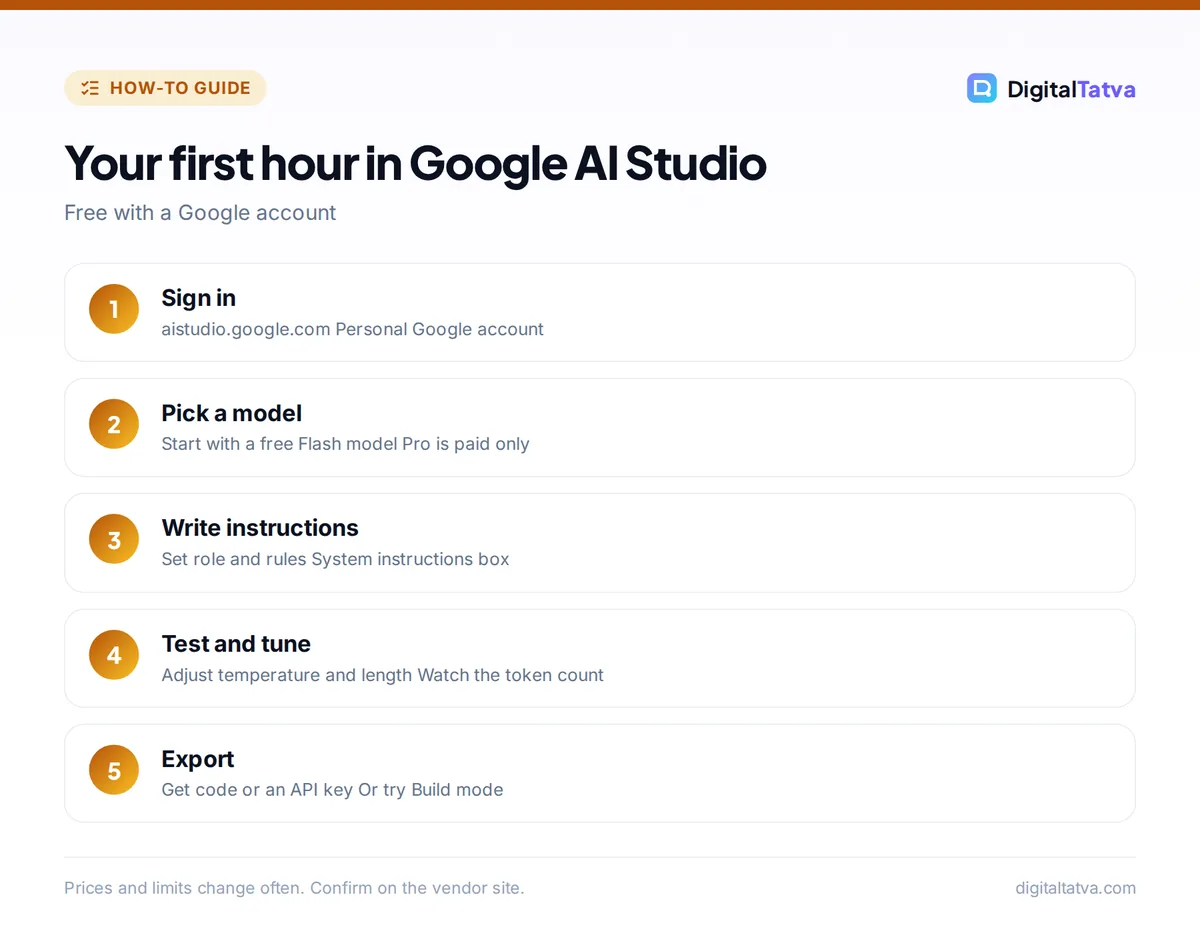
- Open AI Studio. Go to aistudio.google.com and sign in with a personal Google account. Some Workspace accounts need an admin to allow access.
- Accept the terms. The first time, you agree to the Gemini API terms. Read the note about how free-tier data is used.
- Start a chat prompt. Choose to create a new prompt. You will see a chat box in the middle and a settings panel on the right.
- Choose a model. In the settings panel, pick a model. Flash models are fast and free on the free tier; Pro models are stronger but paid.
- Add system instructions. Use the system instructions box to set the role and rules, for example “You are a friendly tutor who explains in simple English.”
- Type your prompt and run it. Upload files, images, audio or video if your task needs them. AI Studio shows the token count so you can see how much context you are using.
- Tune settings. Lower temperature for factual answers, raise it for creative ones. Set a maximum output length for short replies.
- Save or export. Save the prompt to your library, or click “Get code” to copy ready-made Python, JavaScript or REST code that calls the same model.
Tip: AI Studio is the cheapest way to test very long documents. Upload a long PDF or transcript and ask questions about it; check the token counter to see whether a cheaper model handles it well before you build anything. Our explainer on context windows shows how much text fits.
How to get a Gemini API key in AI Studio
- Click “Get API key”. It is in the left menu of AI Studio.
- Create a key. Create the key in a new or existing Google Cloud project. AI Studio sets up the project for you if you have none.
- Copy and store it safely. Keep the key in an environment variable or secrets manager. Never paste it into public code or front-end JavaScript.
- Test it. Use the “Get code” snippet from a saved prompt to make your first API call.
- Add billing when needed. To use paid models or higher limits, enable billing on the project. Your free-tier usage stays free on Flash models within limits.
New to APIs and tokens? Read what tokens are in AI and our guide to estimating AI API costs before you build.
Build mode: vibe coding apps in AI Studio
Build mode turns a description into a working app. You describe what you want, for example “a recipe planner that suggests meals from what is in my fridge and creates a shopping list”, and AI Studio generates a full-stack app. Web apps use a React frontend with a Node.js server runtime, and it can also generate Android apps in Kotlin with Jetpack Compose.
- Integrations include Firebase, Google Workspace APIs and npm packages.
- You can deploy to Cloud Run, which is billed on usage by Google Cloud.
- If you share an app, other people’s use of it calls the API on your account, so costs can grow if you use paid models.
This style of building is called vibe coding; learn the approach and its limits in what vibe coding is, and compare Build mode with dedicated builders in our list of AI app builders for non-coders.
Image generation with Nano Banana in AI Studio
AI Studio gives direct access to Google’s image models, including Nano Banana 2.1, published on October 6, 2026 and built on Gemini 3.6 Flash. One advantage over the Gemini app is that the visible Gemini sparkle watermark is not added to images made in AI Studio, although all images still carry Google’s invisible SynthID watermark.
Known limits from Google’s model card: small text and long paragraphs can render poorly, character consistency is not always accurate, and the model can confuse left and right. For prompt ideas, see our AI image prompts and our guide to editing photos with Nano Banana.
Google AI Studio free tier and pricing
AI Studio itself is free. What you pay for is API usage beyond the free tier, or models that are not free at all.
| Model | Free tier | Paid price per 1M tokens (input / output) |
|---|---|---|
| Gemini Flash models (3.6, 3.7, 3.8 Flash) | Free of charge within limits | $0.75 / $3.75 until December 31, 2026, then $1.50 / $7.50 |
| Gemini 3.5 Flash | Free of charge within limits | $1.50 / $9.00 |
| Gemini 3.1 Flash-Lite | Free of charge within limits | $0.25 / $1.50 |
| Gemini 3.1 Pro (preview) | Not on the free tier | Paid only |
Google no longer publishes exact free-tier requests per minute or per day in the docs and says to check limits inside AI Studio. One developer forum report in September 2026 put Gemini 3.8 Flash at 20 requests per day on the free tier and Flash-Lite at 500, which shows how tight limits can be for real projects. Full rates are in our Gemini API pricing guide.
Save money: prototype on Flash-Lite, move to Flash only for prompts that need it, and use context caching for long documents you query again and again. Our guide to prompt caching explains the savings.
Privacy: what to know before you paste data
Google’s terms treat the free tier differently from paid usage. Content you send on the free tier can be used to improve Google’s products and may be reviewed by people, while paid-tier data is handled under stricter terms. In practice:
- Do not paste client data, personal data, passwords or confidential code on the free tier.
- Use a billed project for business data, and check your organization’s policy.
- Keep API keys secret and rotate any key you accidentally expose.
Common mistakes beginners make
- Using Pro for everything: Flash handles most tasks and is free on the free tier.
- Ignoring system instructions: a clear role and rules improve answers more than long prompts.
- Exposing API keys in shared apps or public repositories.
- Forgetting shared app costs: when you publish a Build mode app, its usage bills your project.
- Expecting the Gemini app: AI Studio has no memory of past chats beyond what you save.
Frequently asked questions
Is Google AI Studio free?
Yes. Google AI Studio is free to use with a Google account, and Gemini Flash and Flash-Lite models are free of charge on the free tier within rate limits. Paid models such as Gemini 3.1 Pro and higher usage need a billed Google Cloud project.
What is the difference between Google AI Studio and Gemini?
Gemini is Google’s consumer AI assistant app. Google AI Studio is a developer workbench for testing Gemini models directly, adjusting settings, building apps and getting API keys. AI Studio gives more control; the Gemini app is easier for everyday tasks.
How do I get a free Gemini API key?
Sign in at aistudio.google.com, click “Get API key” in the left menu, and create a key in a new or existing Google Cloud project. The key works on the free tier for Flash models, and you can add billing later for paid models.
Can I build an app in Google AI Studio without coding?
Yes. Build mode generates full web apps with a React frontend and Node.js backend, or Android apps, from a plain-English description. You can edit by chatting and deploy to Cloud Run, which has its own usage-based billing.
Is Google AI Studio safe for business data?
Not on the free tier. Google’s terms allow free-tier content to be used to improve products, possibly with human review. Use a paid, billed project and follow your company’s data policy for any confidential or personal information.
Start building with Google AI Studio
Open AI Studio, run a few prompts on a free Flash model, save the best one, then export the code or try Build mode for a small app. Keep sensitive data off the free tier and watch your rate limits as you grow. Models, limits and prices change often, so check Google’s official Gemini API pricing page and the Build mode docs for the latest details.
Pricing and features are checked at the time of writing and can change. Some links may be affiliate links, which never affect our verdicts.