Copilot in Excel: Complete Guide to Agent Mode, the COPILOT Function and Prompts
Everything you need to use Copilot in Excel well, with prompts and a checklist.
On this page
- Key takeaways
- What you need to use Copilot in Excel
- How to start with Copilot in Excel
- 10 things Copilot in Excel can do
- Copilot prompts for Excel to copy
- Tips for better results
- Limitations
- Copilot in Excel vs ChatGPT for Excel
- Illustrative example: monthly reporting for a small retailer
- Copilot in Excel checklist
- How Digital Tatva can help
- Frequently asked questions
Last updated: 17 November 2026
Quick answer: Copilot in Excel lets you analyse data, write and explain formulas, create charts and PivotTables, clean data and build whole models by describing what you want. Agent Mode can plan and carry out multi-step work across a workbook, and since early 2026 it can also work with workbooks stored on your computer, not just OneDrive or SharePoint. The =COPILOT function puts AI inside a cell for tasks like classifying, summarising or extracting text. You need a Microsoft 365 plan with Copilot access, such as Personal, Family or Premium with AI credits, or a business Copilot licence. Always review Copilot’s formulas and numbers before using them for decisions.
Key takeaways
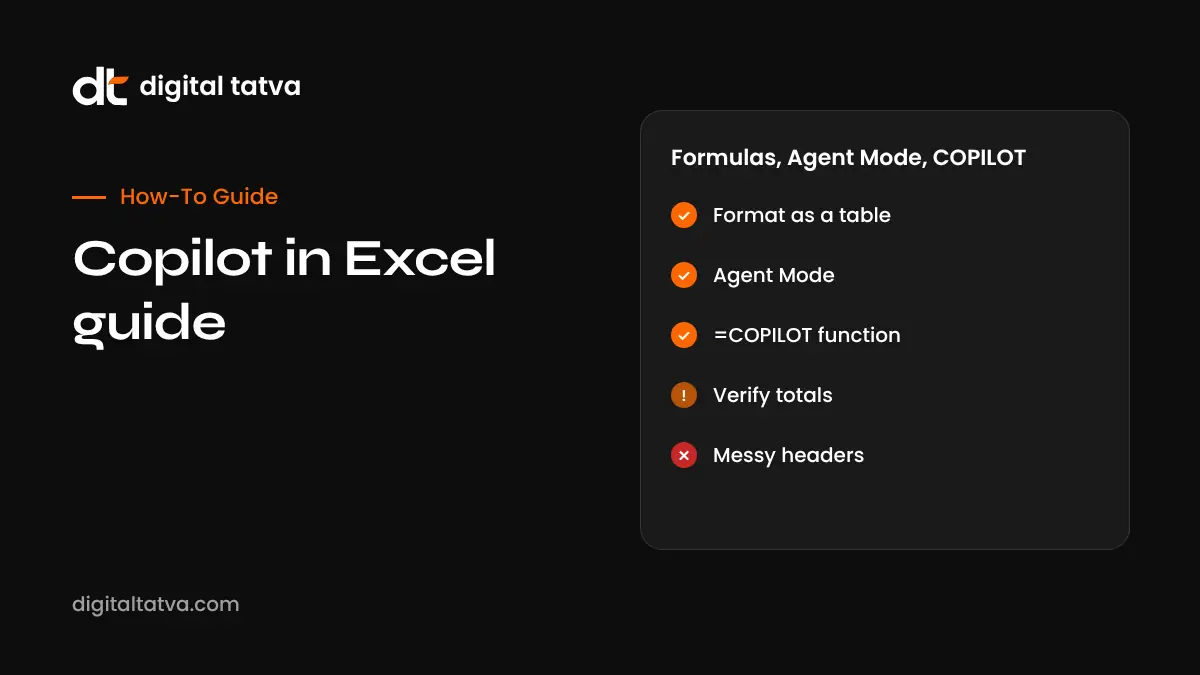
- Open Copilot from the Home tab or the Copilot button, then ask in plain English.
- Agent Mode handles complex, multi-step tasks and shows its work for you to check.
- =COPILOT(prompt, range) brings AI into formulas for text tasks, not precise maths.
- Format data as a table with clear headers for the best results.
- Copilot can make mistakes, so verify totals and formulas.
What you need to use Copilot in Excel
| Requirement | Details |
|---|---|
| Plan | Microsoft 365 Personal, Family or Premium for home users (AI credits apply on Personal and Family), or Microsoft 365 Copilot or Copilot Chat for business, depending on features |
| App | Excel for the web, Windows or Mac, updated to the latest version |
| File | Saved to OneDrive or SharePoint, or a local file for supported Agent Mode scenarios |
| Data | Best in an Excel table or a clear range with headers |
Microsoft rolls out new Excel AI features through Insider and Frontier programmes before general release, so some options may not appear on your account yet. For plans, see Microsoft Copilot pricing.
How to start with Copilot in Excel
- Open your workbook and select a cell in your data.
- Press Ctrl+T to format it as a table if it is not one already.
- Click Copilot on the Home tab to open the side pane.
- Type a request, such as “Show total revenue by region as a chart”.
- Review the suggestion, then insert it into the sheet.
10 things Copilot in Excel can do
1. Explain a formula
Select a cell with a complex formula and ask “Explain this formula step by step”. Great for inherited spreadsheets.
2. Write formulas from plain English
“Add a column that calculates GST at 18% on column E” or “Flag invoices older than 30 days as Overdue”. Copilot suggests the formula and can add it as a new column.
3. Summarise data
“What are the key trends in this sales data?” returns insights and often a chart or PivotTable.
4. Create charts and PivotTables
“Create a PivotTable of units sold by product and month” or “Line chart of monthly website leads”.
5. Highlight, sort and filter
“Highlight the top 10 customers by revenue” or “Filter to orders from Gujarat”.
6. Clean data
Split names, fix inconsistent date formats, remove extra spaces and identify duplicates.
7. Use Python in Excel through Copilot
For advanced analysis such as forecasting or clustering, Copilot can write Python in Excel code and run it in the workbook where available.
8. Use Agent Mode for multi-step work
Agent Mode takes a bigger goal, such as “Build a monthly cash flow model with assumptions on a separate sheet and a summary dashboard”, plans the steps, creates sheets, formulas and charts, and checks its results. You can watch and adjust as it works. In March 2026 Microsoft said Agent Mode in Copilot Chat could work with Excel files stored locally on Windows and Mac.
9. Use the =COPILOT function
The COPILOT function brings AI into a formula: =COPILOT("Classify this feedback as Delivery, Product or Price", C2). It recalculates when data changes and works well for categorising, summarising and extracting text. Microsoft has noted it should not be used for precise numerical calculations or tasks that need accuracy guarantees, and there are usage limits on how many calls you can make in a period.
10. Ask questions about your data
“Which salesperson improved the most compared with last quarter?” Copilot reads the table and answers, often adding the calculation to the sheet.
Copilot prompts for Excel to copy
| Goal | Prompt |
|---|---|
| Formula | Add a column that shows days between Order Date and Delivery Date |
| Lookup | Write an XLOOKUP that returns the price for each product code from the Prices sheet |
| Analysis | Which three products had the highest return rate last month? |
| Chart | Create a clustered column chart of revenue vs target by month |
| Cleaning | Split Full Name into First Name and Last Name |
| Model | Build a 12-month budget with categories, monthly totals and variance to actual |
| Text AI | Use COPILOT to summarise each customer comment in column D in under 10 words |
Tips for better results
- Use descriptive headers such as “Order Date” instead of “Col1”.
- Keep one header row and no merged cells.
- Be specific about columns, time periods and output format.
- Ask Copilot to explain its formula before you trust it.
- Work on a copy of important files when using Agent Mode.
Limitations
- Copilot can misunderstand ambiguous requests or column names.
- Very large or messy datasets may produce incomplete analysis.
- The COPILOT function is not suited to exact calculations and has rate limits.
- AI credits on Personal and Family plans can run out with heavy use.
- Some features are still in preview or limited by region.
Copilot in Excel vs ChatGPT for Excel
Copilot works inside the workbook, so it can insert formulas, charts and sheets directly. ChatGPT is good for explaining formulas or analysing an uploaded file, but you need to copy results back. See how to use ChatGPT for Excel, the best AI tools for Excel and our guide to Gemini in Gmail and Sheets for Google’s alternative.
Illustrative example: monthly reporting for a small retailer
This is an illustrative scenario, not a client story.
An operations manager at a retail chain in Ahmedabad exports monthly sales from the POS system. She formats it as a table and asks Copilot to add GST, margin and month columns, then to build a PivotTable of sales by store and category with a chart. She uses Agent Mode to create a dashboard sheet comparing this month with last month and flagging stores below target. She uses the COPILOT function to tag customer feedback by theme. Before sending the report, she checks the totals against the POS summary and asks Copilot to explain each new formula.
Copilot in Excel checklist
- Confirm your plan includes Copilot in Excel.
- Save the file to OneDrive or use a supported local scenario.
- Format data as a table with clear headers.
- Start with simple prompts, then try Agent Mode.
- Check formulas, totals and charts.
- Keep sensitive personal data out of prompts where possible.
How Digital Tatva can help
Digital Tatva helps businesses adopt AI tools sensibly and make sure AI assistants describe their brand accurately. See our AEO services.
Want to know how AI assistants see your business? Request an AEO audit or try the free AI visibility checker.
Frequently asked questions
How do I turn on Copilot in Excel?
Use a Microsoft 365 plan with Copilot access, update Excel, open a workbook and click Copilot on the Home tab.
Is Copilot in Excel free?
Not completely. Personal and Family plans include limited AI credits; Premium and business Copilot licences give more access.
What is Agent Mode in Excel?
Agent Mode lets Copilot plan and complete multi-step tasks in a workbook, such as building models and dashboards, while you review its work.
What is the COPILOT function in Excel?
It is a function that sends a prompt and optional cell data to AI and returns the result in the cell, useful for classifying or summarising text.
Can Copilot in Excel work with local files?
Microsoft said in March 2026 that Agent Mode in Copilot Chat can work with locally stored Excel workbooks on Windows and Mac. Other features may need OneDrive or SharePoint.
Why is Copilot greyed out in Excel?
Common reasons are an unsupported plan, an outdated app, no internet connection, or a file that is not saved in a supported location.
Can Copilot write VLOOKUP and XLOOKUP formulas?
Yes. Describe what you want to look up and where, and Copilot suggests the formula.
Is Copilot accurate in Excel?
It is often accurate but not always. Check formulas, totals and assumptions before using results.
Does Copilot work in Excel on Mac?
Yes, Copilot is available in Excel for Mac with a supported plan.
Is my data safe with Copilot in Excel?
Business licences include enterprise data protection. For personal plans, follow Microsoft’s privacy settings and avoid sharing highly sensitive data.
Product details, prices and features are checked at the time of writing and can change. Sources are linked in the text so you can check them yourself.
How does your brand appear in AI answers?
We test the questions your buyers ask across the major AI assistants and search engines, then show you what to fix first.
Get an AI Visibility Audit